Sophos Firewall provides comprehensive protection including anti-malware, URL filtering, application control, SSL/TLS inspection, active threat response, and intrusion prevention.
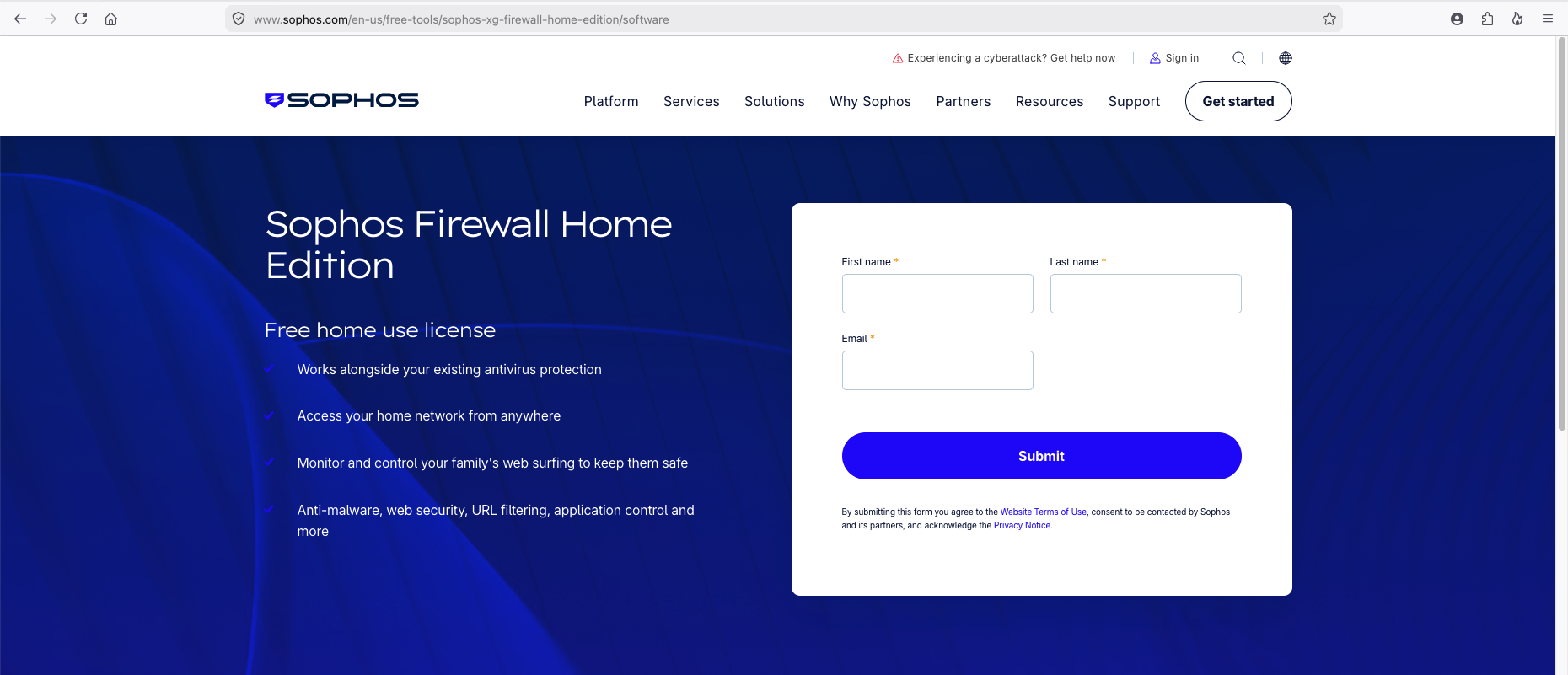
Sophos provides a free Home Edition of their firewall software which is ideal for testing and home labs, allowing us to evaluate the platform’s security capabilities under specific hardware spec limitations (up to 4 vCPUs and 6 GB RAM).
1. Initial Setup and Basic Configuration
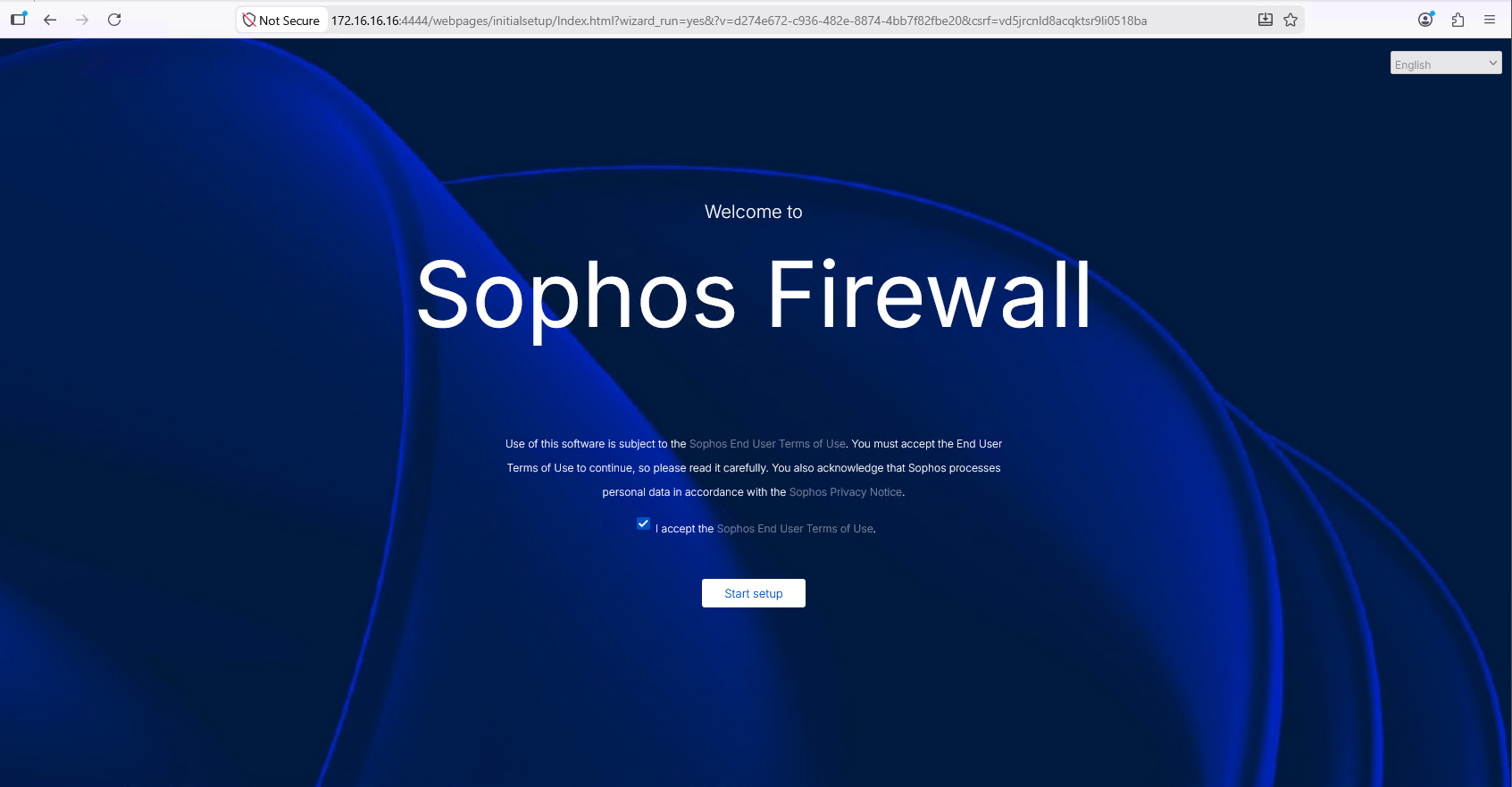
First, we access the Sophos Firewall initial setup wizard via our browser by navigating to the default management interface at https://172.16.16.16:4444/.
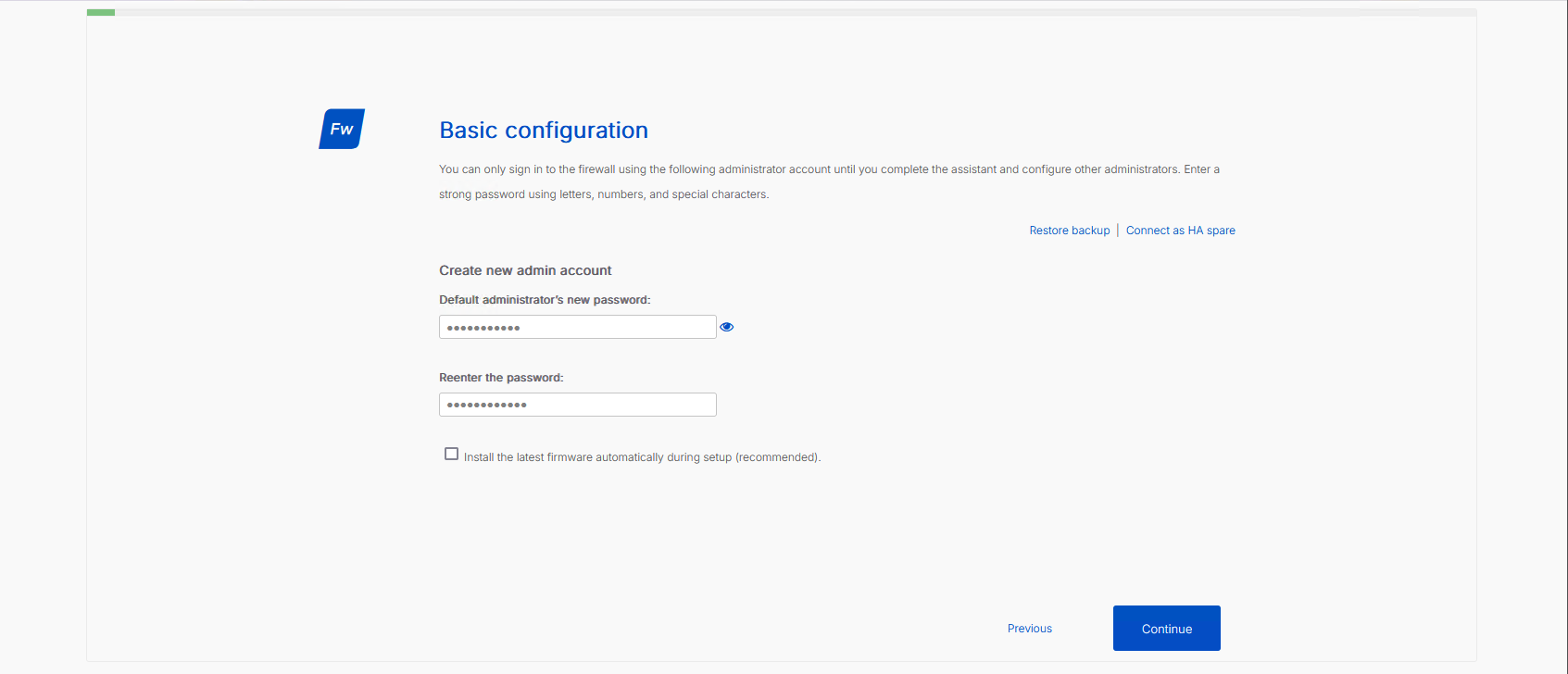
We begin the setup assistant and configure a secure password for the default administrator account.
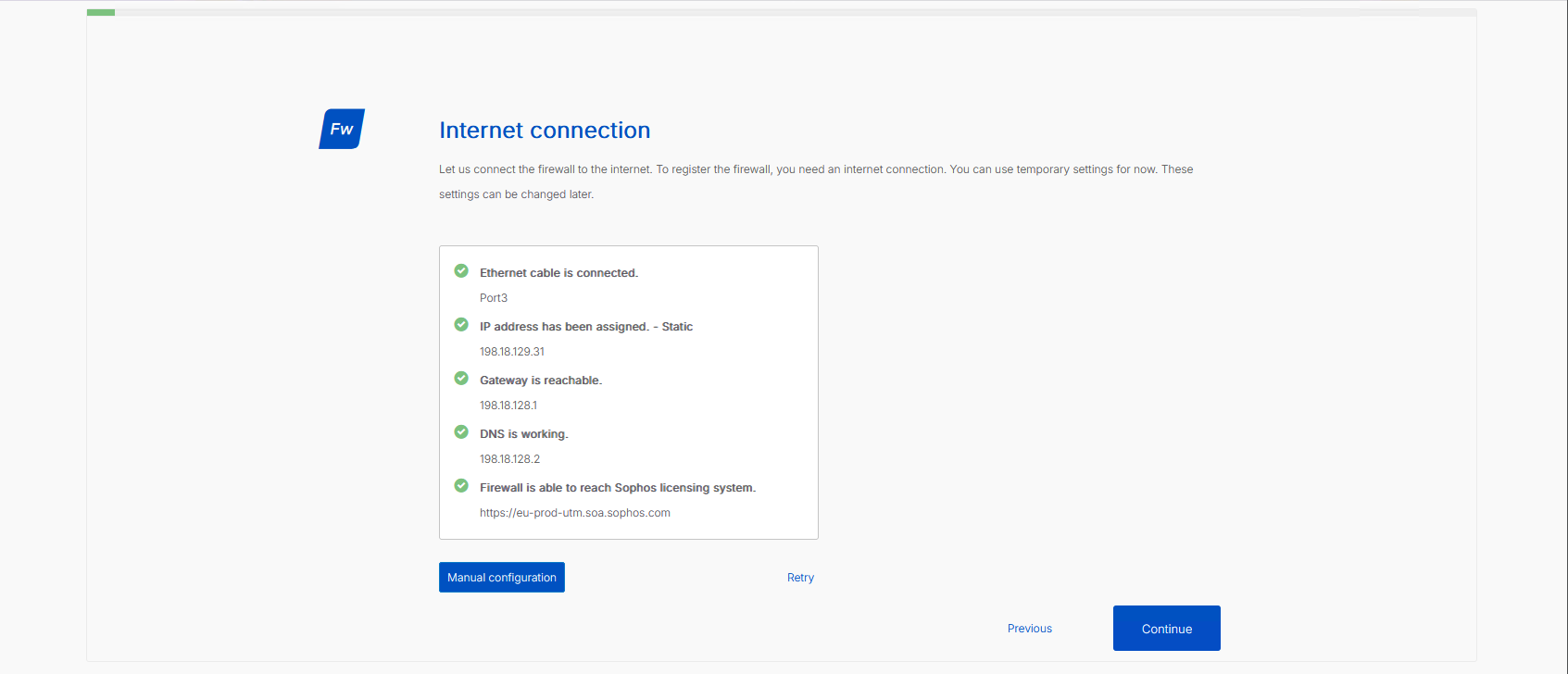
Next, we define our internet connection settings on the WAN interface (Port3), assigning a static IP of 198.18.129.31 with the gateway at 198.18.128.1 and DNS at 198.18.128.2. We verify connectivity by testing the connection to the Sophos licensing system.
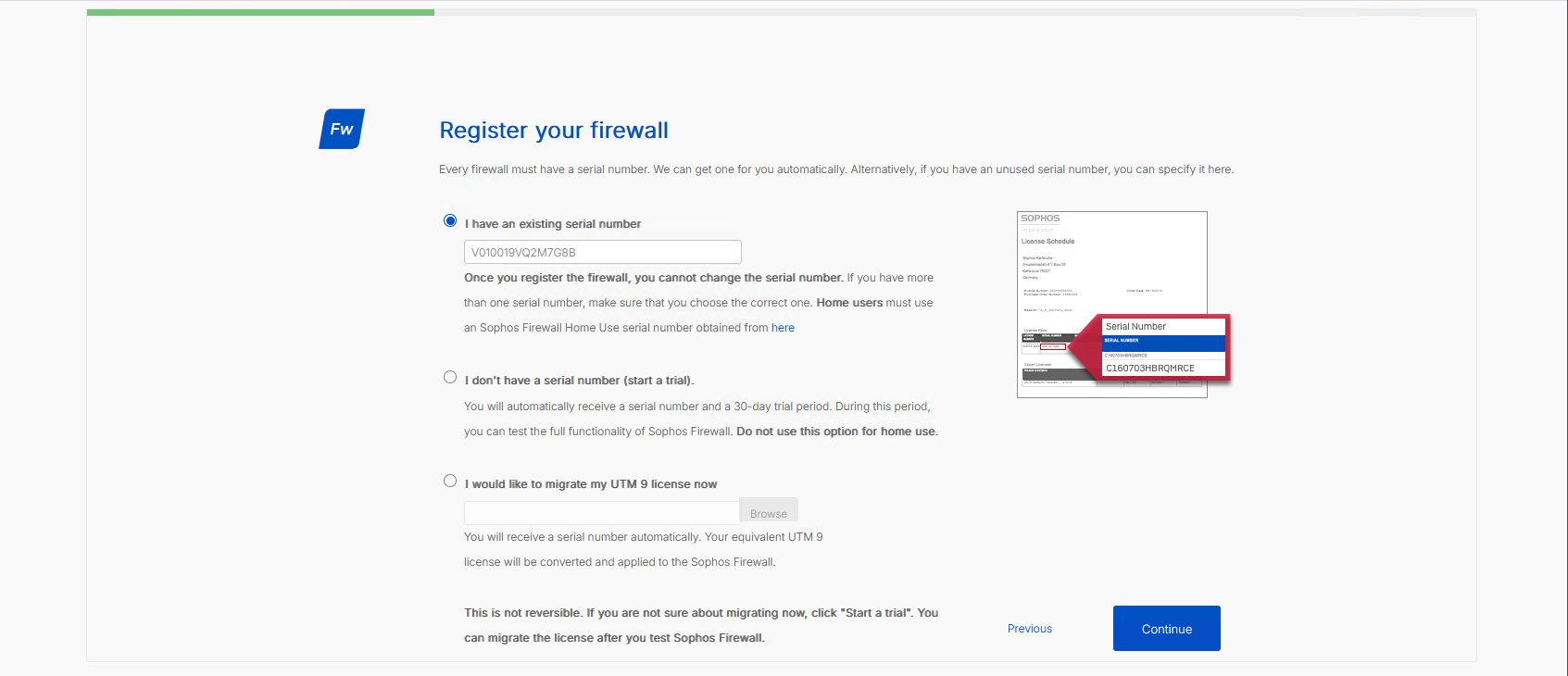
We register the appliance by inputting our Sophos Home Use serial number to bind our license.
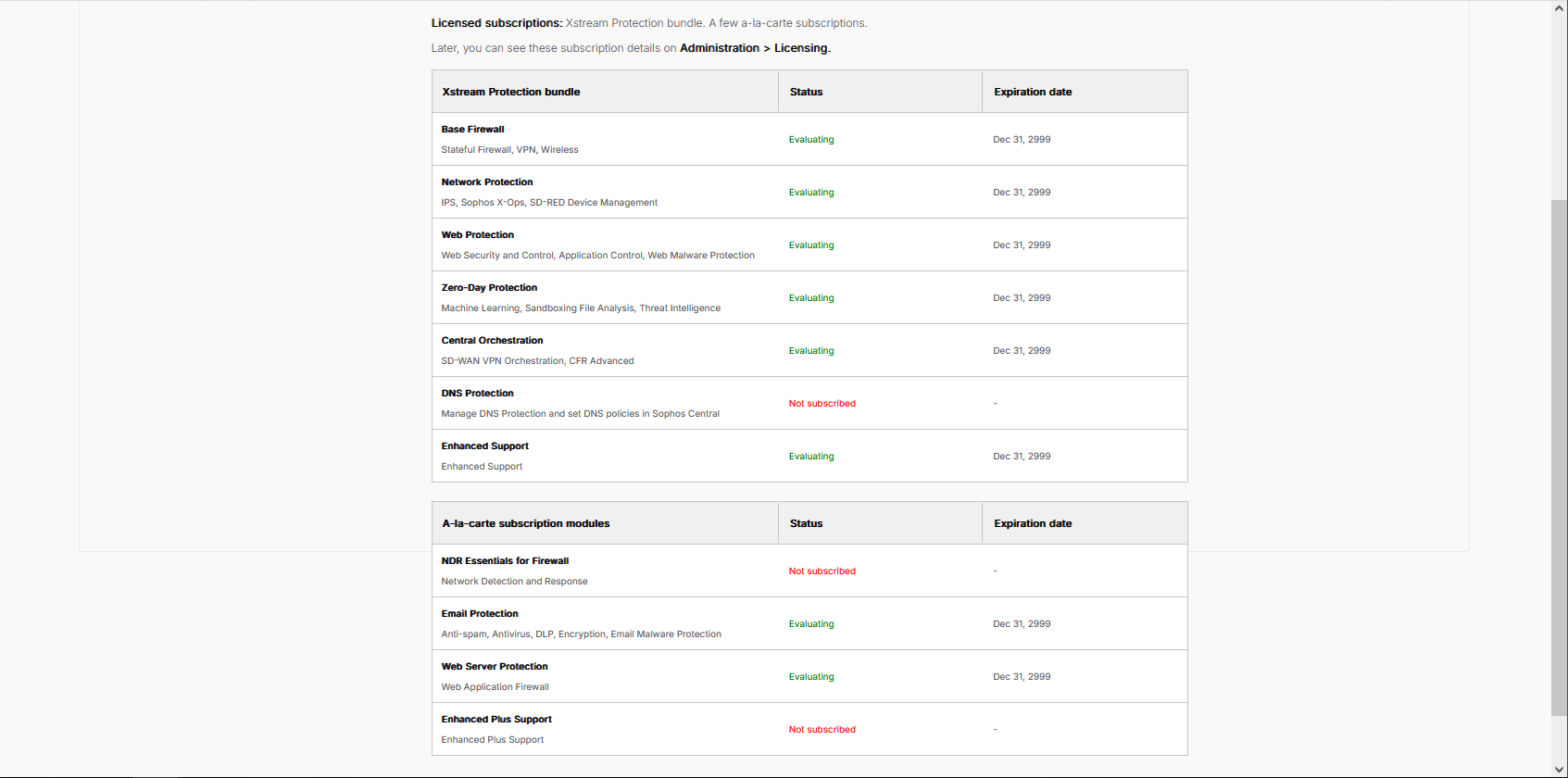
With registration completed, the system lists our active licensed subscriptions, including the Xstream Protection bundle containing Network Protection, Web Protection, Zero-Day Protection, and Central Orchestration.
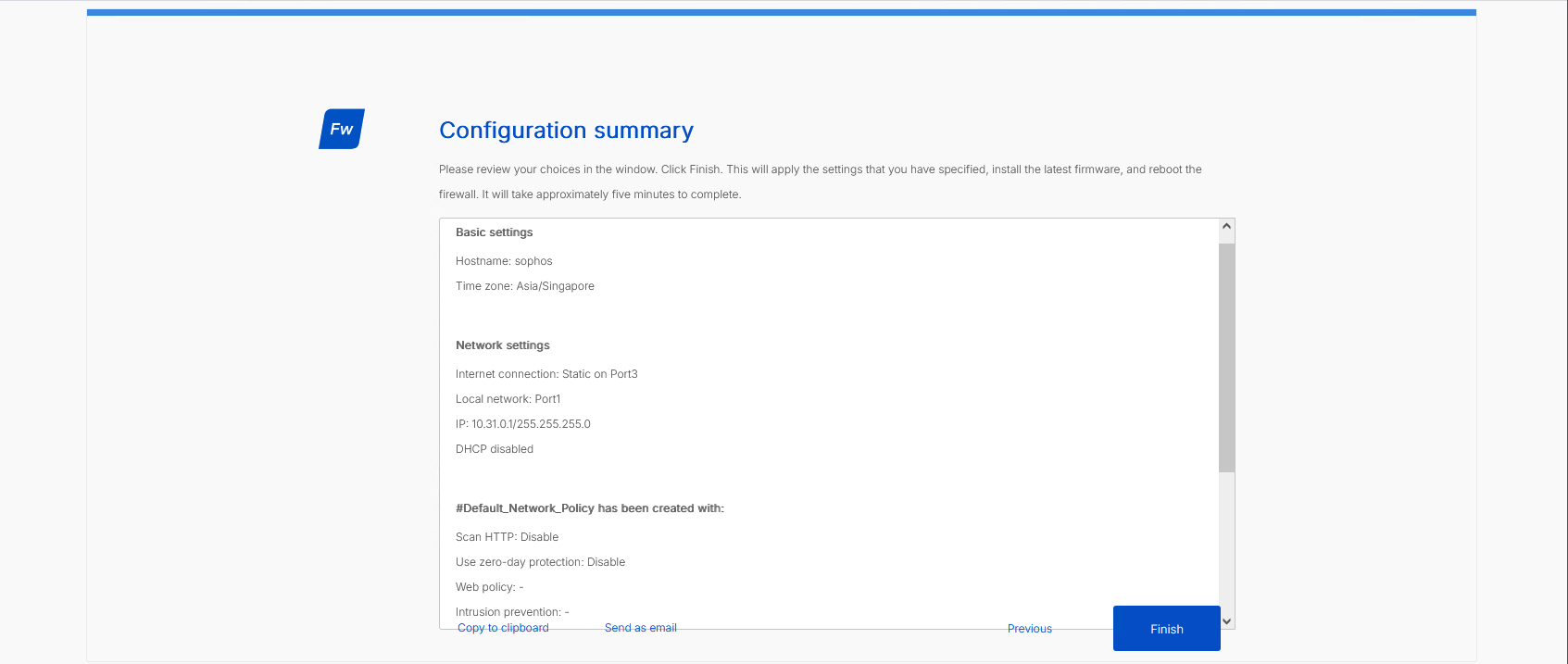
Finally, we review our configuration summary—with Port1 designated as LAN (10.31.0.1/24) and Port3 as WAN—and click Finish to apply the settings and trigger a system reboot.
2. Network Interface & Routing Settings
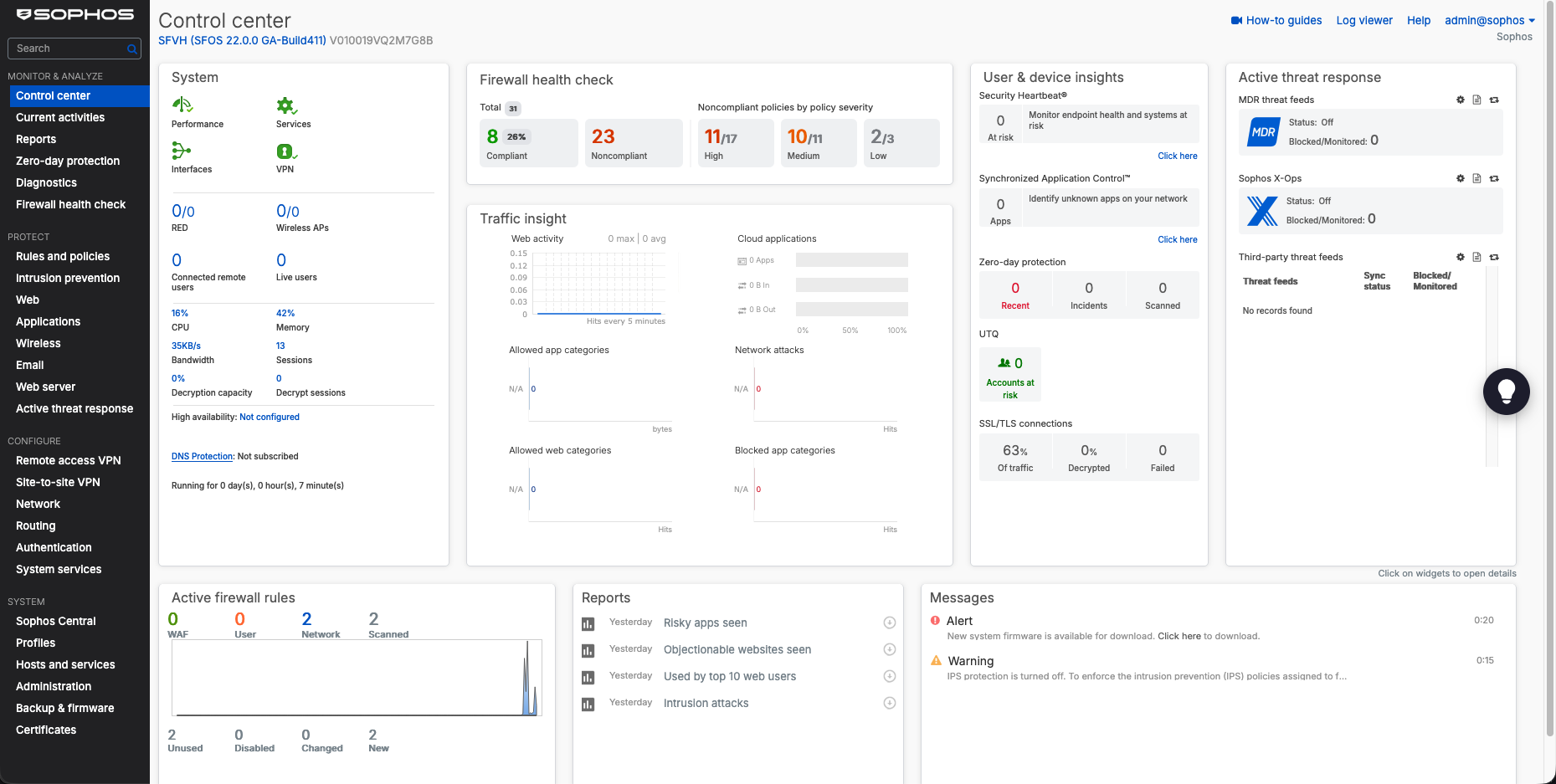
Once the firewall reboots, we log into the main dashboard (Control Center). The console displays our active resource utilization, traffic insights, and system performance details.
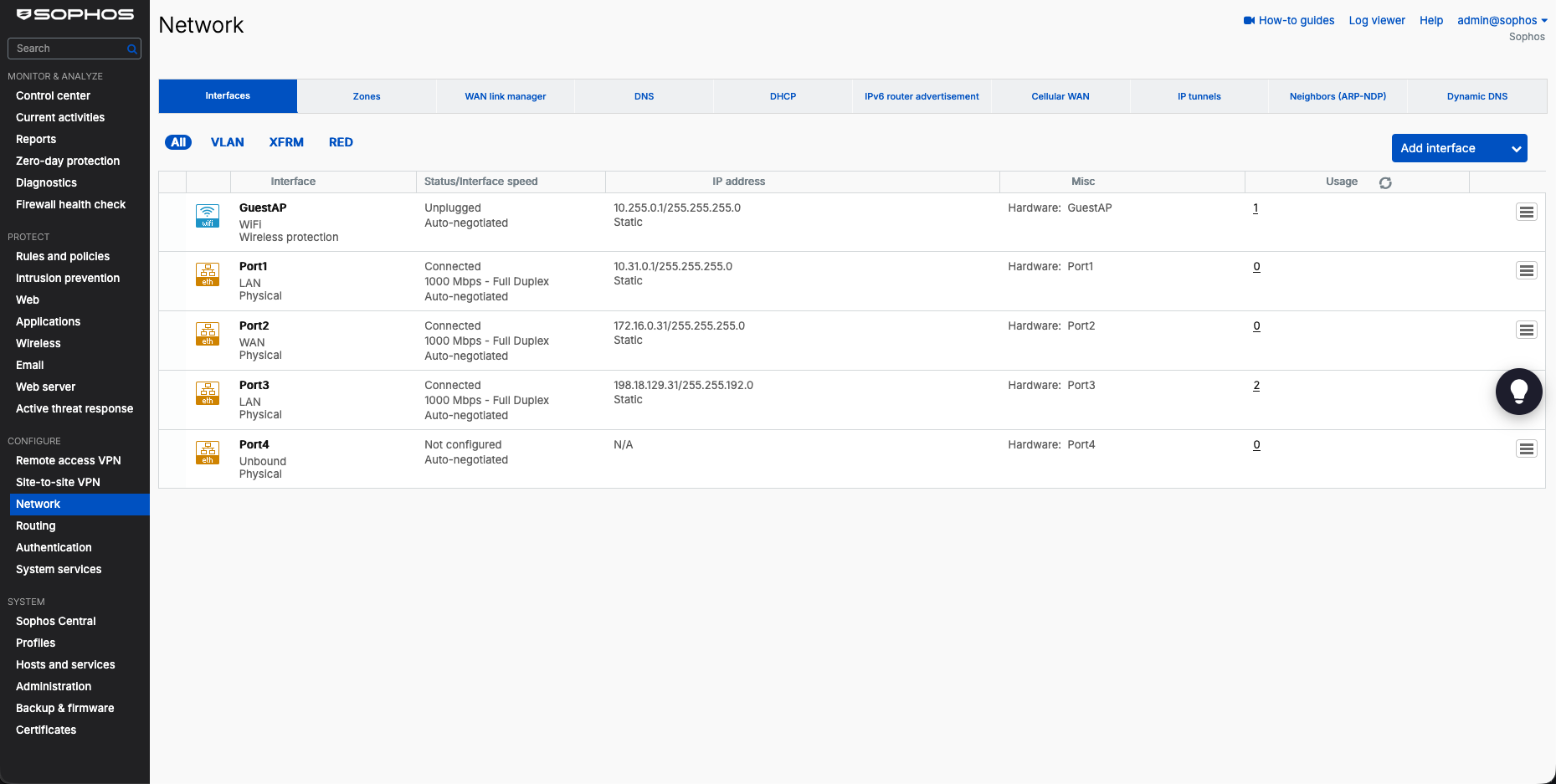
Under Configure → Network, we inspect our interface layout to verify physical port mappings:
- Port1: LAN zone (
10.31.0.1/24) - Port2: WAN zone (
172.16.0.31/24) - Port3: LAN zone (
198.18.129.31/18) - Port4: Unbound
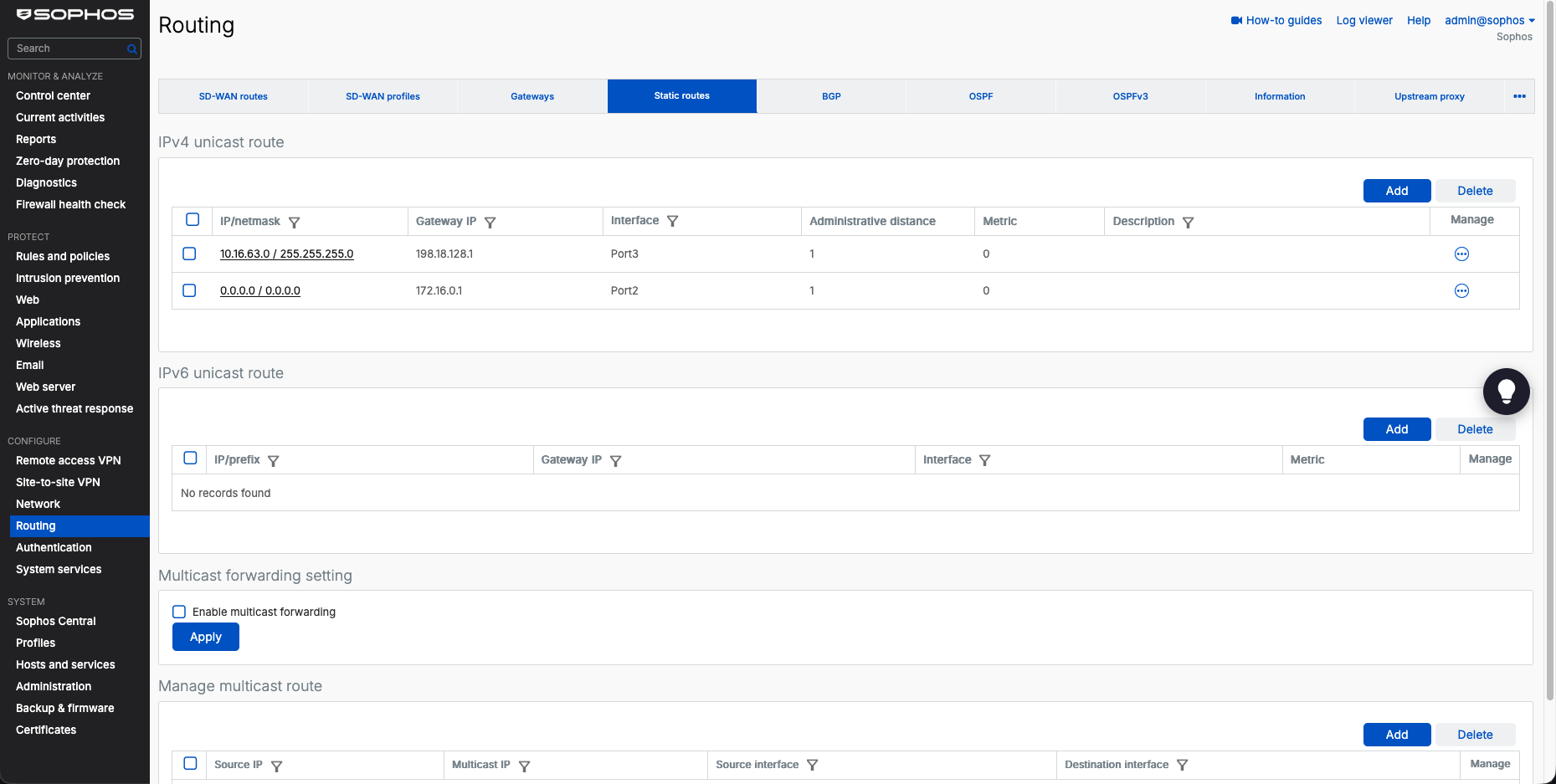
Under Configure → Routing, we configure our static routing entries (without SD-WAN). The gateway 172.16.0.1 on Port2 serves as our outbound internet gateway. The gateway 198.18.128.1 on Port3 is used for specific routes for management, such as routing traffic to the management subnet 10.16.63.0/24.
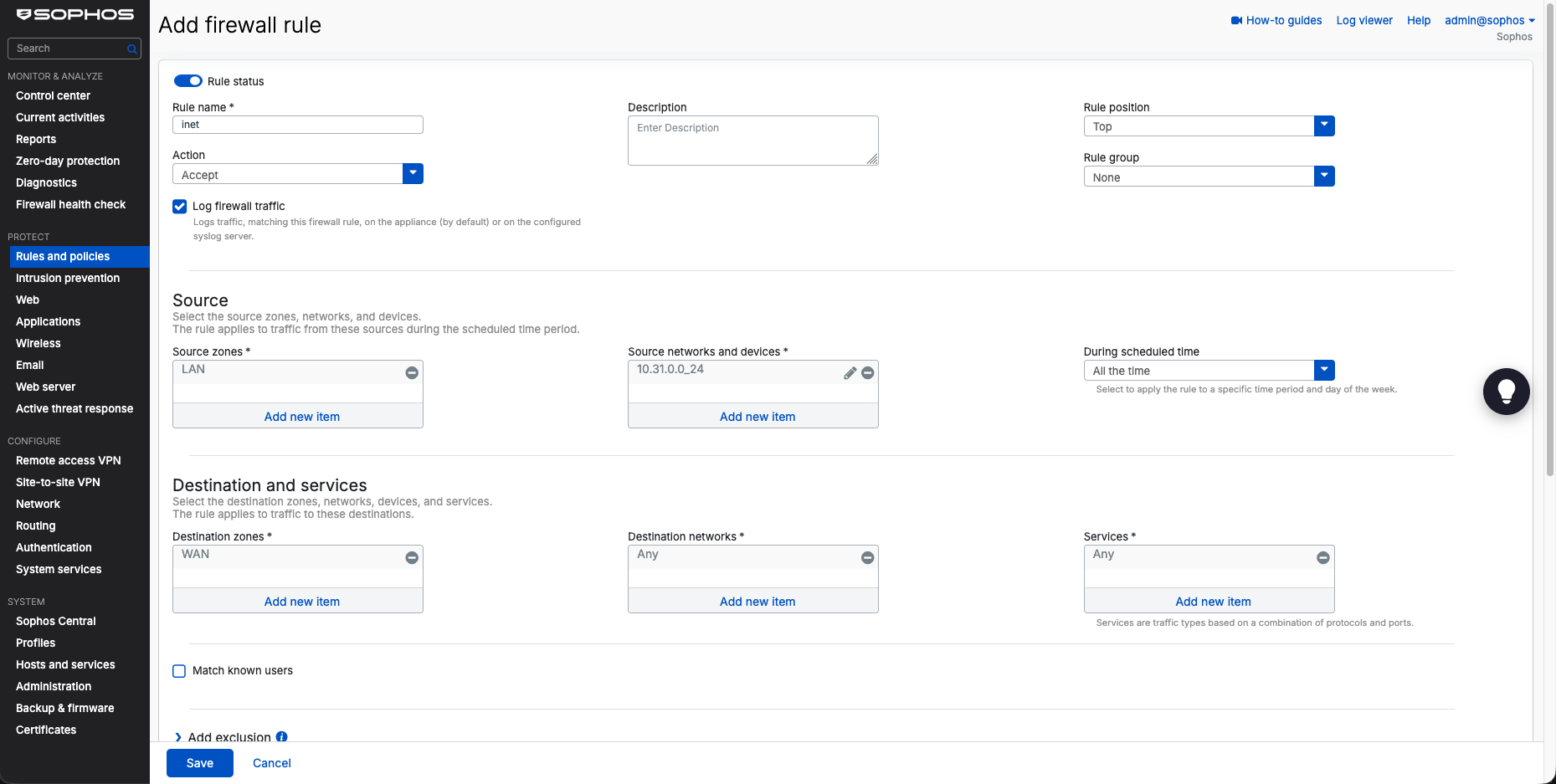
3. Basic Firewall Policy & Outbound NAT
With interfaces and routing verified, we create our outbound firewall rule to allow LAN traffic to access the internet. Under Protect → Rules and policies, we click Add firewall rule and configure the policy named inet:
- Action: Accept
- Source Zone: LAN
- Source Networks:
10.31.0.0_24 - Destination Zone: WAN
- Destination Networks: Any
- Services: Any
- Log firewall traffic: Enabled (to capture traffic matching this rule)
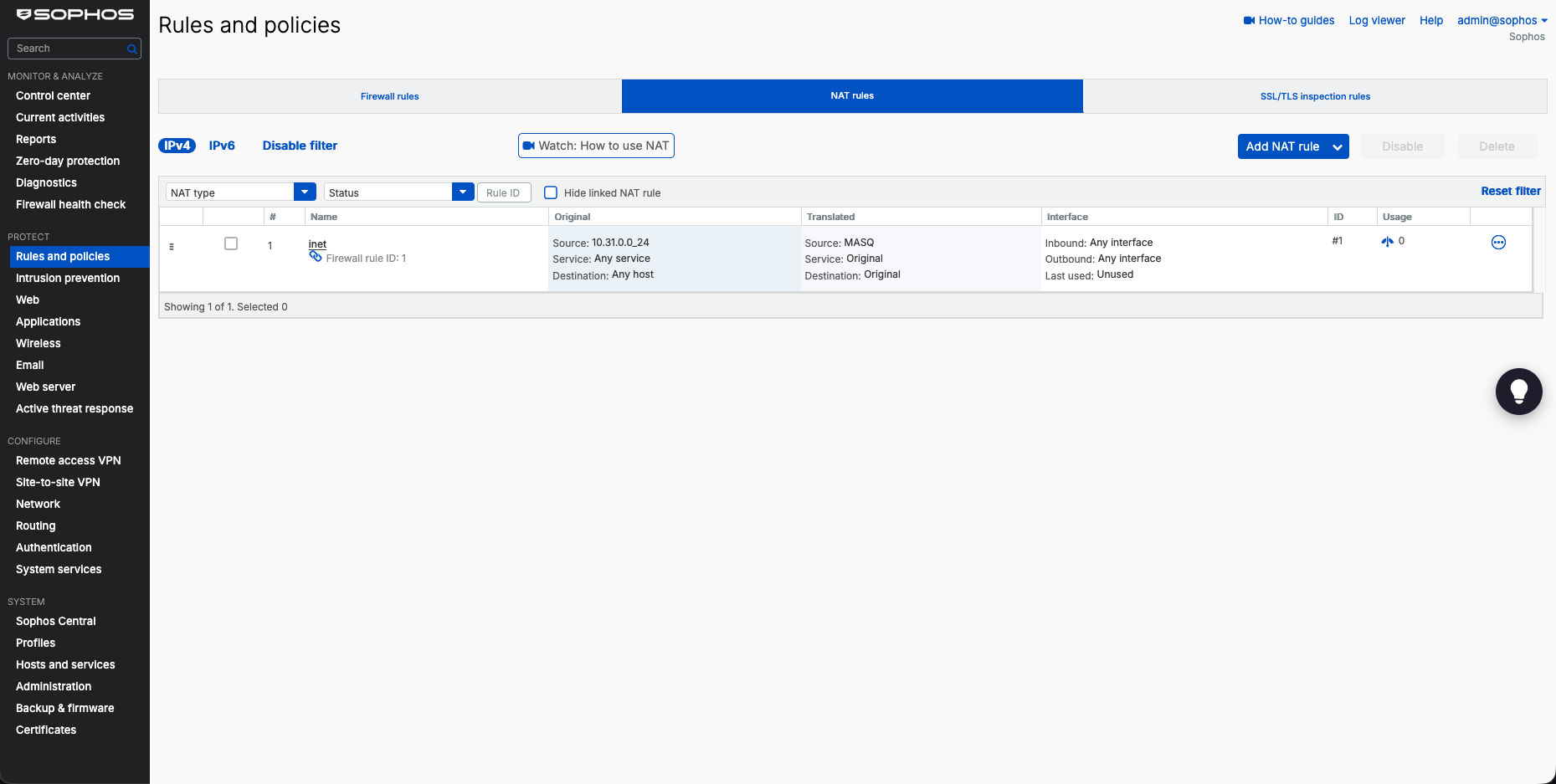
We verify that the inet rule is successfully active at the top of our firewall rule list, complete with its linked MASQ NAT rule.
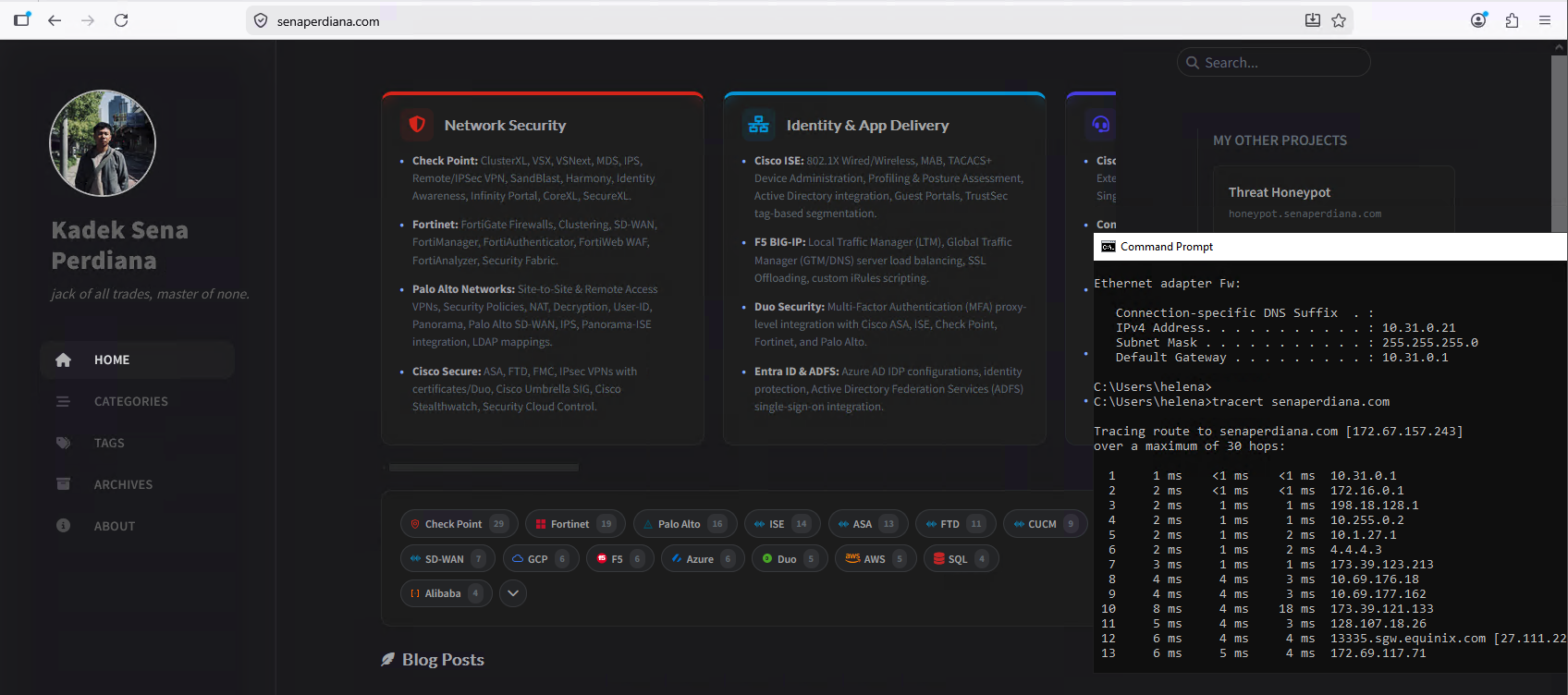
To verify outbound internet connectivity and routing, we log onto a host client machine (10.31.0.21) behind the firewall. We run a traceroute to senaperdiana.com, confirming that the path hops through the firewall gateway (10.31.0.1), before exiting to the upstream gateways, successfully resolving and loading the target site.
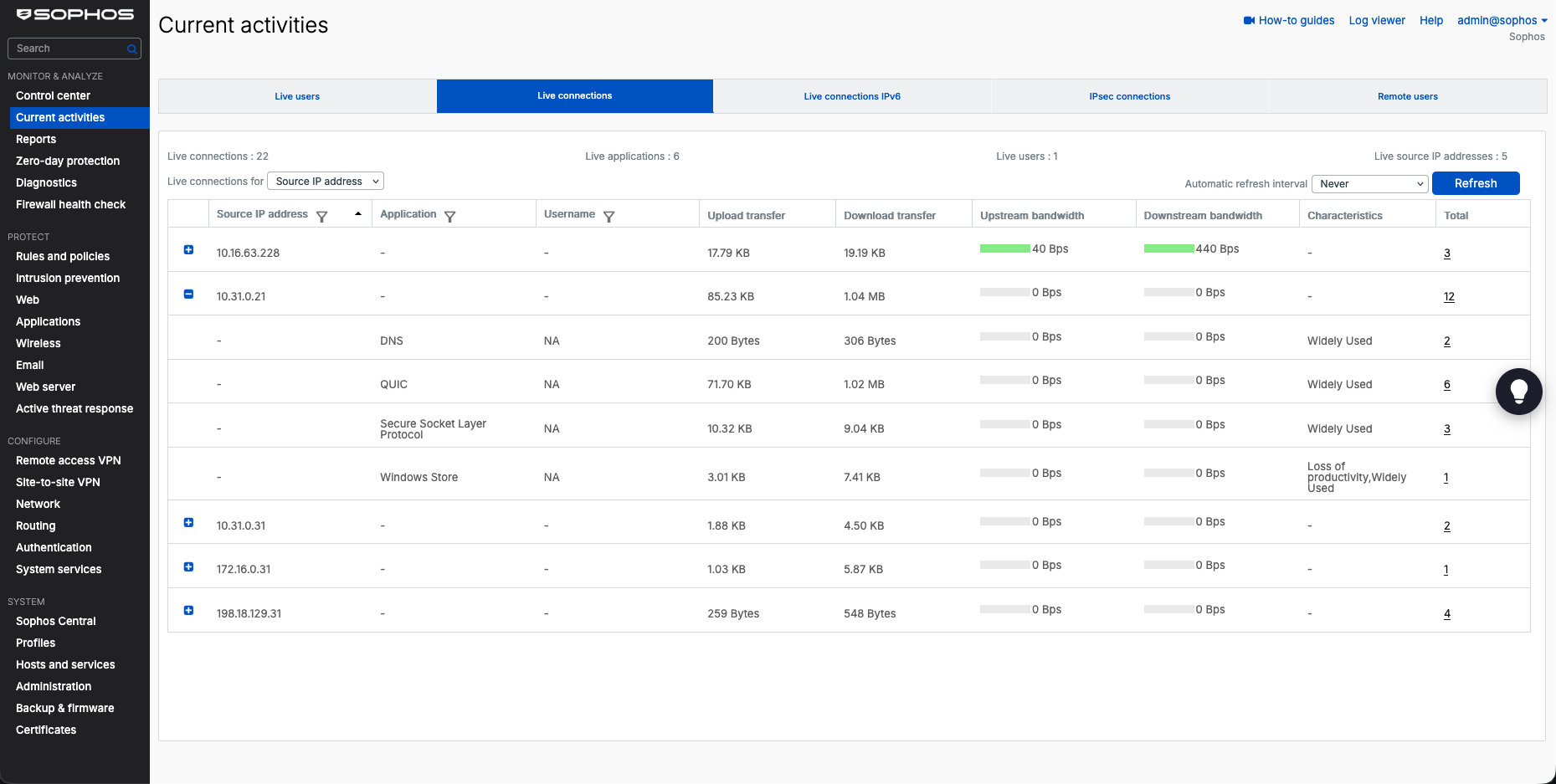
We navigate to Monitor & Analyze → Current activities to view live connections, verifying active sessions from our LAN client (10.31.0.21).
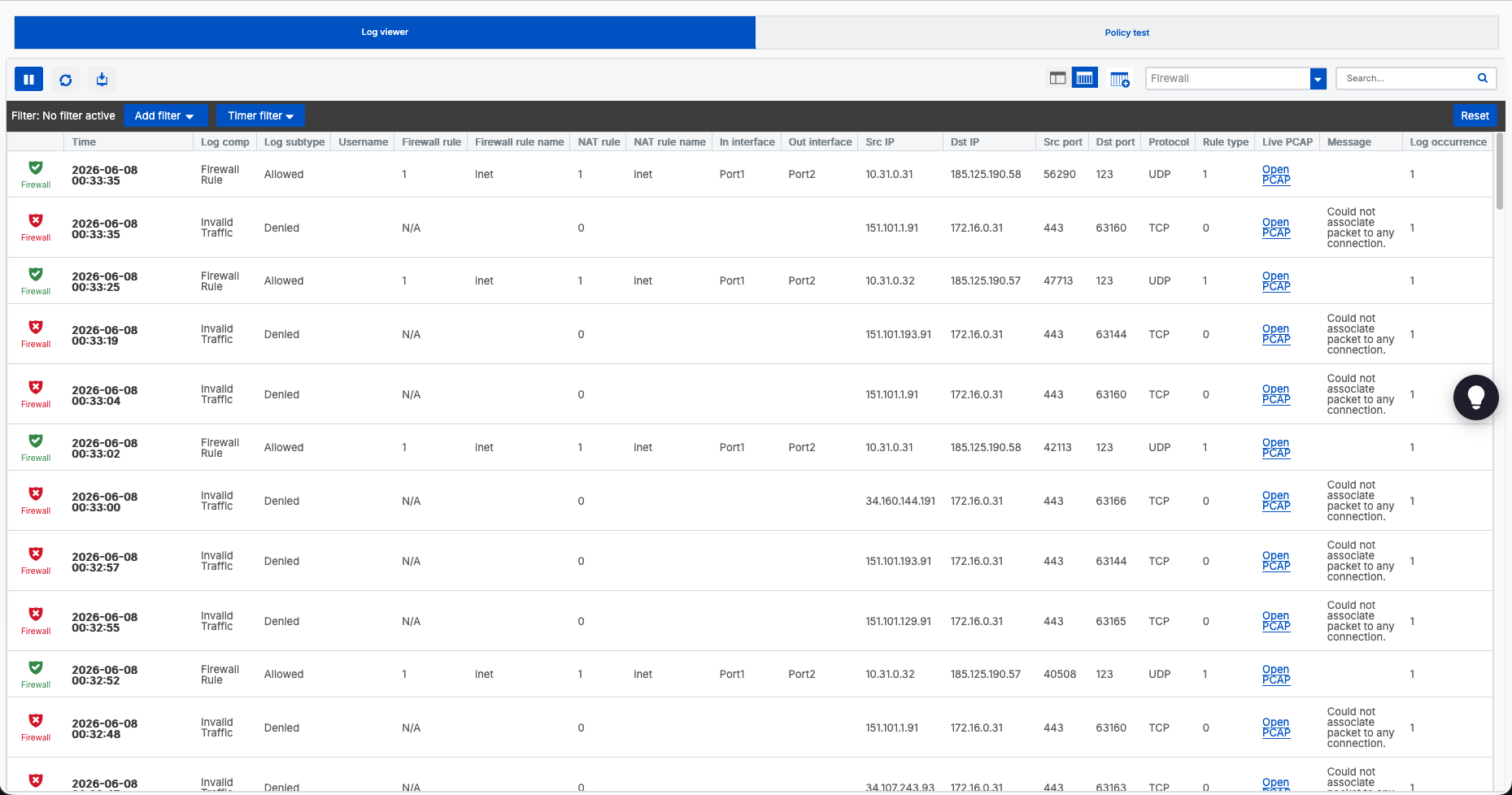
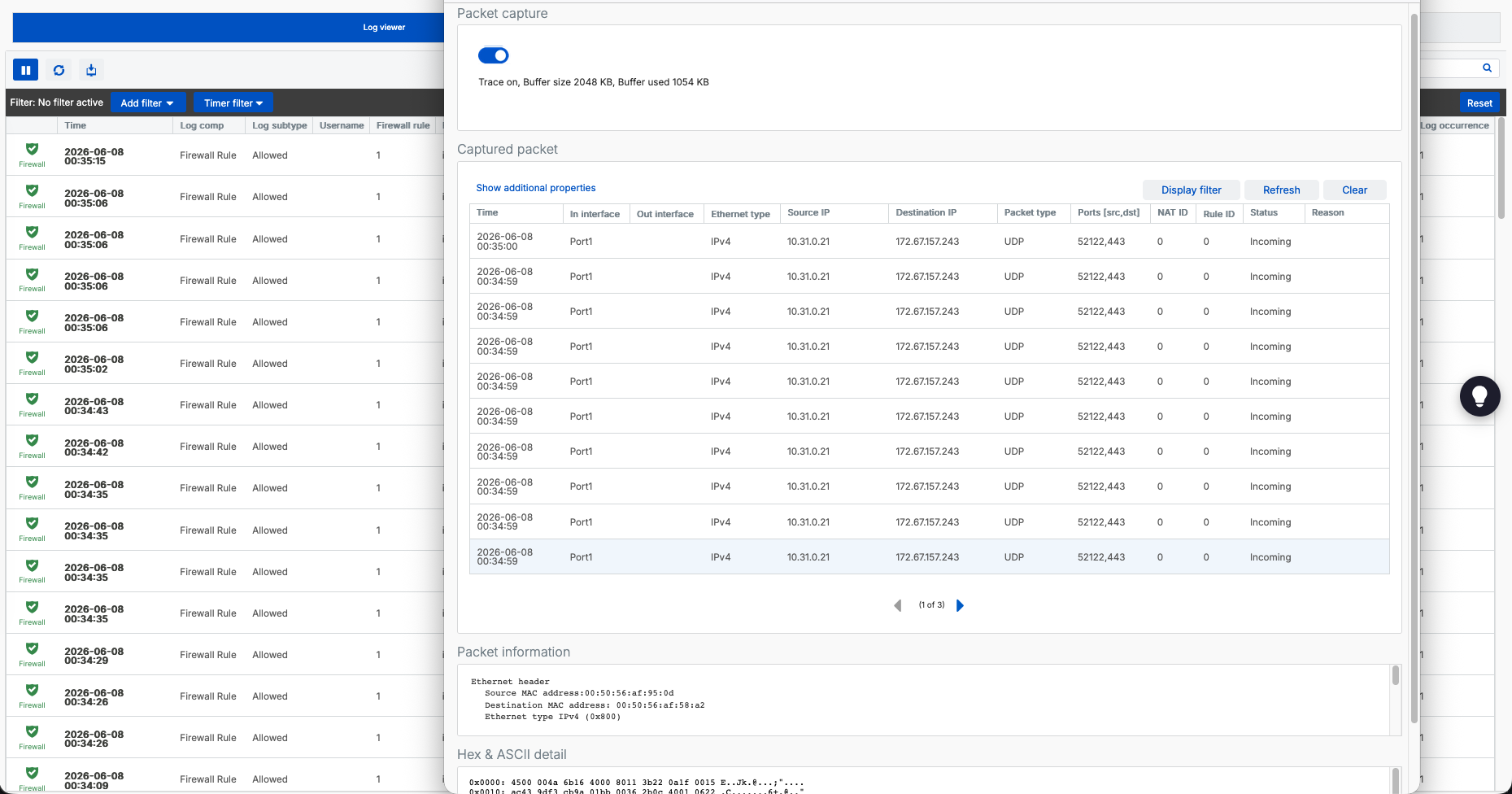
Under Log viewer, we filter for firewall logs to verify that traffic from our client is being allowed by rule ID 1 (inet).
We can also perform packet captures directly inside the log viewer to trace the raw frame exchange (including source/destination MAC addresses and ports) matching the outbound sessions.
4. SSL/TLS Inspection & Decryption Configuration
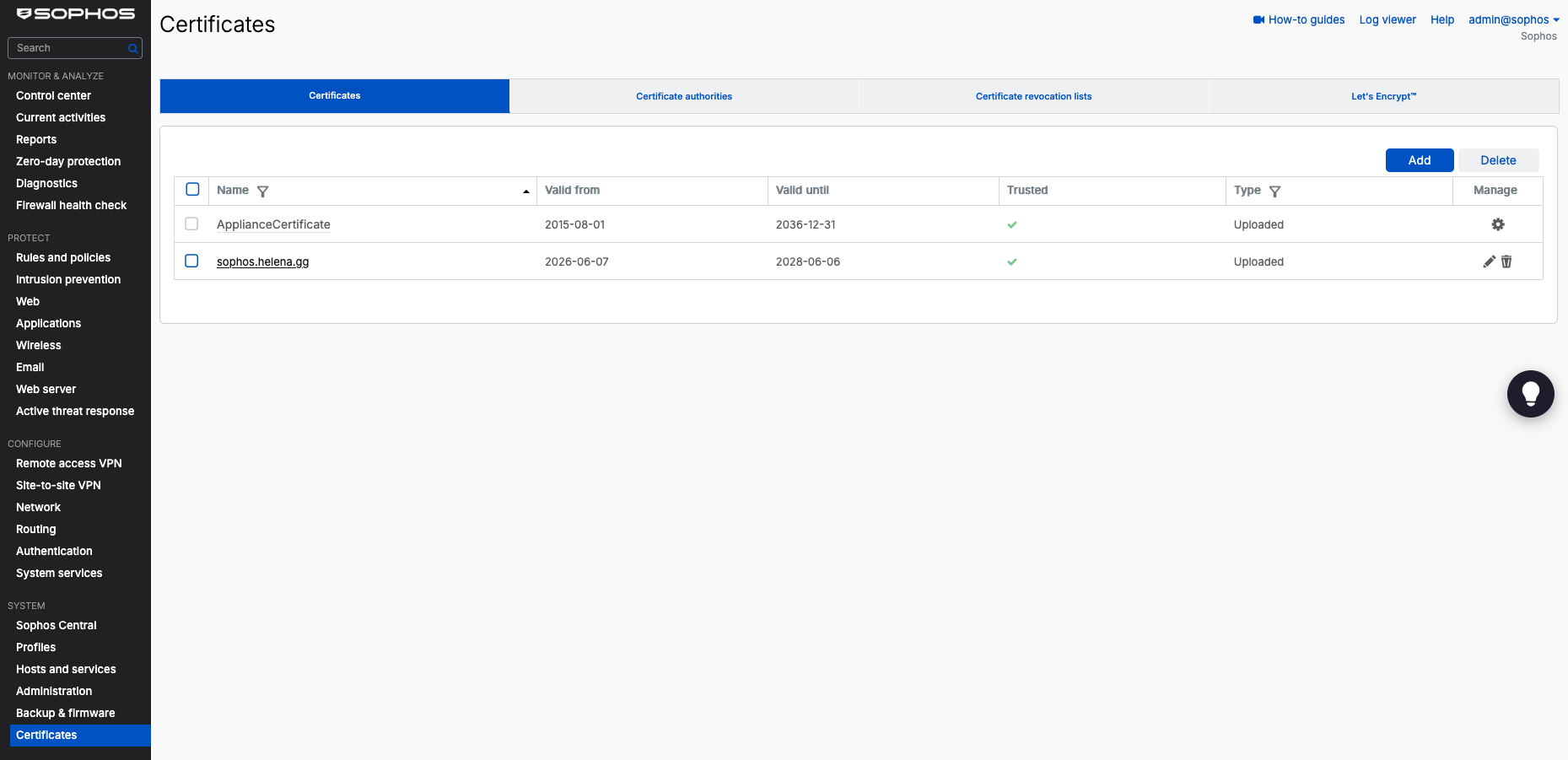
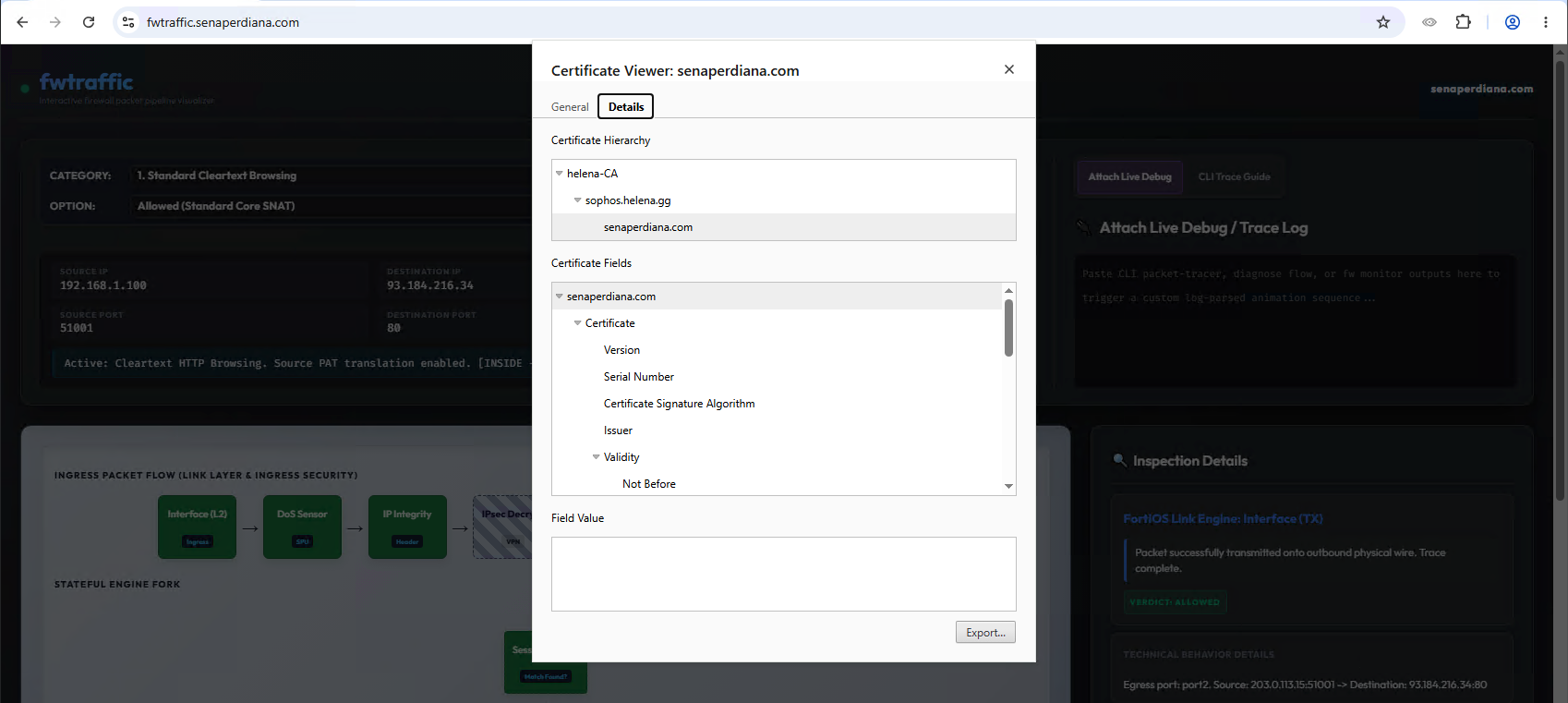
To inspect encrypted HTTP traffic (HTTPS), we configure SSL/TLS decryption on the firewall. Under System → Certificates, we upload our re-signing CA certificate (sophos.helena.gg) and verify its validity dates. Crucially, this certificate must be a subordinate CA (Sub-CA) to allow the firewall to generate and re-sign certificates for inspected external websites on the fly.
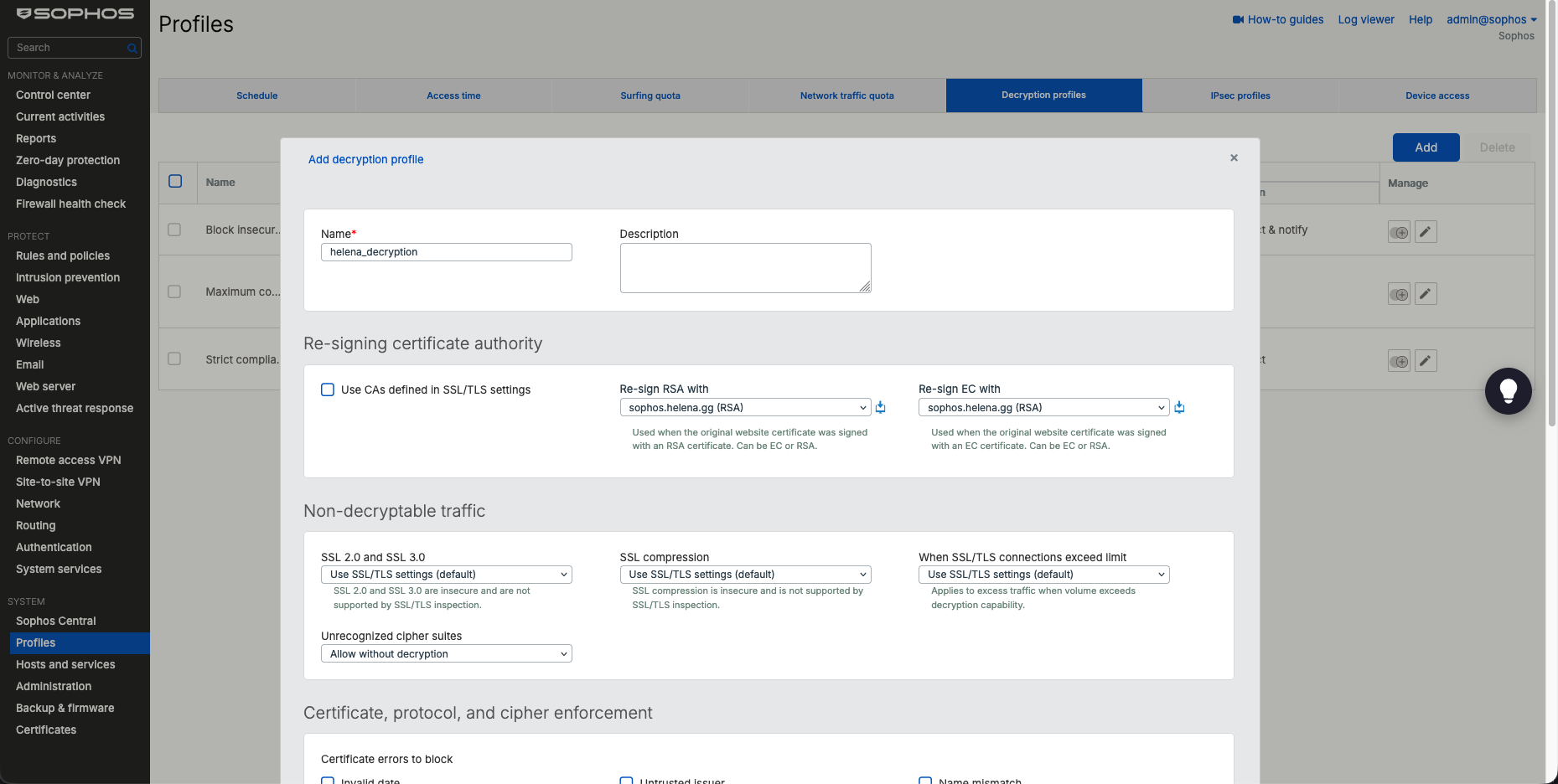
Under System → Profiles → Decryption profiles, we create a custom profile named helena_decryption using our re-signing CA to enforce cipher and protocol restrictions.
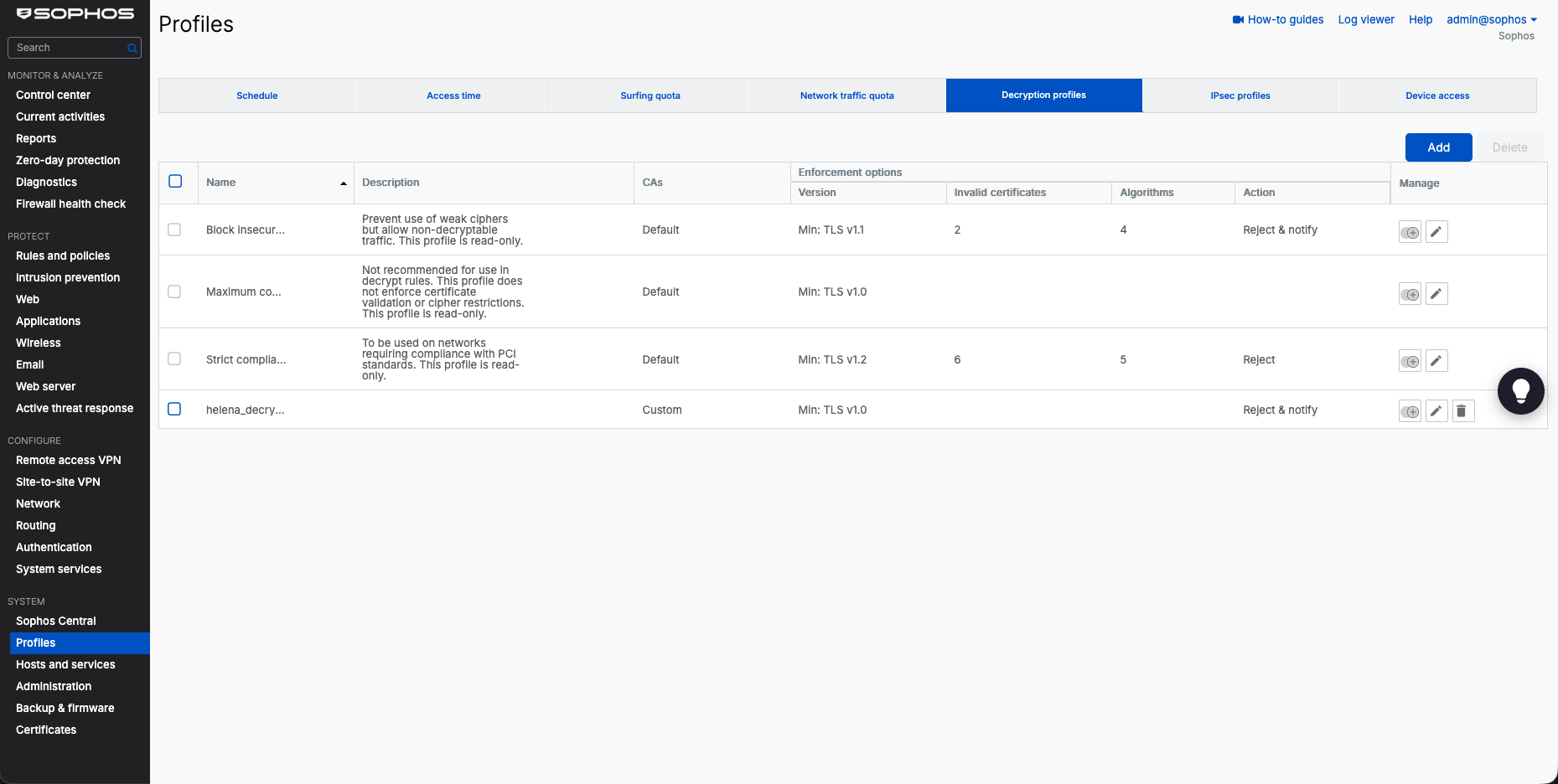
We save our custom decryption profile and verify it in the active profile list alongside the default templates.
Next, we navigate to Rules and policies → SSL/TLS inspection rules and click Add SSL/TLS Inspection rule. We name the rule decrypt_inet and configure the following parameters:
- Action: Decrypt
- Decryption profile:
helena_decryption - Source Zone: LAN
- Destination Zone: WAN
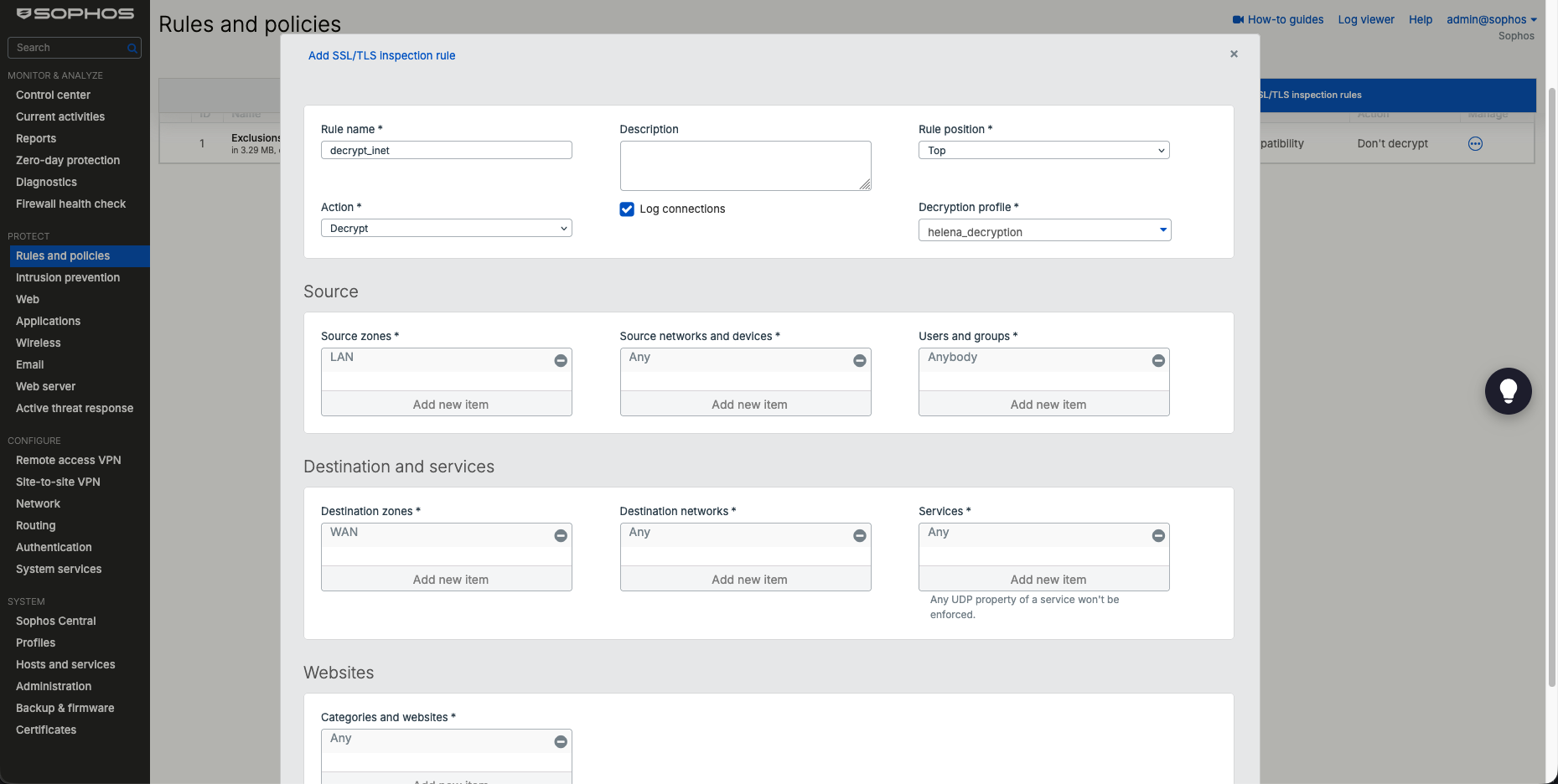
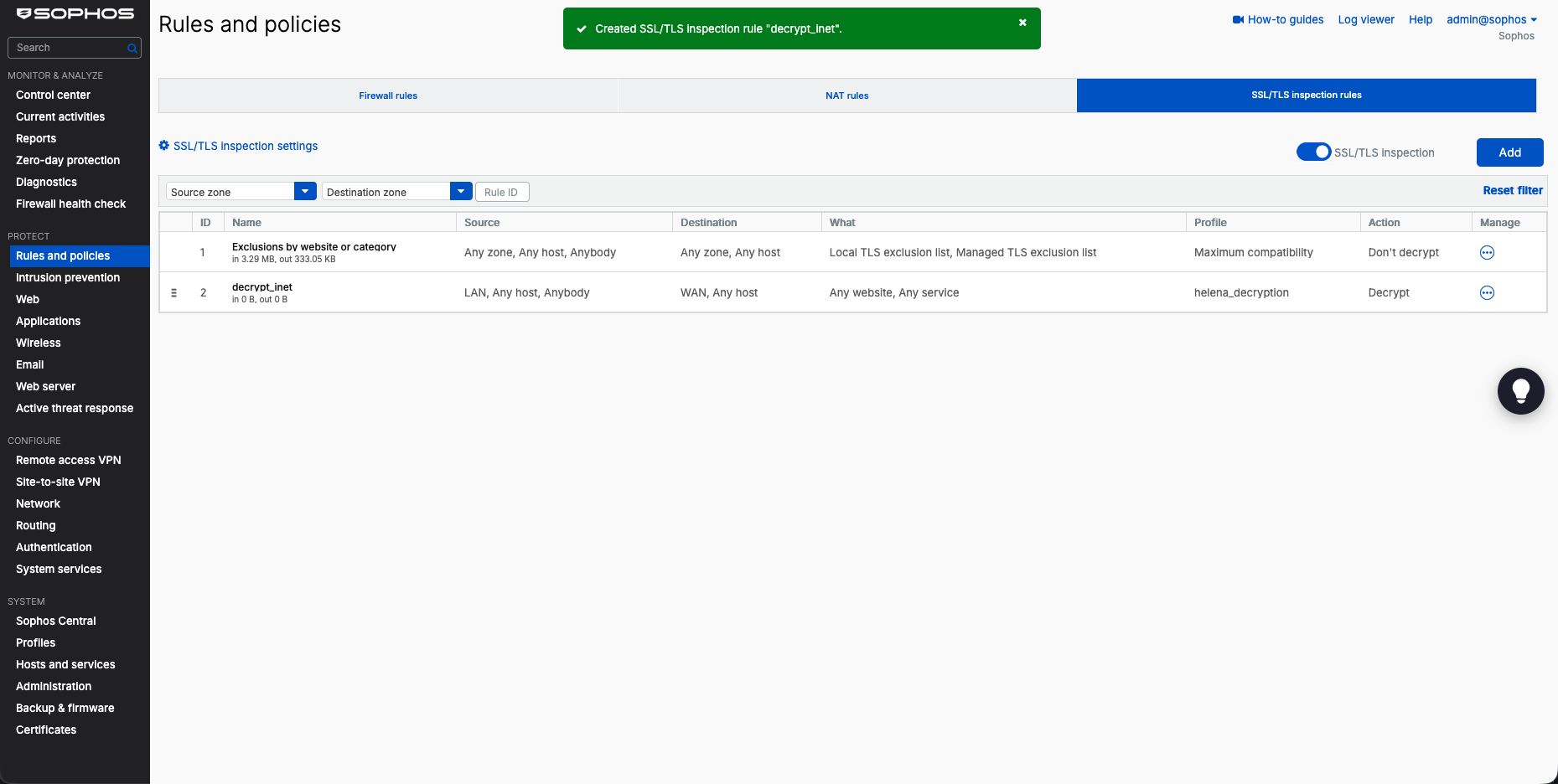
We verify that the decrypt_inet rule is active in the SSL/TLS inspection rule list.
To verify SSL/TLS decryption is working on the client browser, we load our test target senaperdiana.com and inspect the certificate details. The certificate hierarchy shows that the original server certificate has been intercepted and re-signed by our re-signing CA (sophos.helena.gg / helena-CA), indicating successful SSL inspection.
5. Web Filtering (URL Block Policy)
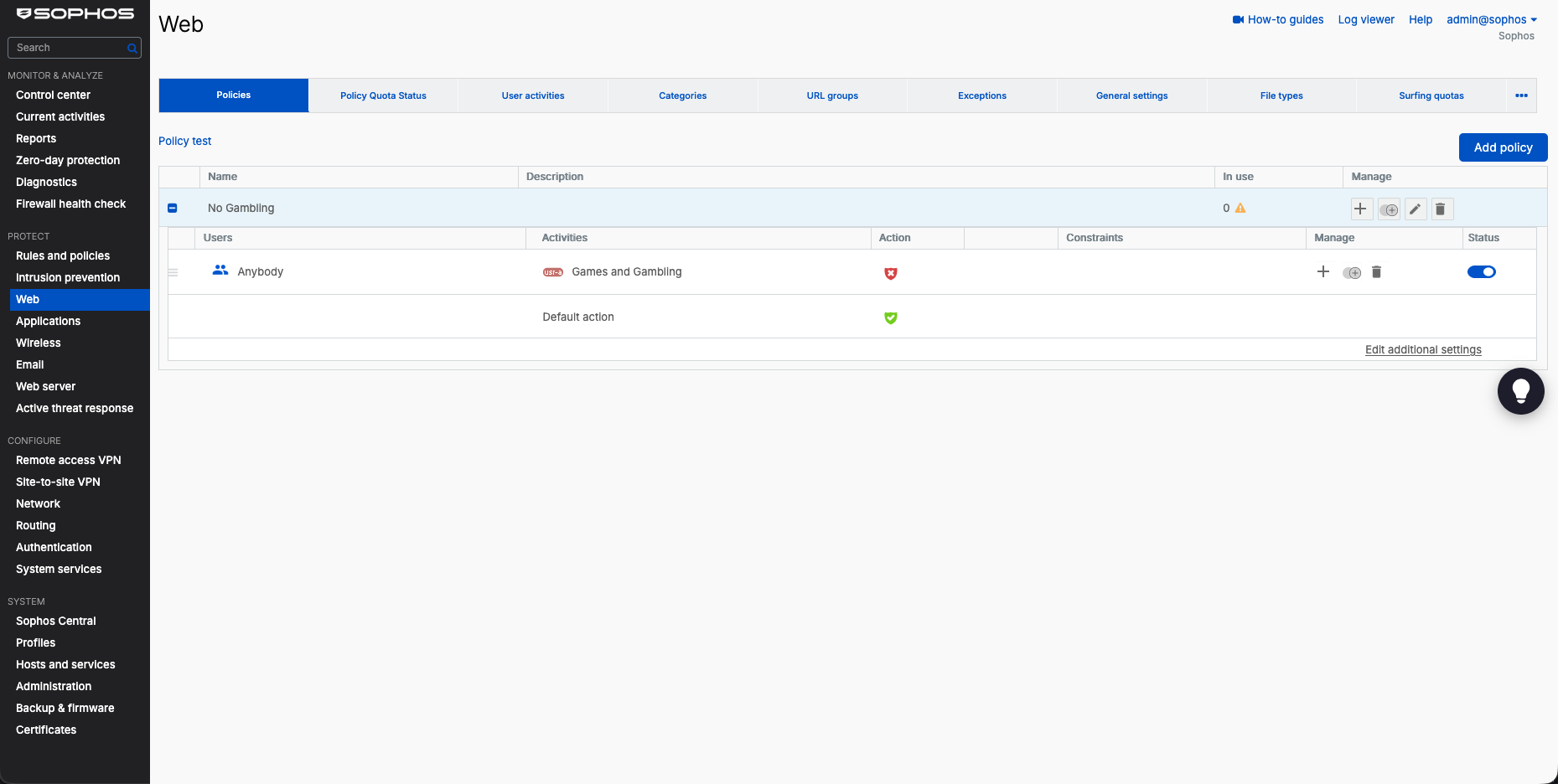
Next, we configure URL filtering to restrict access to specific web categories. Under Protect → Web, we create a new web policy named No Gambling with a rule blocking the Games and Gambling category for all users.
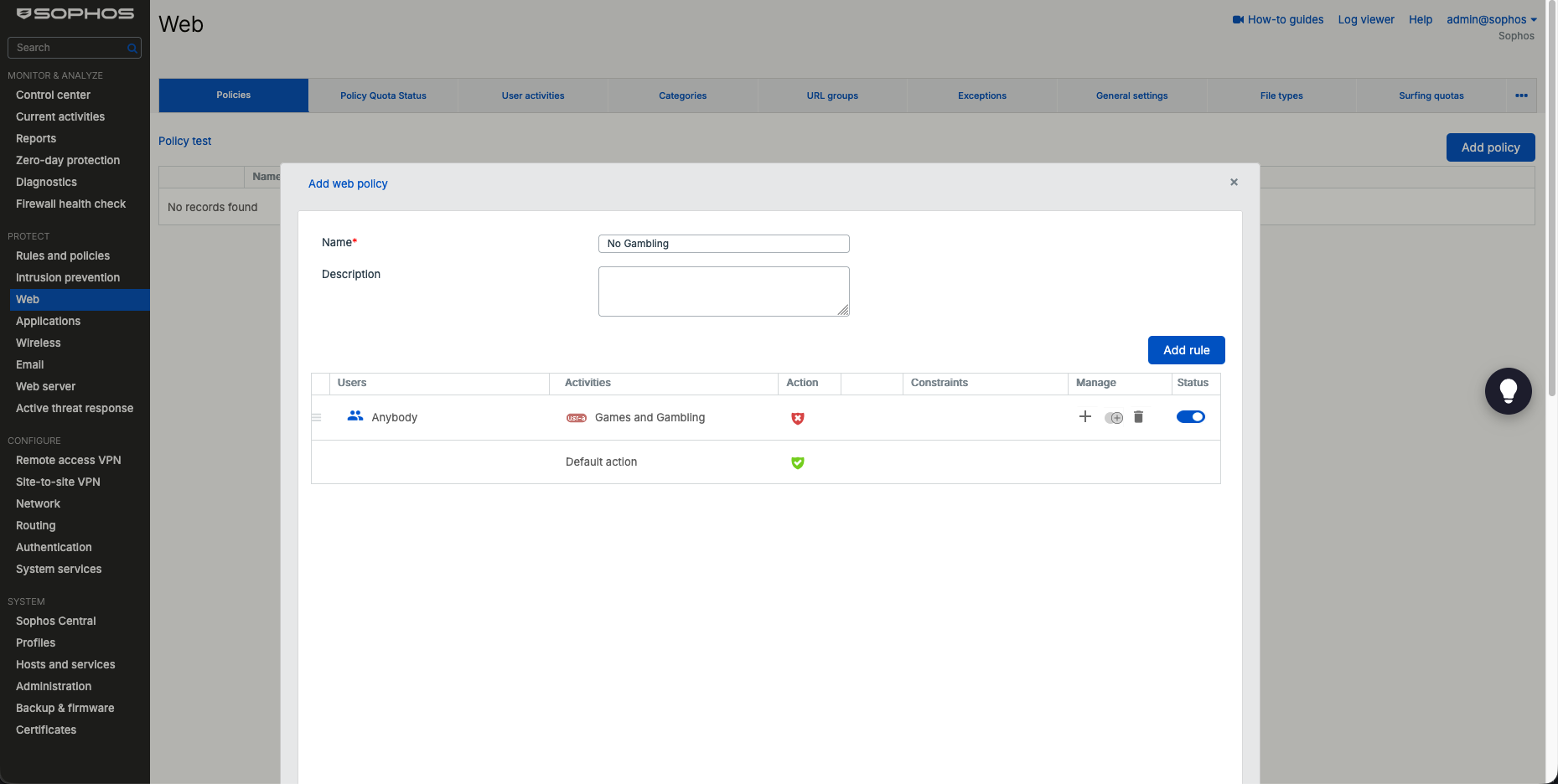
We save the web policy and verify its configuration in the policies dashboard.
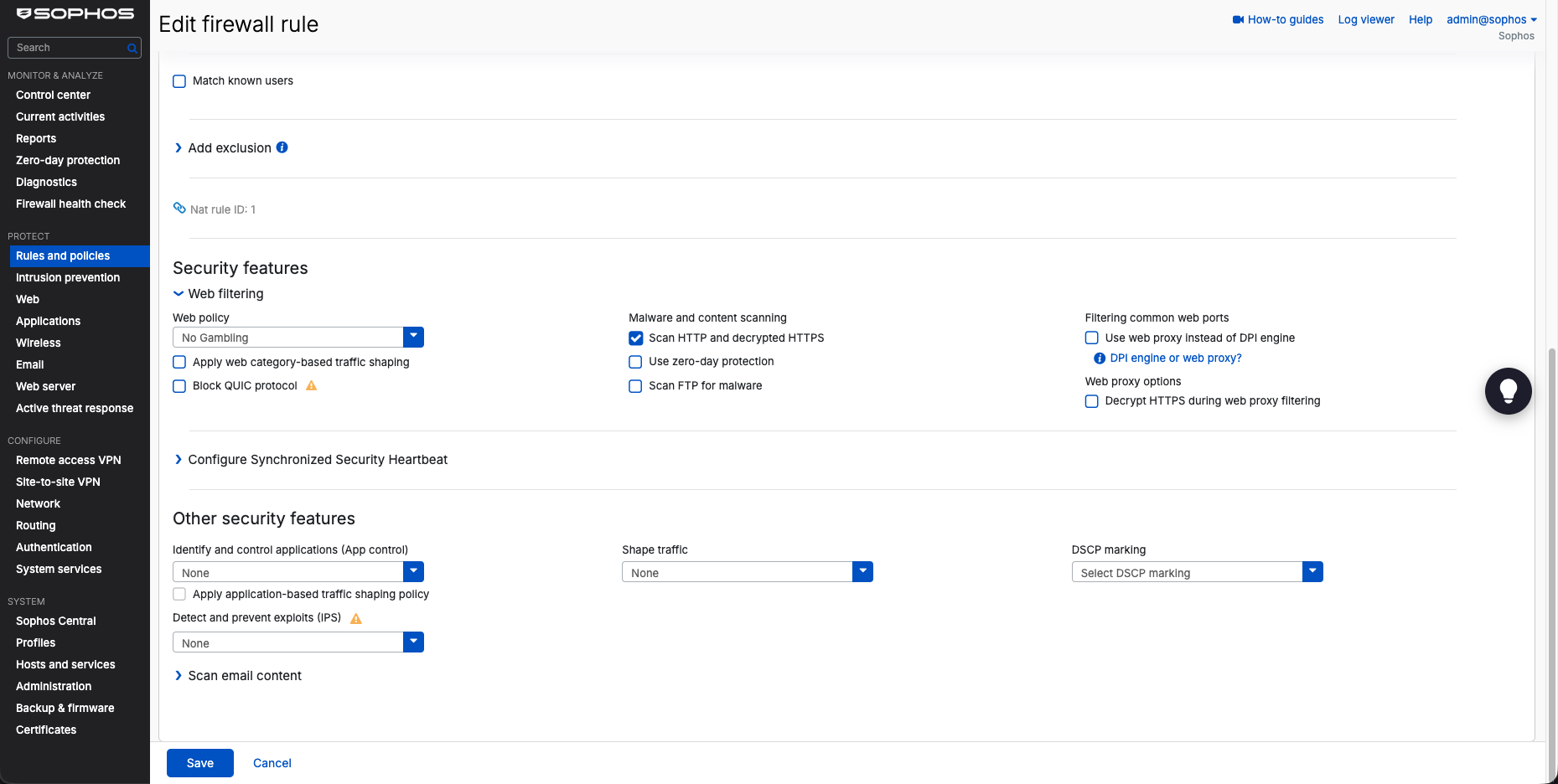
We bind the web policy to our outbound firewall rule inet by selecting No Gambling under the Web filtering configuration options.
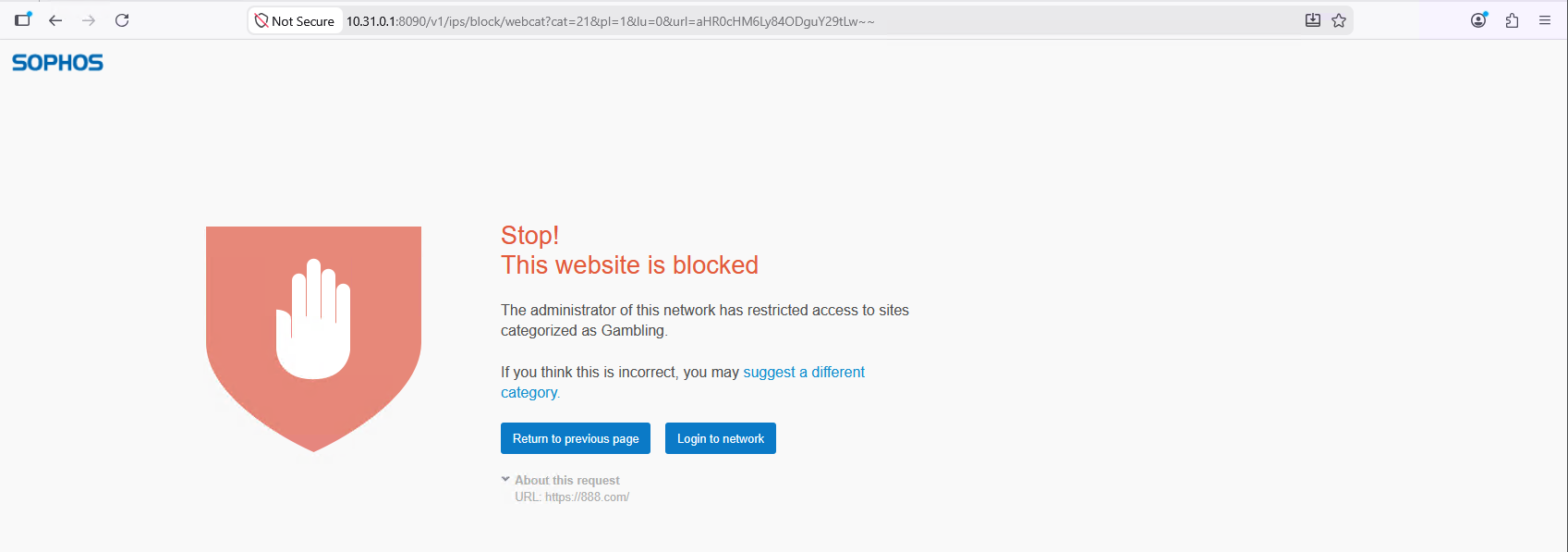
To test URL filtering, we attempt to access a gambling site (https://888.com/) from our client browser. The firewall blocks the connection and displays the Sophos Web Filter block page:
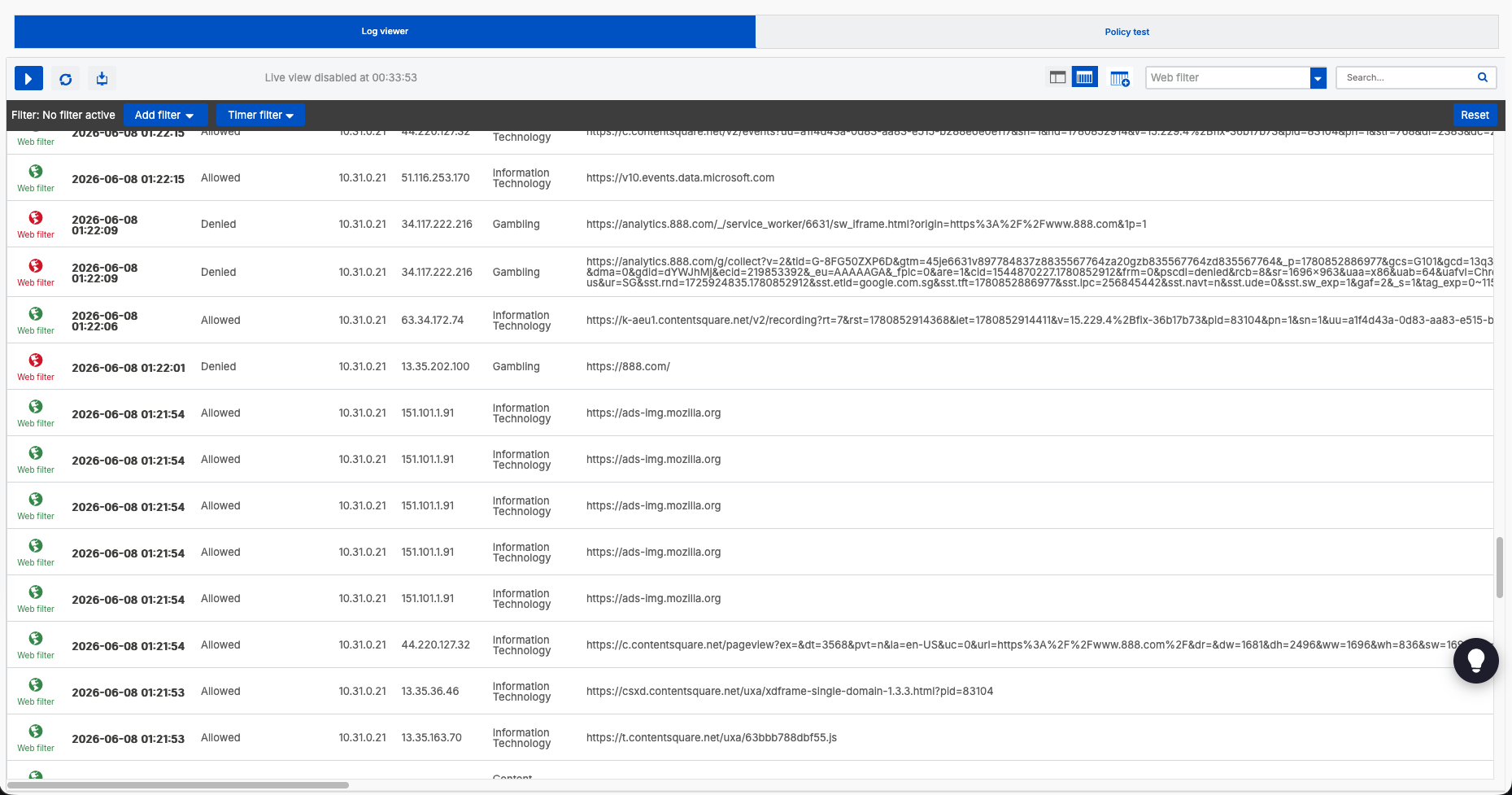
We check the Log viewer → Web filter logs to confirm that the connection to 888.com was denied due to the matching “Gambling” category rule.
6. Application Control (YouTube Restriction)
Beyond standard URL categories, we enforce application control to manage specific application behaviors. Under Protect → Applications, we create a new application filter named Limit_Youtube.
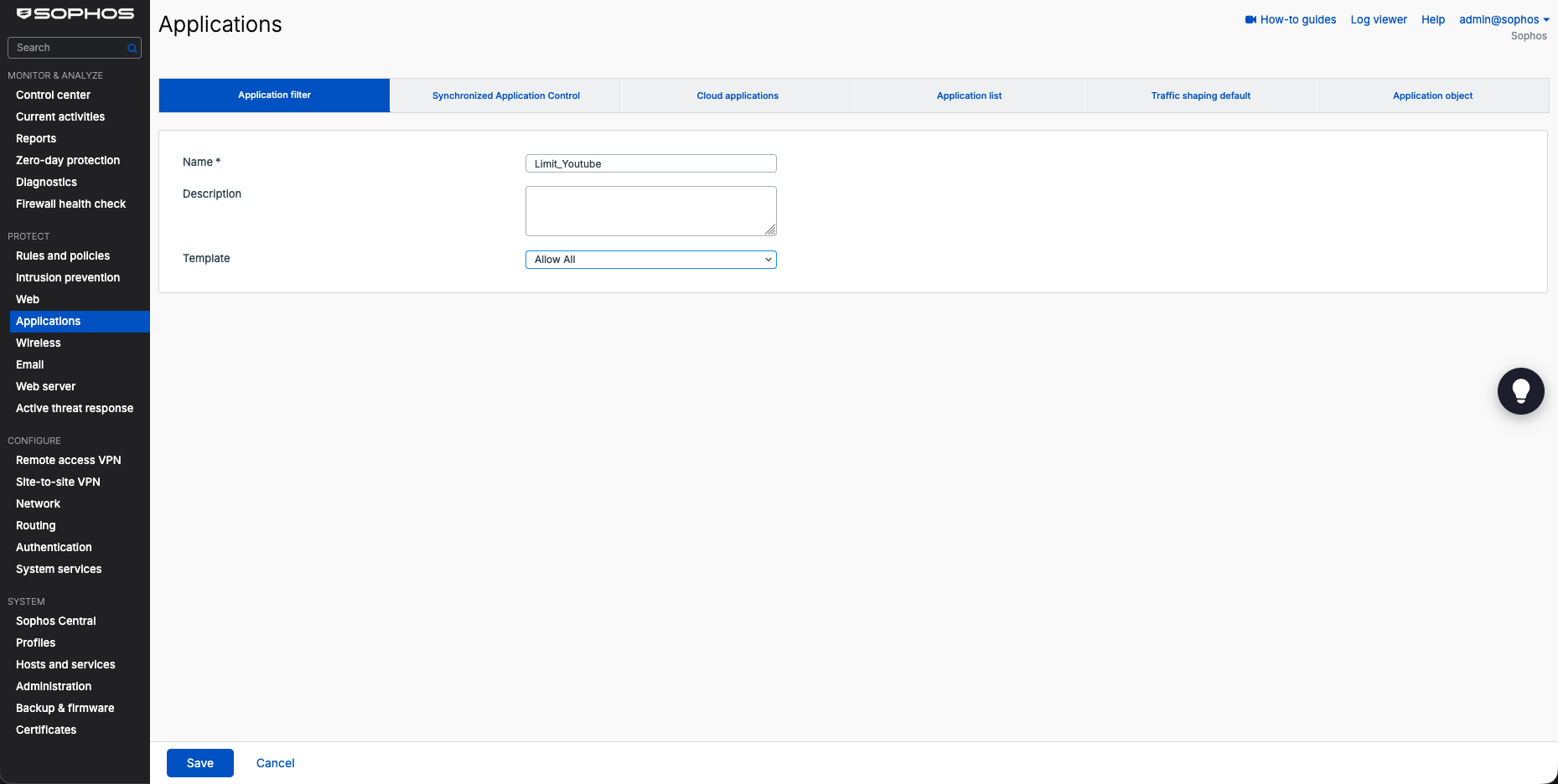
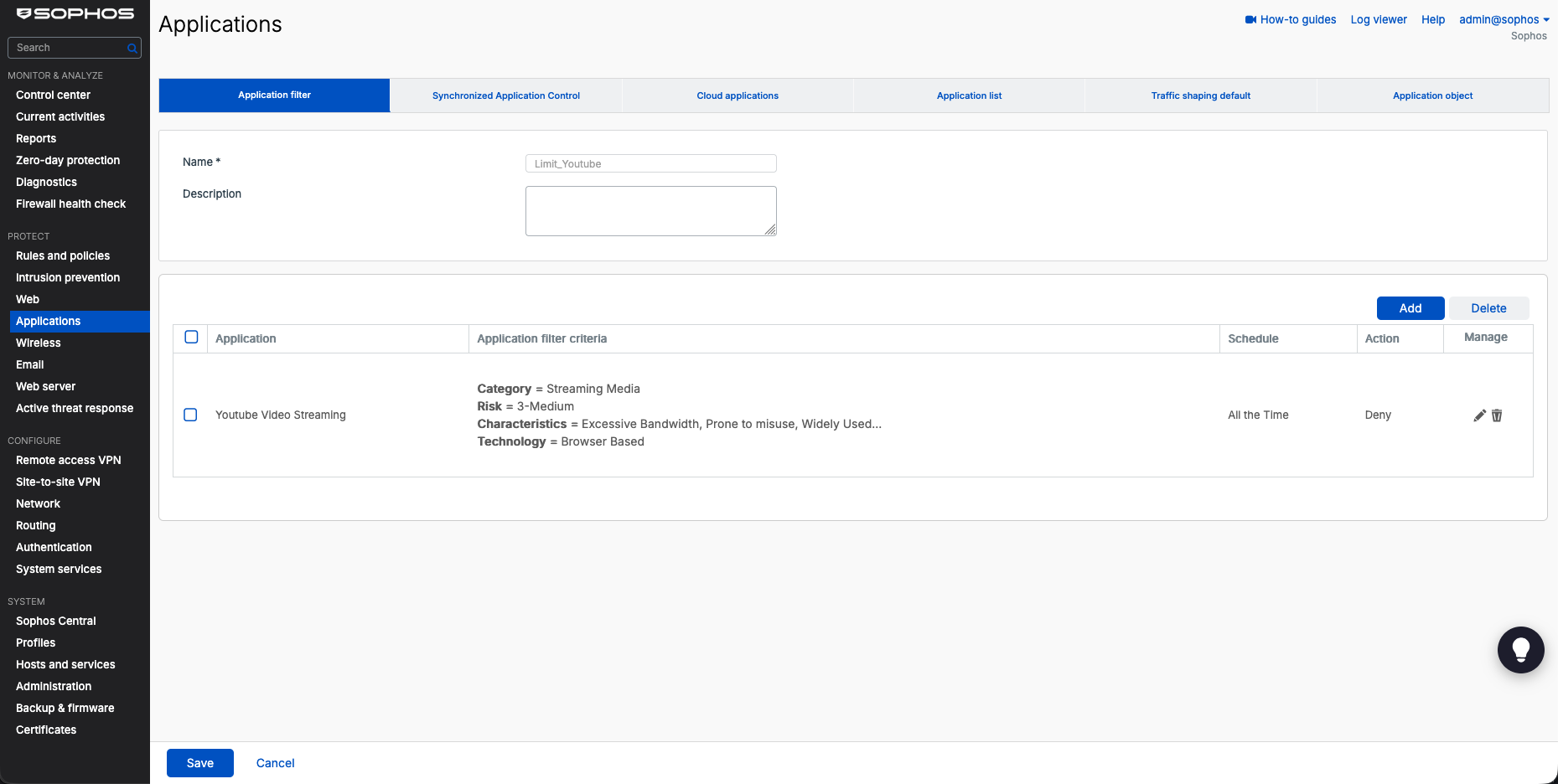
Within the filter rules, we select the category Streaming Media, target the Youtube Video Streaming application, and set the action to Deny.
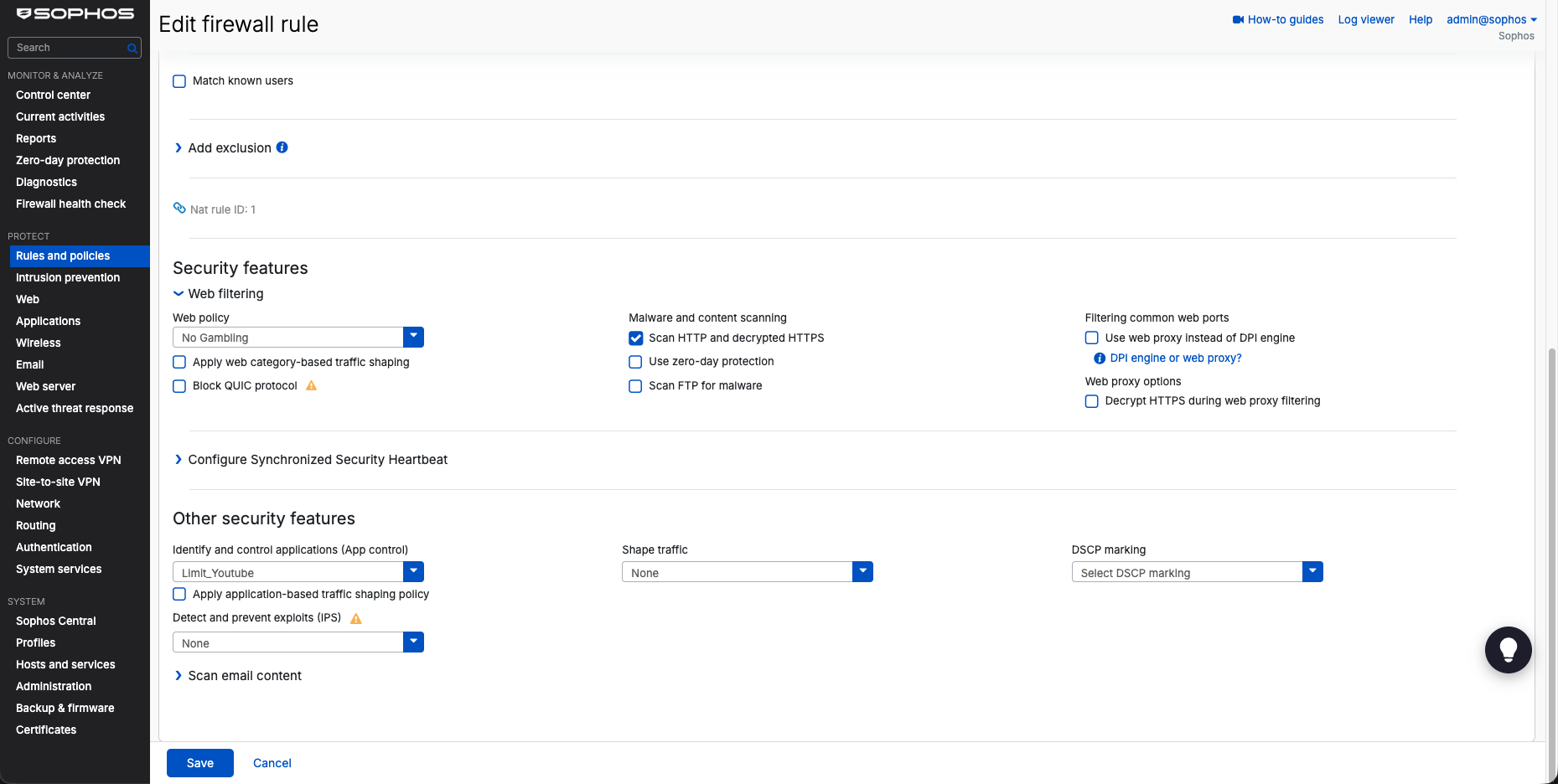
We apply the application control policy by modifying our inet firewall rule and selecting Limit_Youtube under the Identify and control applications dropdown.
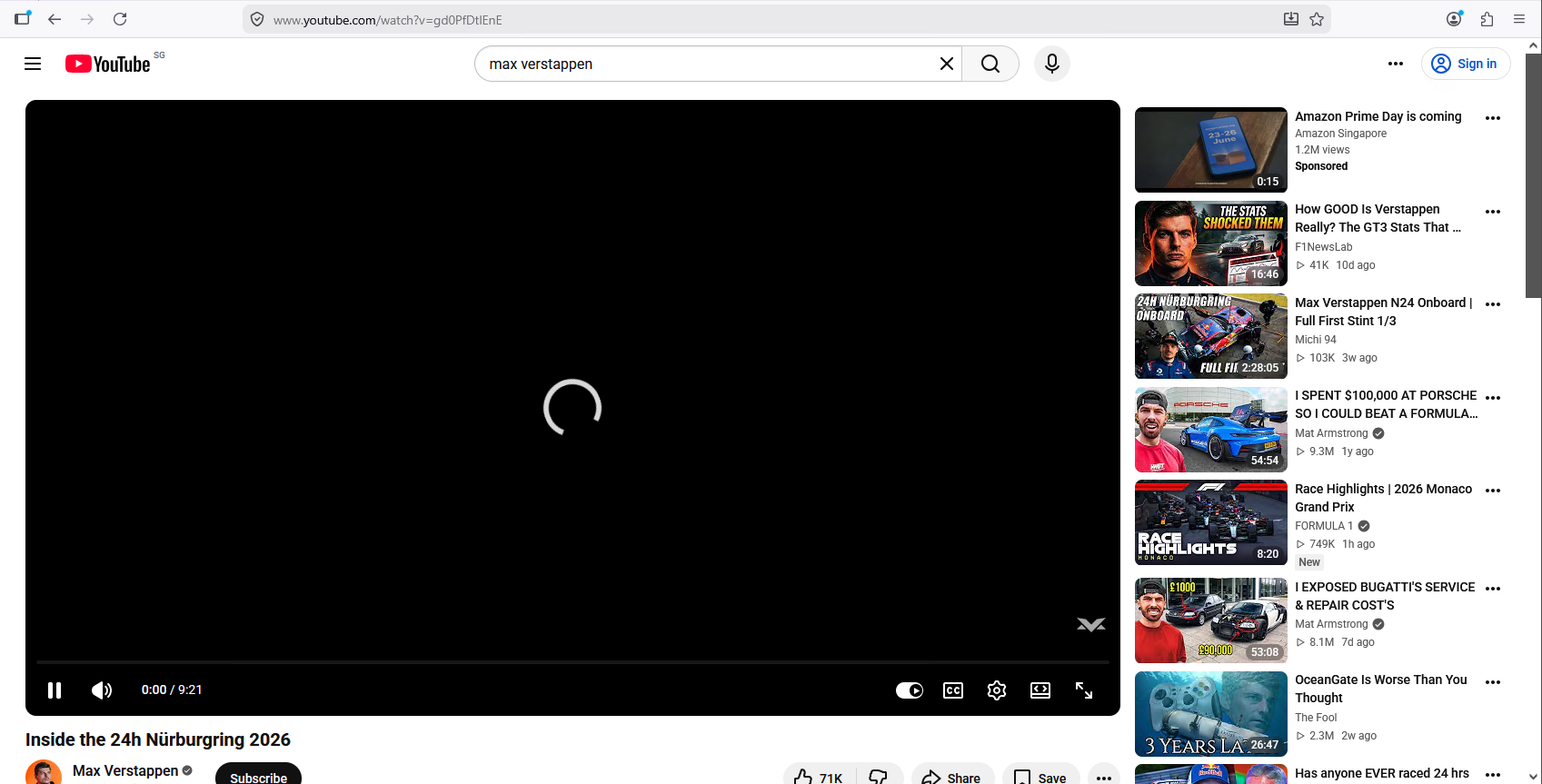
To verify the block, we attempt to stream a video on YouTube from the client. The video stream fails to load.
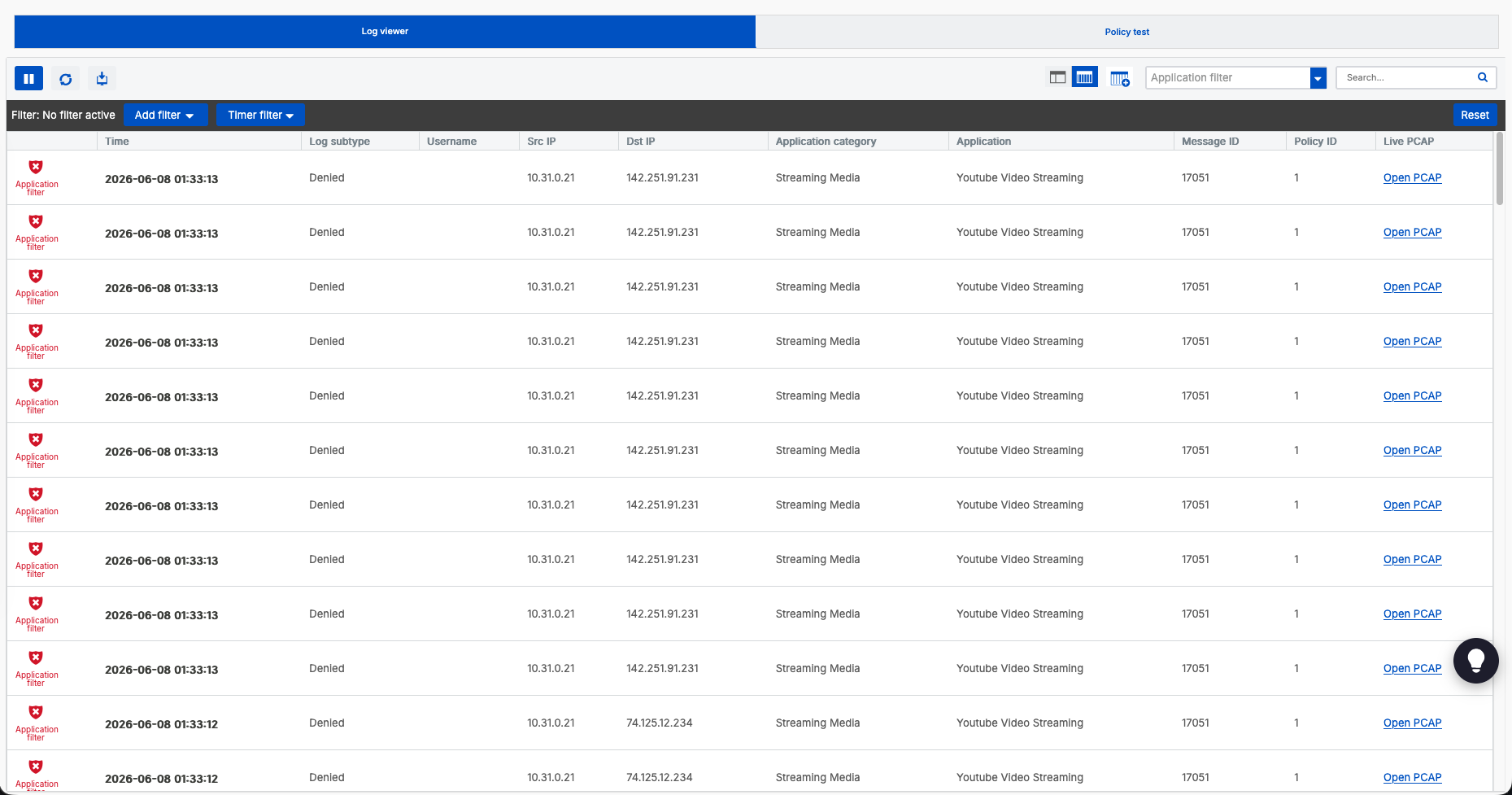
We check the Log viewer → Application filter logs. The logs display matching “Youtube Video Streaming” events from source 10.31.0.21 flagged as Denied by policy ID 1.
7. Active Threat Response (ATP)
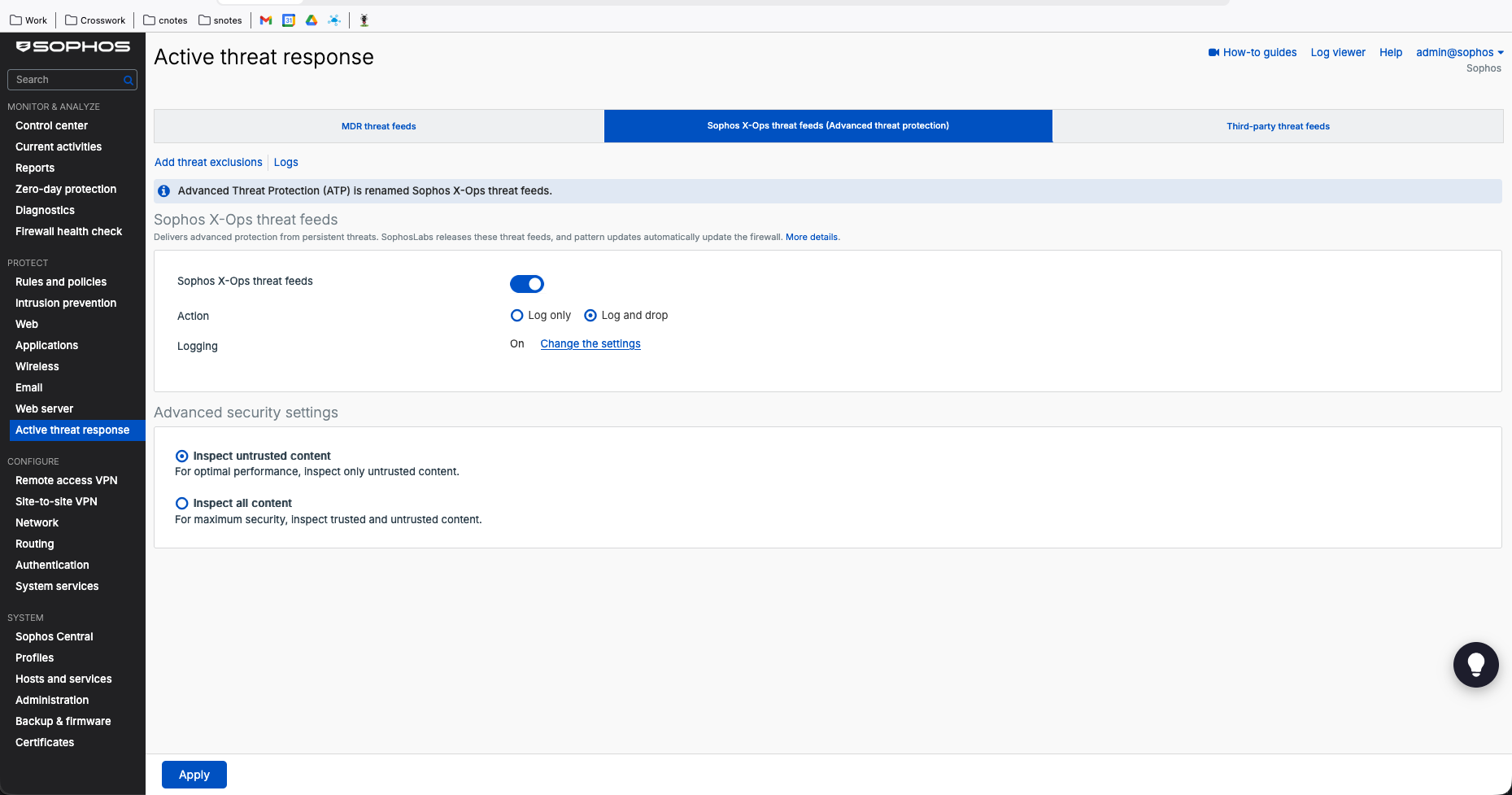
For protection against malicious command-and-control (C2) servers, we configure Active Threat Response (formerly Advanced Threat Protection). Under Monitor & Analyze → Diagnostics, we navigate to Active threat response settings and verify that Sophos X-Ops threat feeds is set to Log and drop.
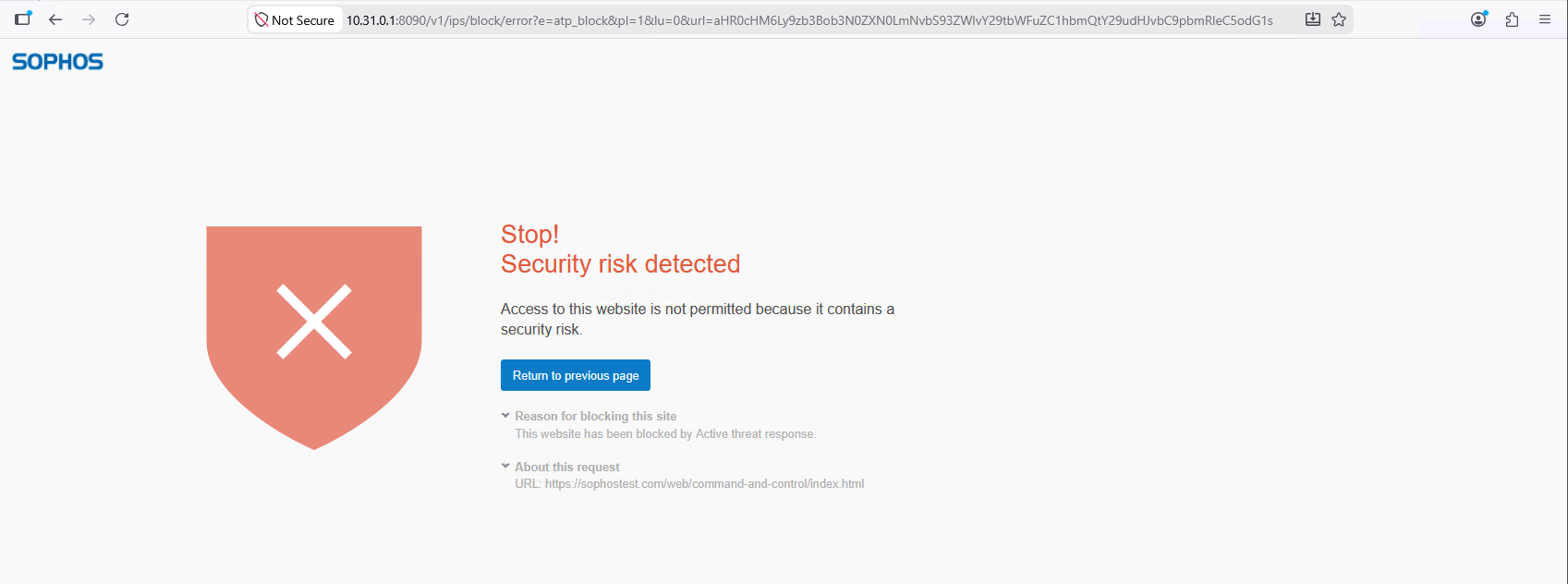
To verify threat response, we load the command-and-control test page (https://sophostest.com/web/command-and-control/index.html) on our client machine. The firewall blocks the page, presenting the ATP block page:
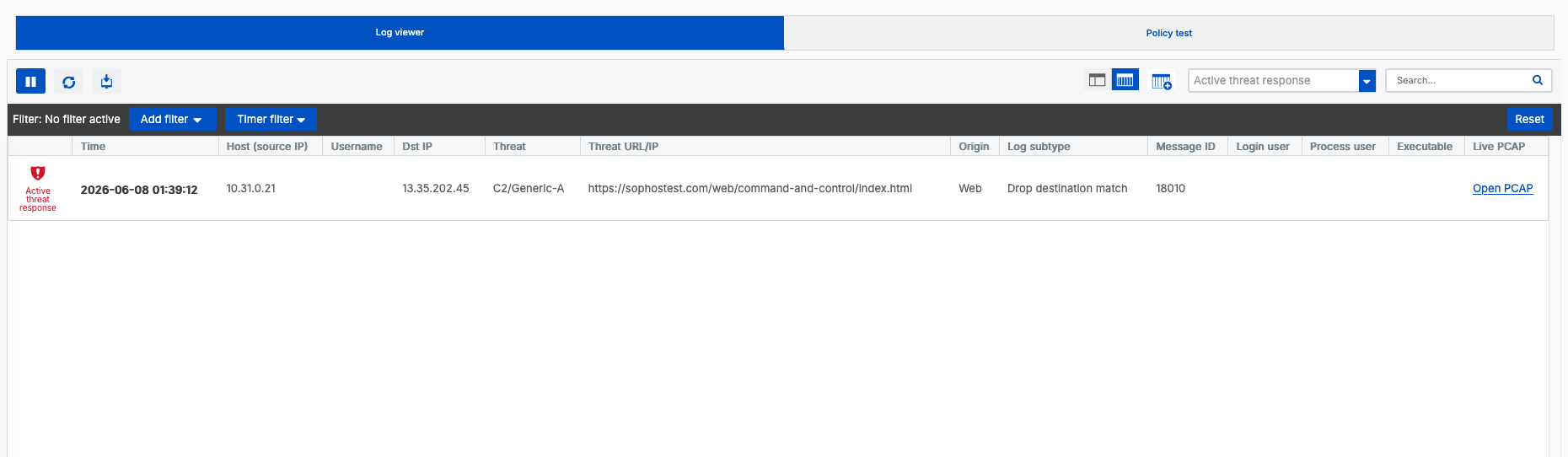
We navigate to Log viewer → Active threat response to verify the drop. The log shows a drop event for threat type C2/Generic-A targeting the test C2 URL.
8. Intrusion Prevention System (IPS)
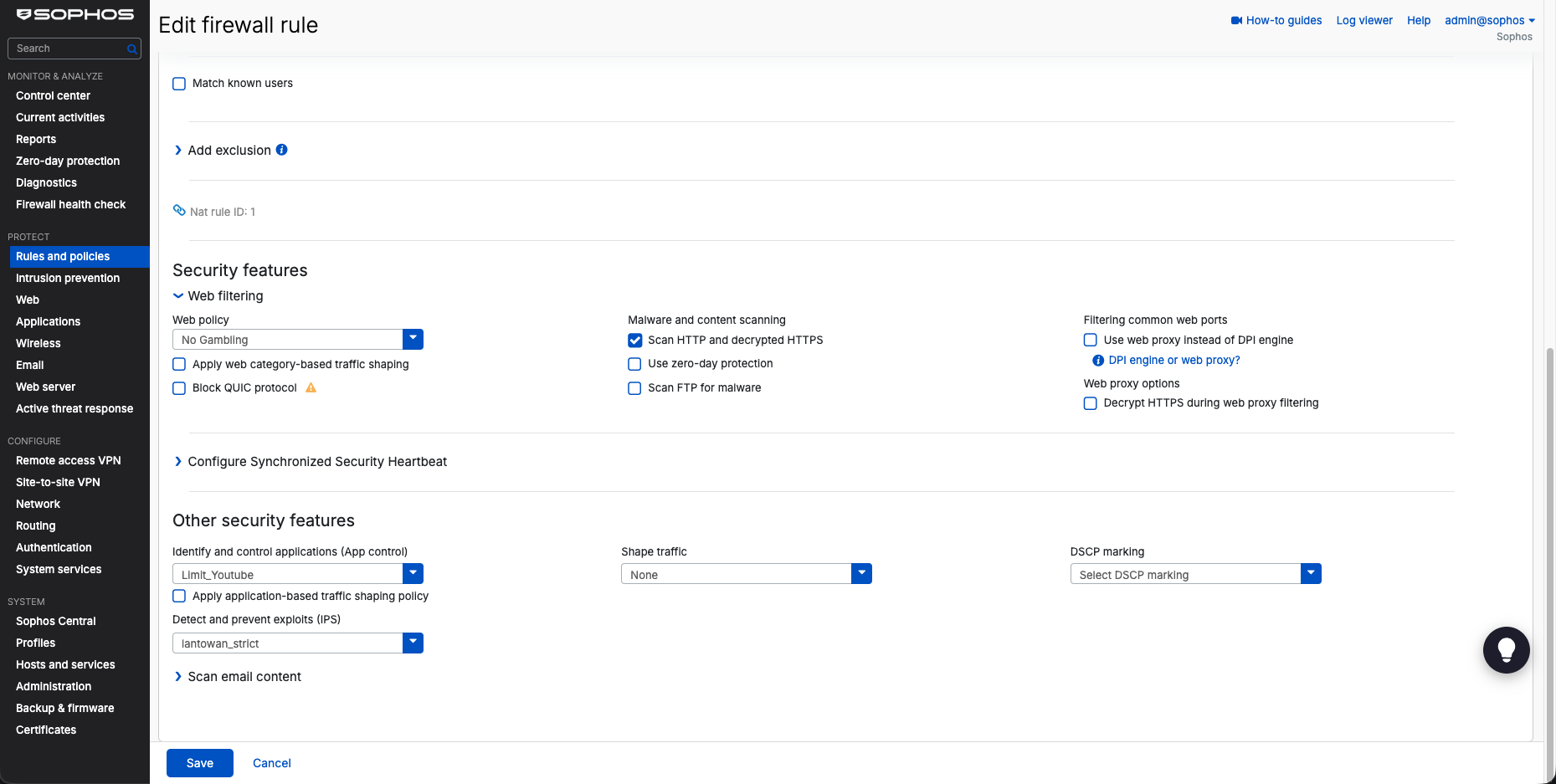
Finally, we deploy the Intrusion Prevention System (IPS) to detect and block signatures of known exploits. We configure the signature inspection on our inet firewall rule by selecting the lantowan_strict IPS policy under security features.
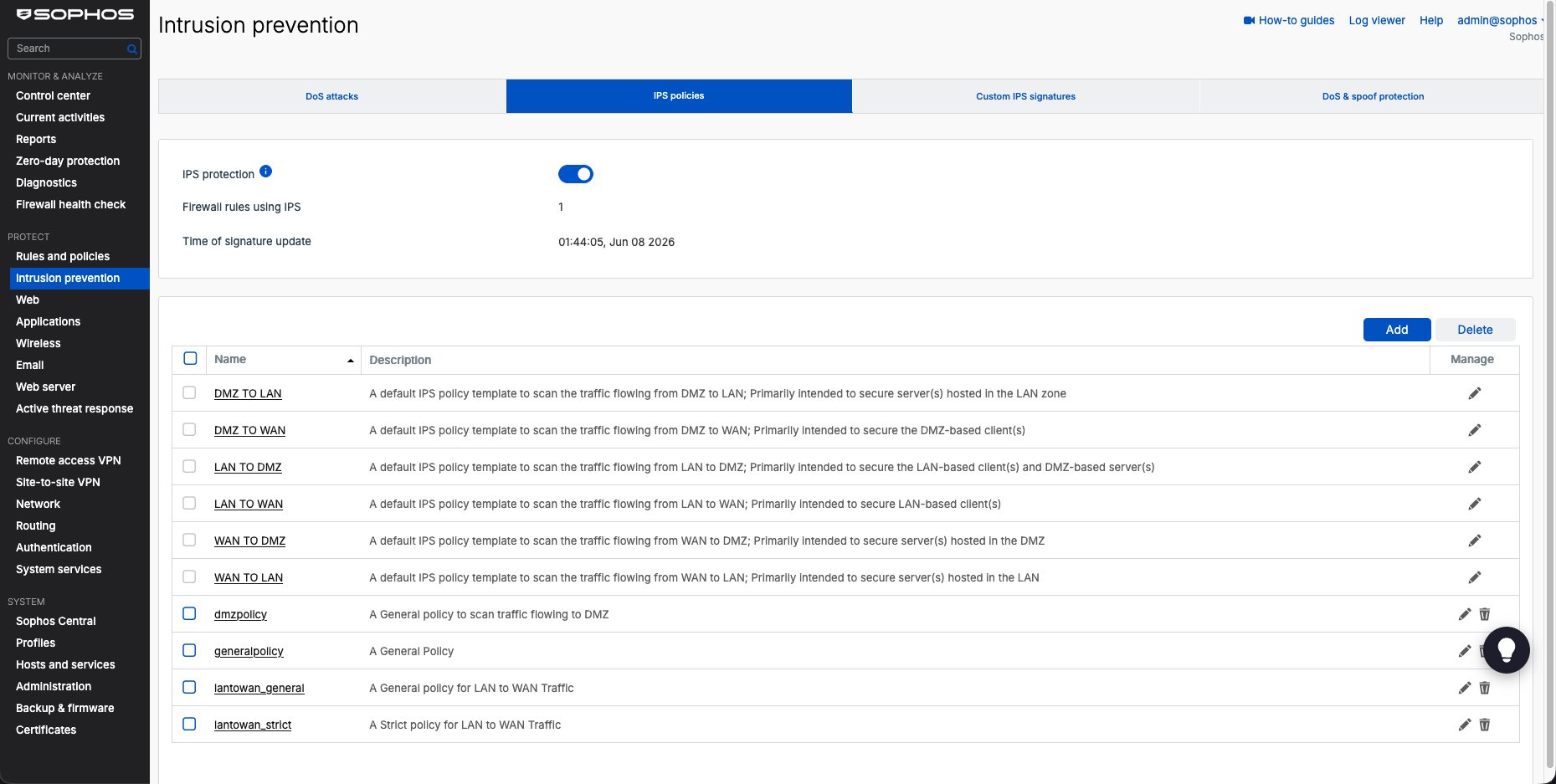
Under Protect → Intrusion prevention, we review our active policy templates to confirm lantowan_strict is configured to protect LAN client traffic.
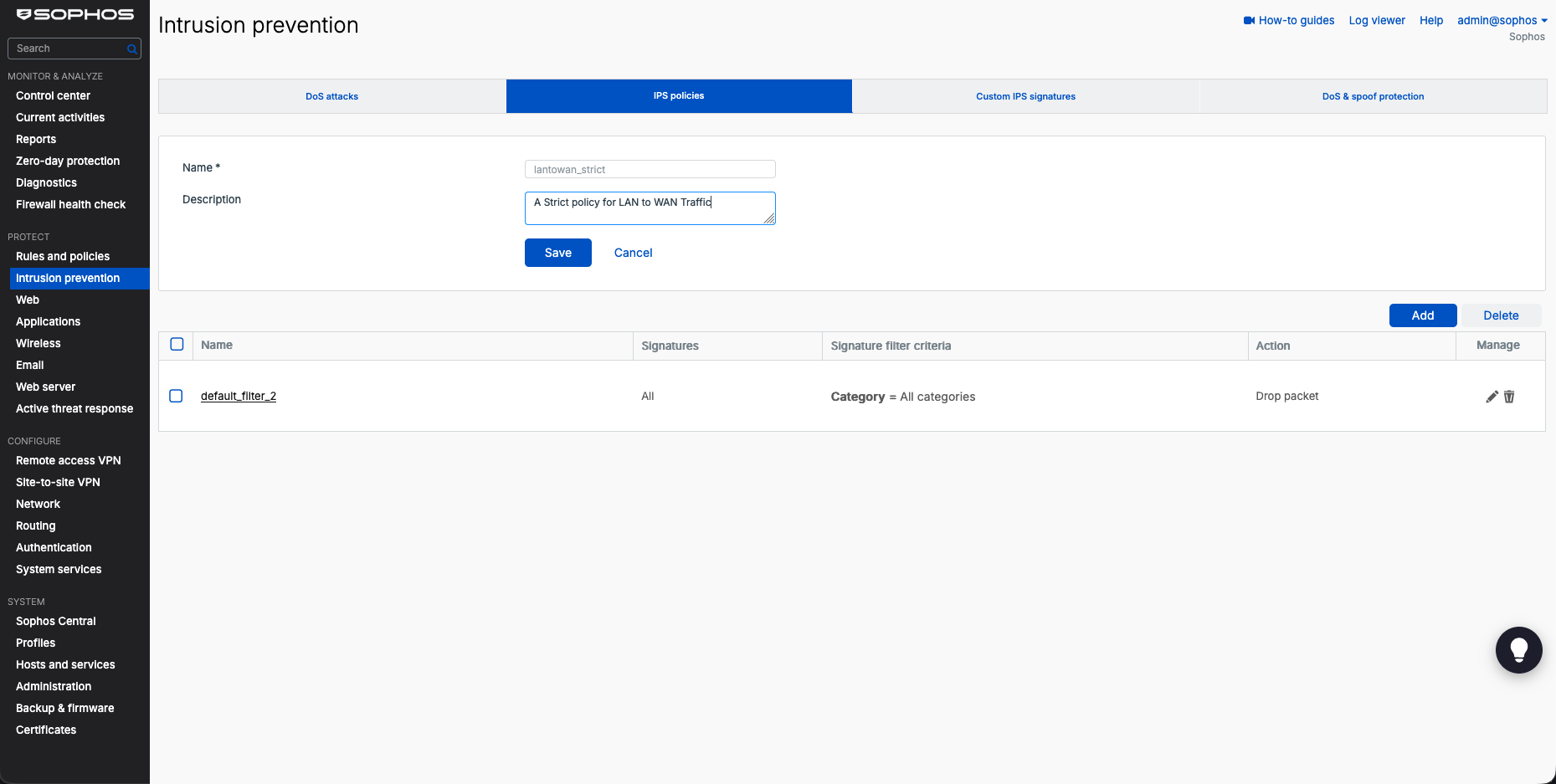
In the policy settings for lantowan_strict, we confirm the signature rules are set to Drop packet for matching signatures.
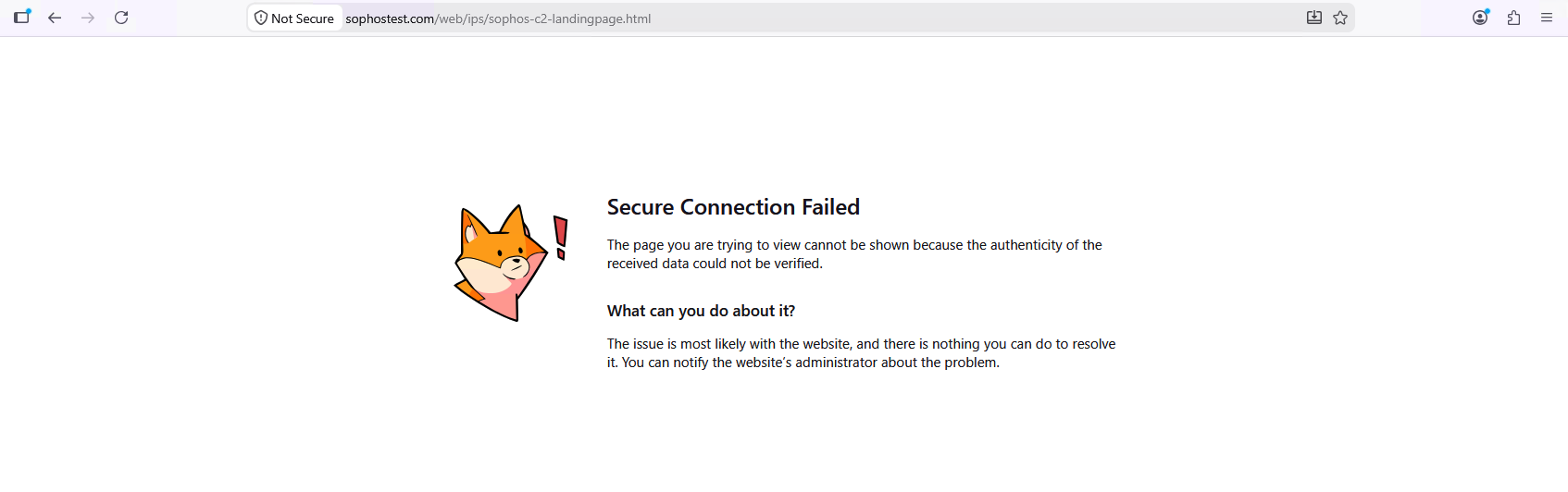
To test IPS signatures, we load the Sophos C2 test landing page (https://sophostest.com/web/ips/sophos-c2-landingpage.html). Because our rule decypts and inspects the payload, the client connection is immediately terminated, displaying a “Secure Connection Failed” error.
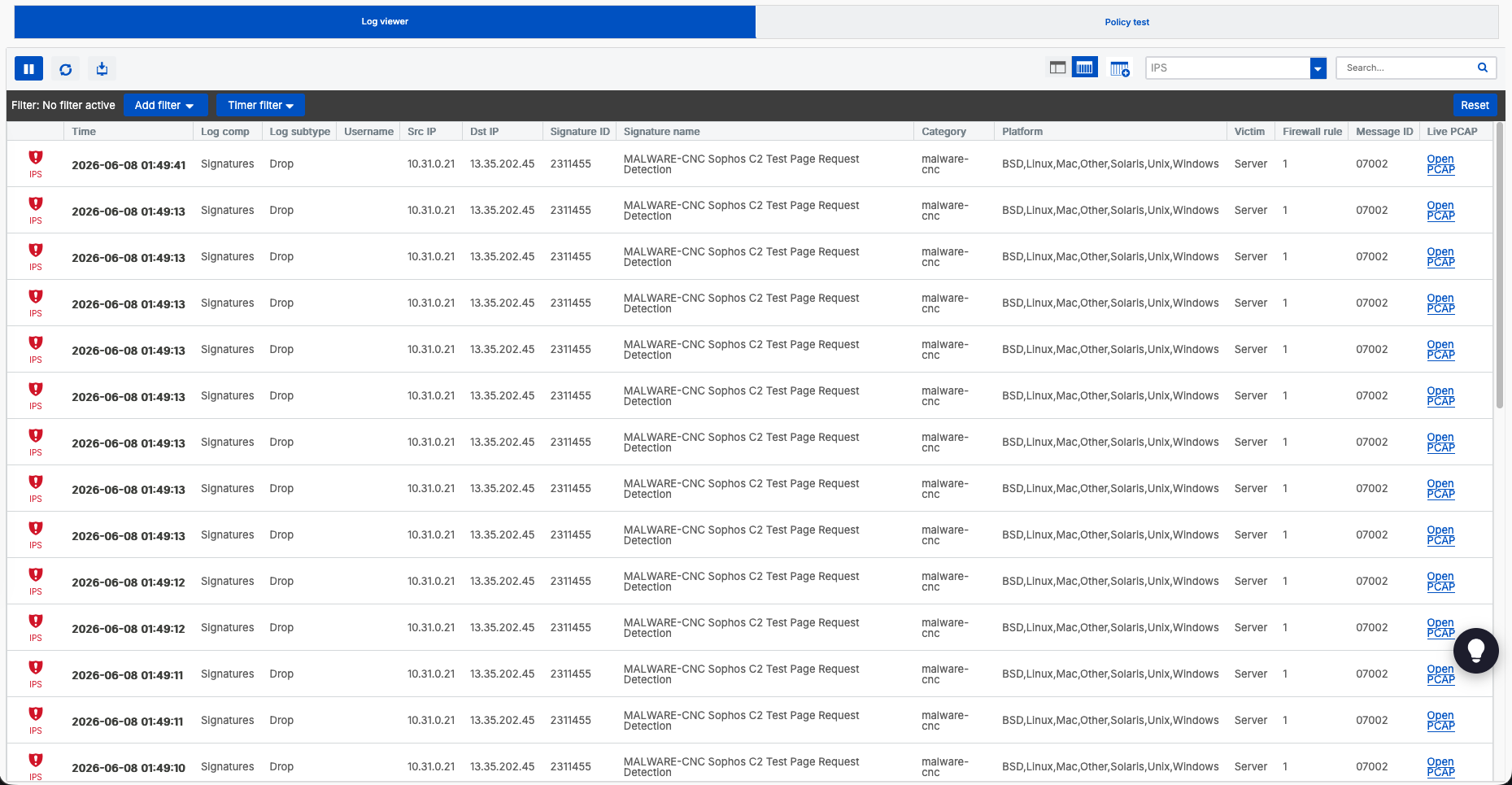
We confirm the block in Log viewer → IPS. The logs show multiple Drop events matching signature ID 2311455 for MALWARE-CNC Sophos C2 Test Page Request Detection under the malware-cnc category, validating the intrusion prevention engine’s efficacy.