CrowdStrike Falcon is a cloud-native endpoint security platform that integrates next-generation antivirus (NGAV), endpoint detection and response (EDR/XDR), threat intelligence, and managed threat hunting. In this lab, we walk through installing the Falcon sensor on a Windows Server endpoint, organizing hosts using static host groups, configuring prevention policies with aggressive machine learning thresholds, simulating active credential dumping and shadow copy deletion attacks, executing network containment, and deploying custom Indicator of Compromise (IOC) hash-blocking rules.
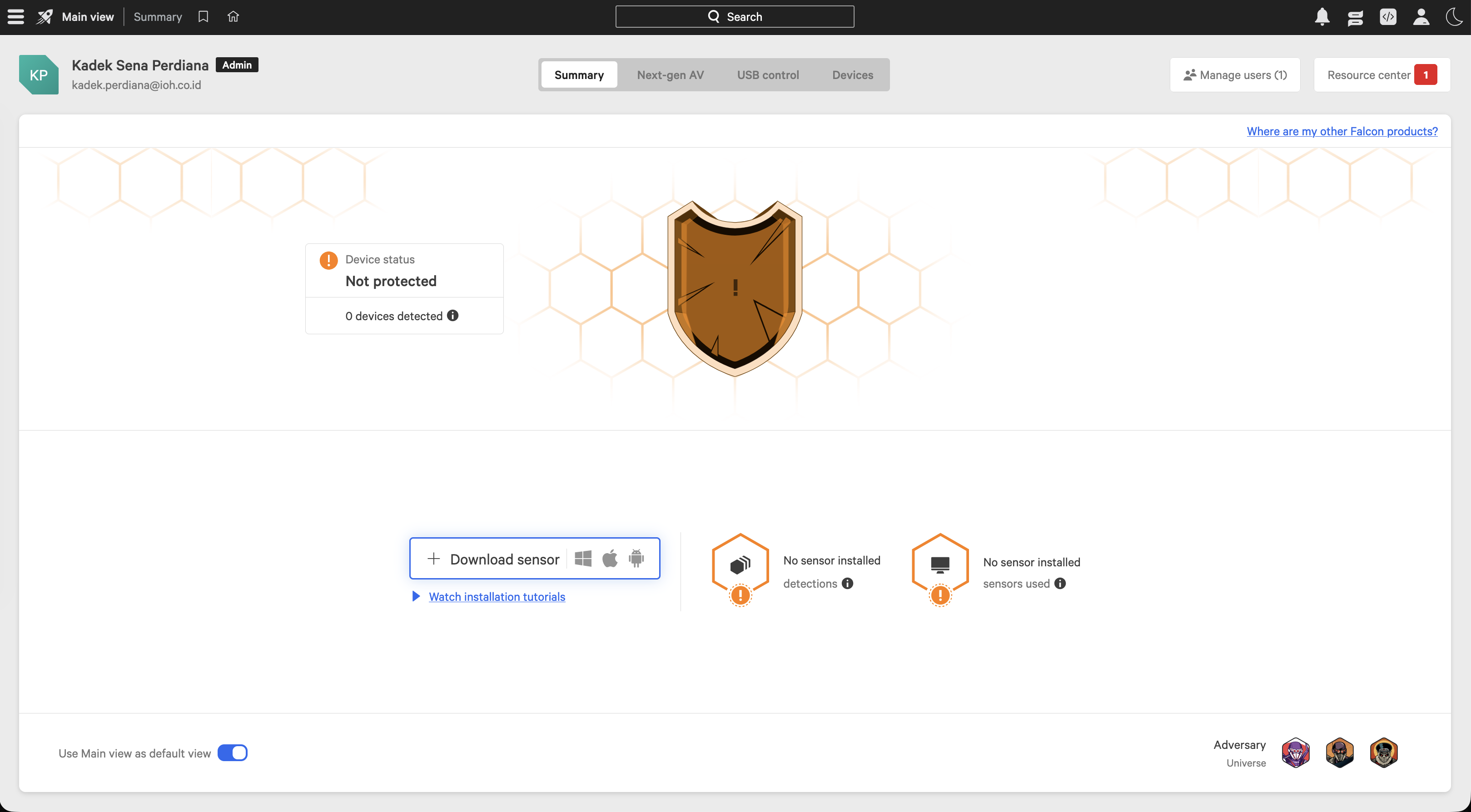
We begin on the CrowdStrike Falcon console dashboard, where no sensors are yet installed.
Sensor Installation and Onboarding
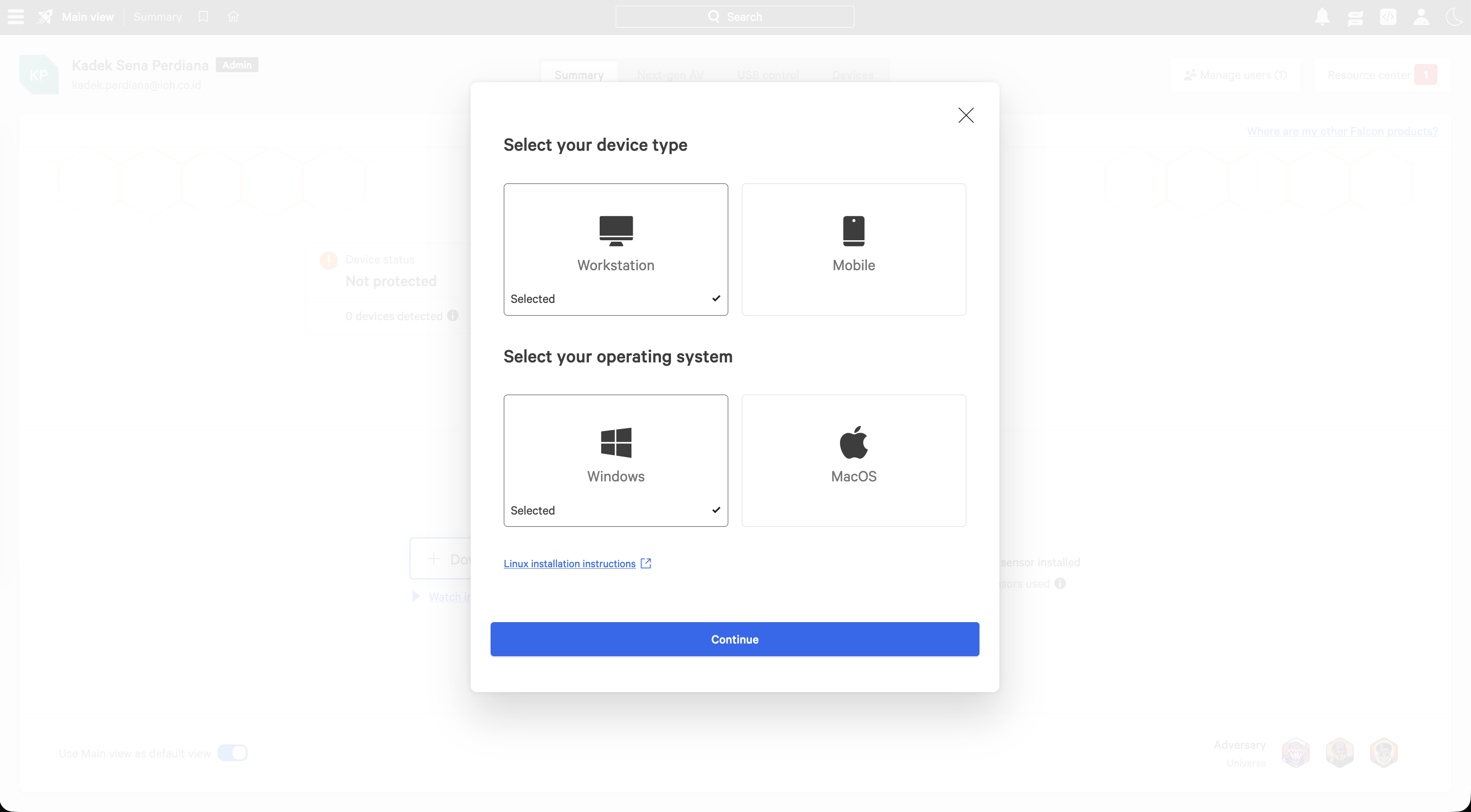
To download the agent, we navigate to the sensor download utility and select our operating system. We select Workstation/Server and Windows as our target platform.
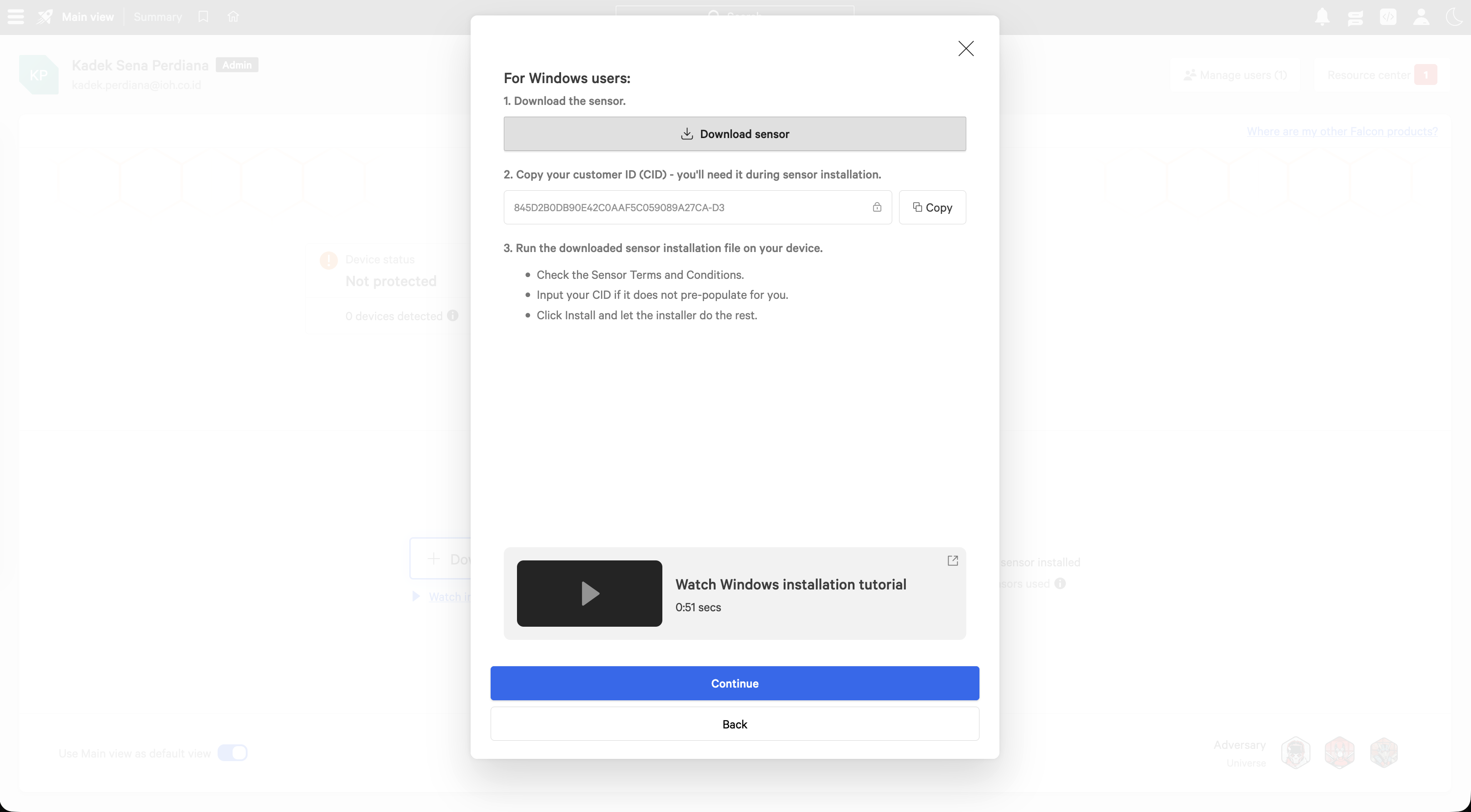
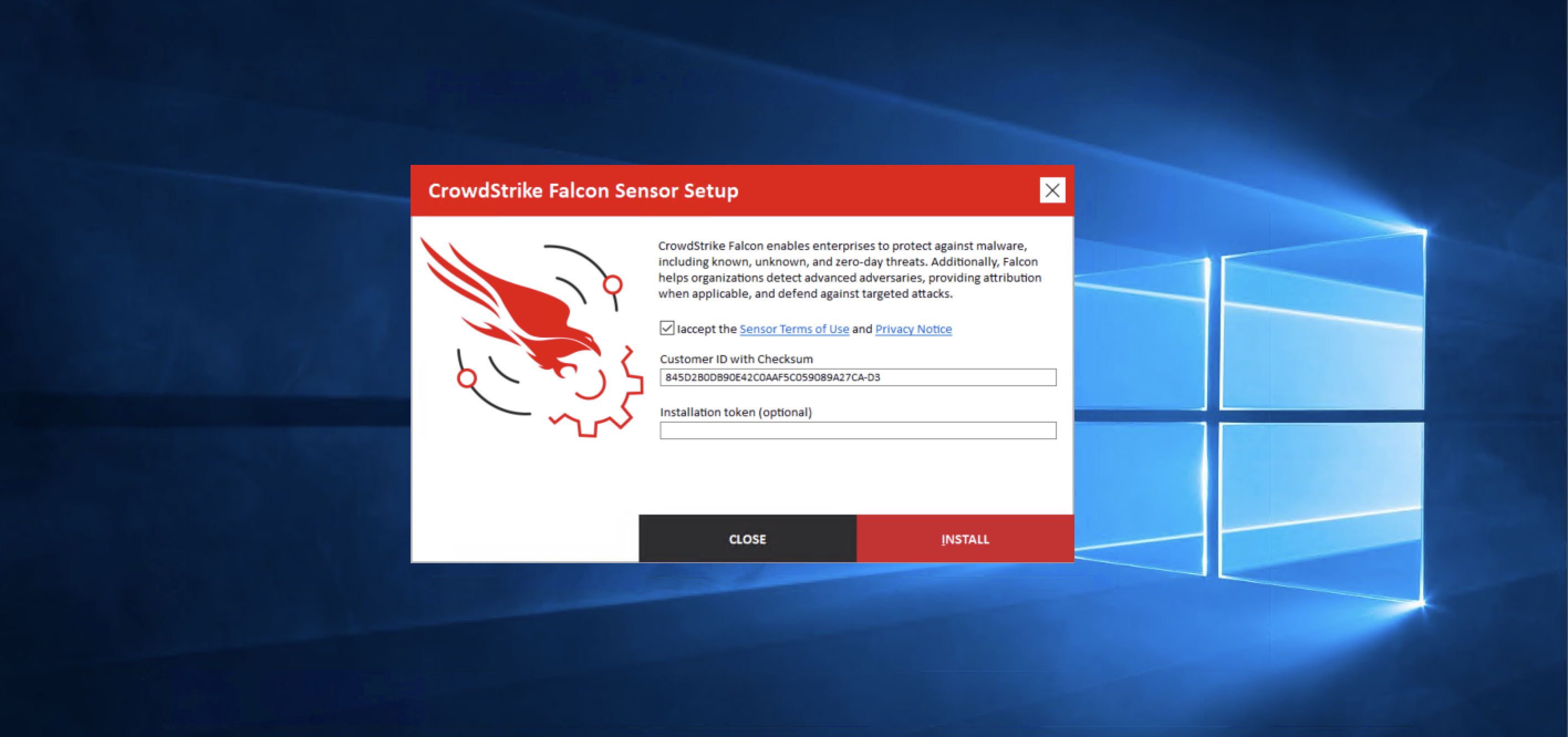
The console provides our unique Customer ID (CID) with checksum: 845D2B0DB90E42C0AAF5C059089A27CA-D3. We copy this CID to license the sensor during installation.
On the target host WIN-22 (a Windows Server 2019 instance), we run the installer and input the CID to establish the cloud enrollment handshake.
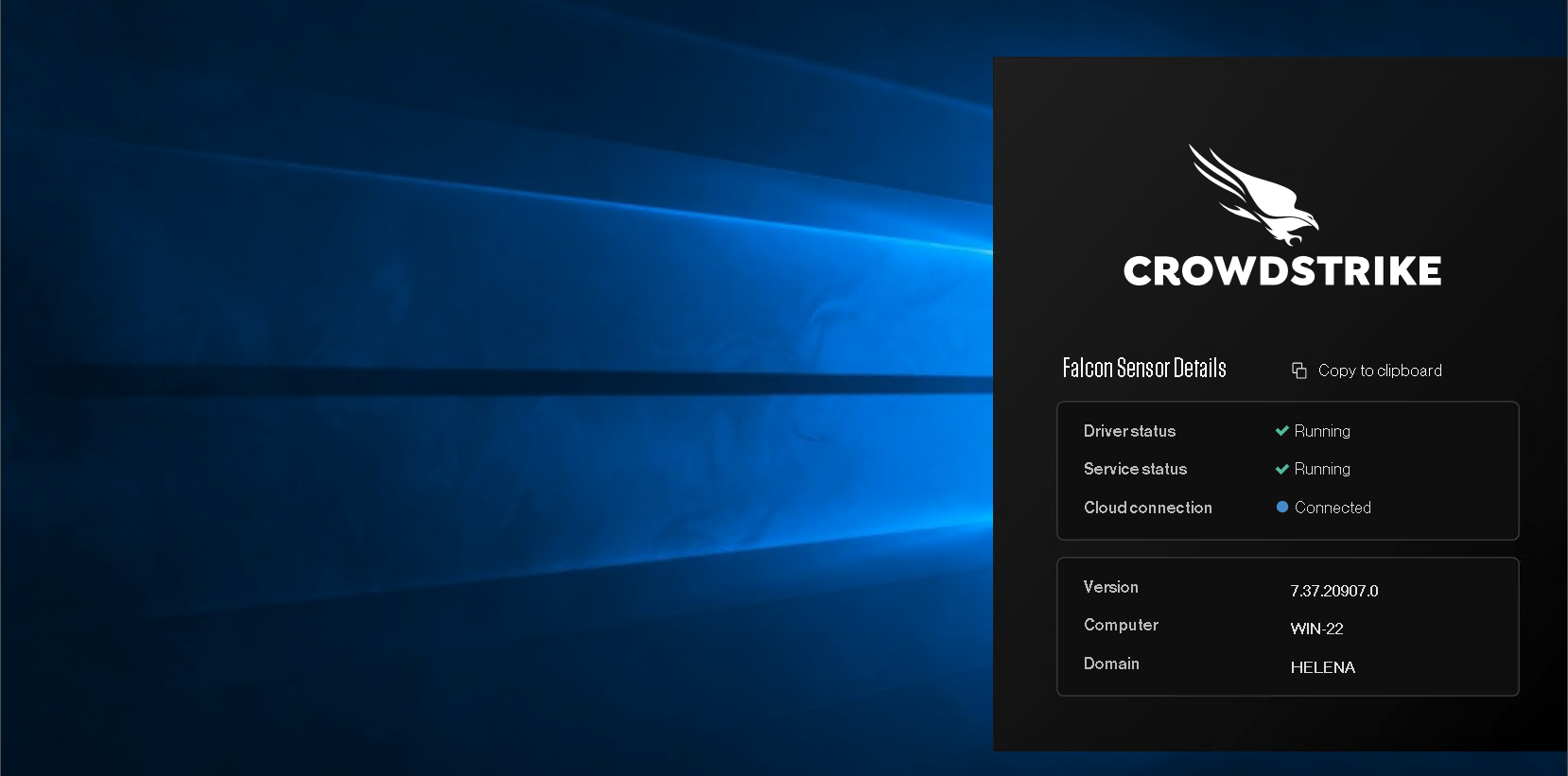
After the installation completes, we open the local Falcon Sensor Details utility to verify that the driver status is Running, the service status is Running, and the cloud connection state is Connected.
Host Group and Policy Configuration
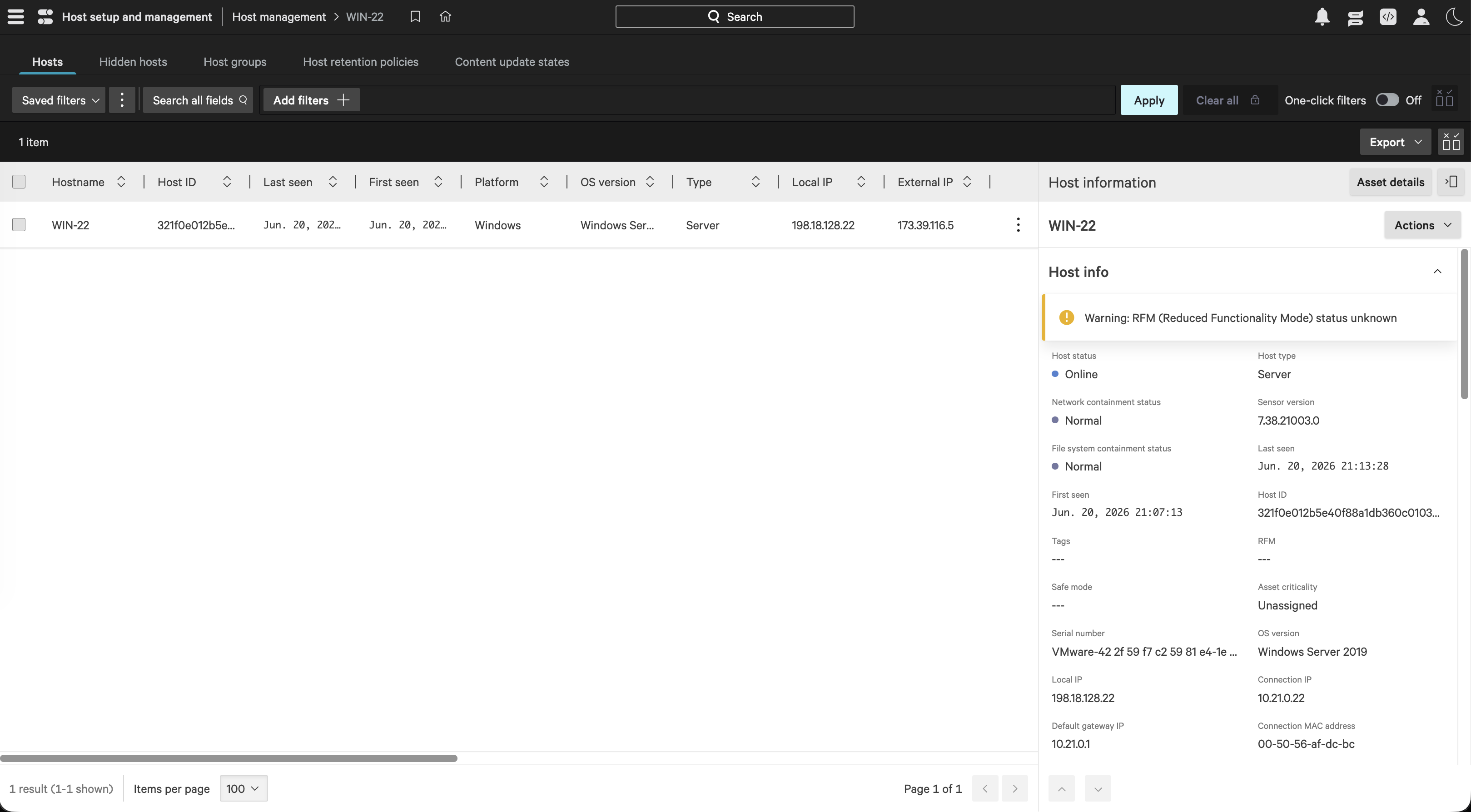
We return to the Falcon console’s Host management dashboard. The host WIN-22 is now online, exposing its sensor version 7.37.20907.0, connection IP 10.21.0.22, and local IP 198.18.128.22.
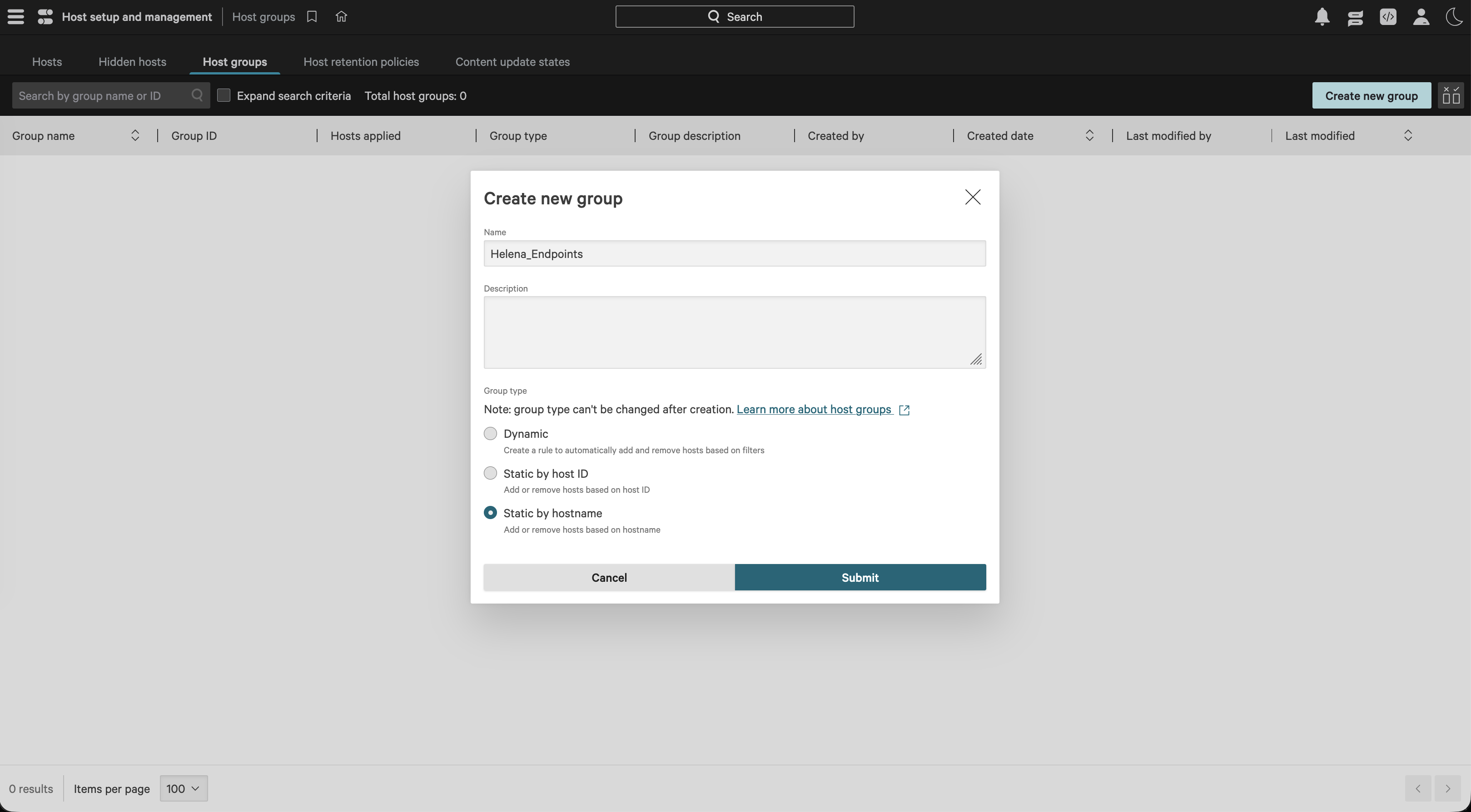
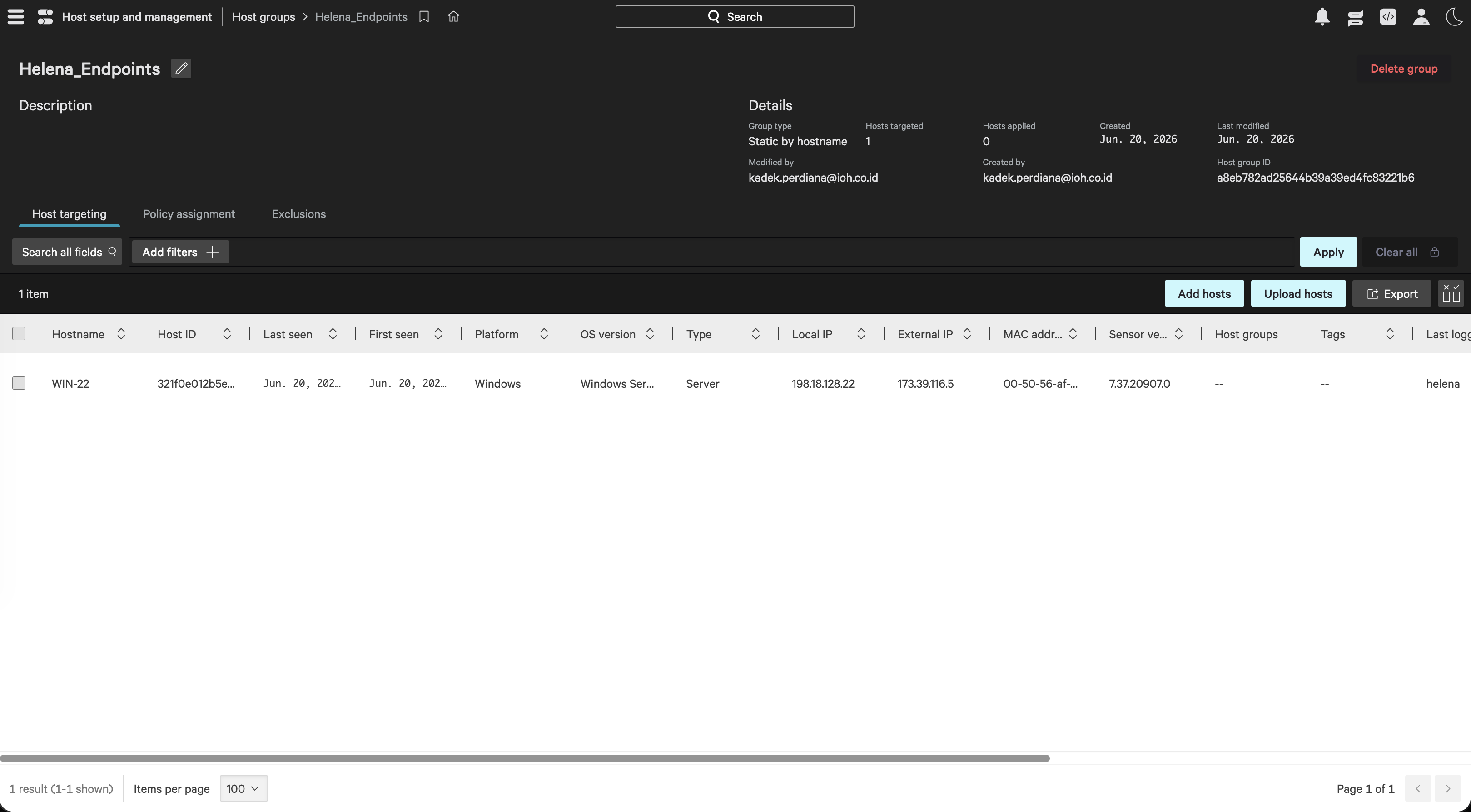
To apply specific prevention rules, we create a new static host group named Helena_Endpoints targeted by hostname.
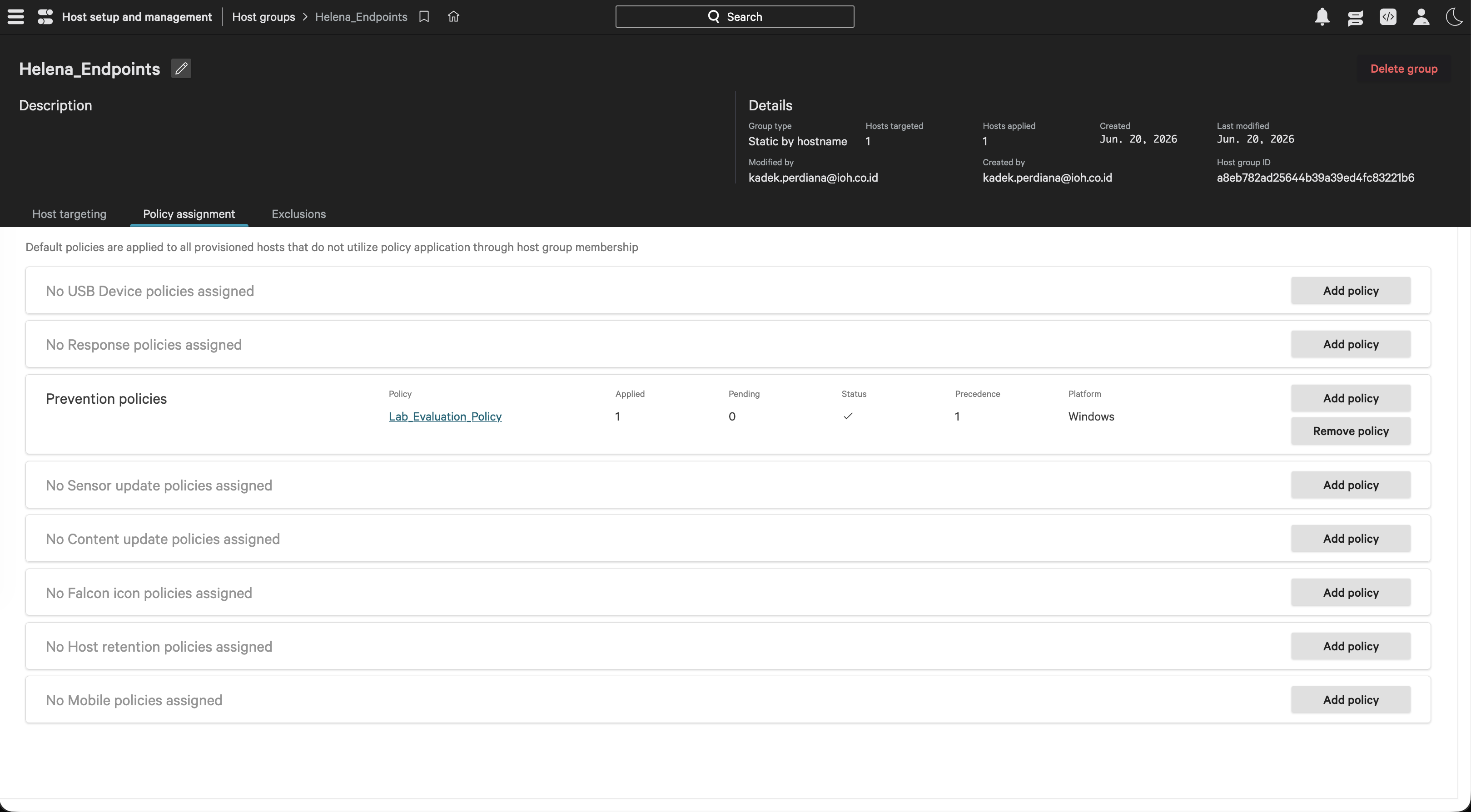
We manually assign the host WIN-22 to the Helena_Endpoints static group, which is assigned a host group ID of a8eb782ad25644b39a39ed4fc83221b6.
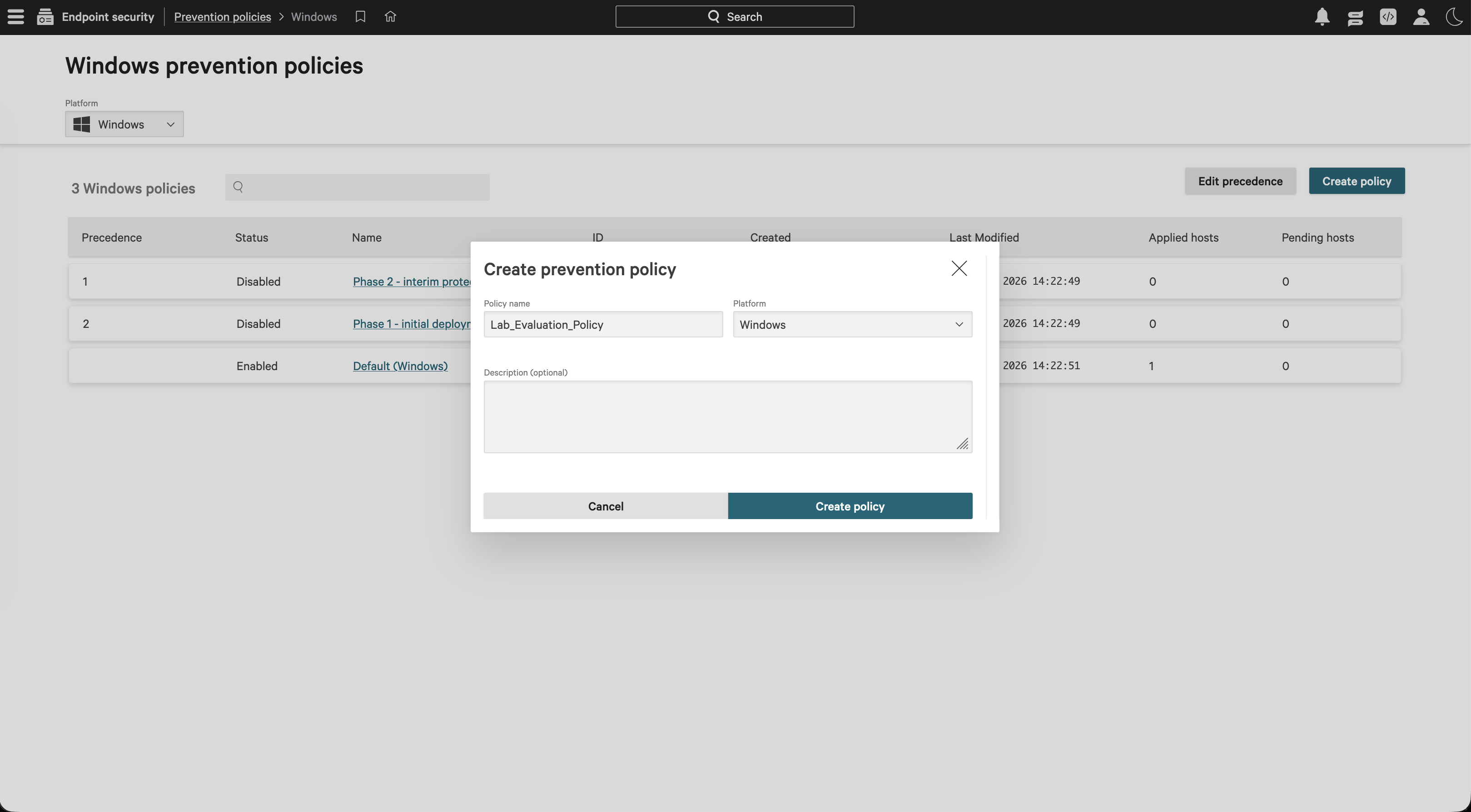
Next, under Endpoint security, we define a new Windows prevention policy named Lab_Evaluation_Policy.
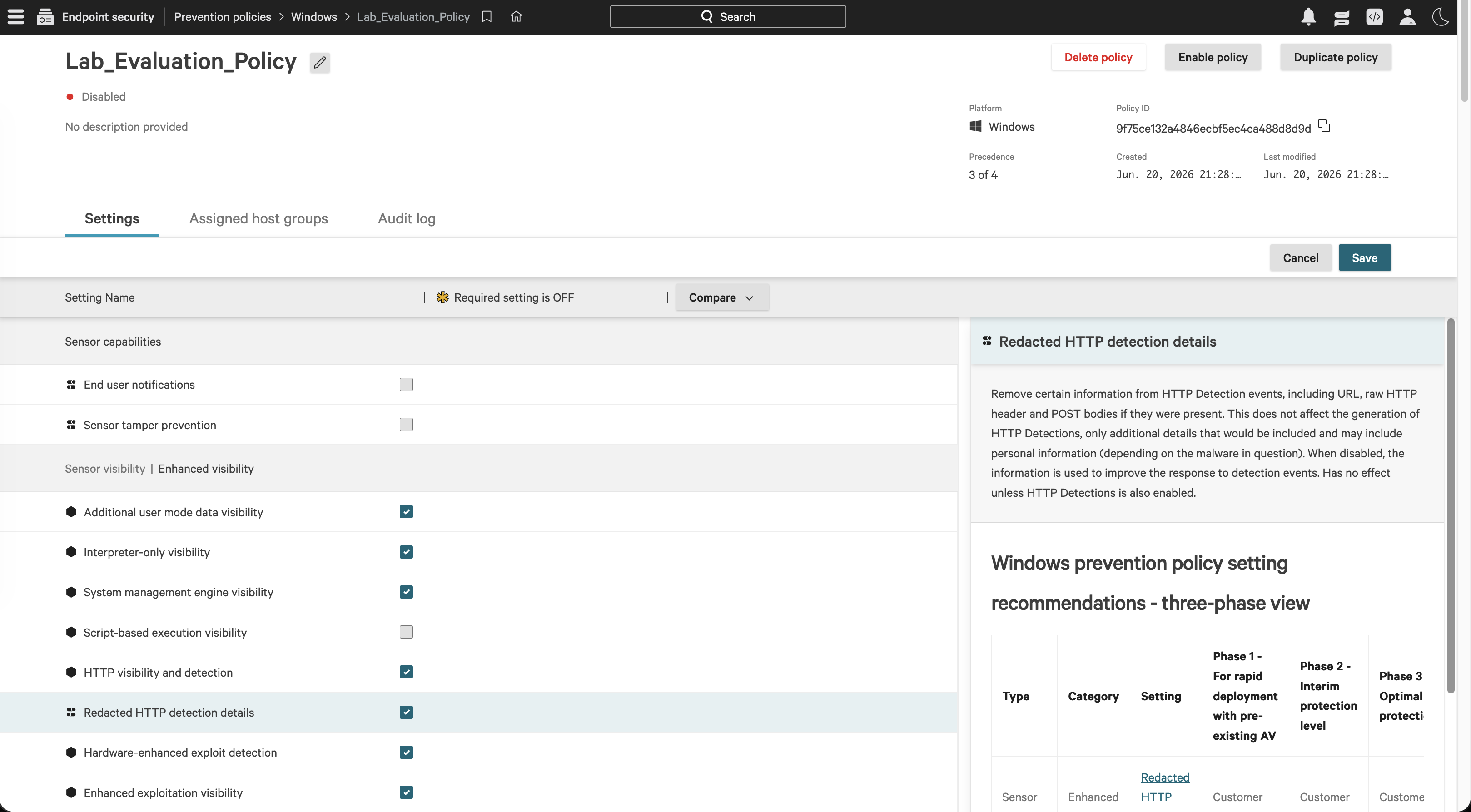
In the policy settings, we modify the visibility options. We can configure “Redacted HTTP detection details” to exclude headers or POST bodies from HTTP events to prevent PII leakage while maintaining core detection functionality.
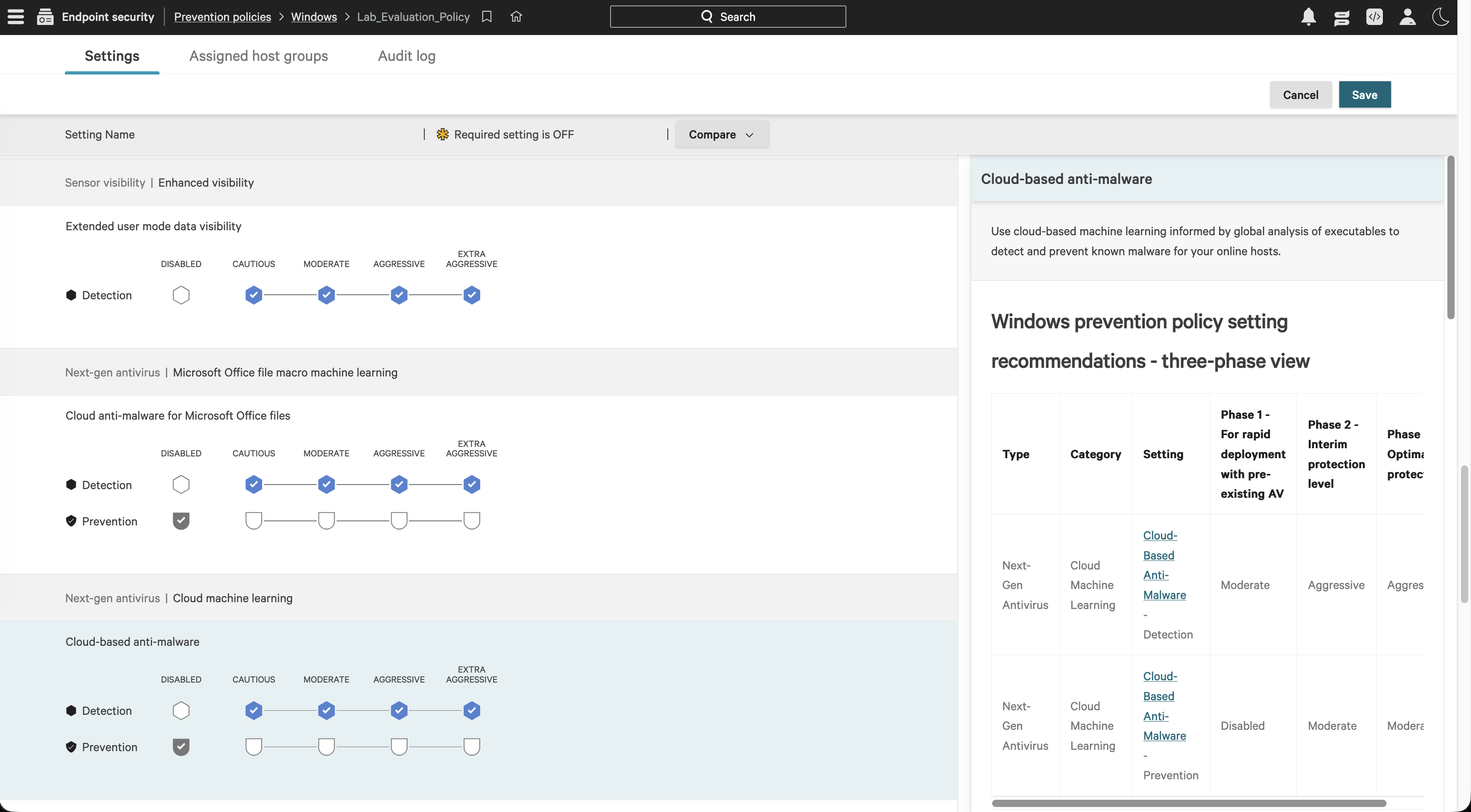
We review the Next-Gen Antivirus and Machine Learning thresholds. We can adjust the detection and prevention sliders (e.g., Cautious, Moderate, Aggressive, Extra Aggressive) for next-generation signatureless protection.
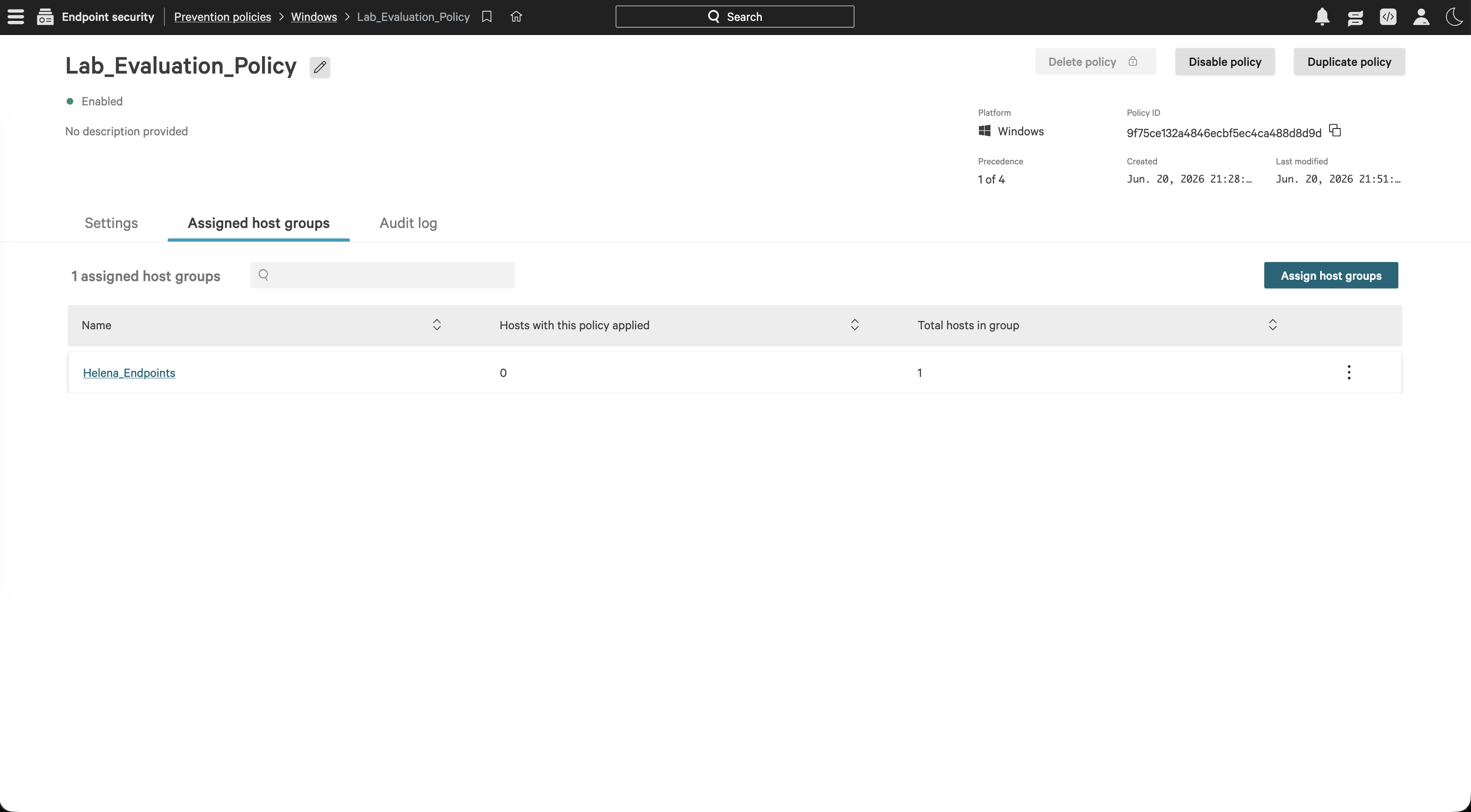
We enable Lab_Evaluation_Policy and assign it directly to the Helena_Endpoints host group.
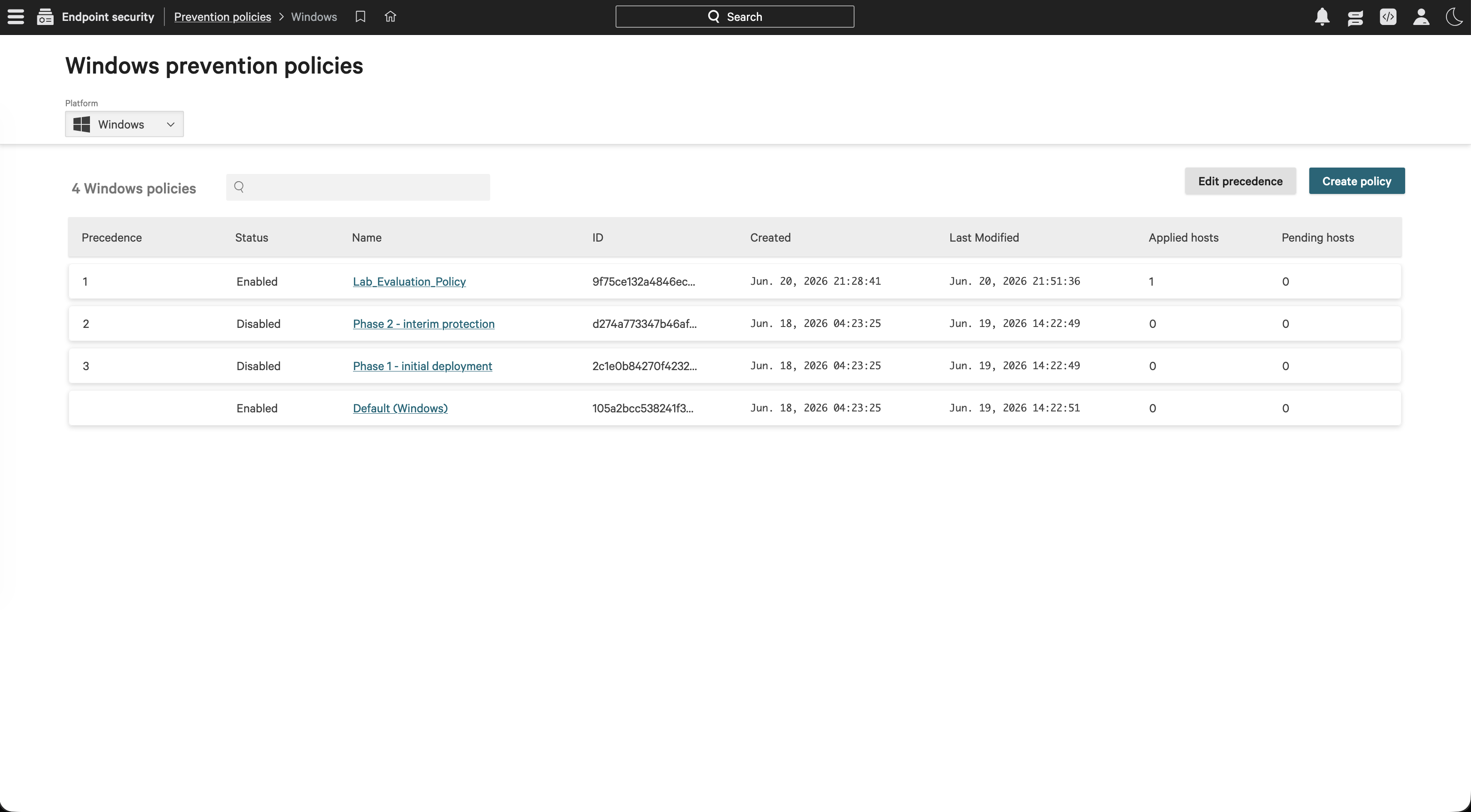
The policy takes precedence over the default Windows policy, moving it to precedence 1 on the dashboard.
Under the host group settings, we verify that the host group has successfully registered the assignment of Lab_Evaluation_Policy.
Active Threat Simulation
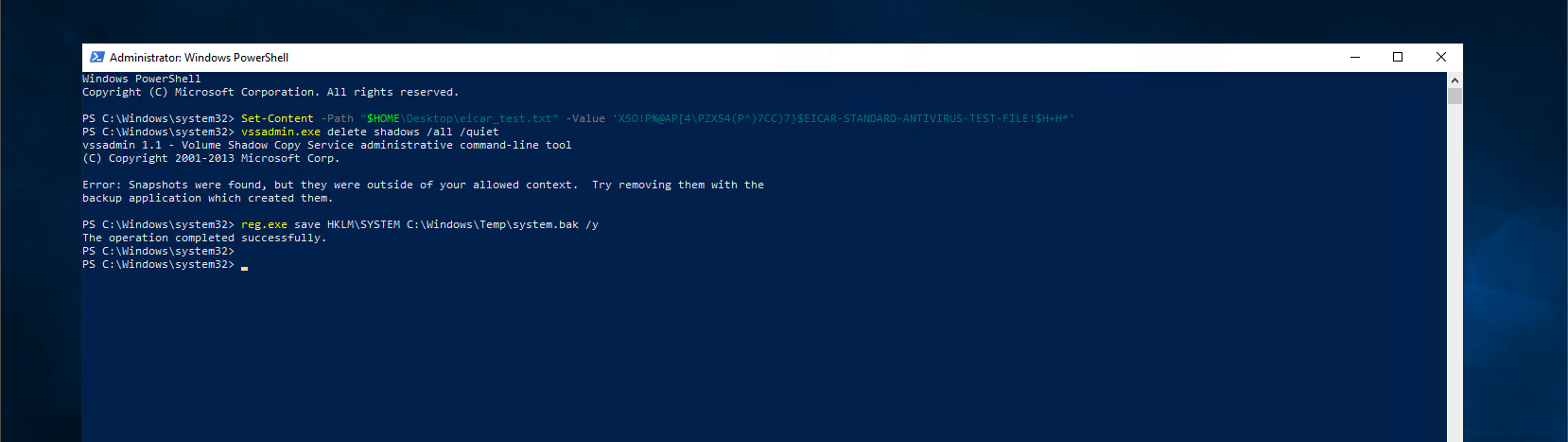
To test our prevention settings, we connect to WIN-22 via PowerShell and run three command patterns:
- Generate a test EICAR string.
- Attempt to delete shadow copies:
vssadmin.exe delete shadows /all /quiet. - Save the SYSTEM registry hive (simulating credential dumping):
reg.exe save HKLM\SYSTEM C:\Windows\Temp\system.bak /y.
The shadow copy deletion fails with an administrative warning, indicating local tamper/recovery protection is working.
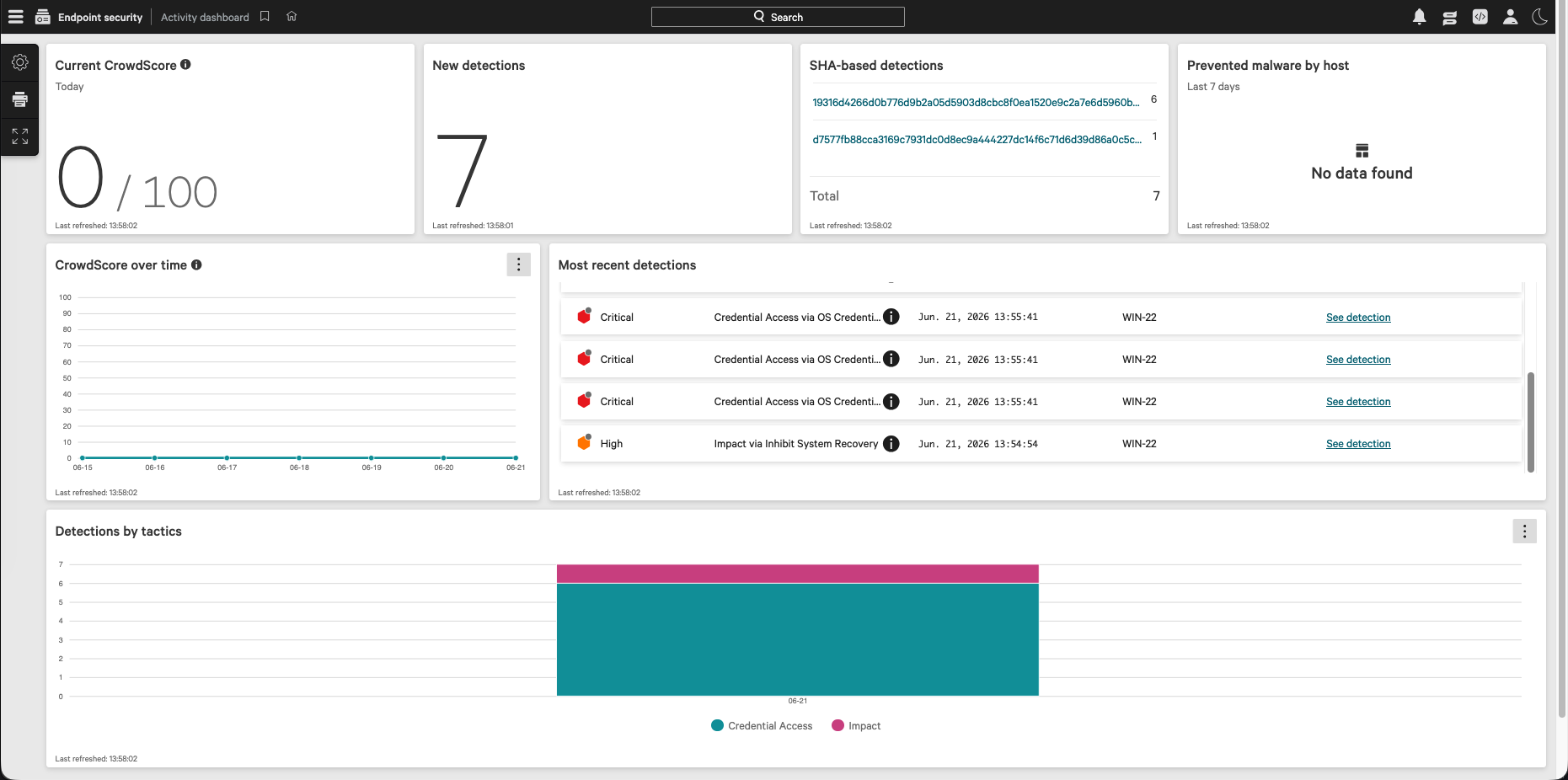
On the Falcon Activity dashboard, our simulated attacks trigger high and critical alerts, showing active credential access and system recovery inhibition tactics.
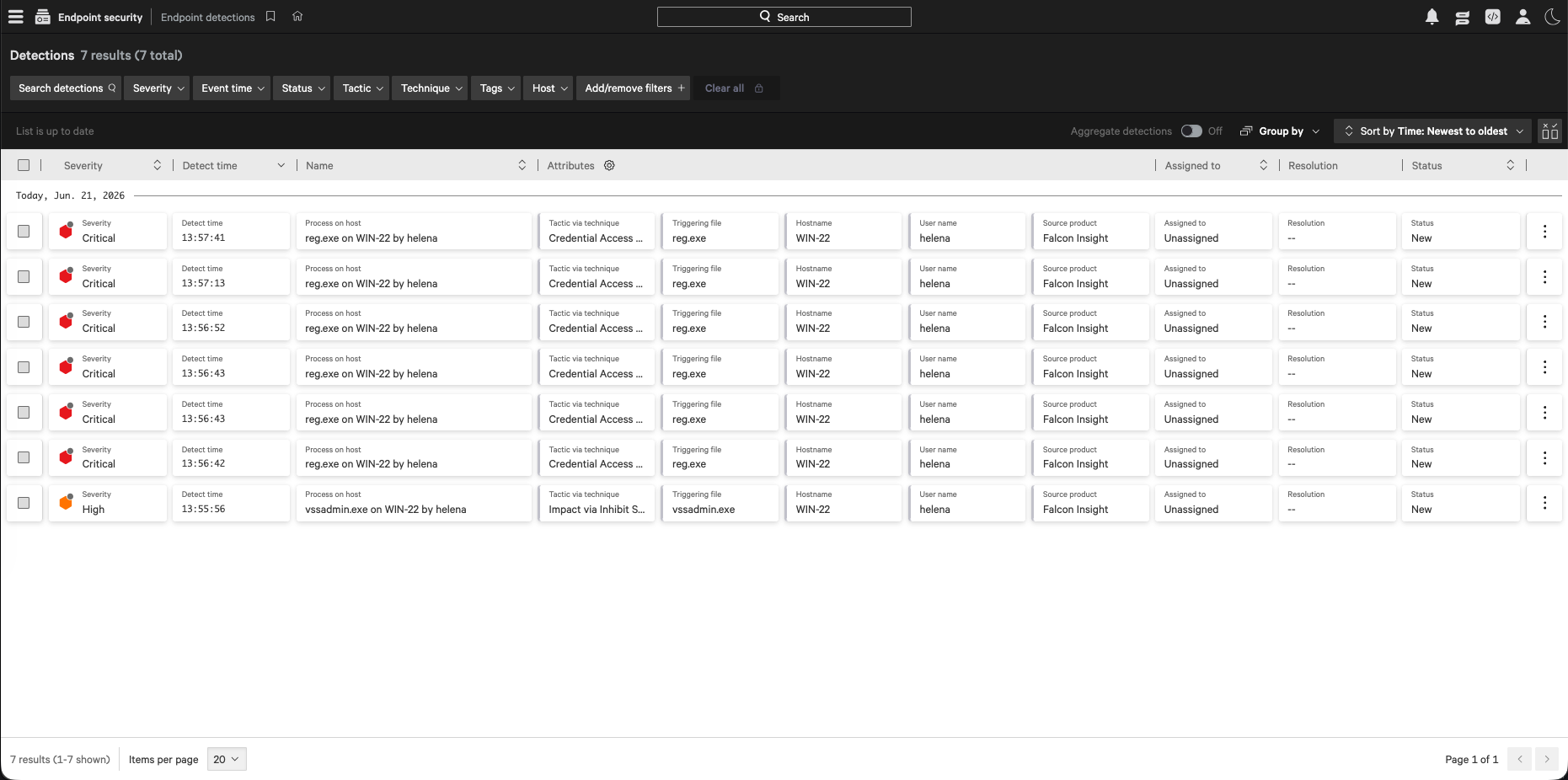
The Endpoint detections list shows a total of 7 detections registered from host WIN-22 for both reg.exe and vssadmin.exe.
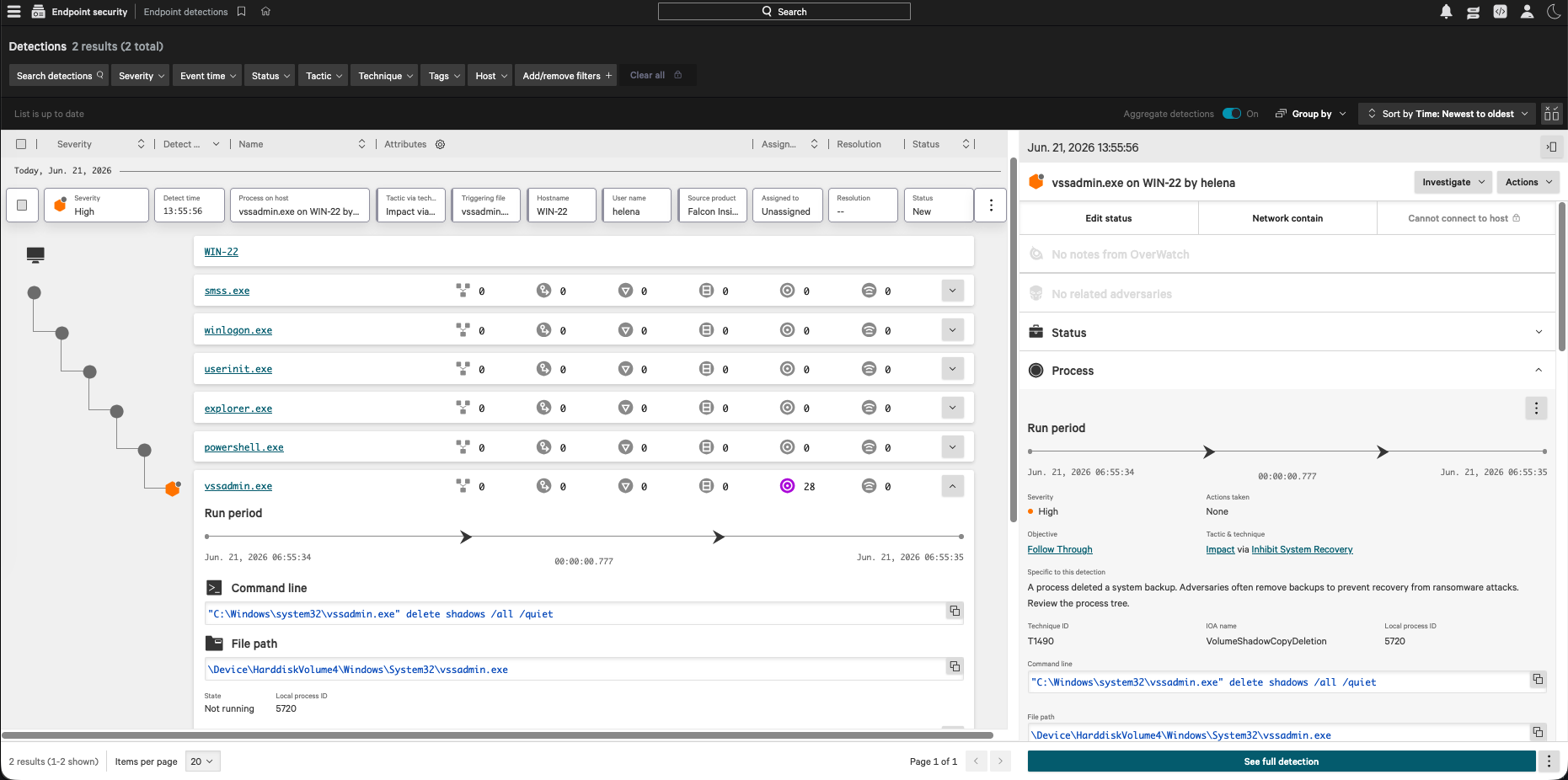
We drill down into the shadow copy deletion event. Falcon identifies the tactic as Impact via Inhibit System Recovery (T1490) and triggers the IOA VolumeShadowCopyDeletion based on the command line input.
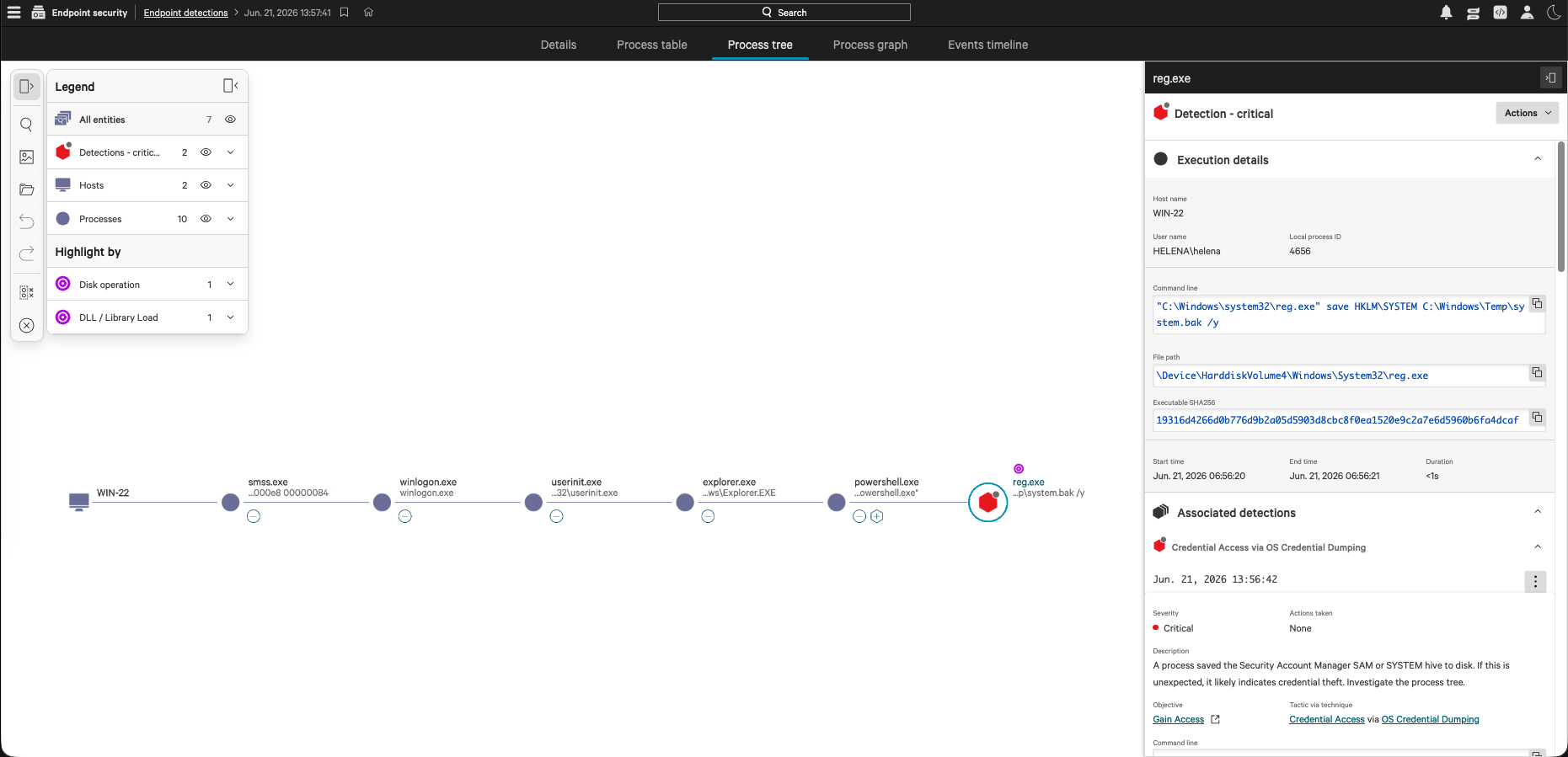
We inspect the credential theft detection. The event is classified as Credential Access via OS Credential Dumping (T1003) with IOA HiveCredTheft due to the attempt to dump the registry SYSTEM hive.
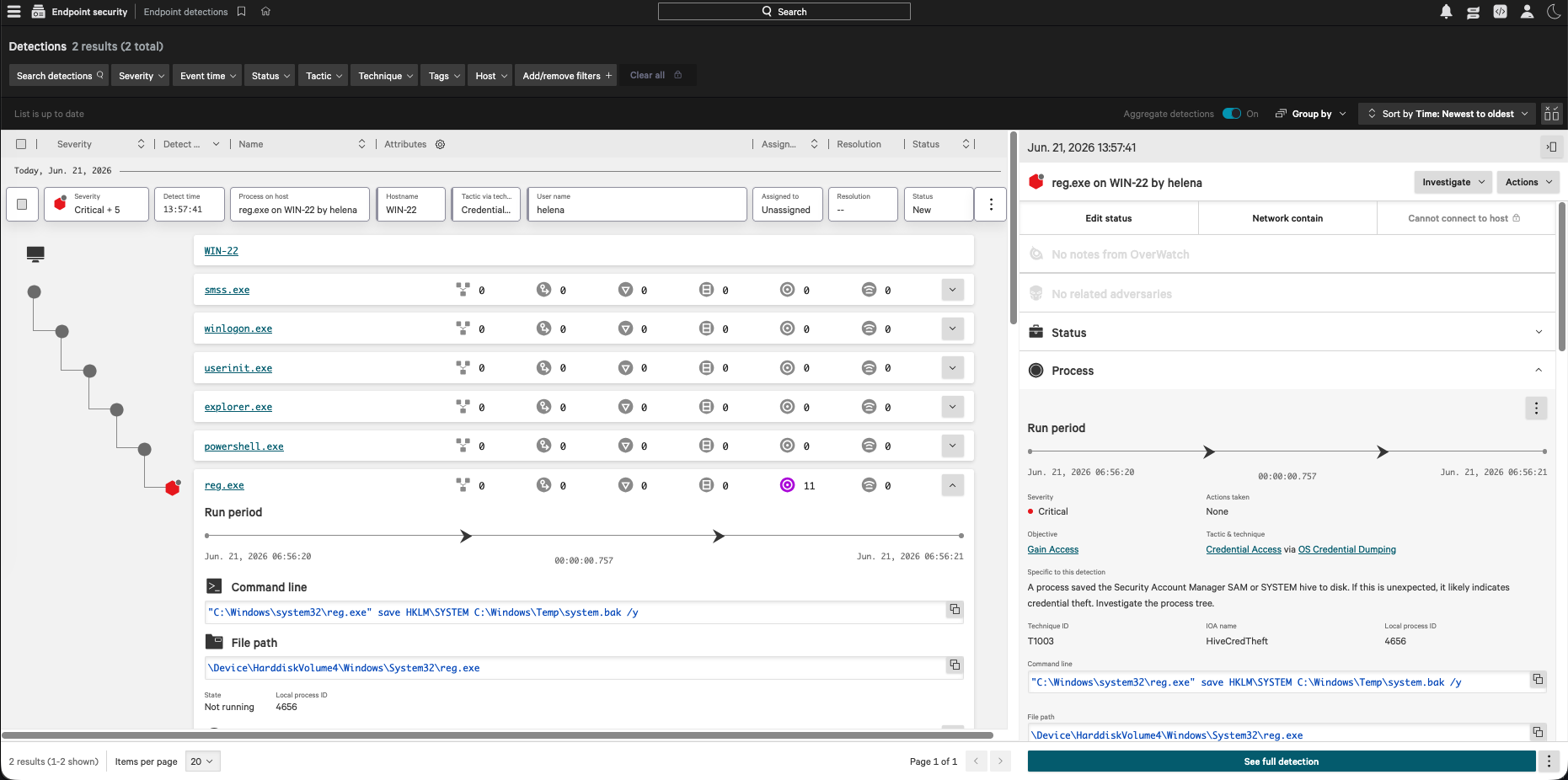
We inspect the interactive process graph. It tracks the complete process execution chain: smss.exe -> winlogon.exe -> userinit.exe -> explorer.exe -> powershell.exe -> reg.exe.
Network Containment
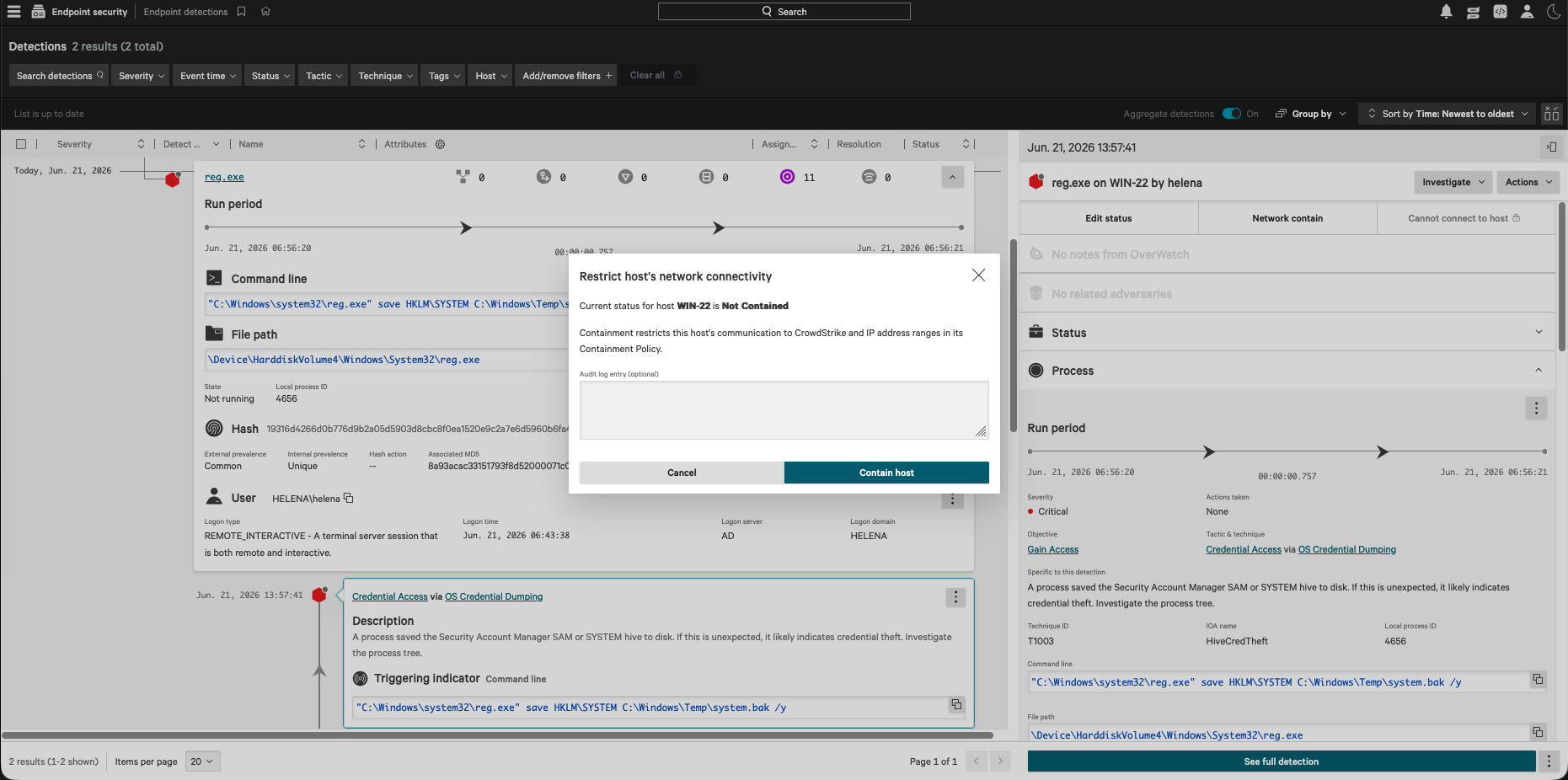
To isolate the compromised host while continuing forensic investigation, we trigger the Network Contain action on WIN-22.
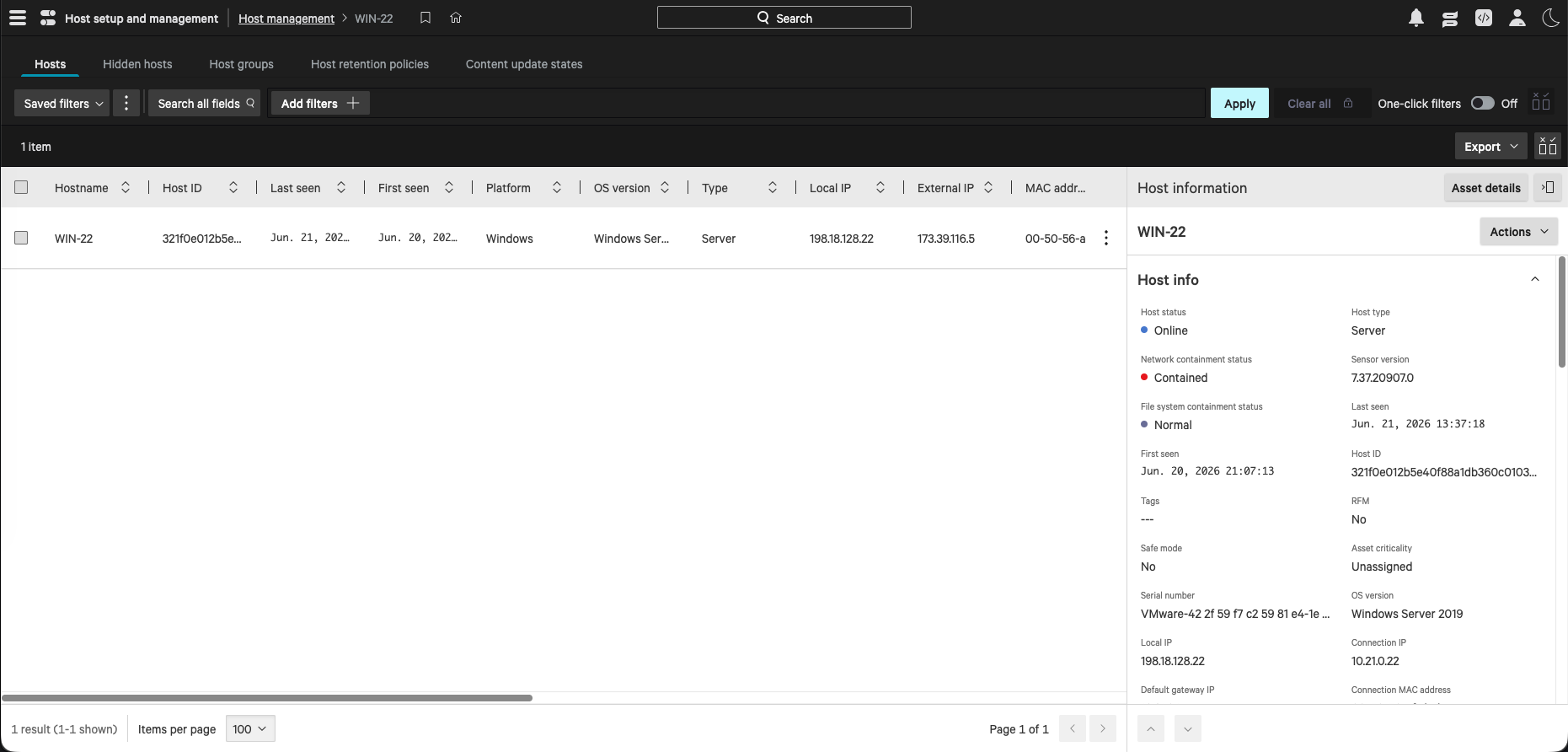
Under the host management dashboard, the network containment status of WIN-22 is updated to Contained. The endpoint’s network stack is now isolated from all local and external subnets, allowing traffic only to the CrowdStrike Falcon cloud console.
Custom IOC Hash Blocking
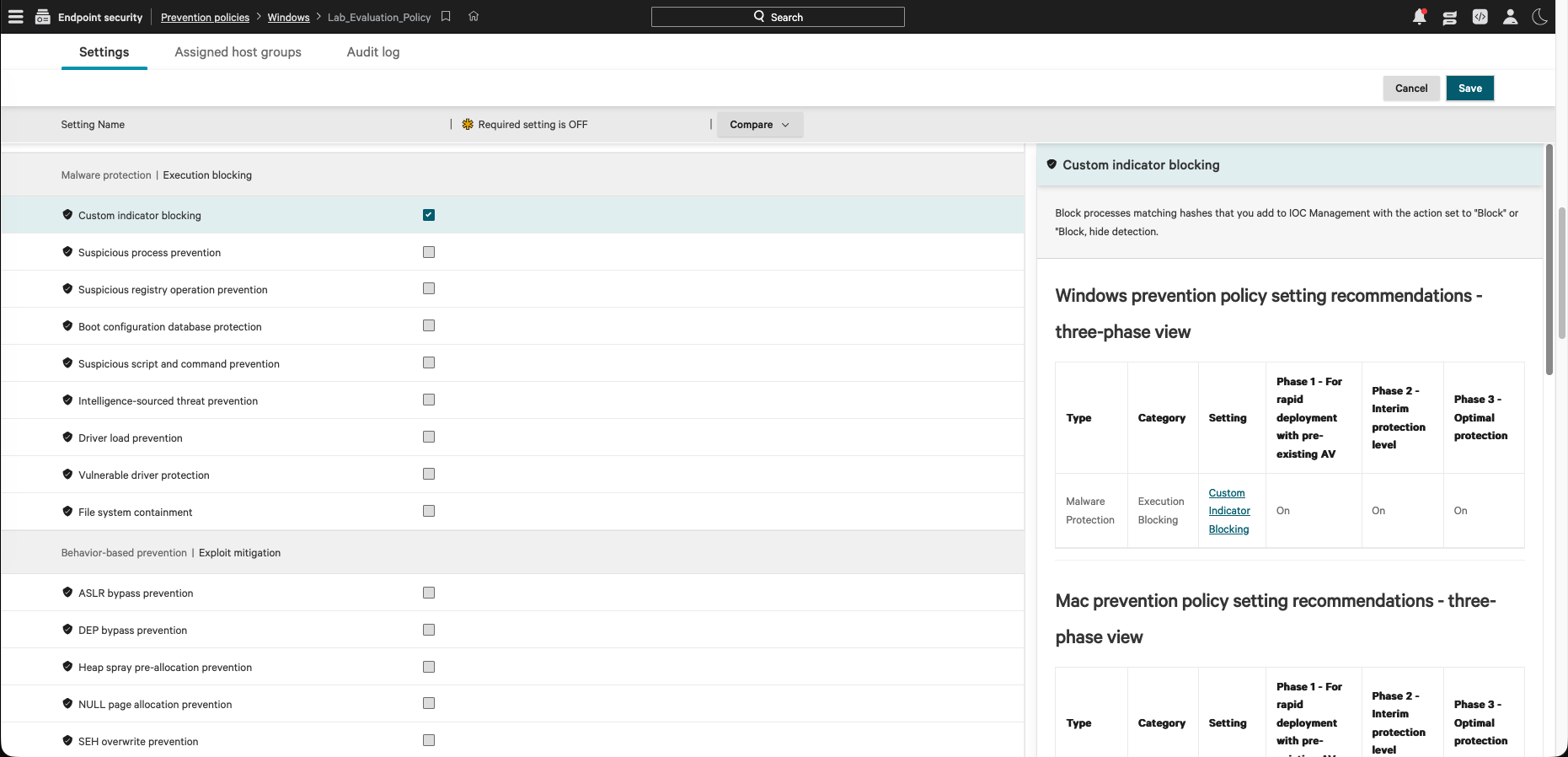
To implement custom threat intelligence blocking, we verify that “Custom indicator blocking” is enabled inside our prevention policy.
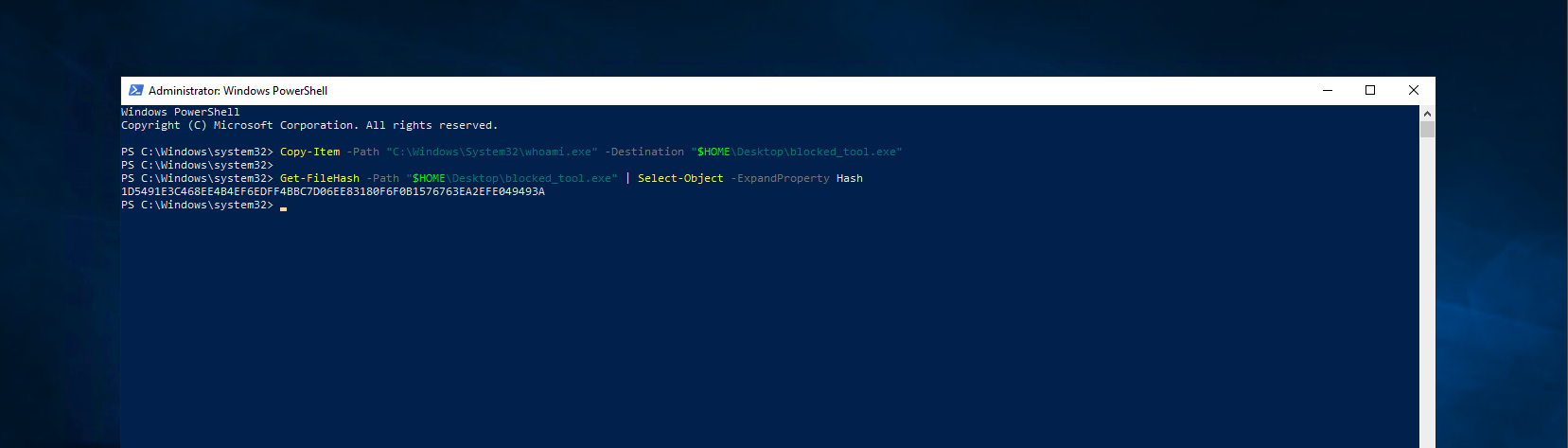
We copy whoami.exe to a test file named blocked_tool.exe on WIN-22’s desktop and calculate its SHA-256 hash using PowerShell: 1D5491E3C468EE4B4EF6EDFF4BBC7D06EE83180F6F0B1576763EA2EFE049493A
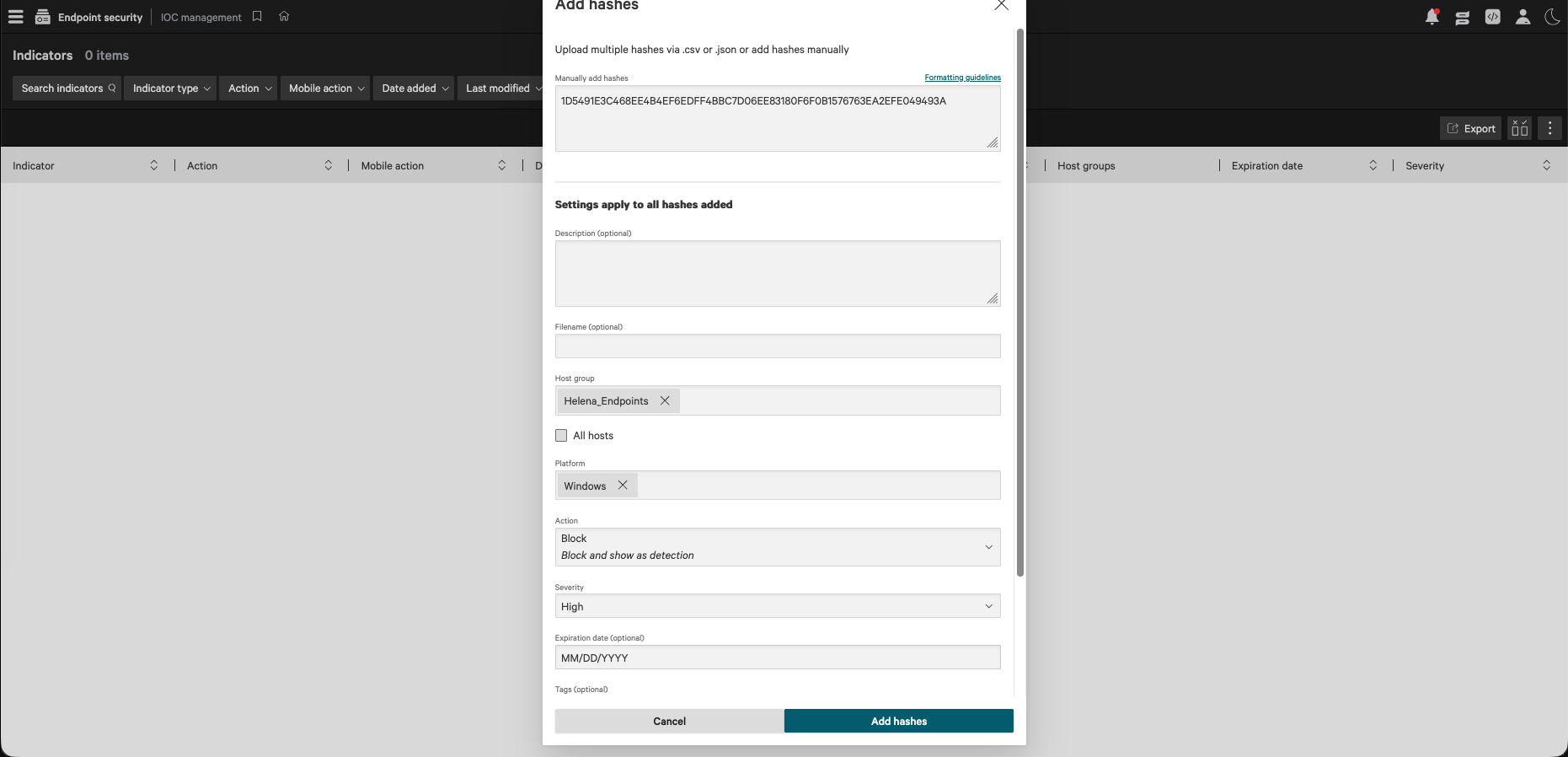
Under IOC management, we manually add the SHA-256 hash, setting the action to Block, severity to High, and targeting it specifically at the Helena_Endpoints host group.
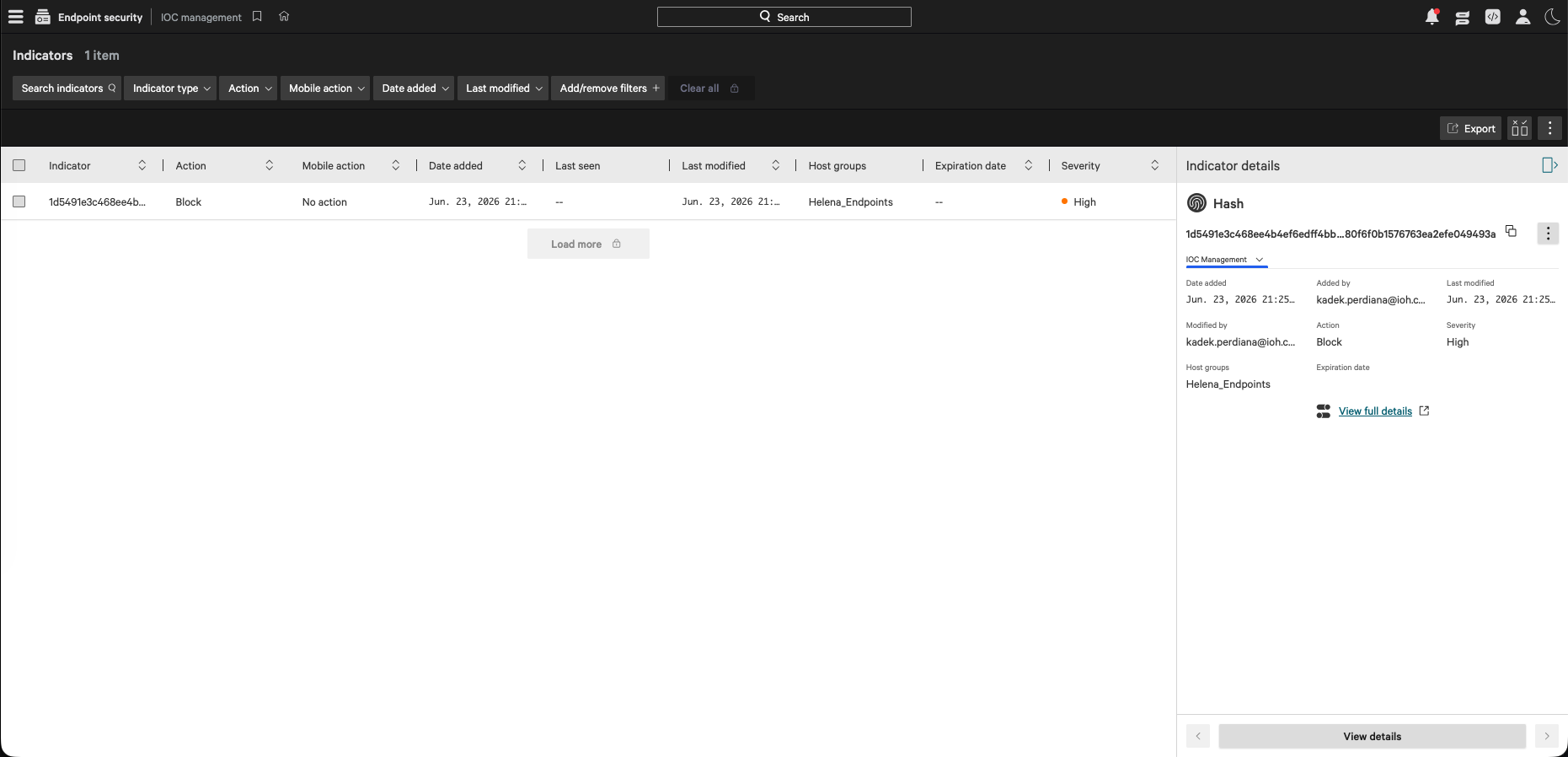
The custom hash indicator is successfully enrolled and active.
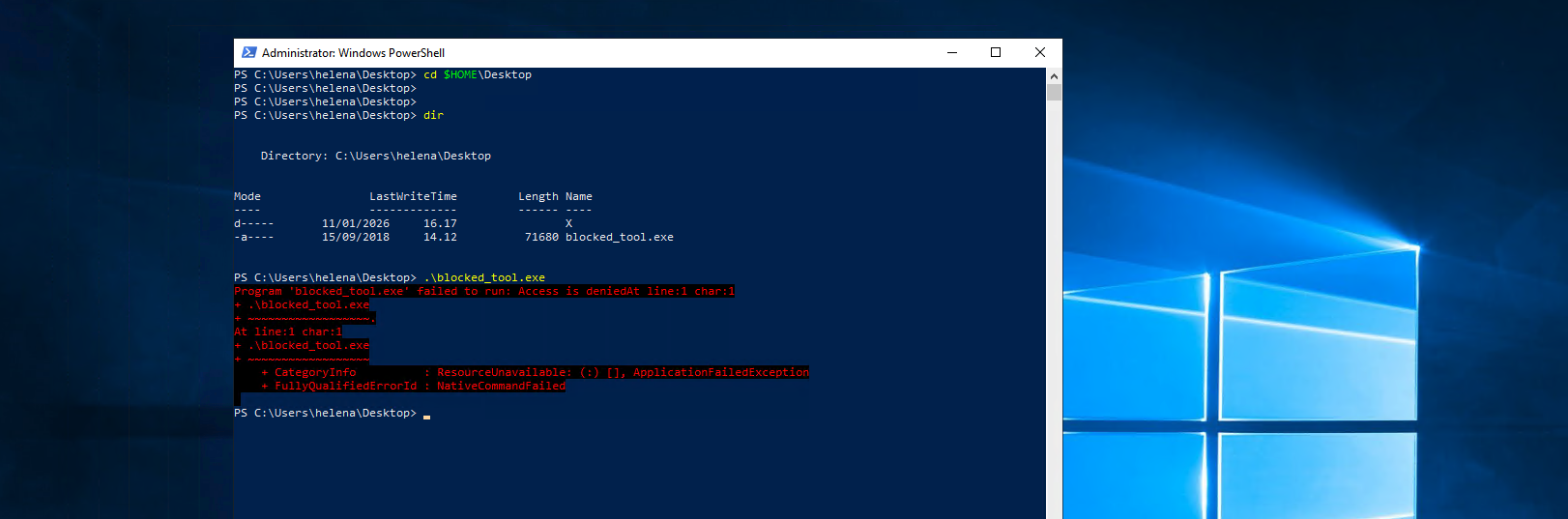
We return to WIN-22 and attempt to run the tool. The execution fails immediately with an Access is denied PowerShell error.
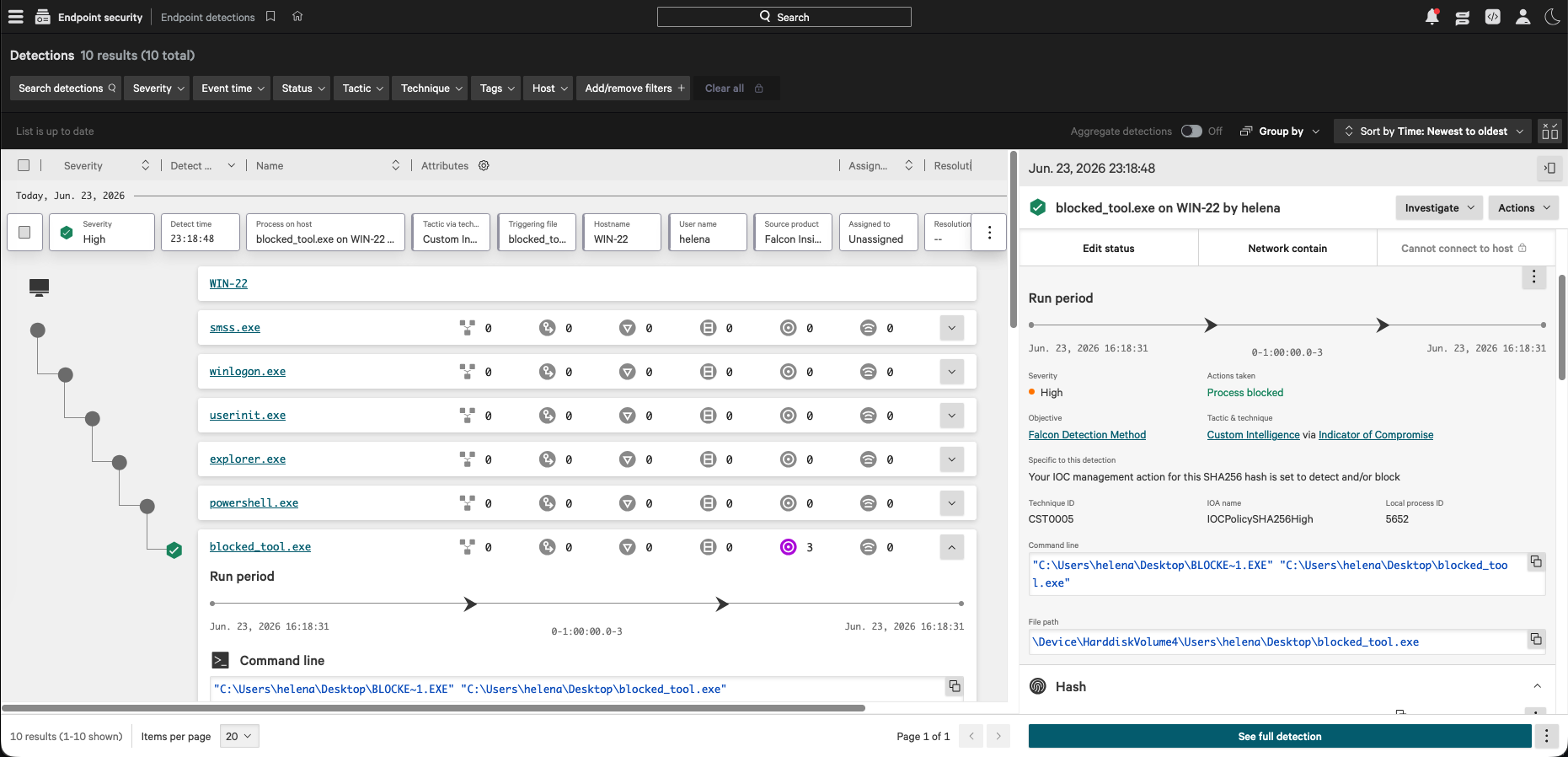
In the detections console, the detection count increases to 10, indicating the custom block policy has successfully intercepted the execution.
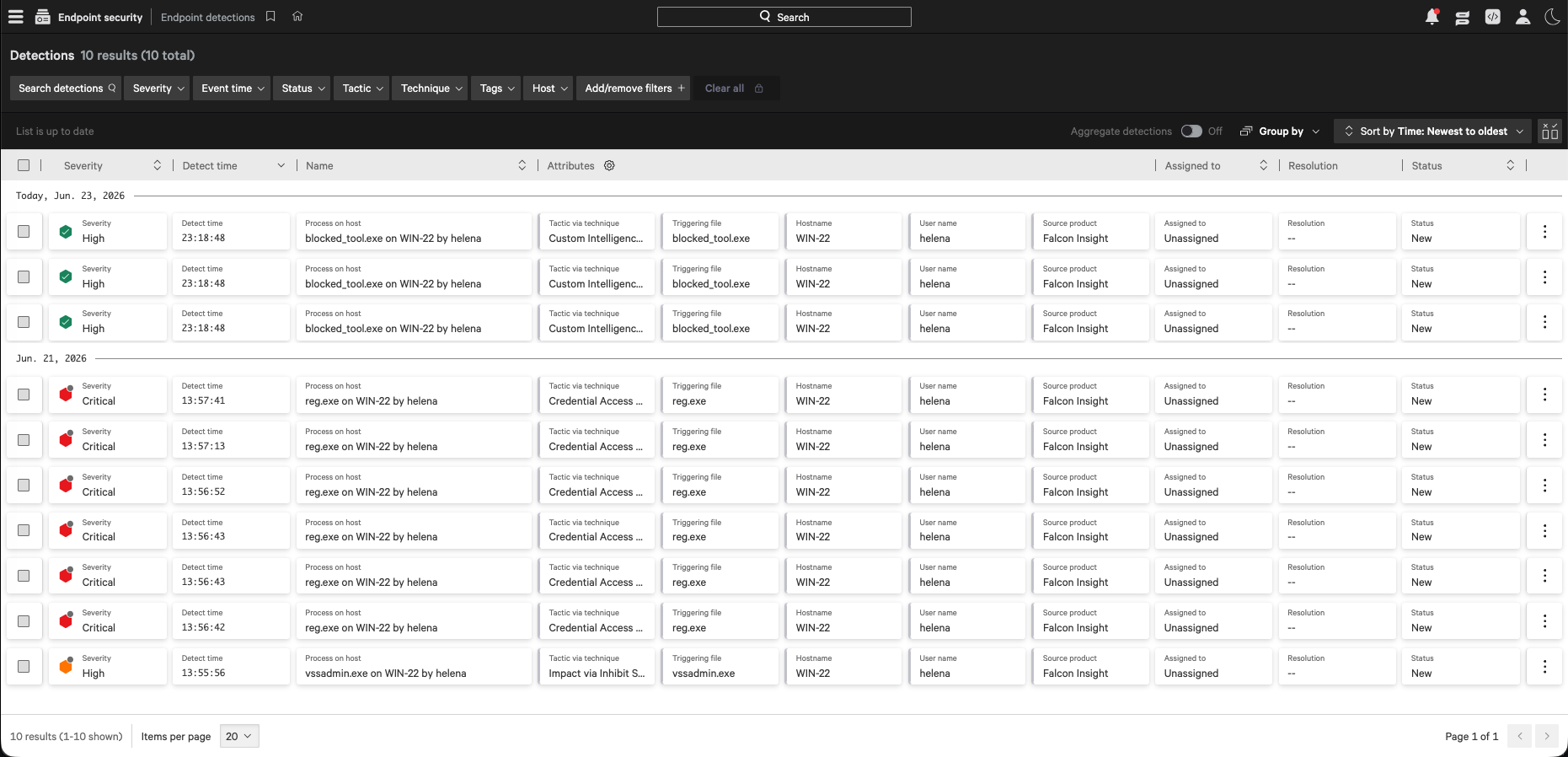
We inspect the alert details for blocked_tool.exe. The Falcon detection method registers a Custom Intelligence via Indicator of Compromise match and logs the action taken as Process blocked under the IOCPolicySHA256High rule.