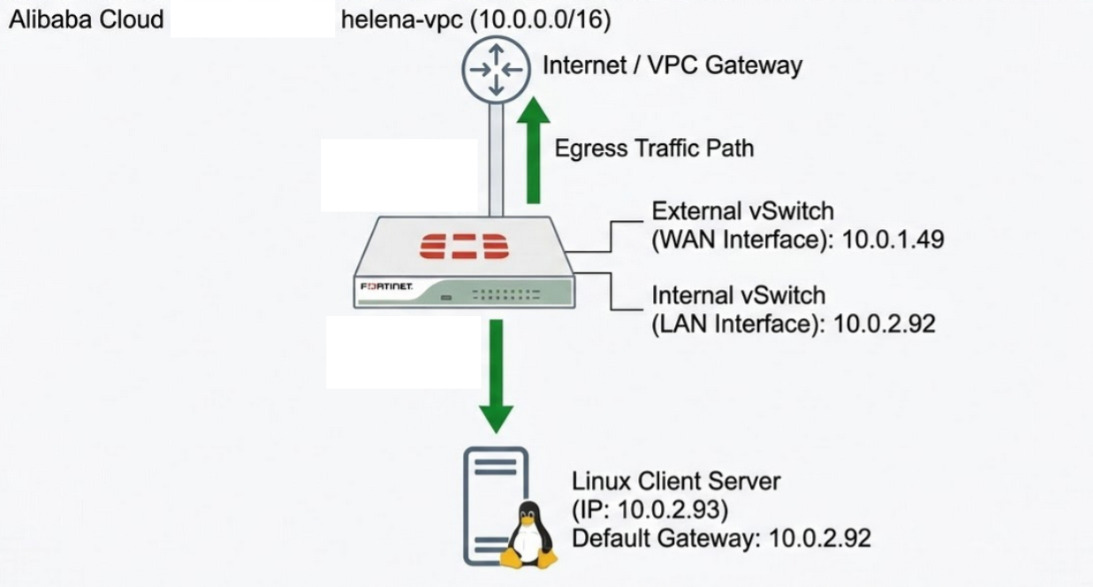
Alibaba Cloud is a comprehensive cloud computing platform provided by Alibaba Group that offers a wide range of services, including elastic compute, storage, networking, security, and artificial intelligence. In this lab, we will deploy a FortiGate firewall virtual appliance using a custom image within the Alibaba Cloud environment. We will configure multiple network interfaces and implement route control to ensure that all traffic from an internal Linux host is inspected by the firewall before reaching the internet.
Creating Image
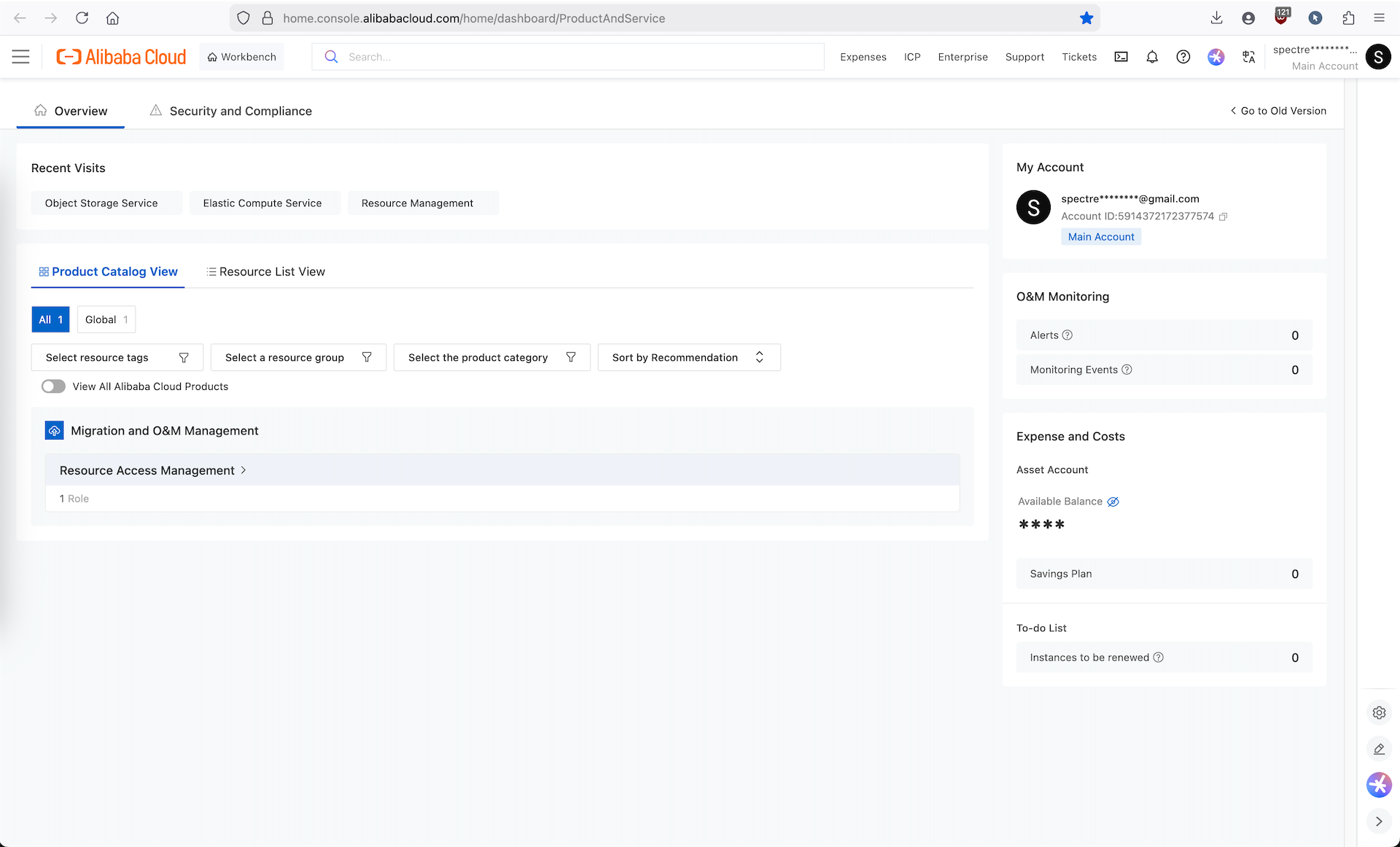
Here we access the Alibaba Cloud Console
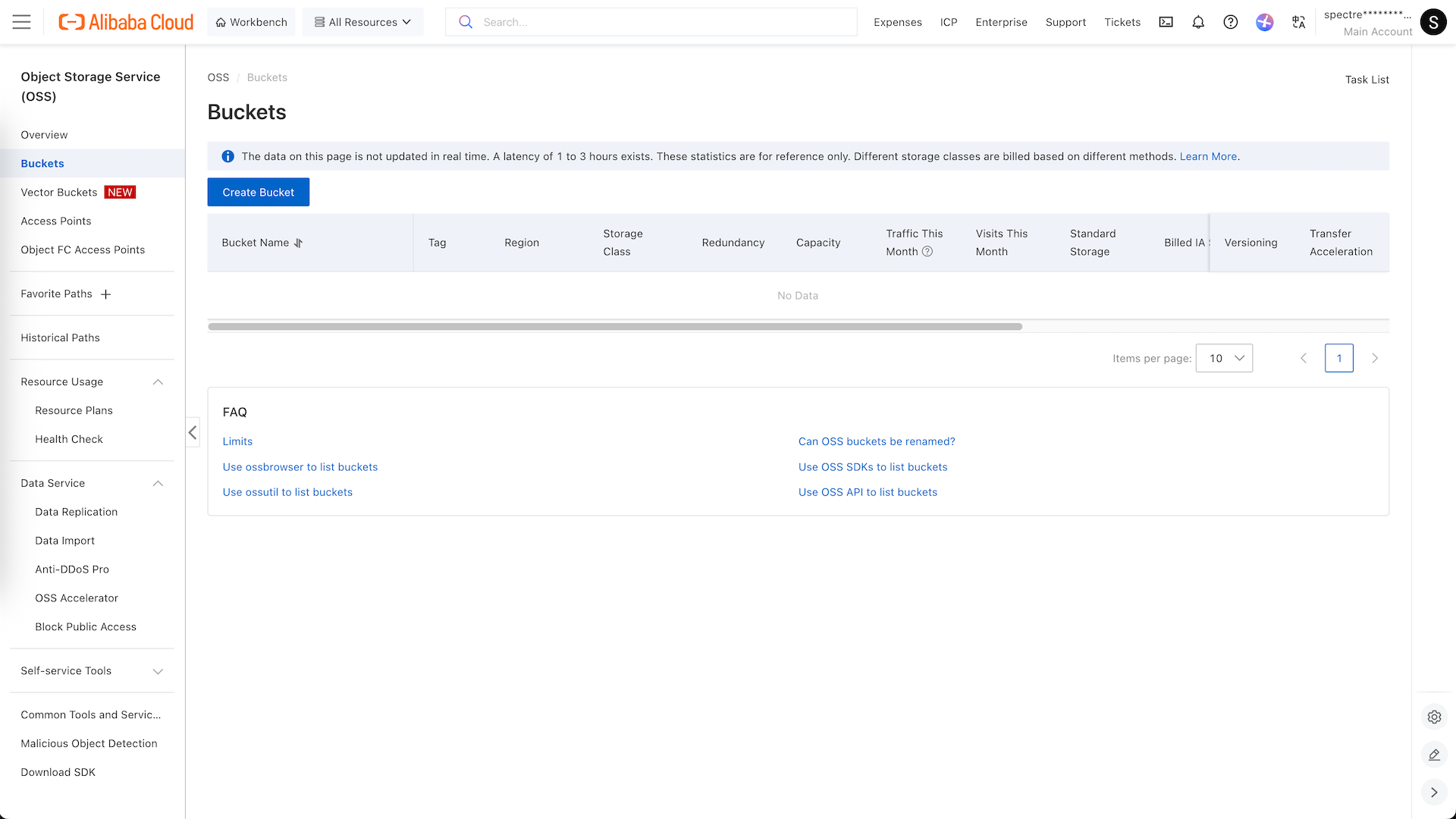
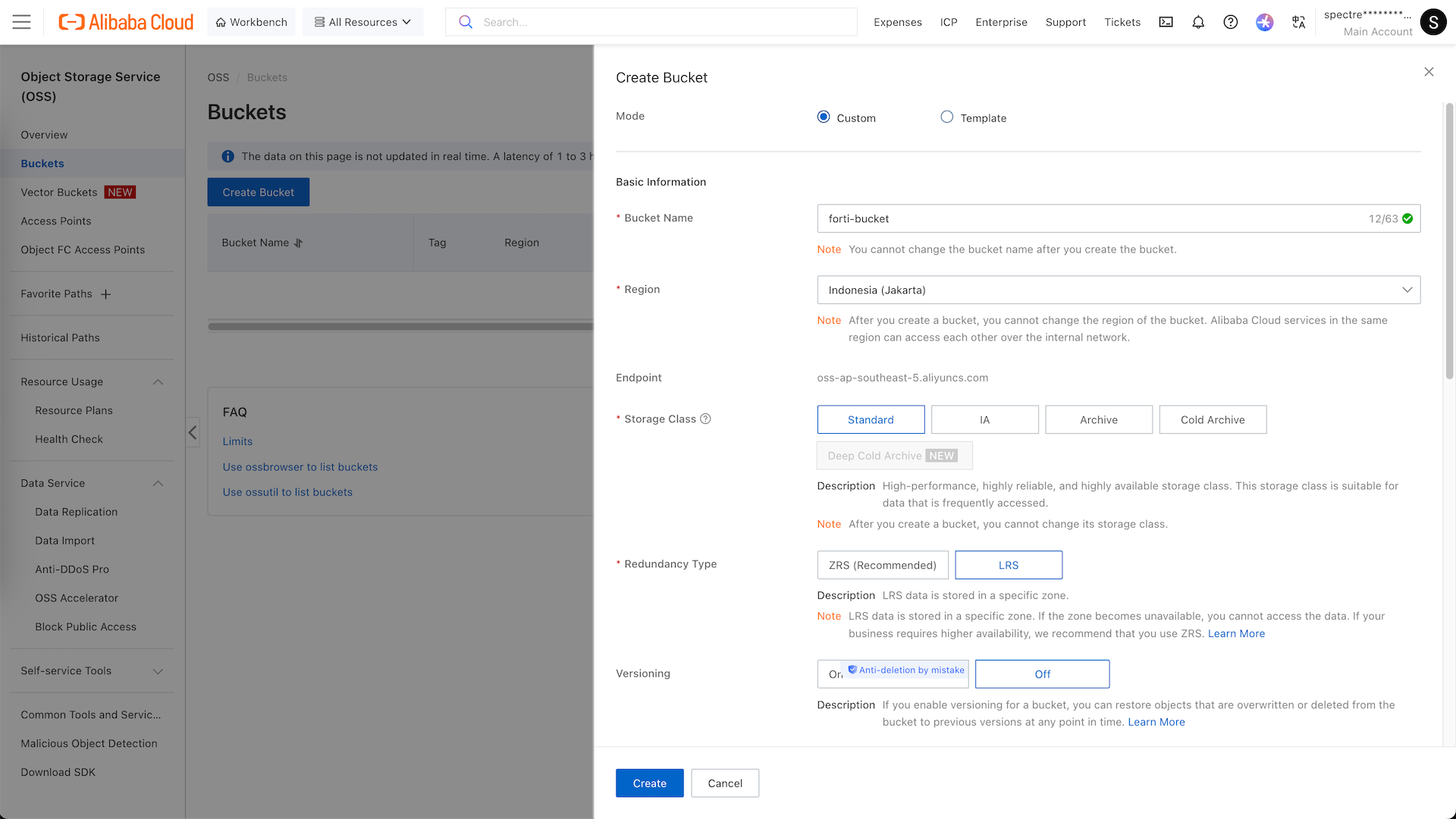
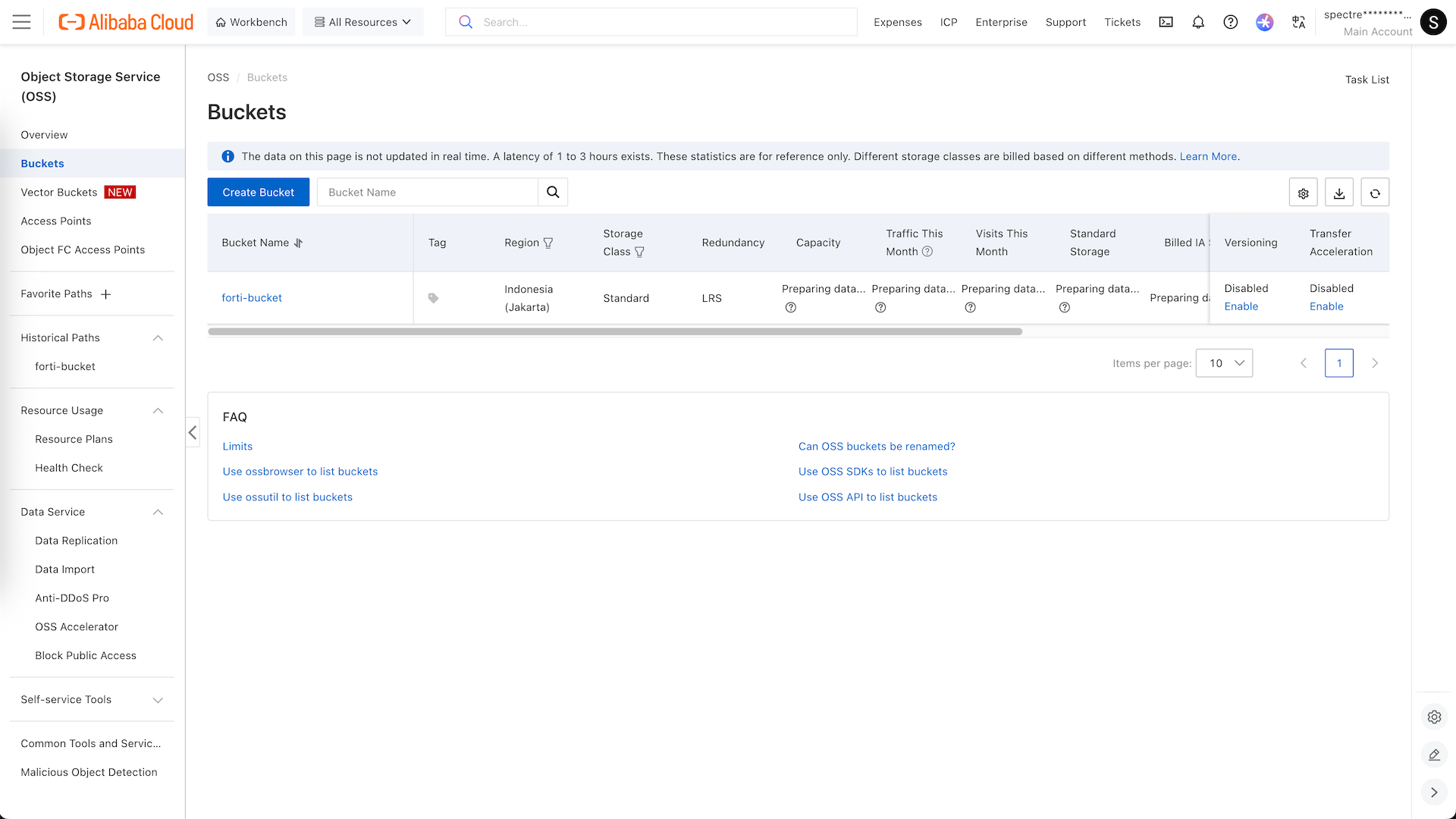
We will upload our own custom image to deploy our fortigate firewall, to do that we will enable OSS and create a new Bucket
We name it helena-bucket and place it in region jakarta
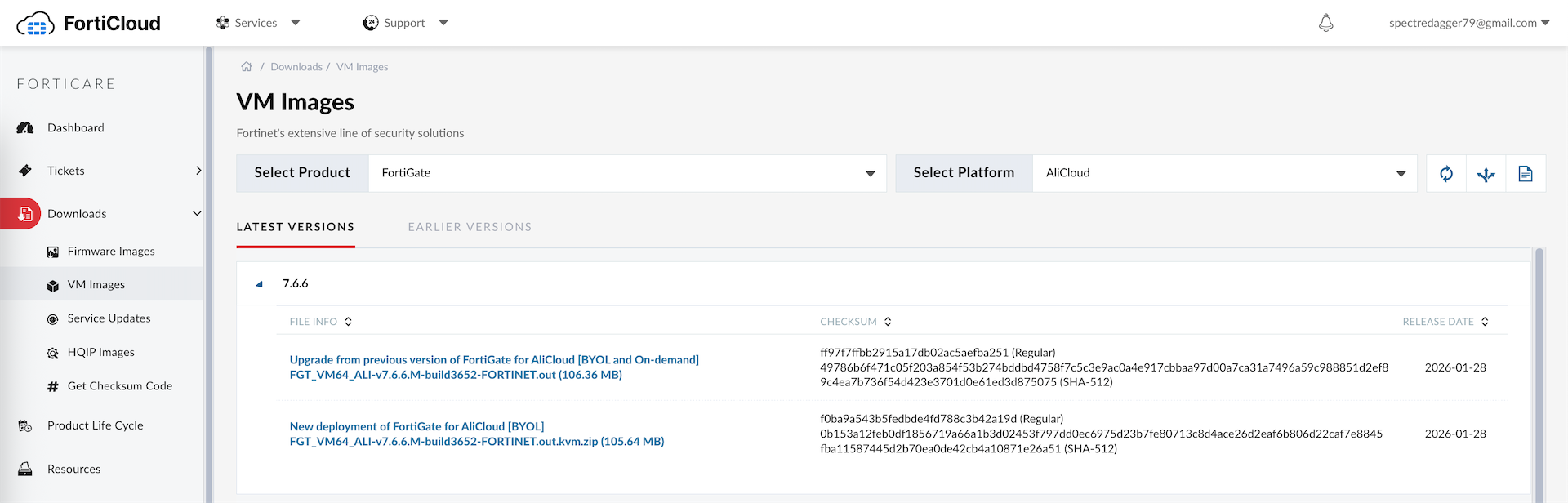
Next we prepare the .qcow2 image that we download from fortinet’s site
Then we open the bucket that we just created and hit upload object
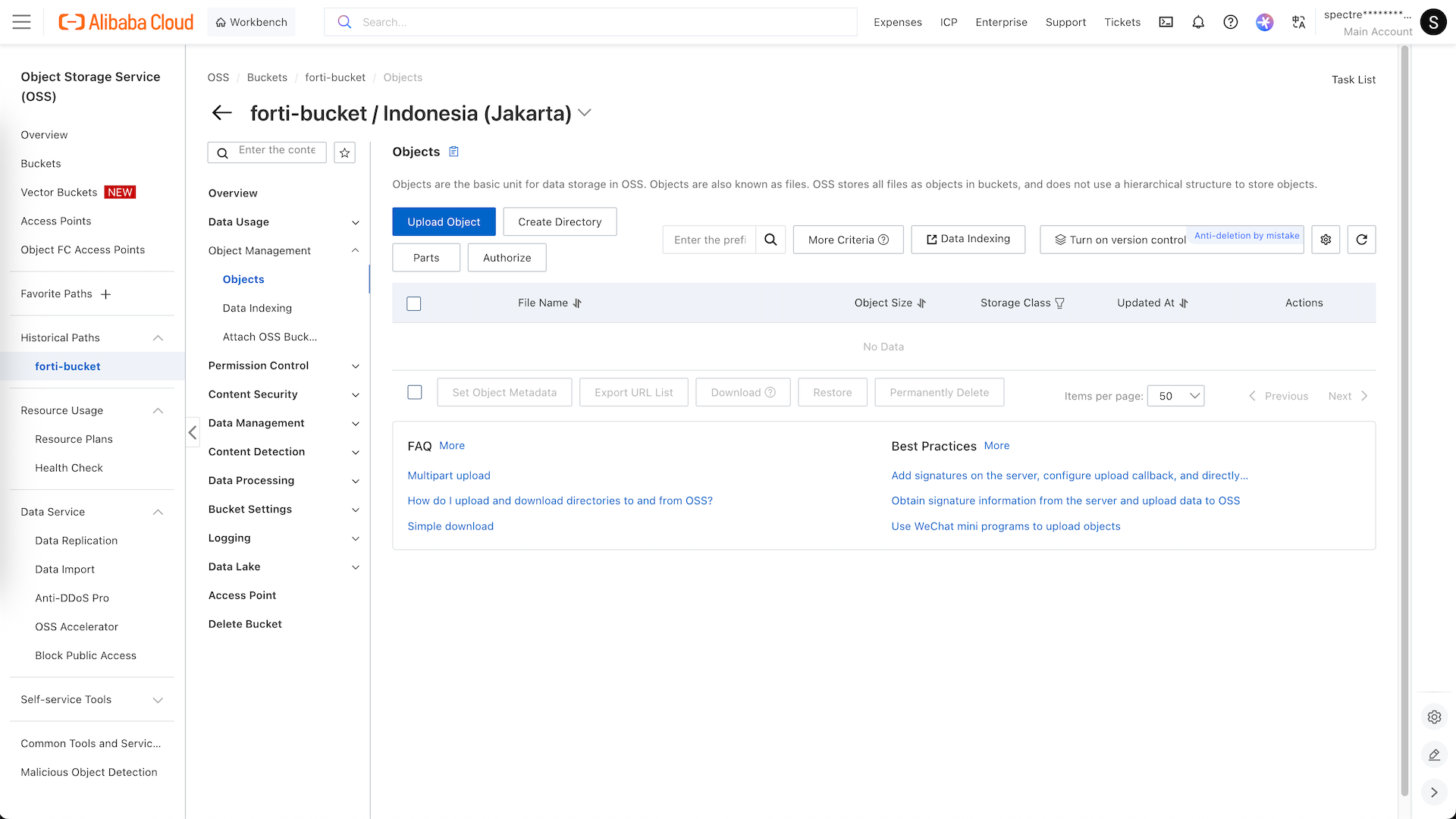
And upload the image file
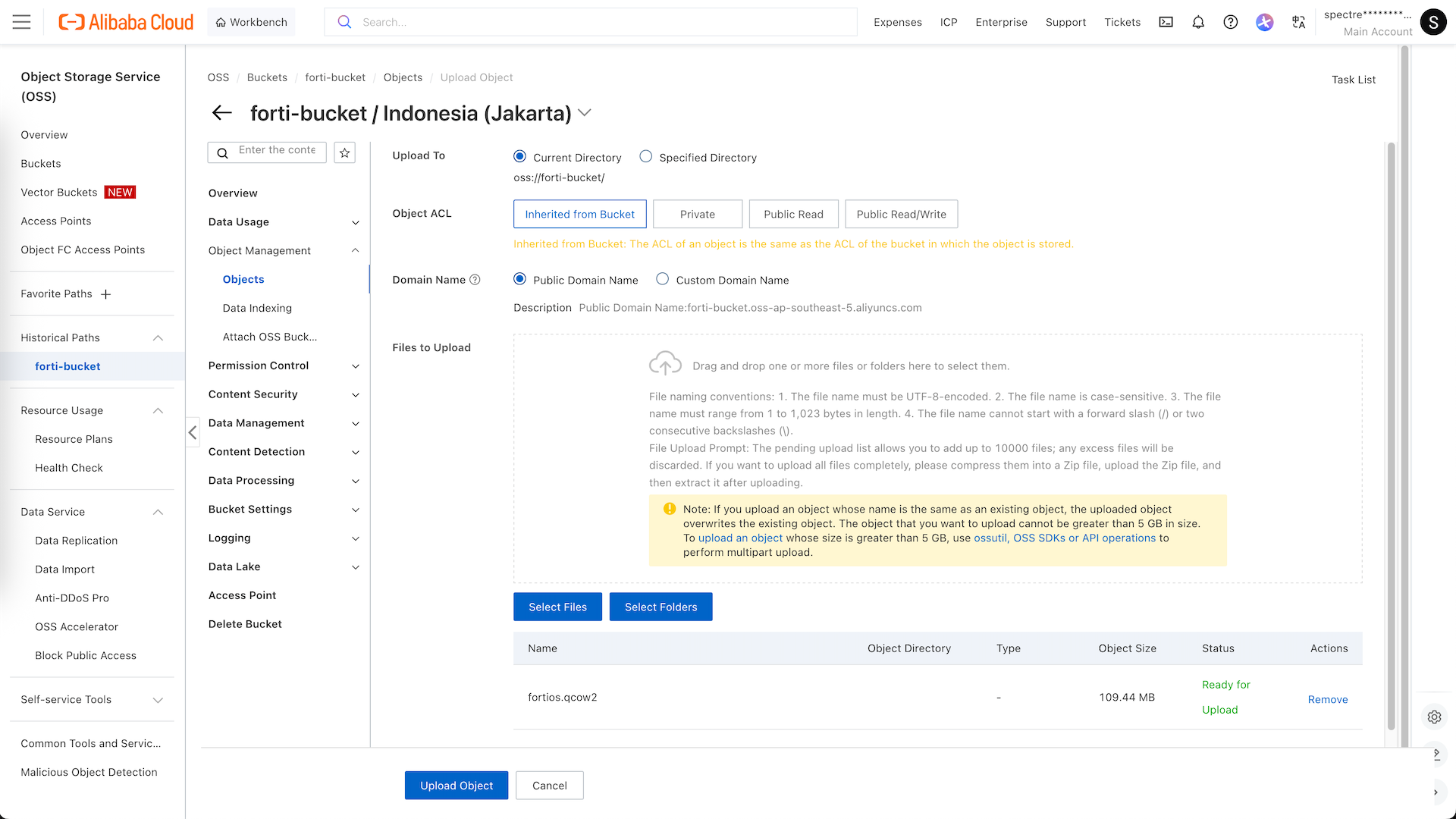
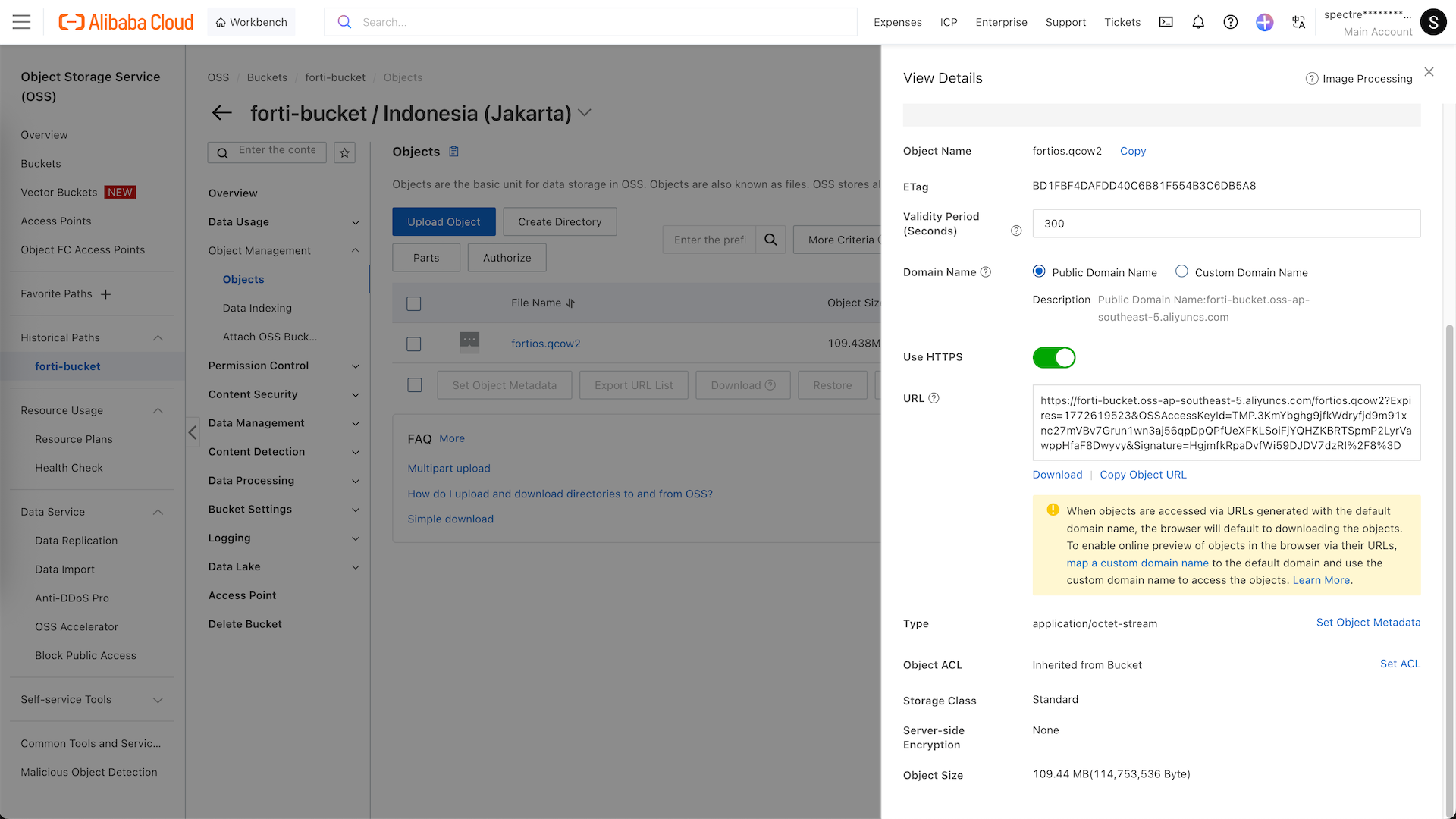
After it uploaded, open the file and copy the Object URL
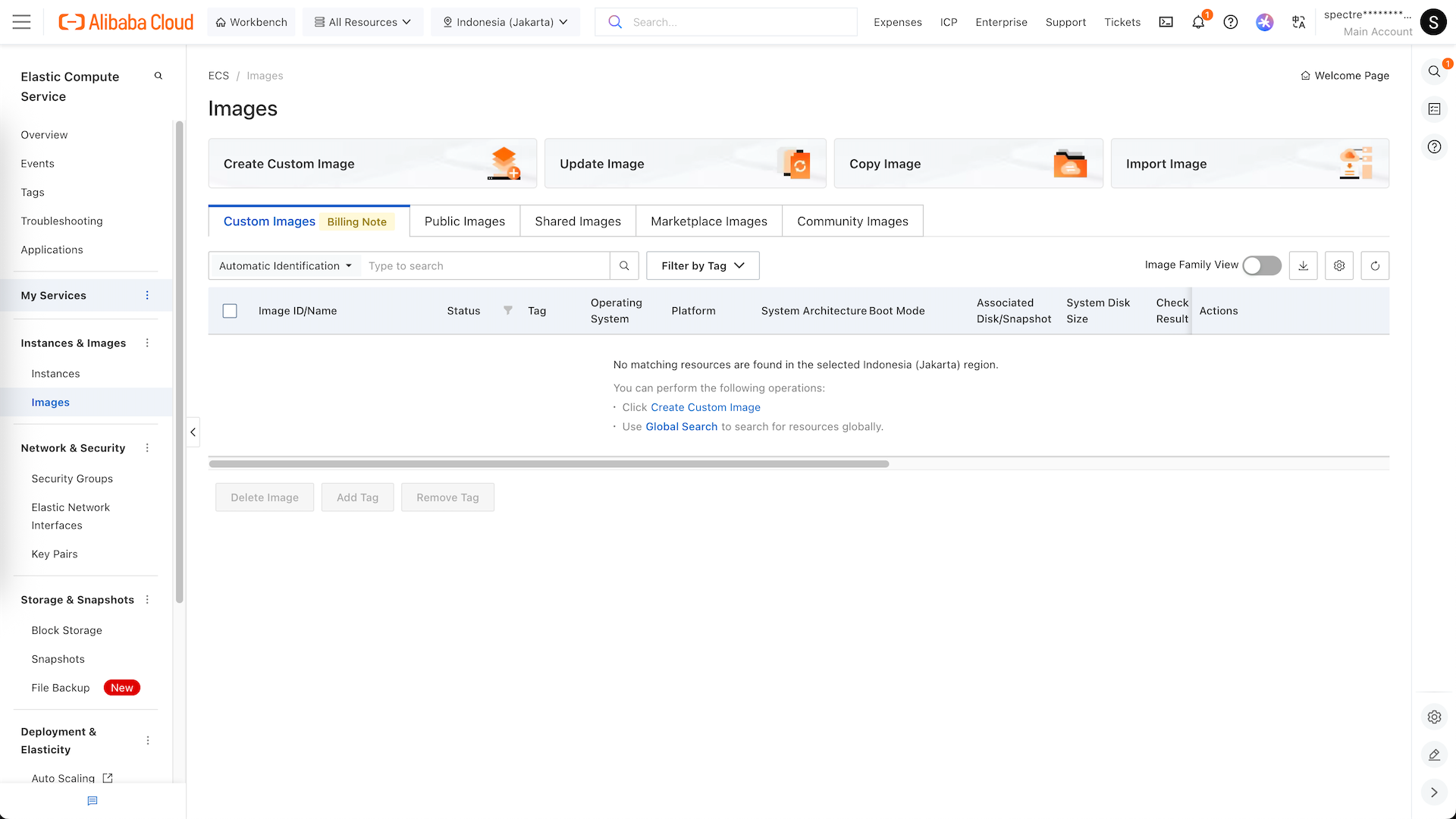
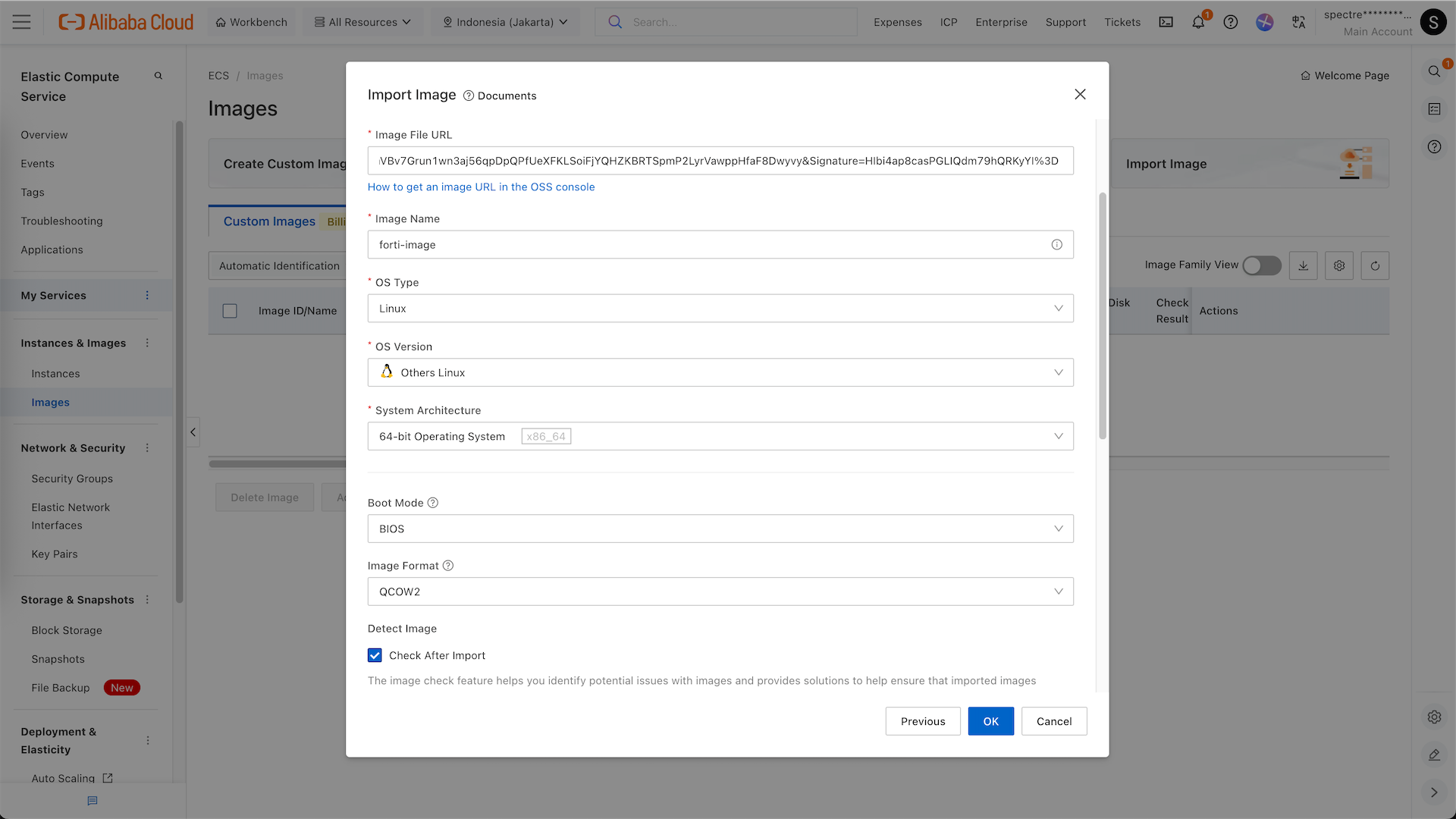
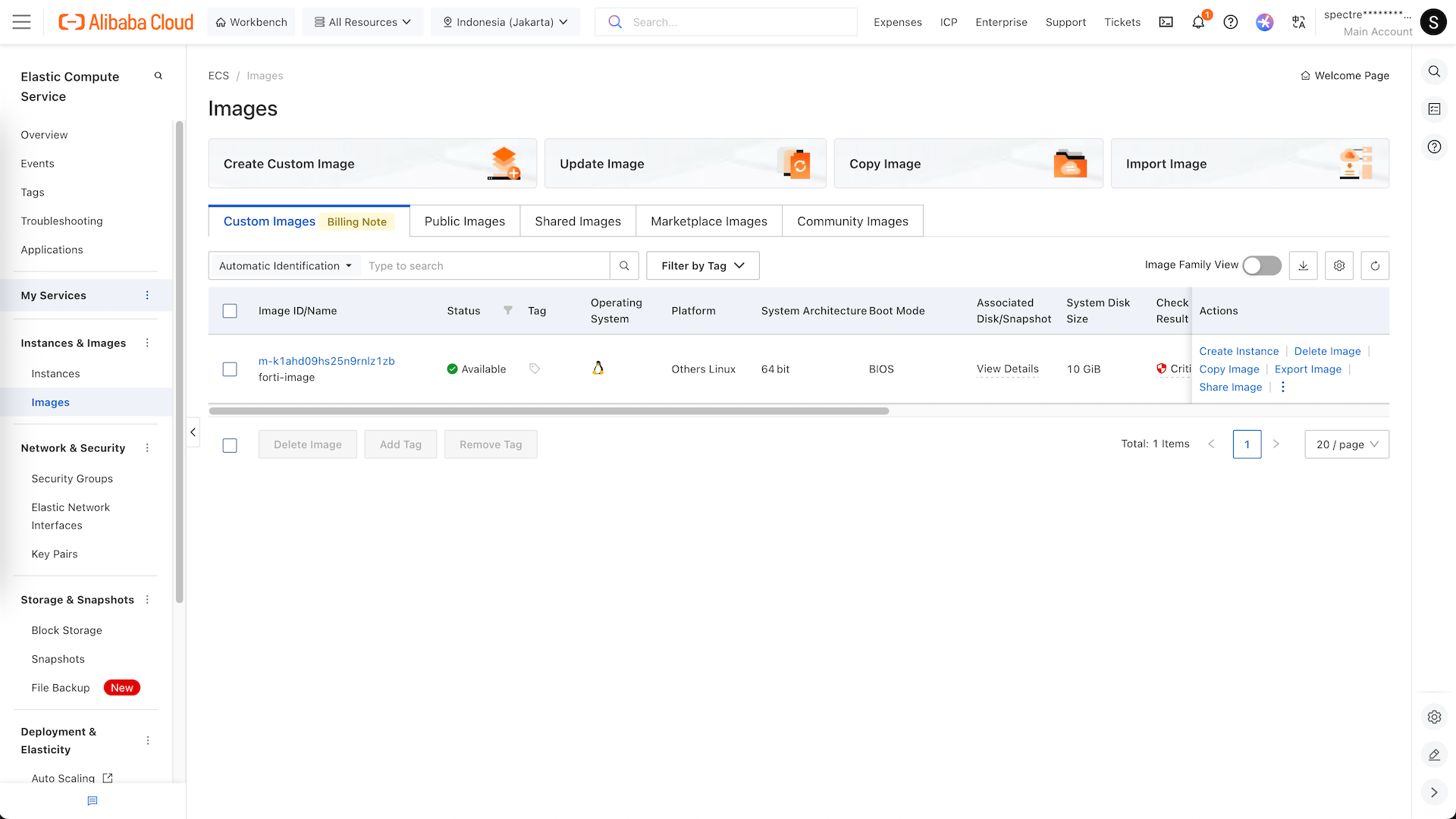
Go to ECS » Images, select Import Image
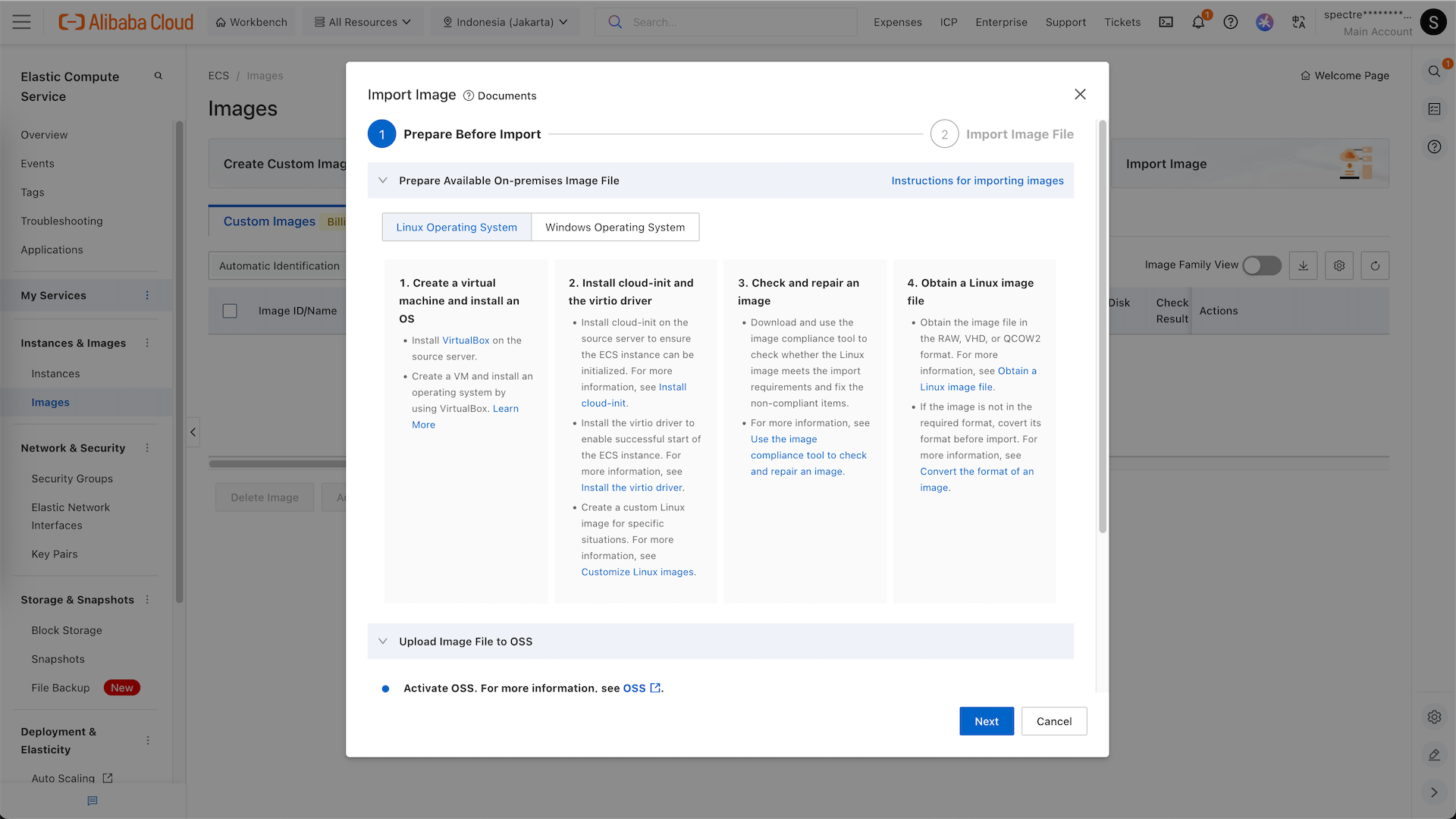
Here we hit next
And here we paste the Object URL and configure the image type
VPC
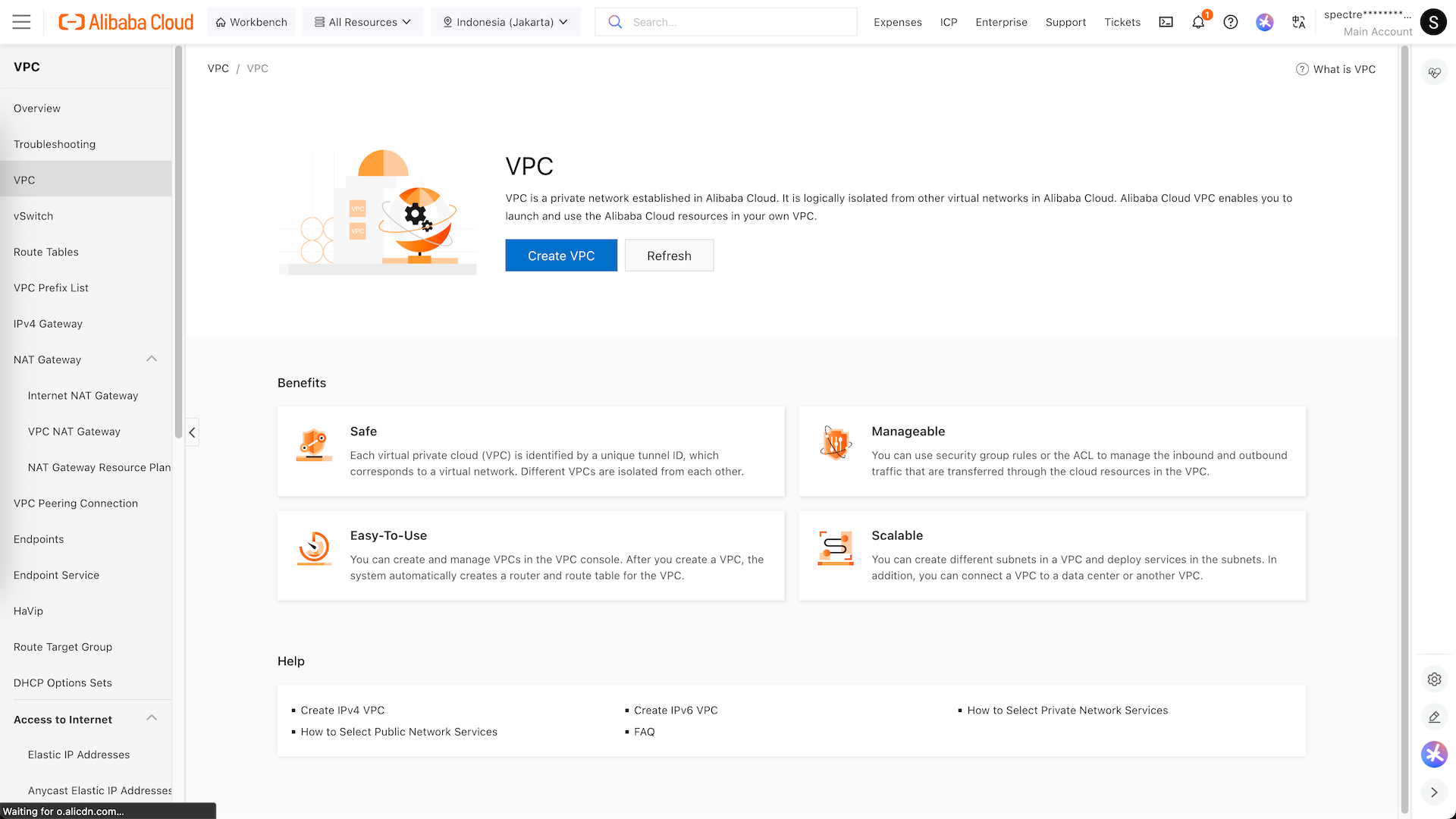
Next we will configure our networking, here we create a new VPC
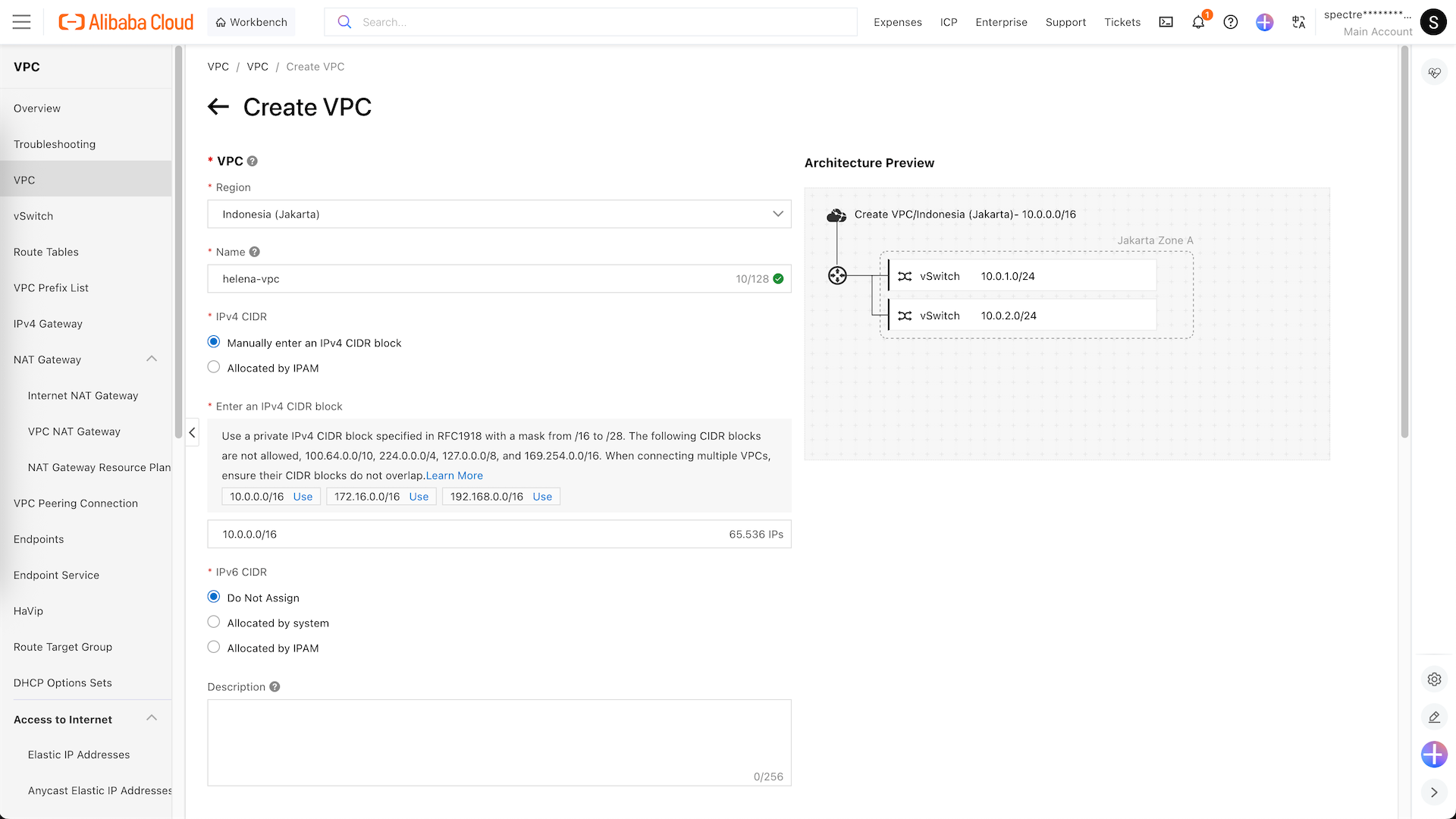
Here we create helena-vpc with 2 vswitches, ext-vs (10.0.1.0/24) and int-vs (10.0.2.0/24)
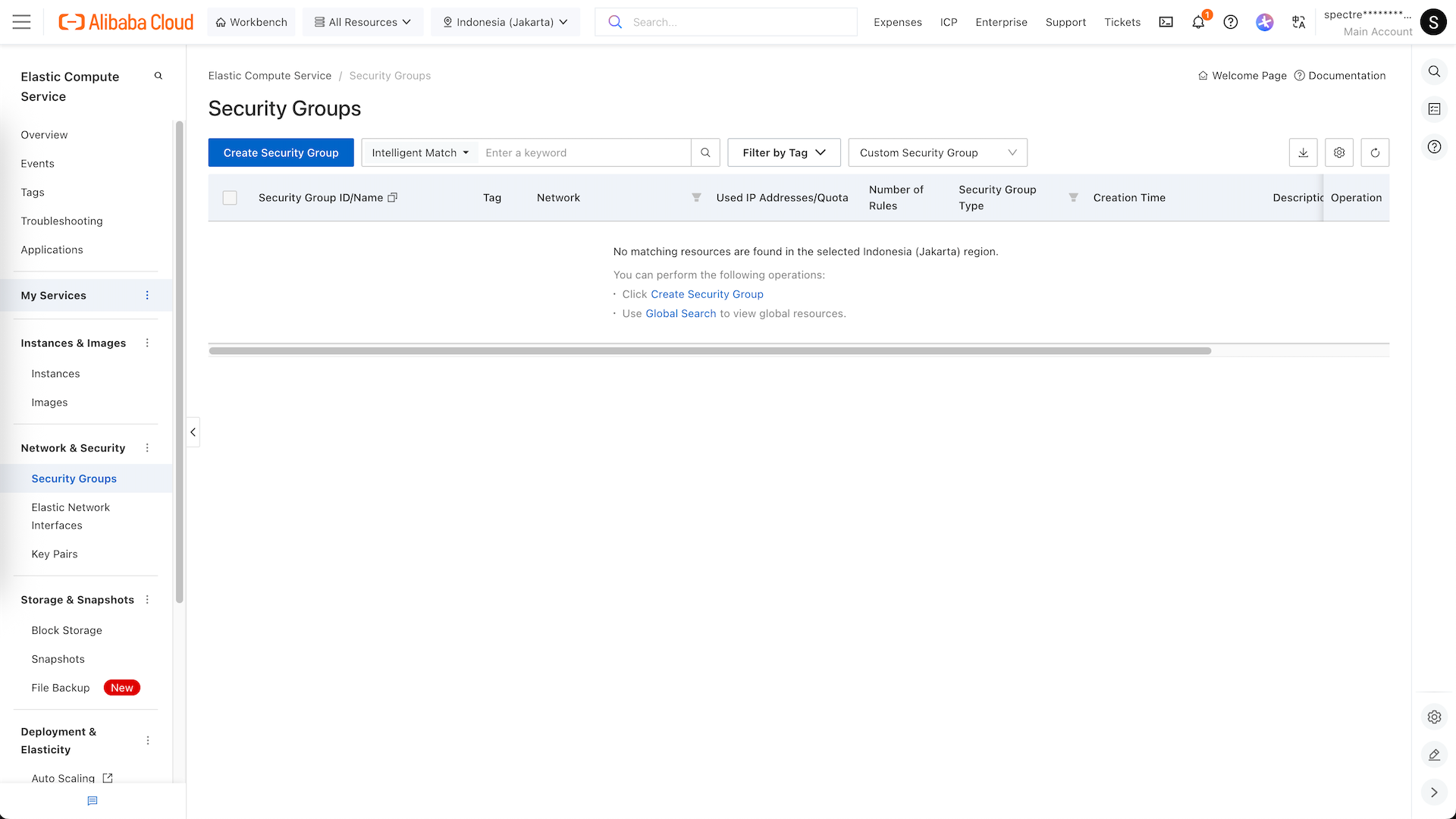
While we’re at it, lets create a Security Group
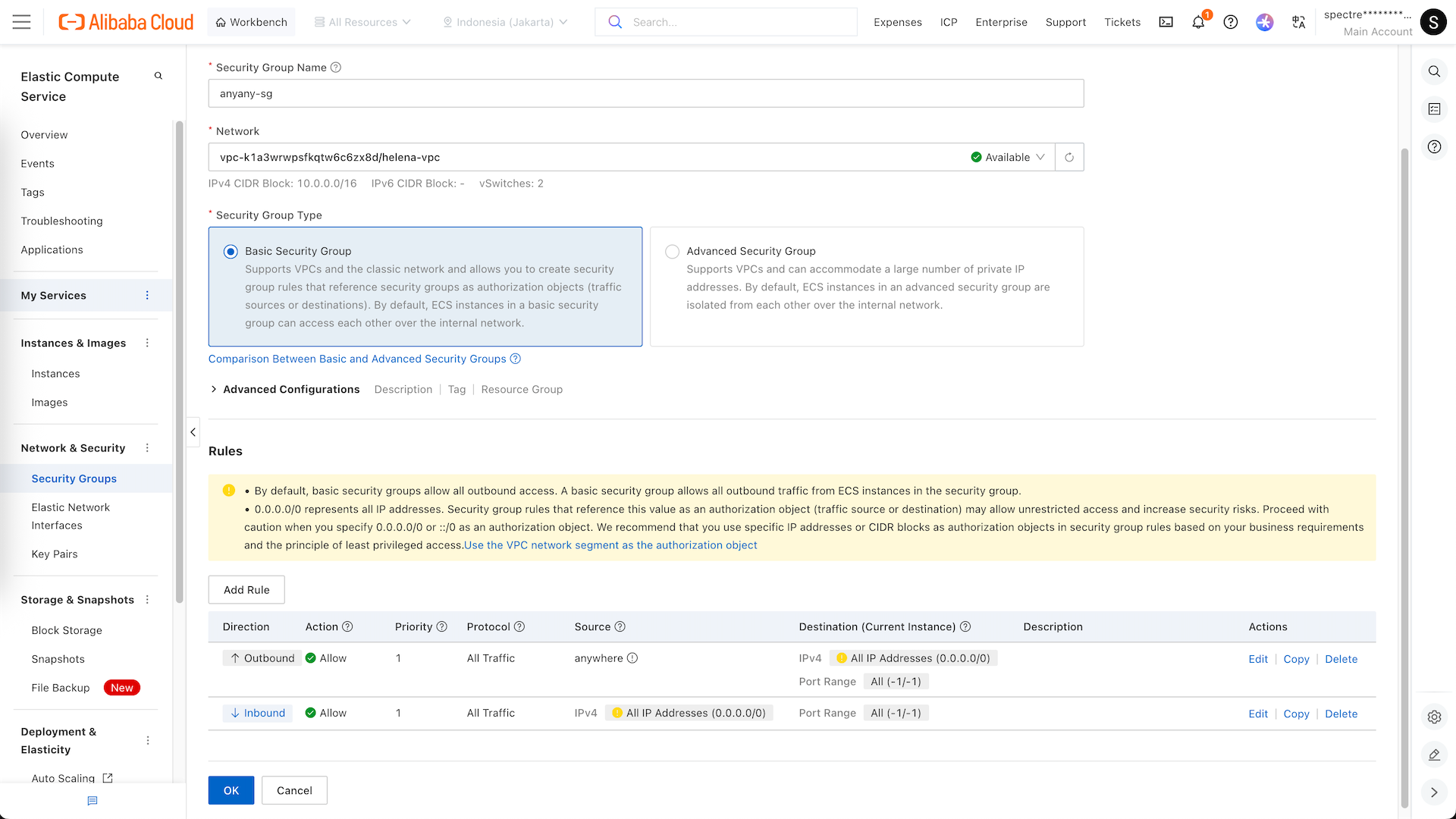
We name it anyany-sg, and as the name suggests, this SG will allow any traffic coming and going anywhere
Deploying Instance
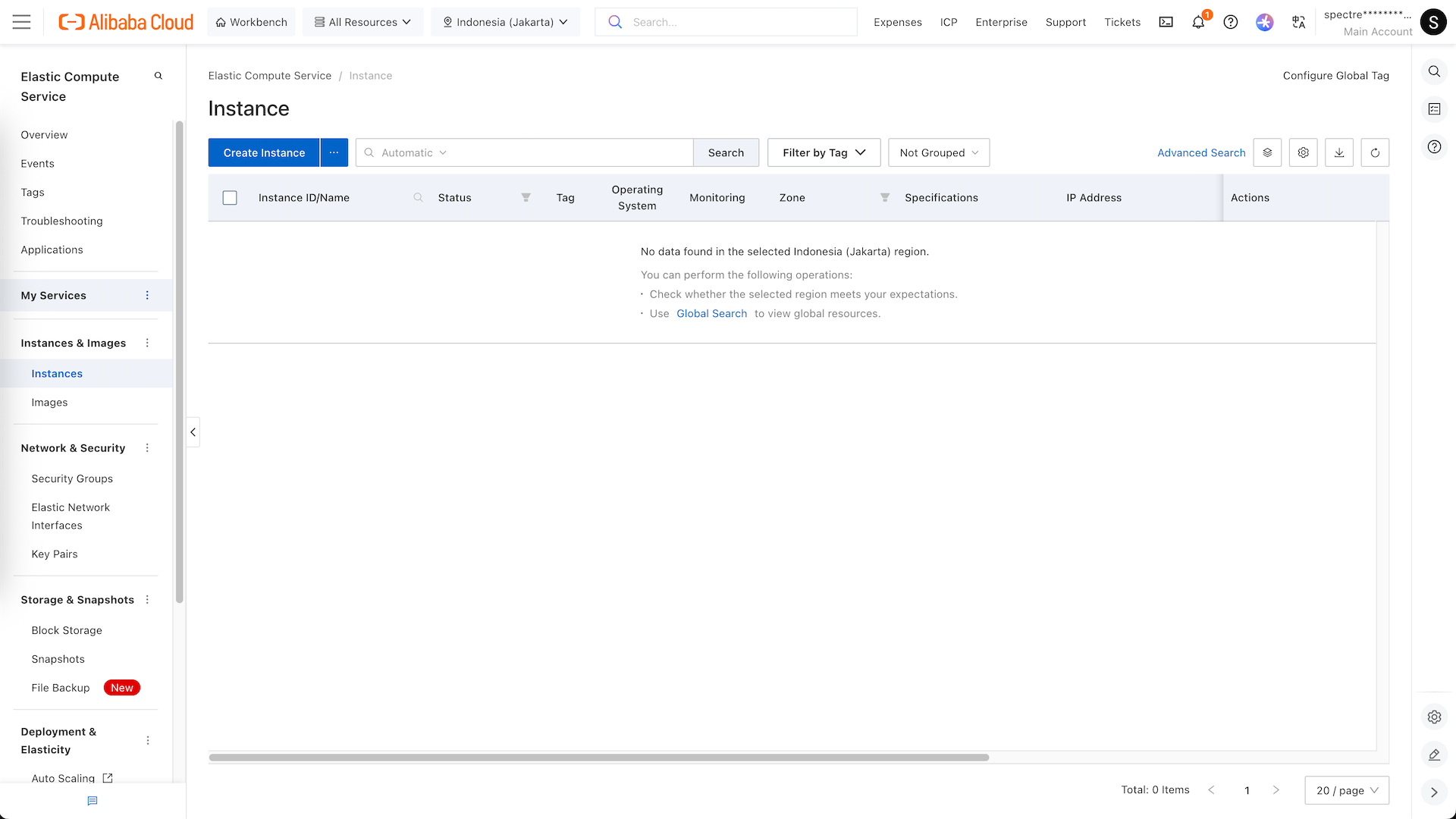
Next go to ECS » Instance, here we select Create Instance
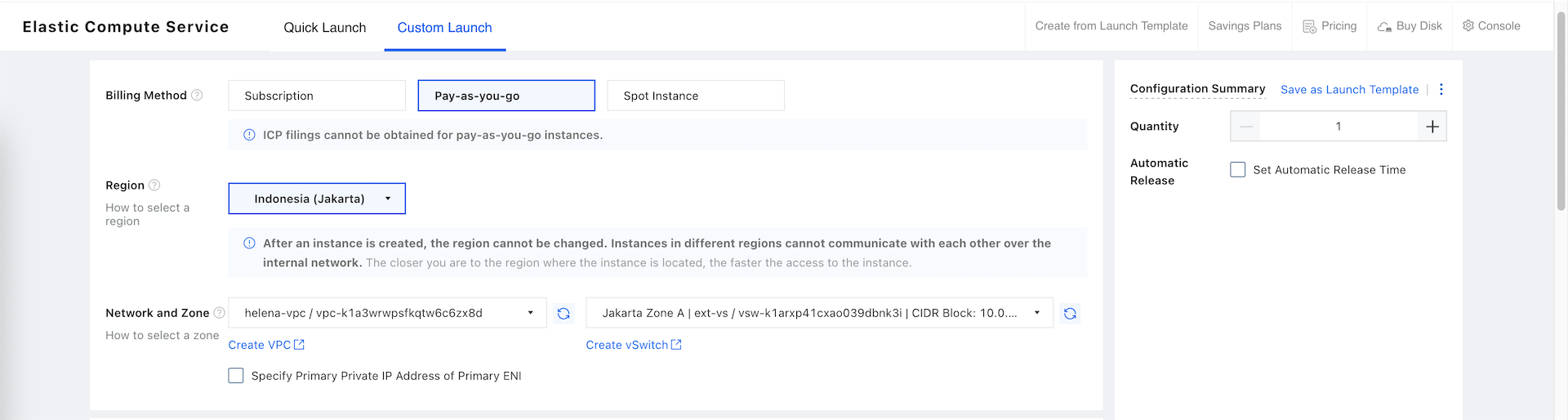
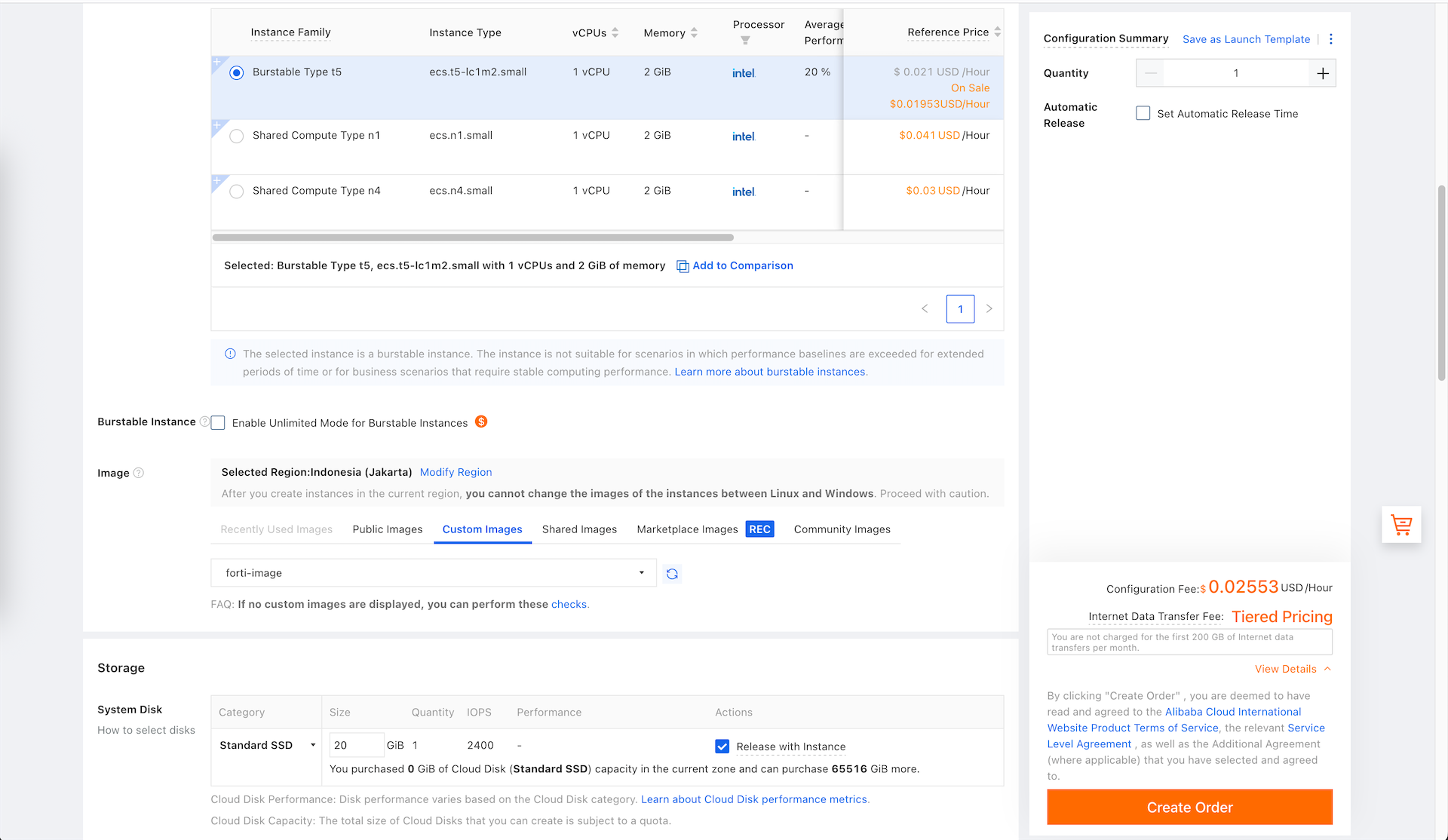
We’ll be using PAYG billing method and Jakarta region, here we also select the VPC and the external vSwitch
Then select the CPU, Memory and Disk to suit the fortigate deployment, and select the forti-image that we created earlier
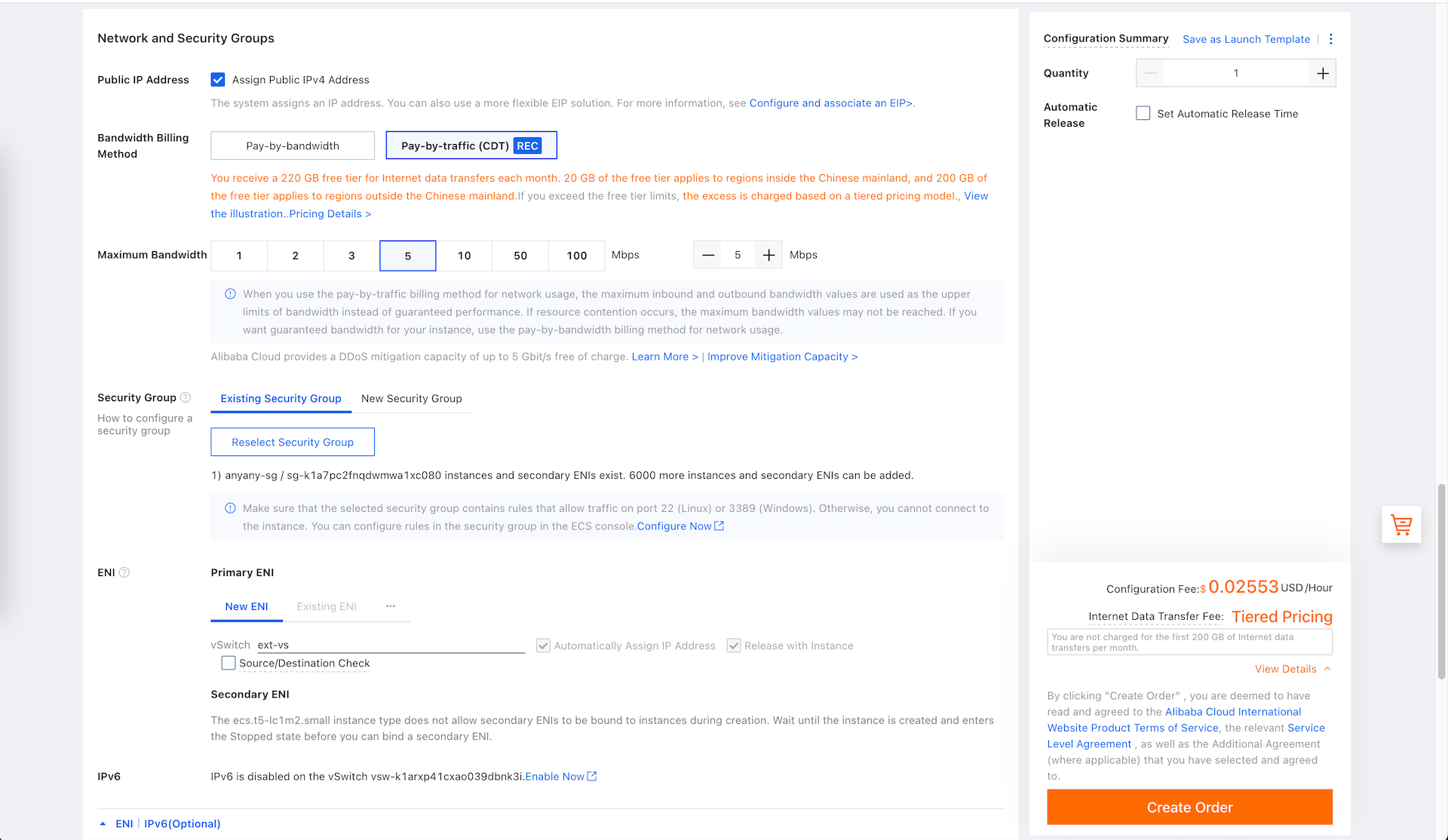
Select enable Public IP Address, select the ext-vs ENI, and use the Security Group that we also have created earlier
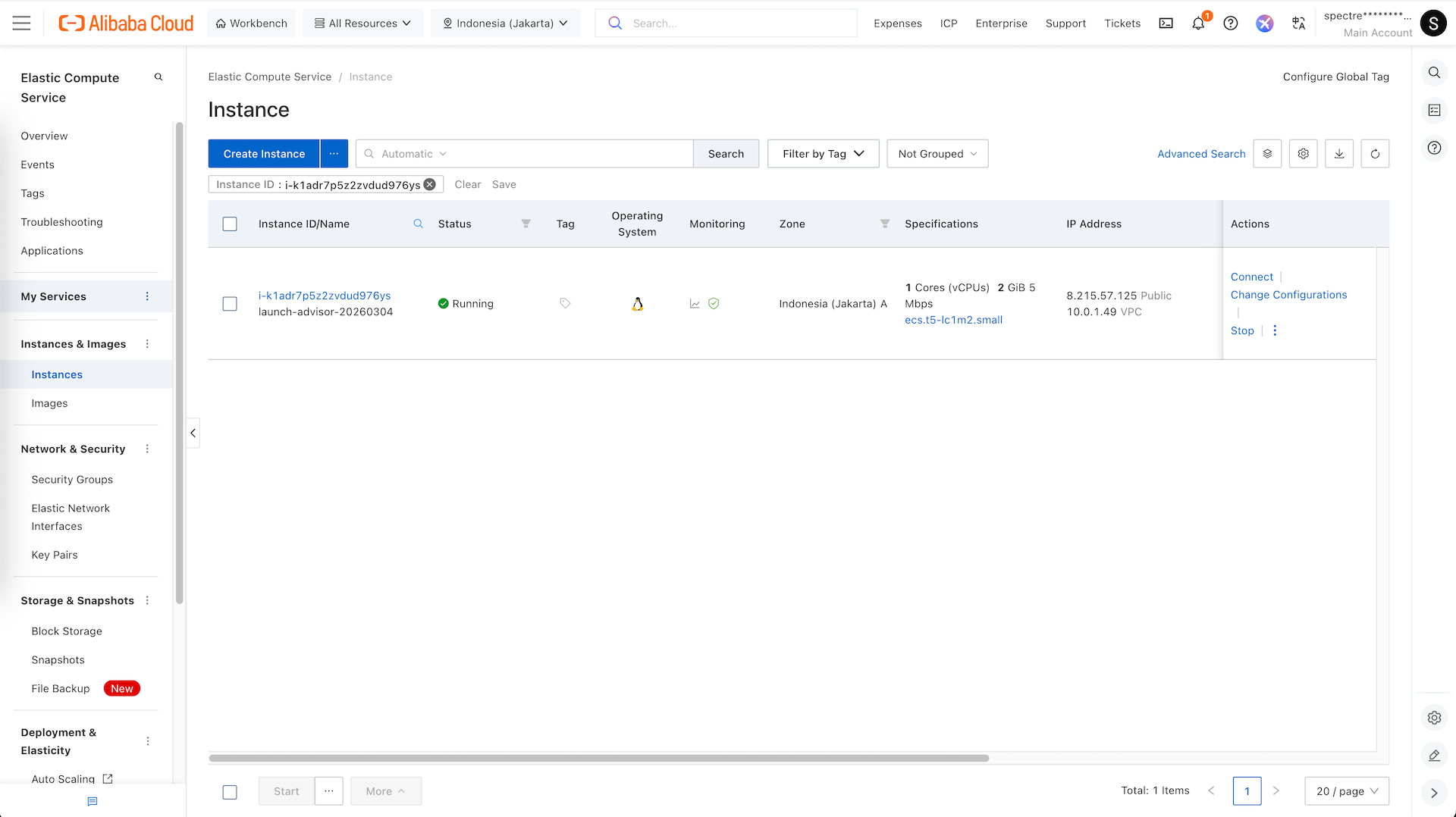
Now our Fortigate VM is up, but it still only has one interface
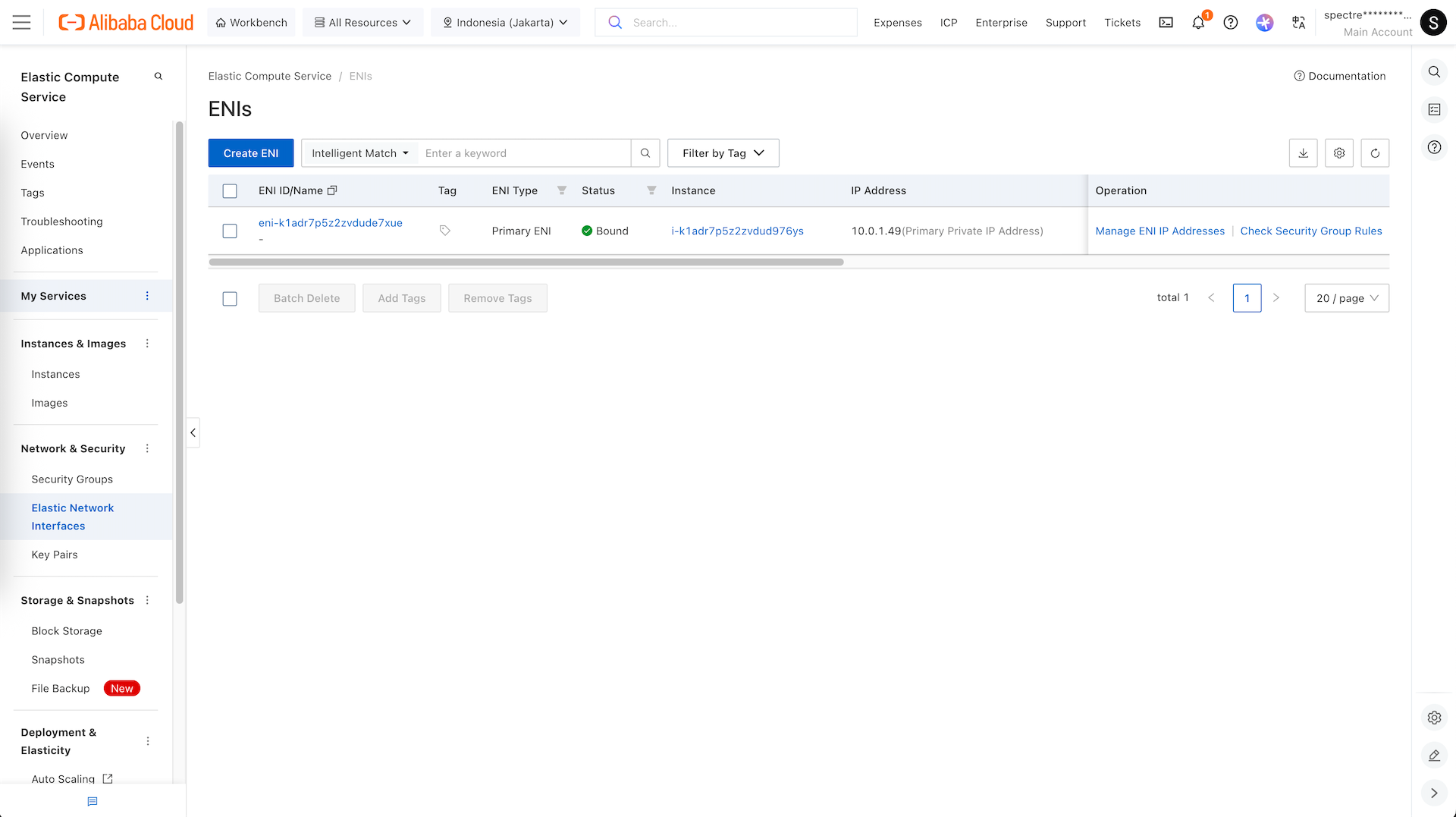
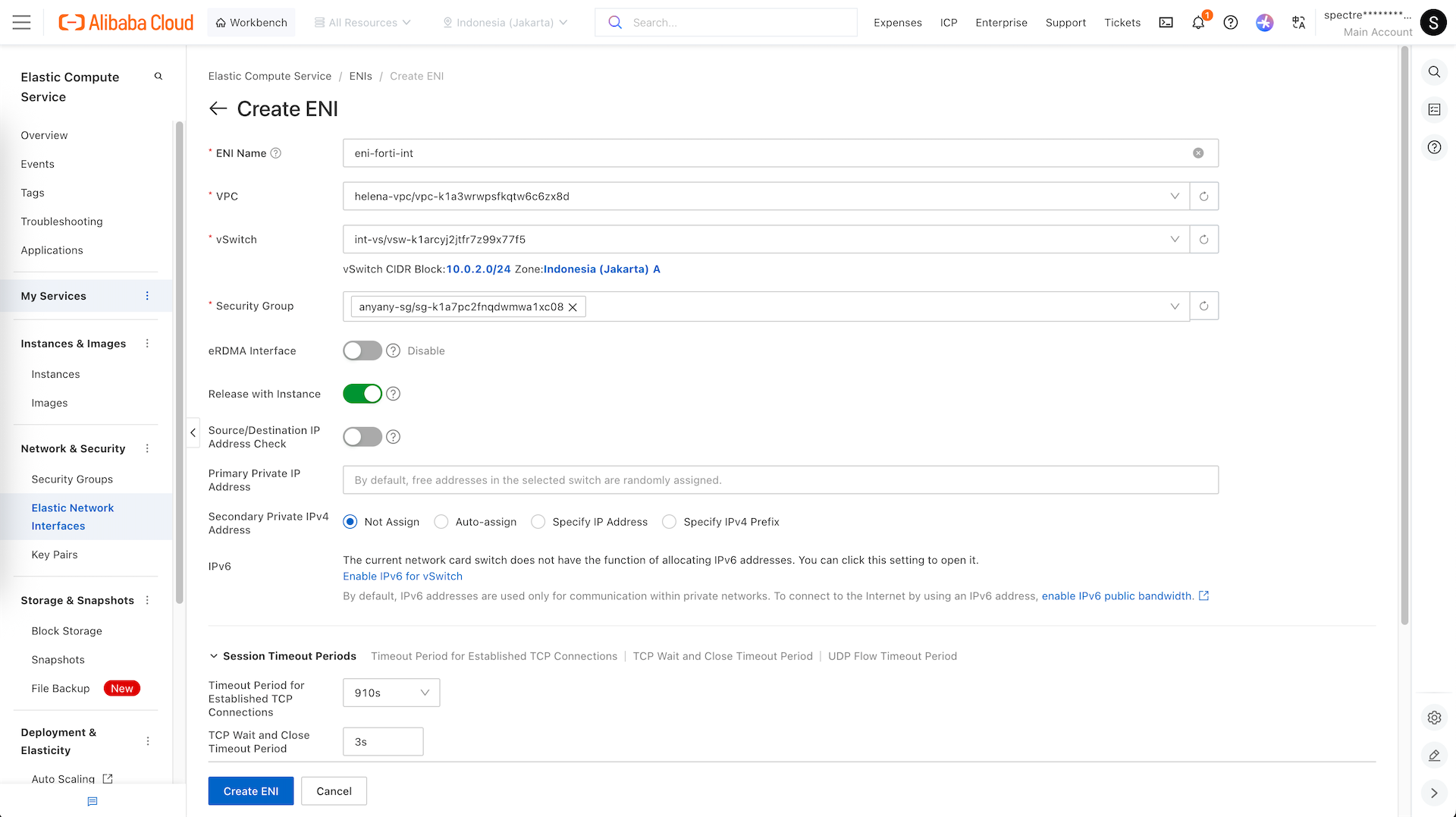
Go to Elastic Network Interfaces and select create ENI
Here we create ENI in int-vs
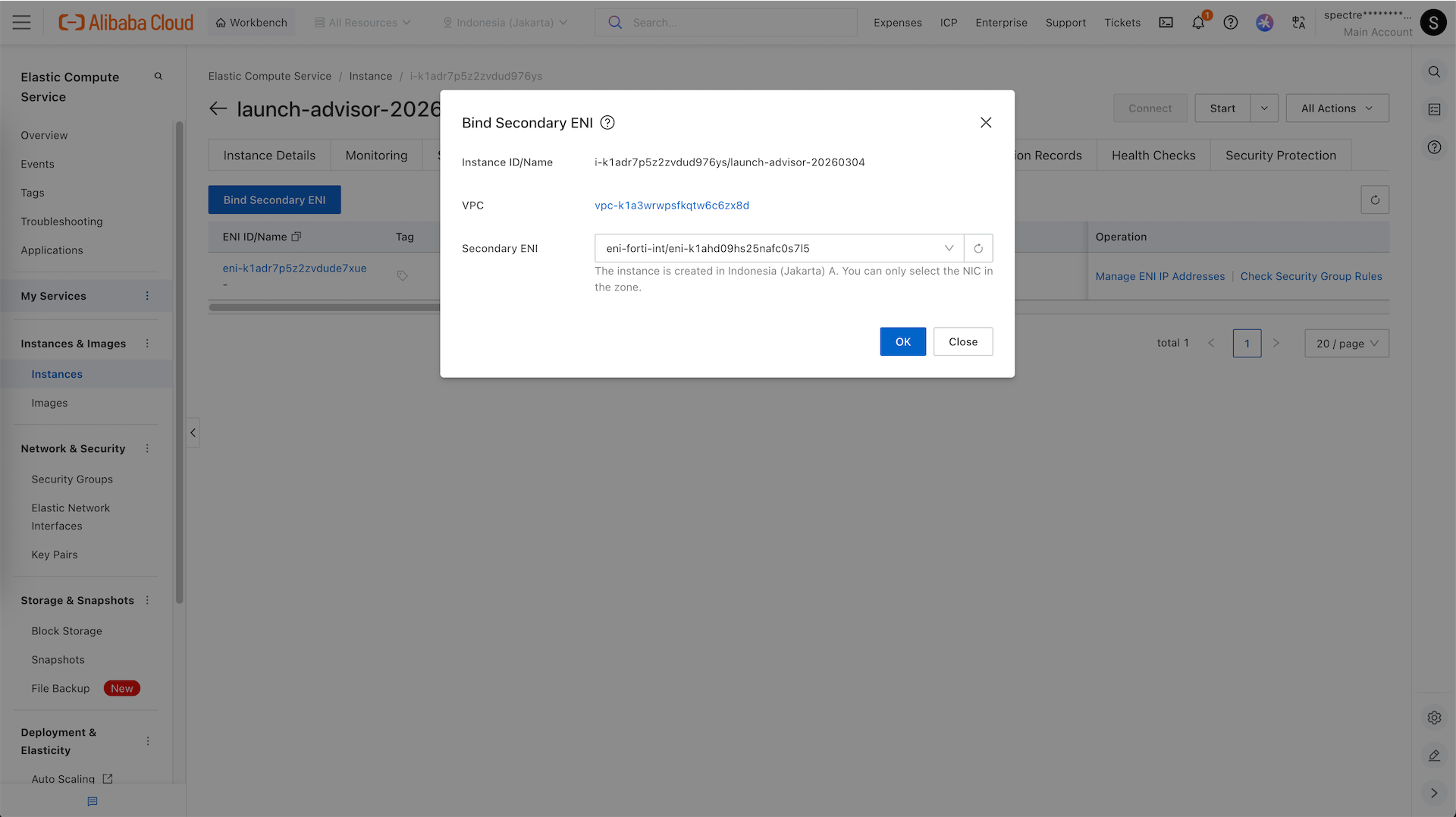
Back to our Instance, bind our Secondary ENI
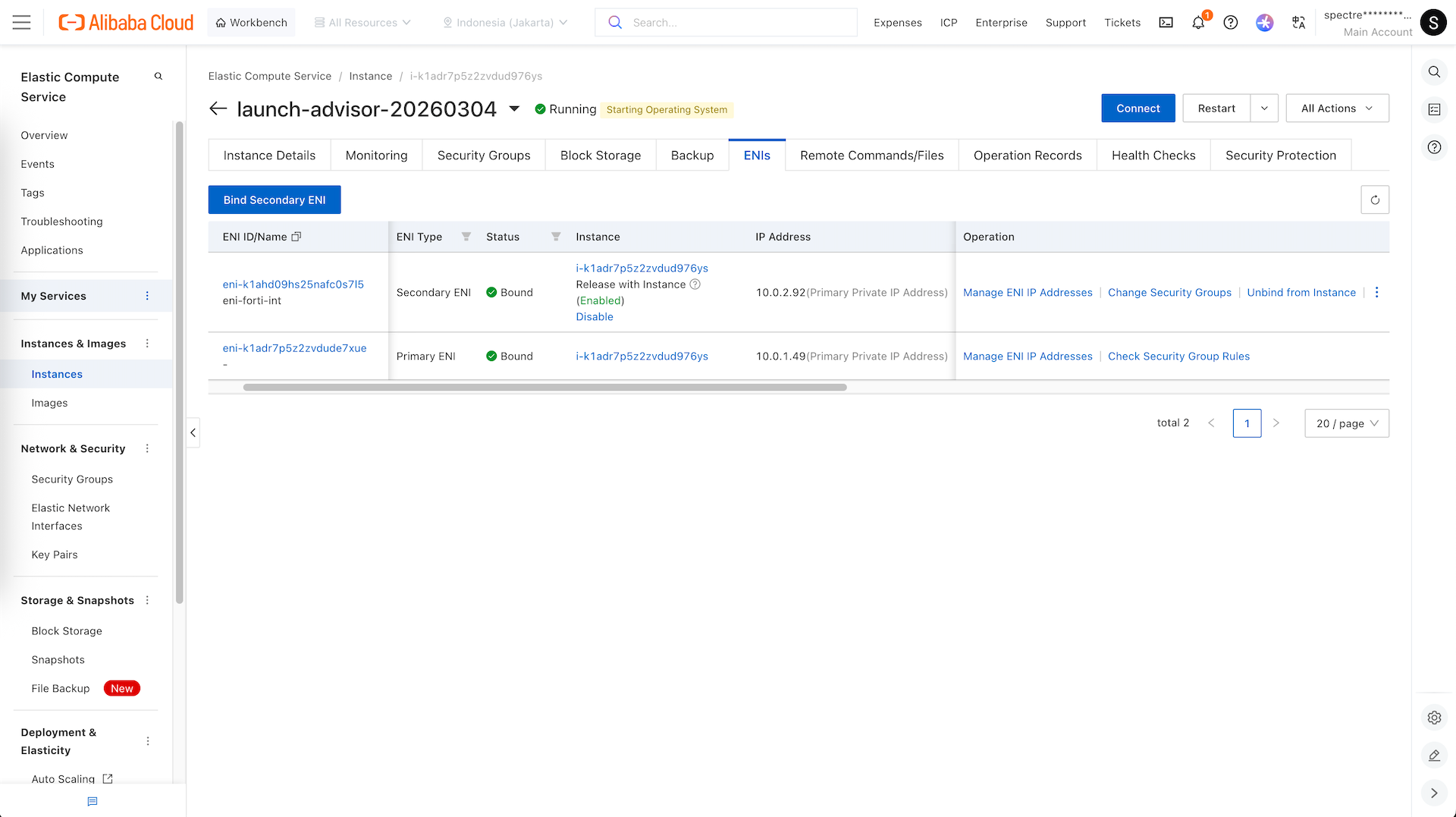
Now we can connect to our fortigate via terminal
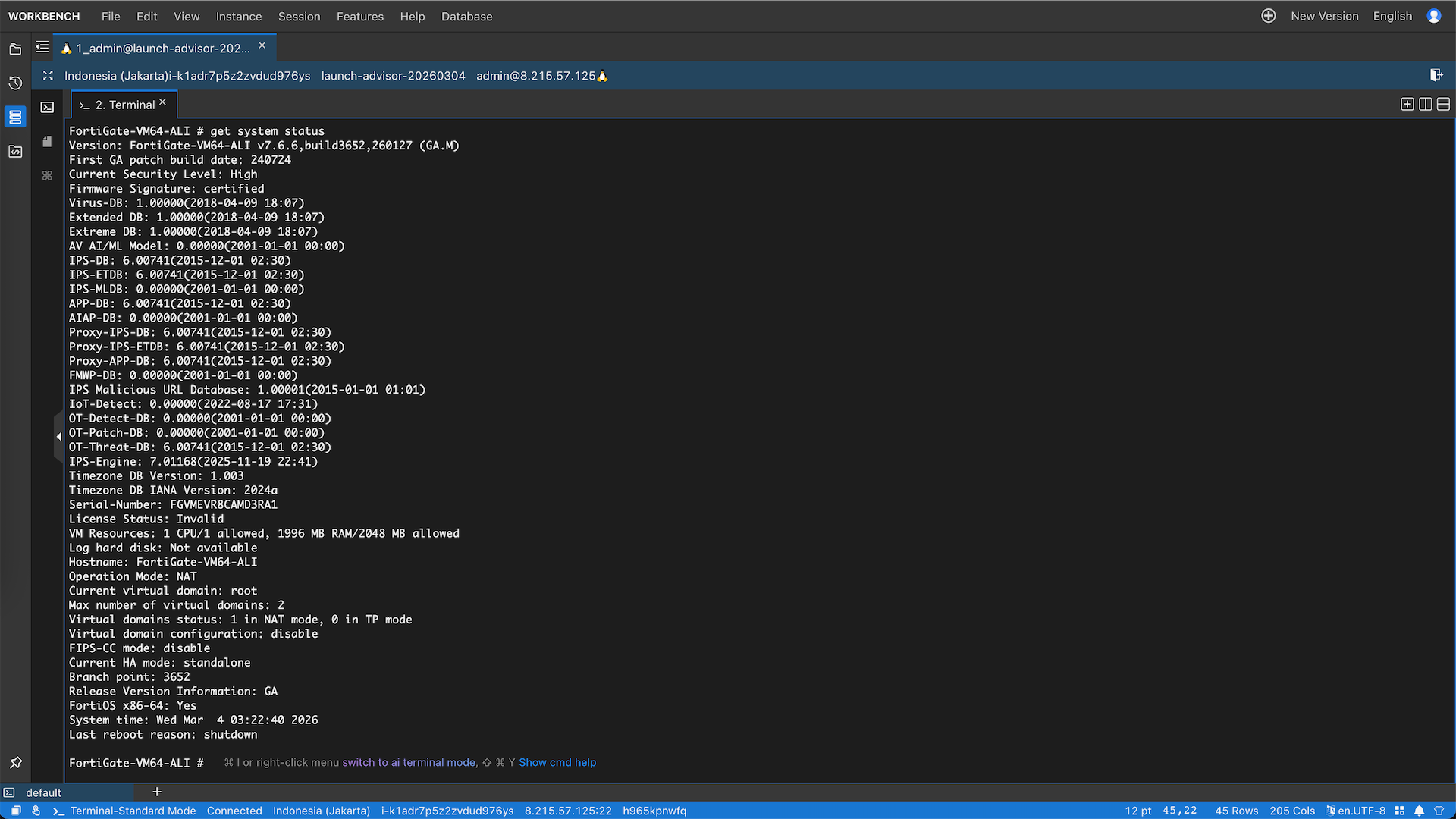
Or access it using the assigned public ip address
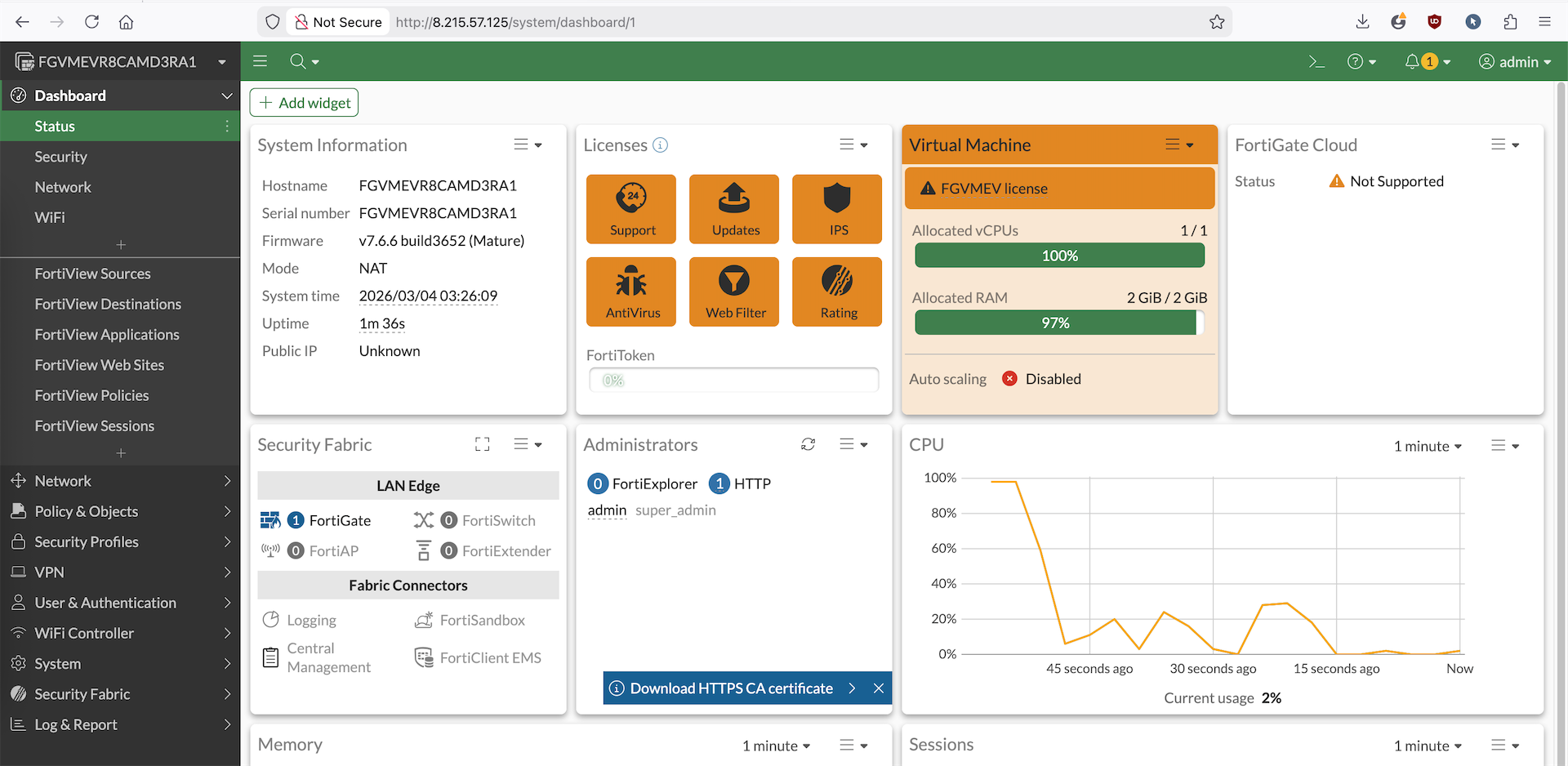
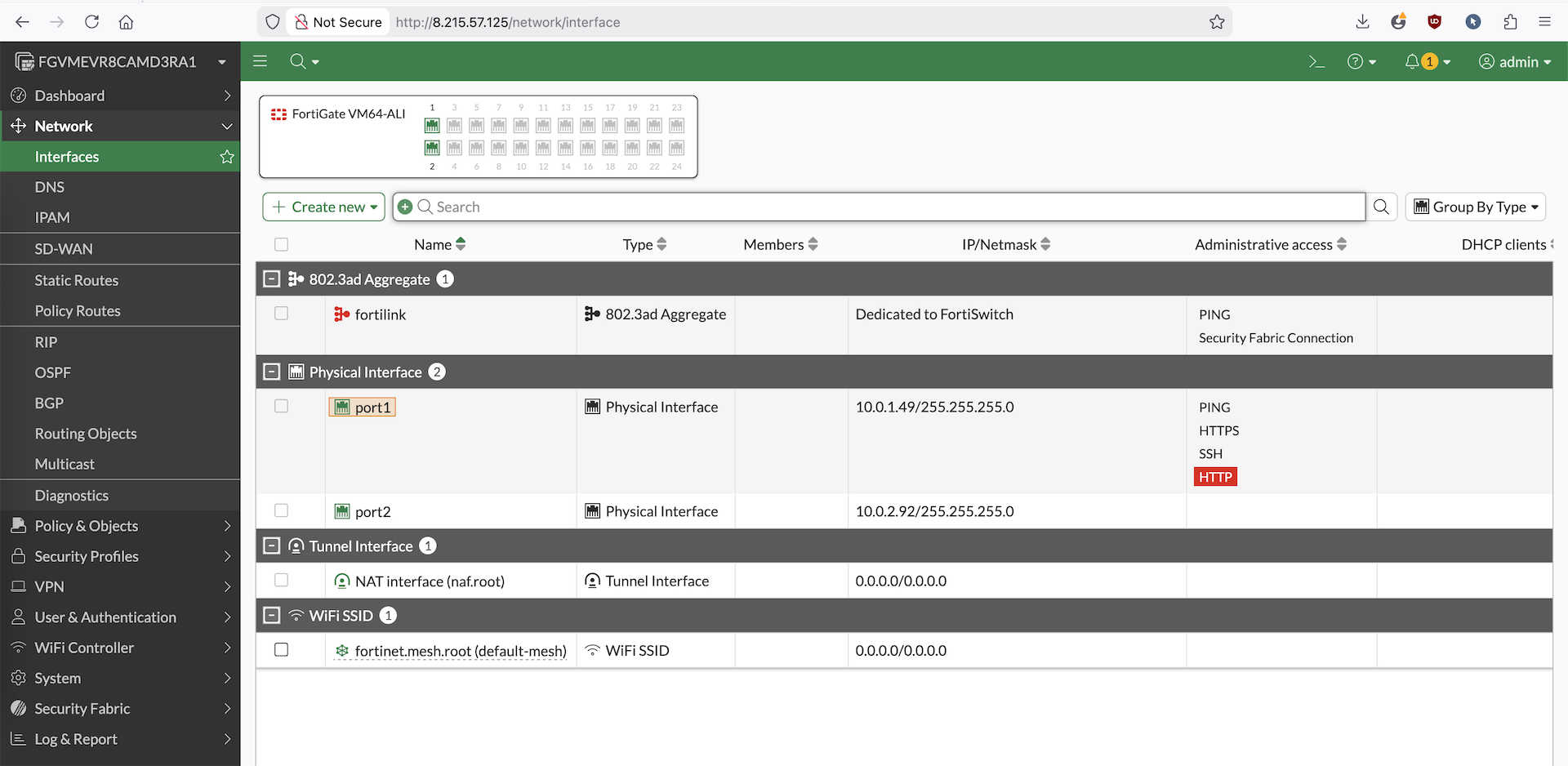
Routing Internal Traffic
In order for our internal traffic to go out to internet to pass our Fortigate, we will modify the routing table
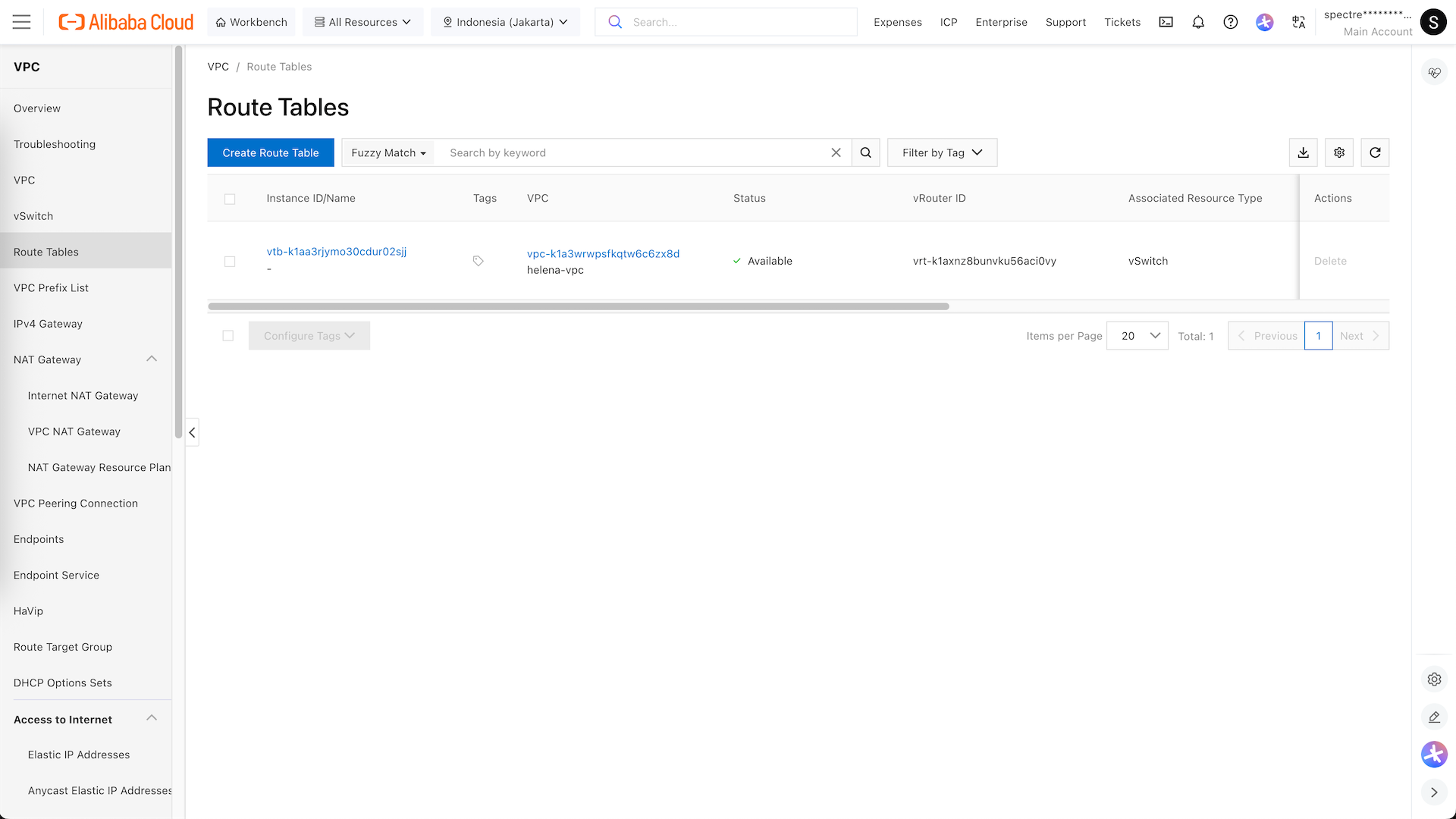
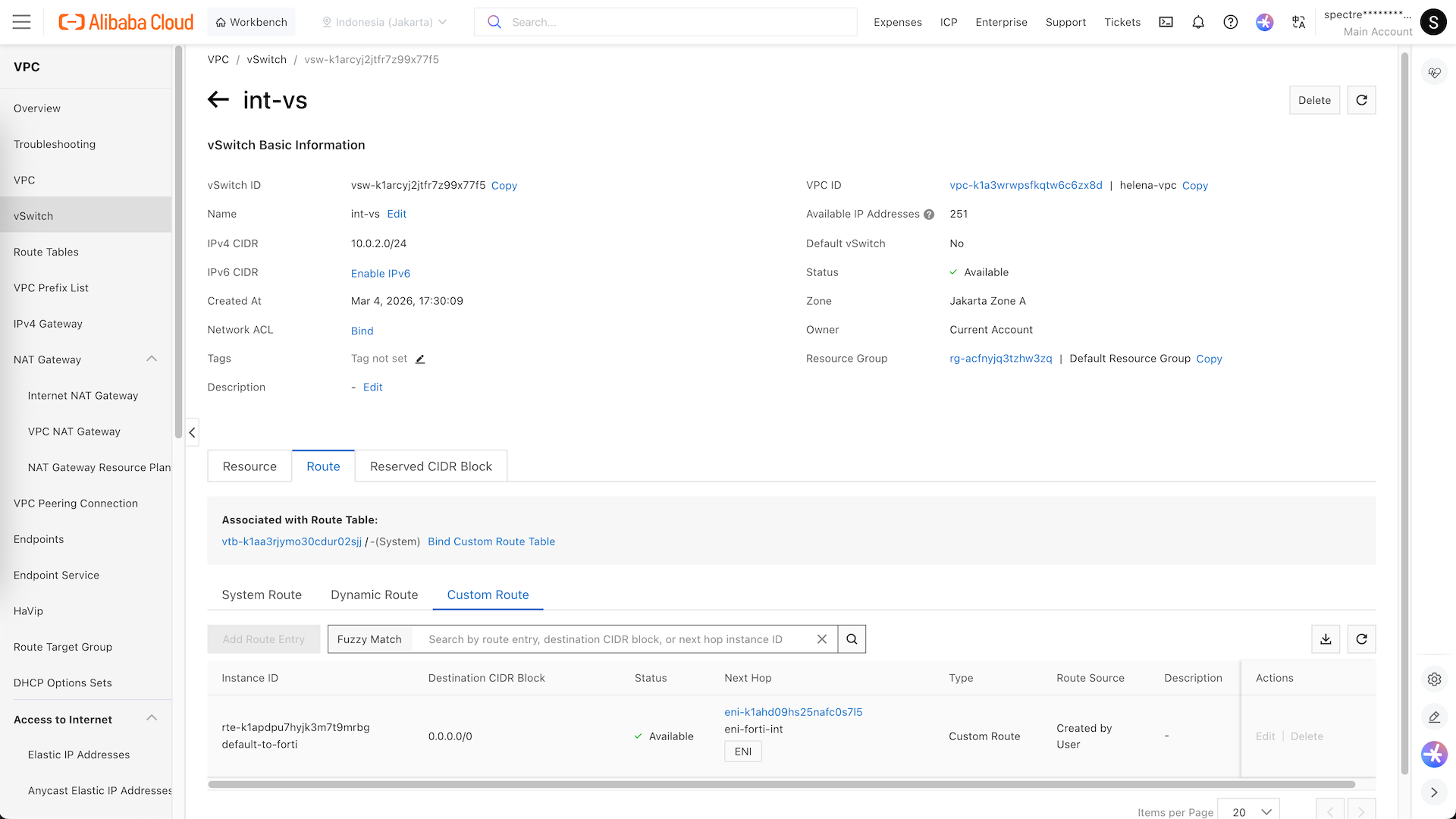
Here we add a custom route to 0.0.0.0/0 and pass it to Foritgate’s internla ENI
Now we can see our int-vs has a default route going to fortigate
Next we spin up a small linux vm in the int-vs subnet
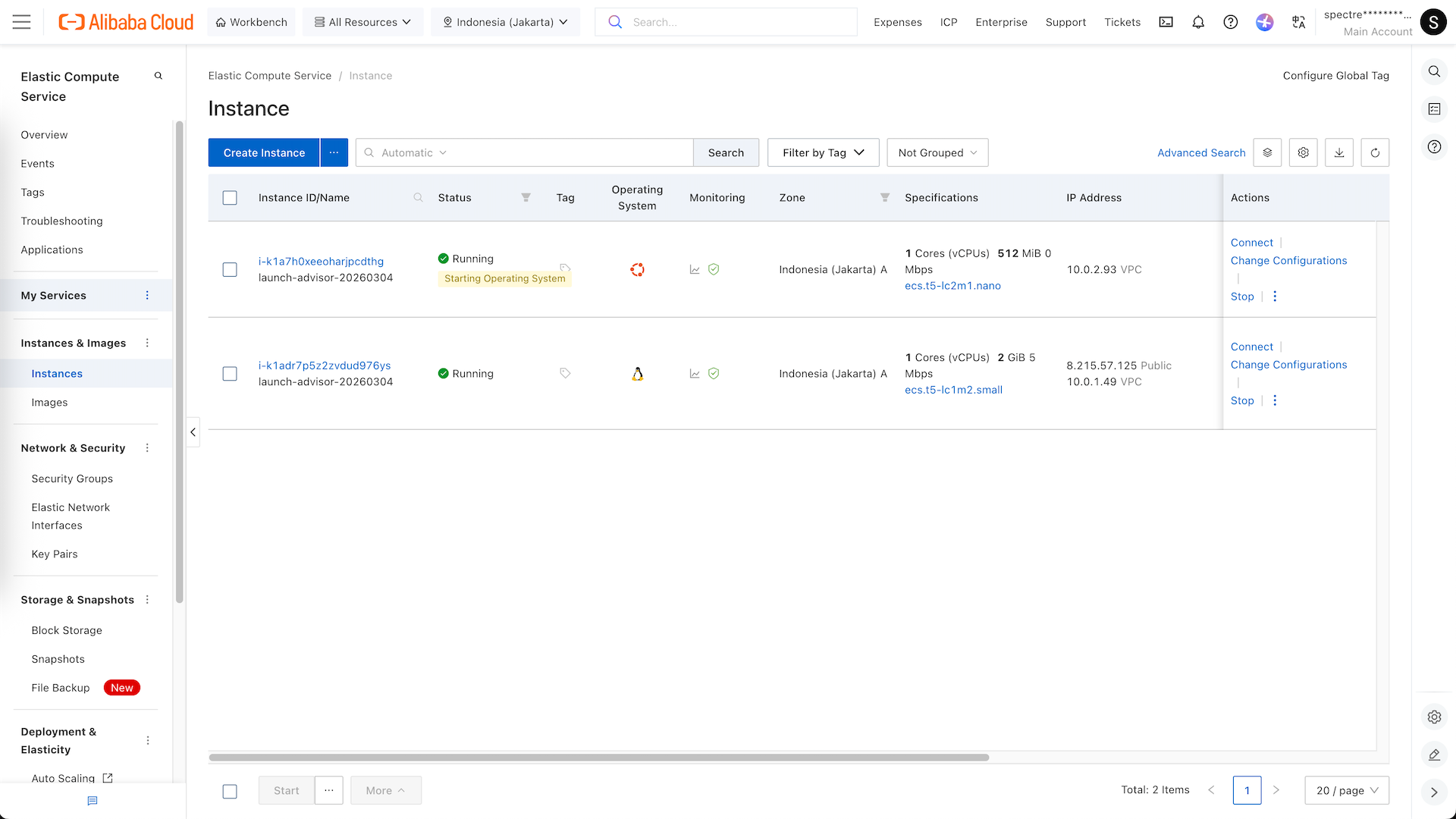
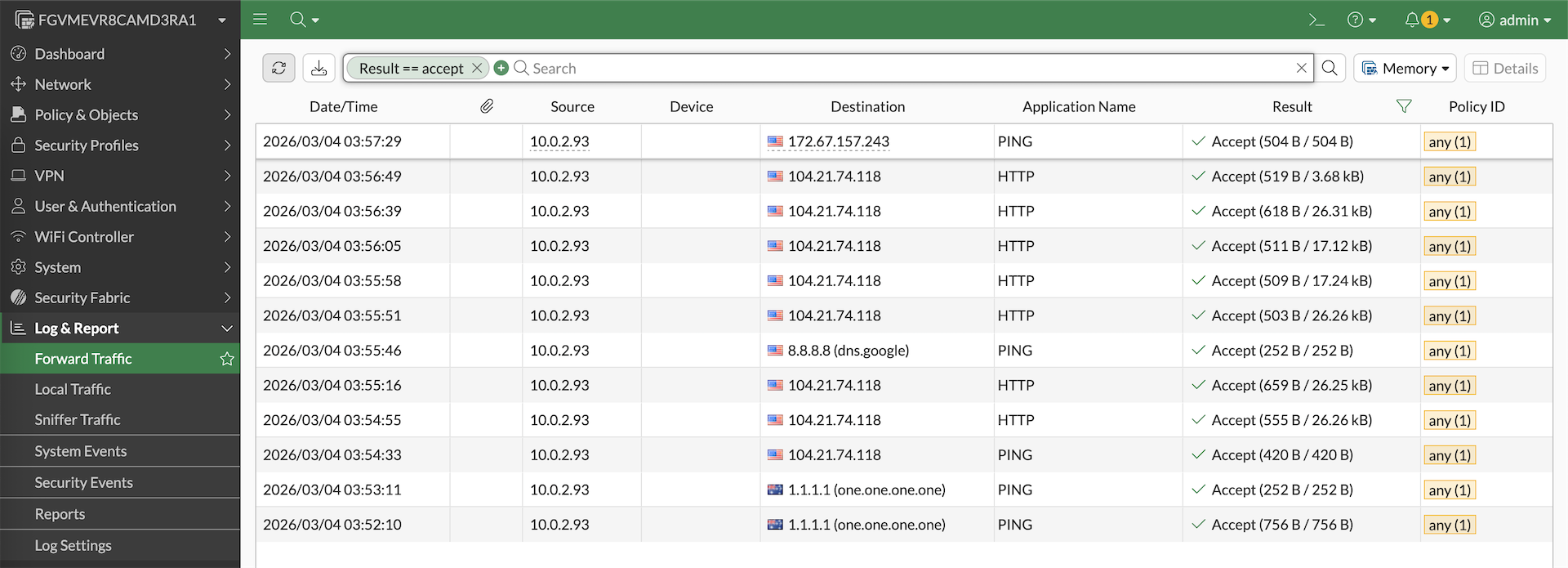
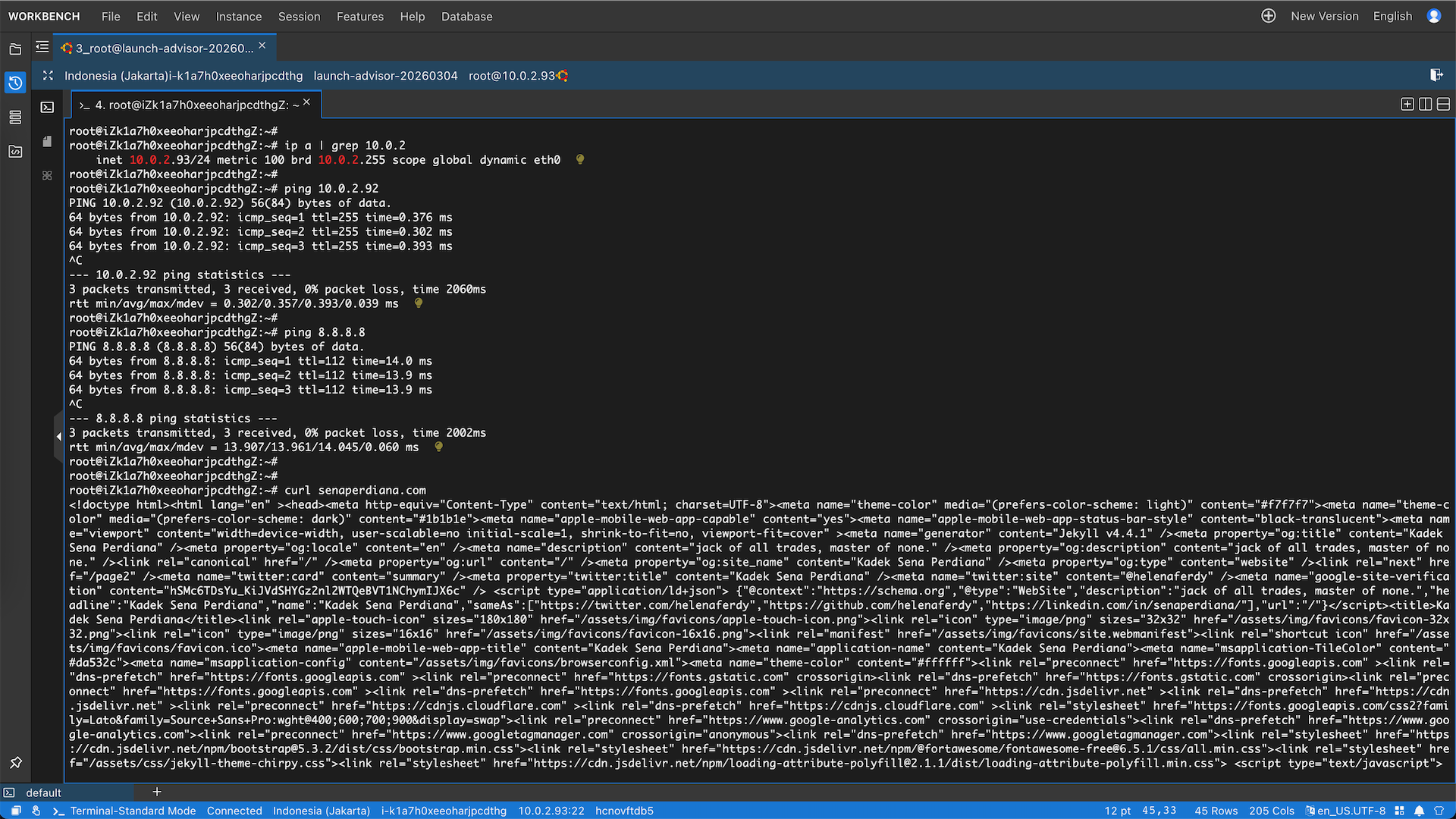
And this linux on 10.0.2.93 can ping fortigate and access the internet
Which we can verify by seeing the logs on the fortigate