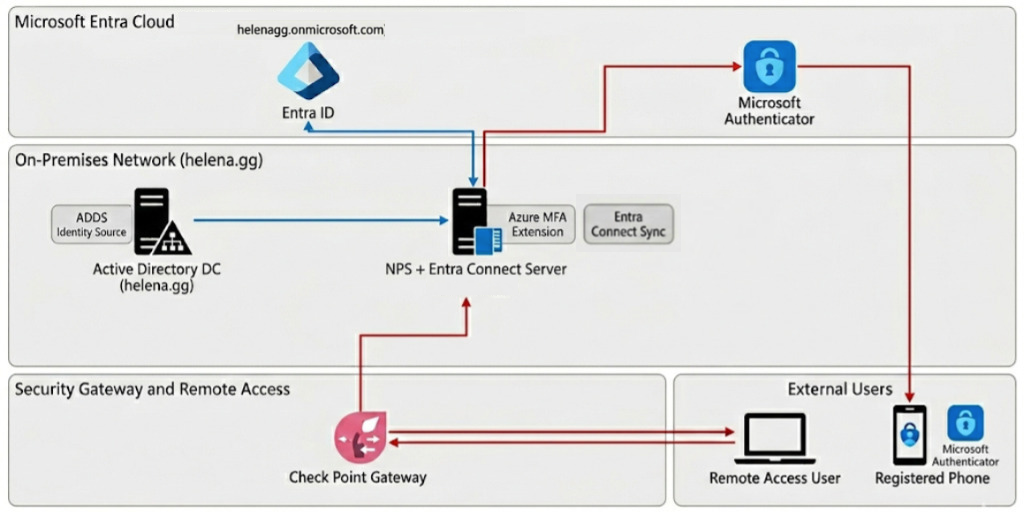
Microsoft Entra ID (formerly Azure Active Directory) is a cloud-native identity platform that synchronizes with on-premises ADDS via Entra Connect to create a seamless hybrid identity layer. By integrating the NPS Extension, it functions as a centralized MFA engine for our Check Point VPN, intercepting RADIUS authentication to trigger push notifications via the Microsoft Authenticator app.
Setting up Entra ID
First we setup a new Microsoft Account with Entra ID P2 license, here we create a new domain at helenagg.onmicrosoft.com
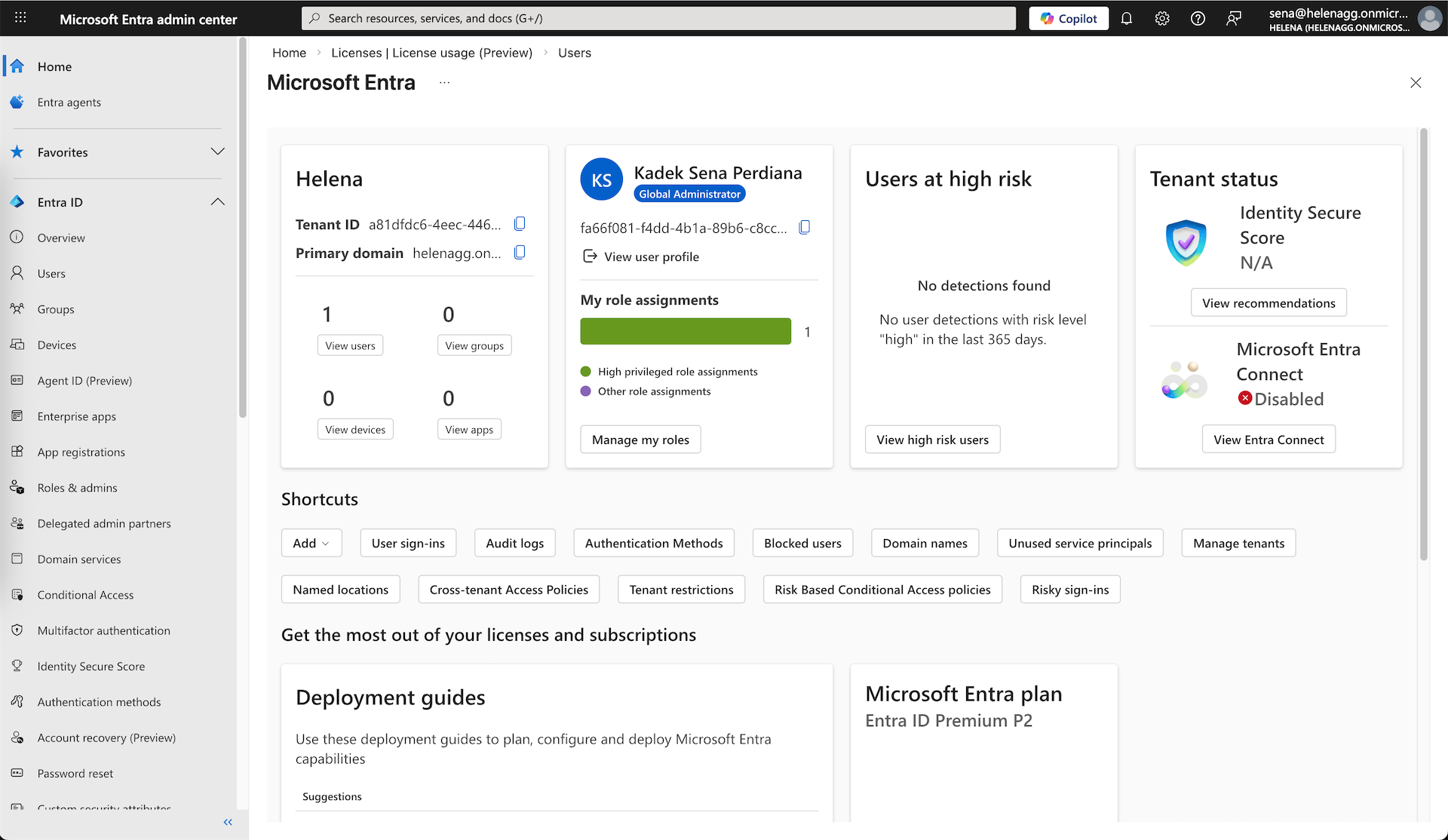
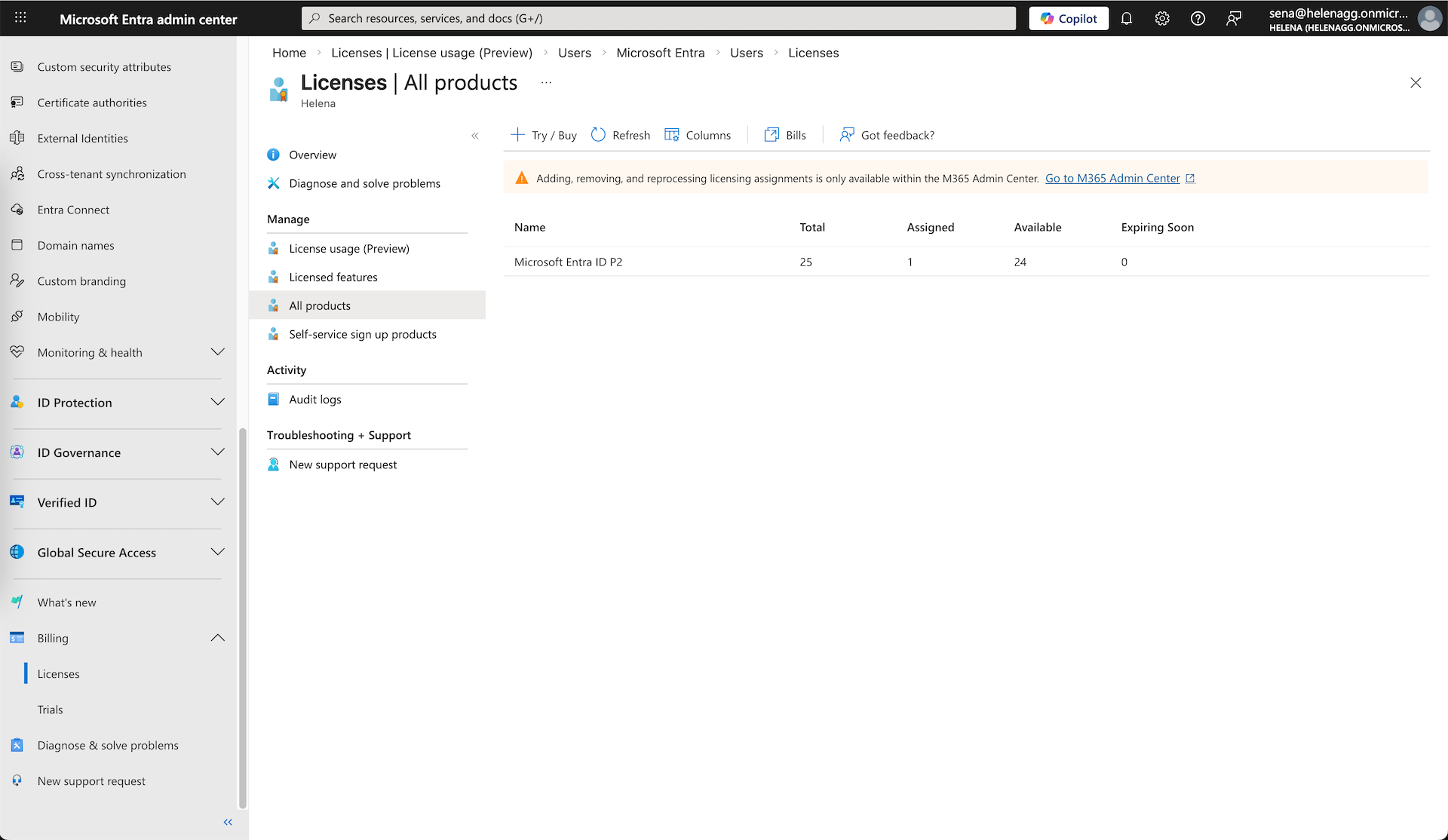
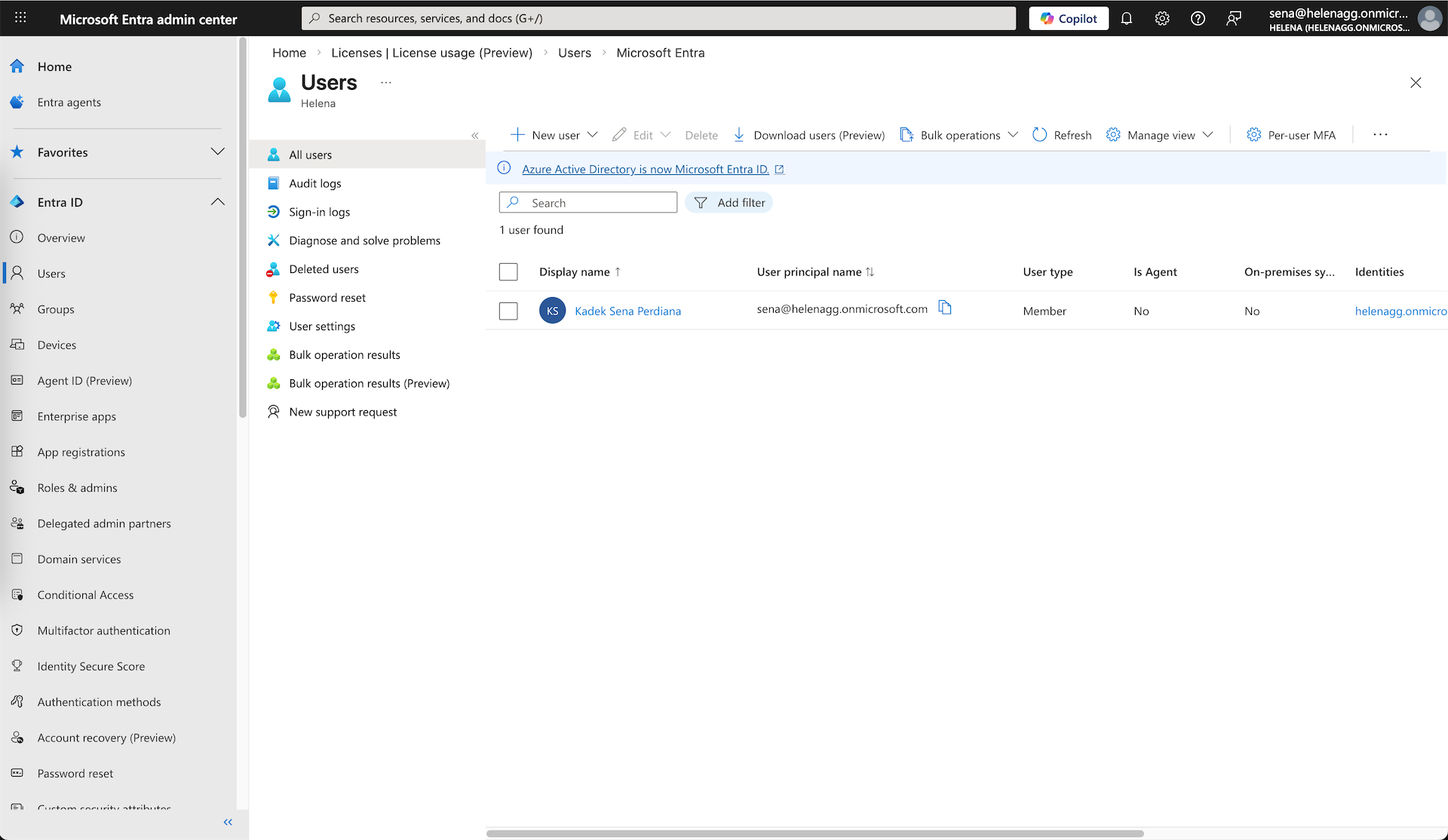
At this point we only have 1 user, which is the Tenant admin
To manage our users, we can open the Microsoft 365 Admin Center
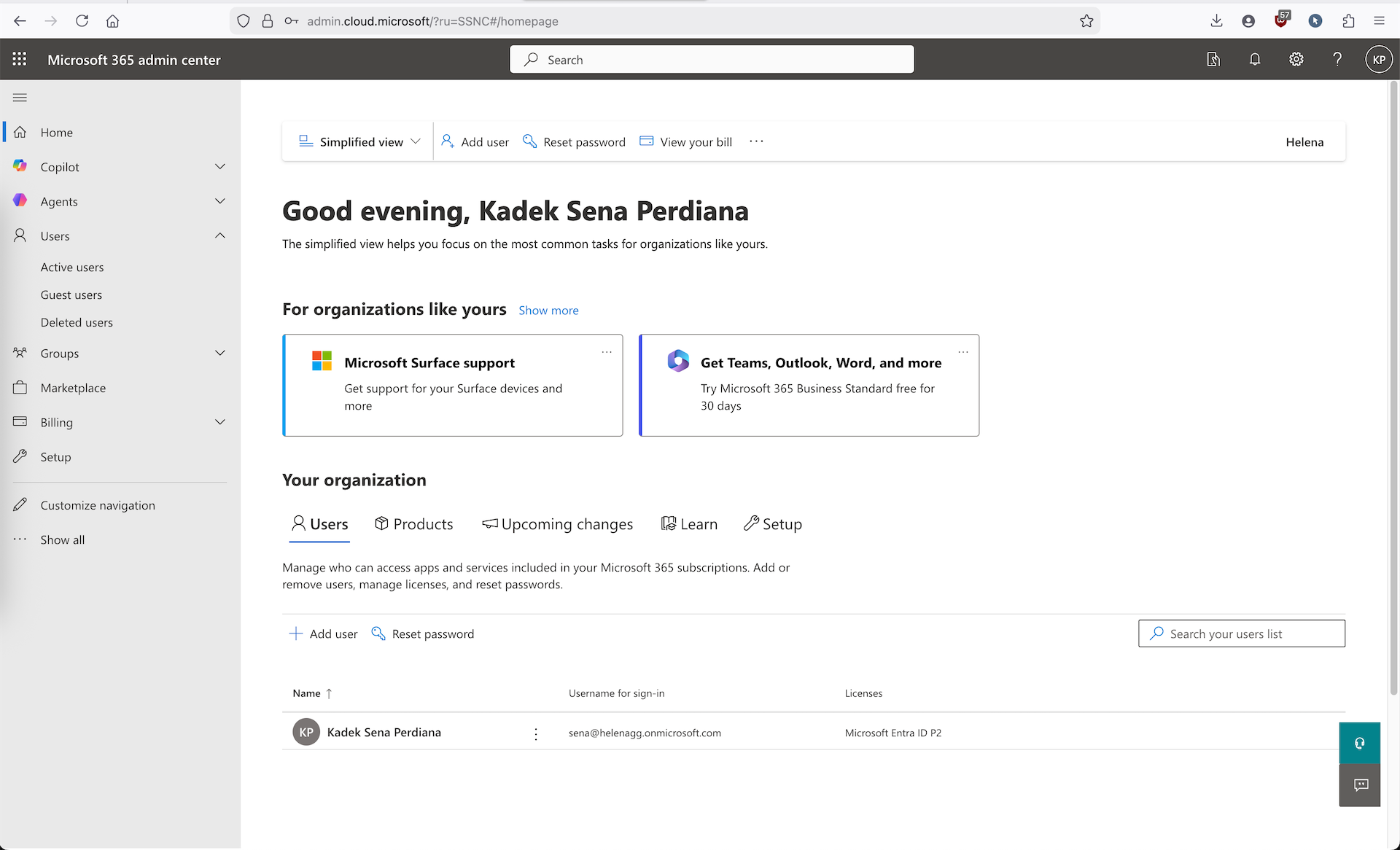
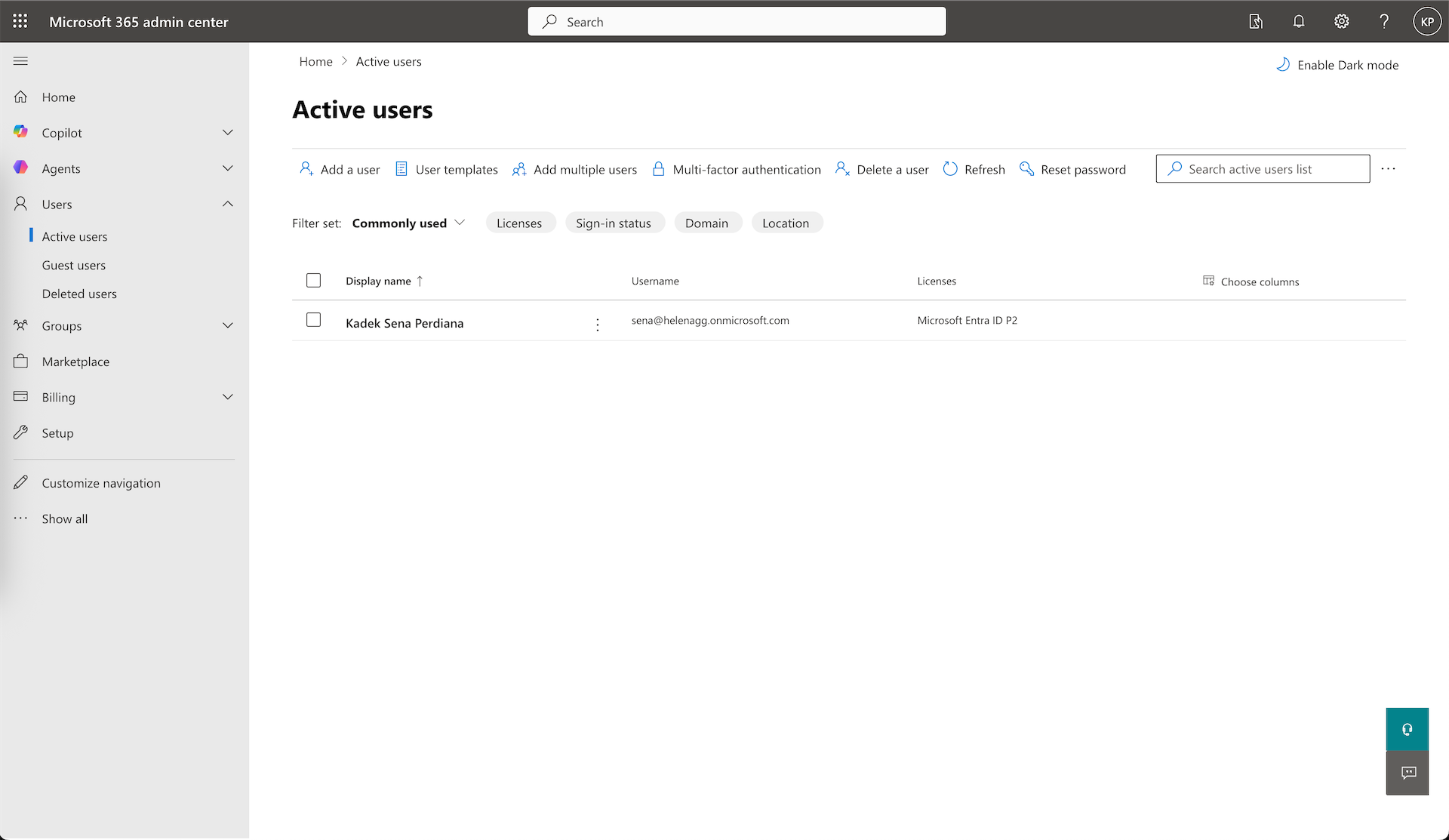
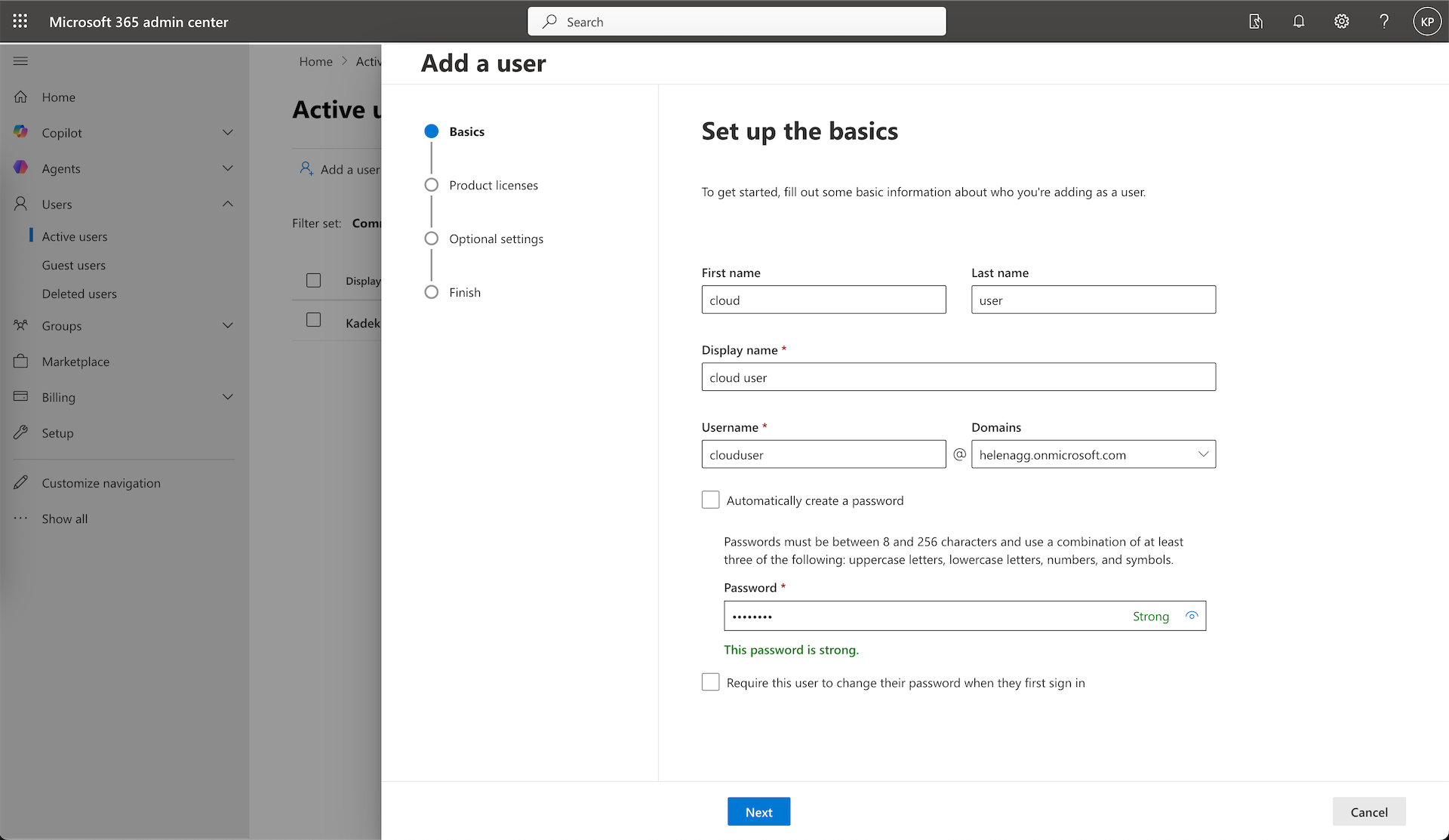
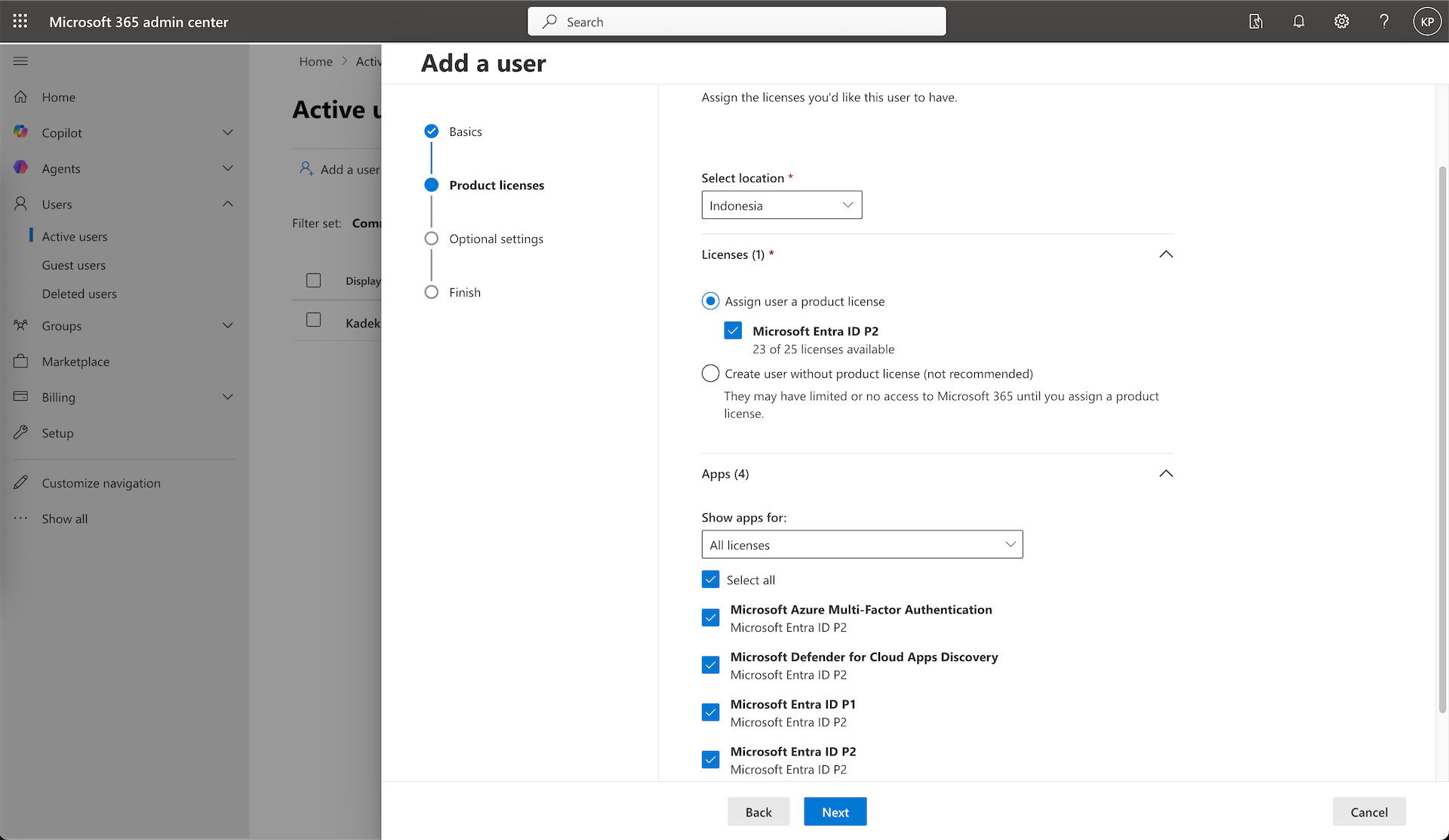
We’ll add a new “clouduser” and assign the Entra ID P2 license so it can use the MFA feature if we choose to configure
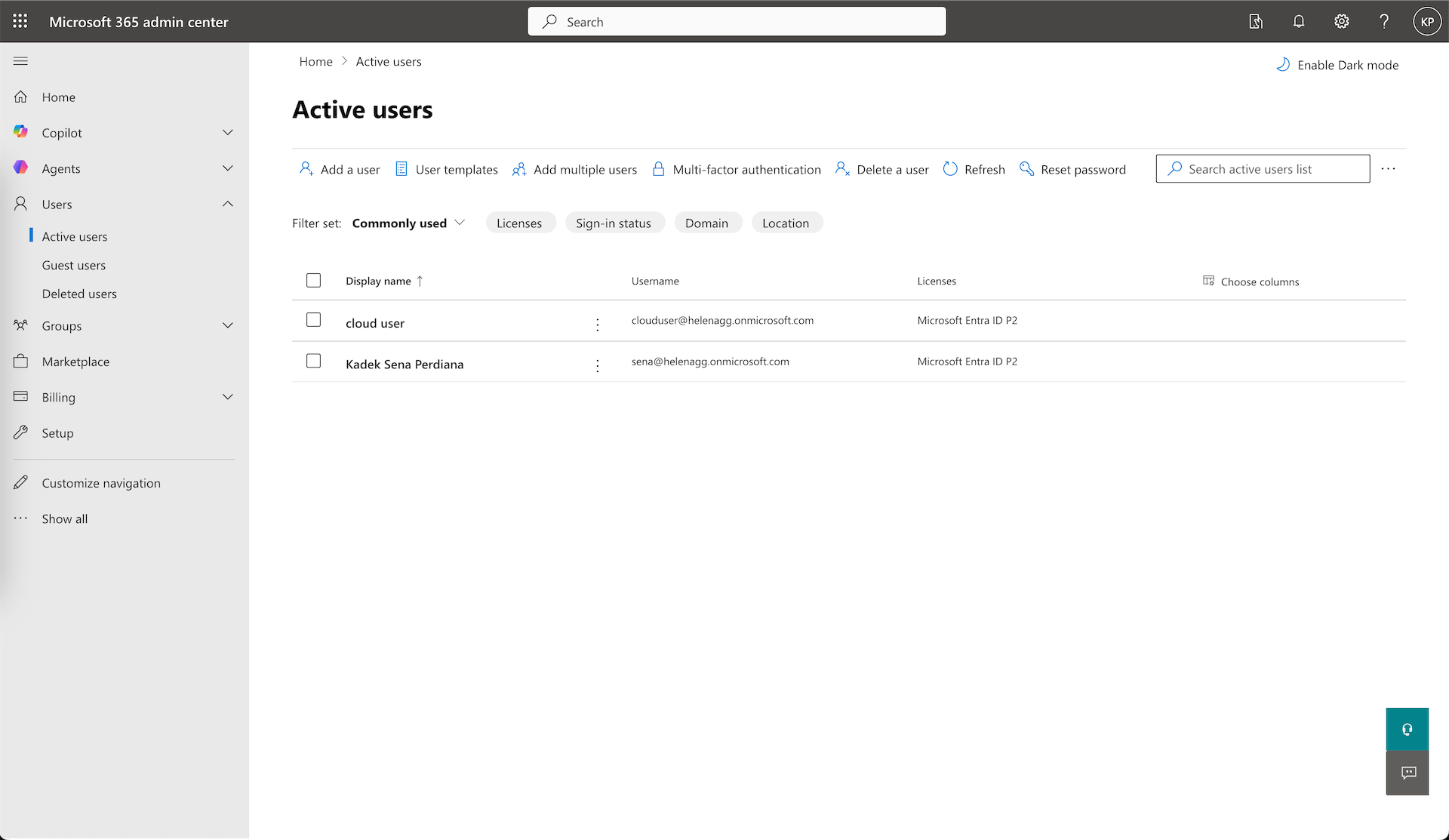
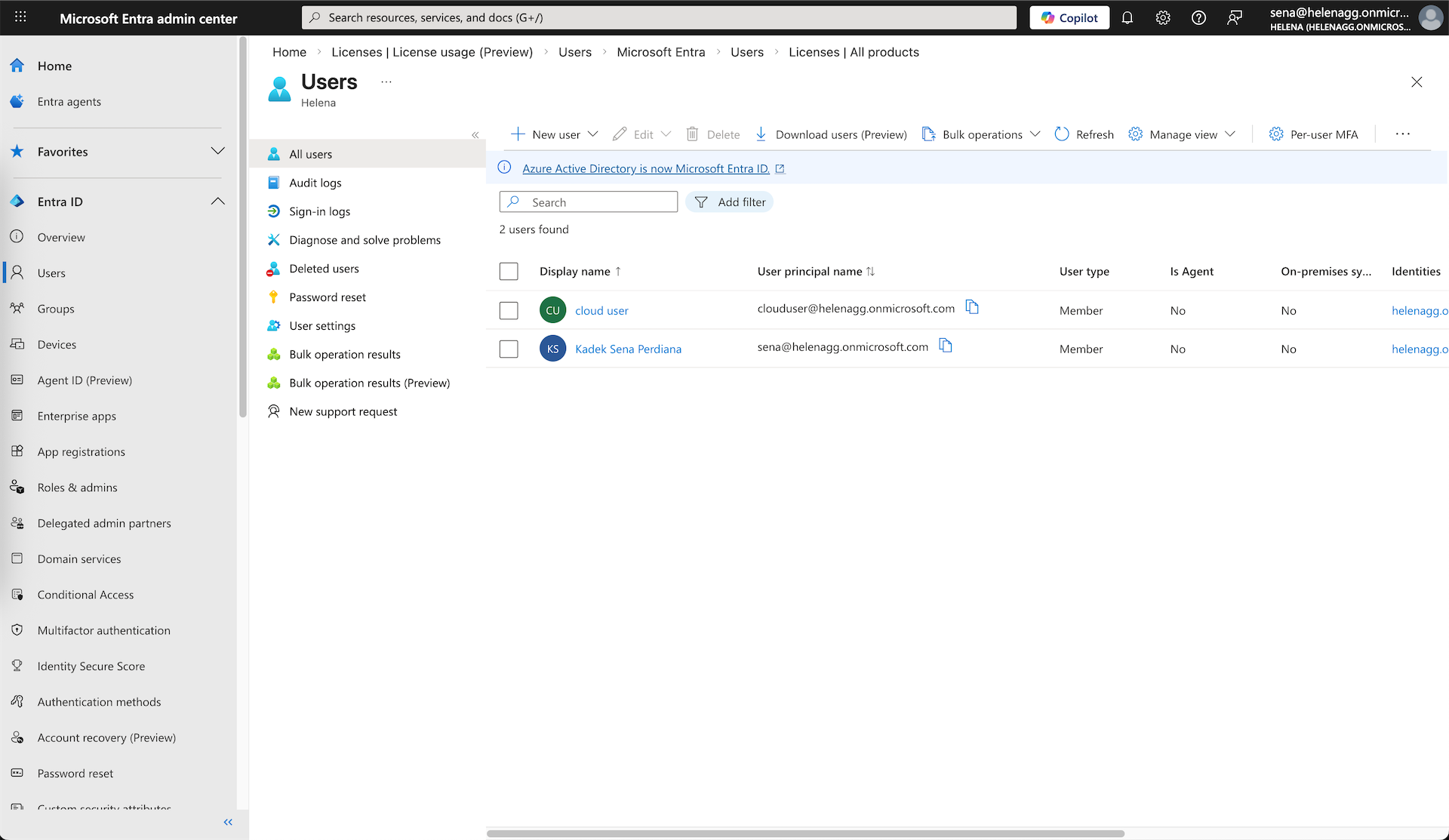
Now the users will show up on both 365 Admin Center and inside the Entra Portal
Syncing ADDS Users
Instead of manually creating users like we did with “clouduser”, we’d sync it from existing users on our On-prem ADDS server
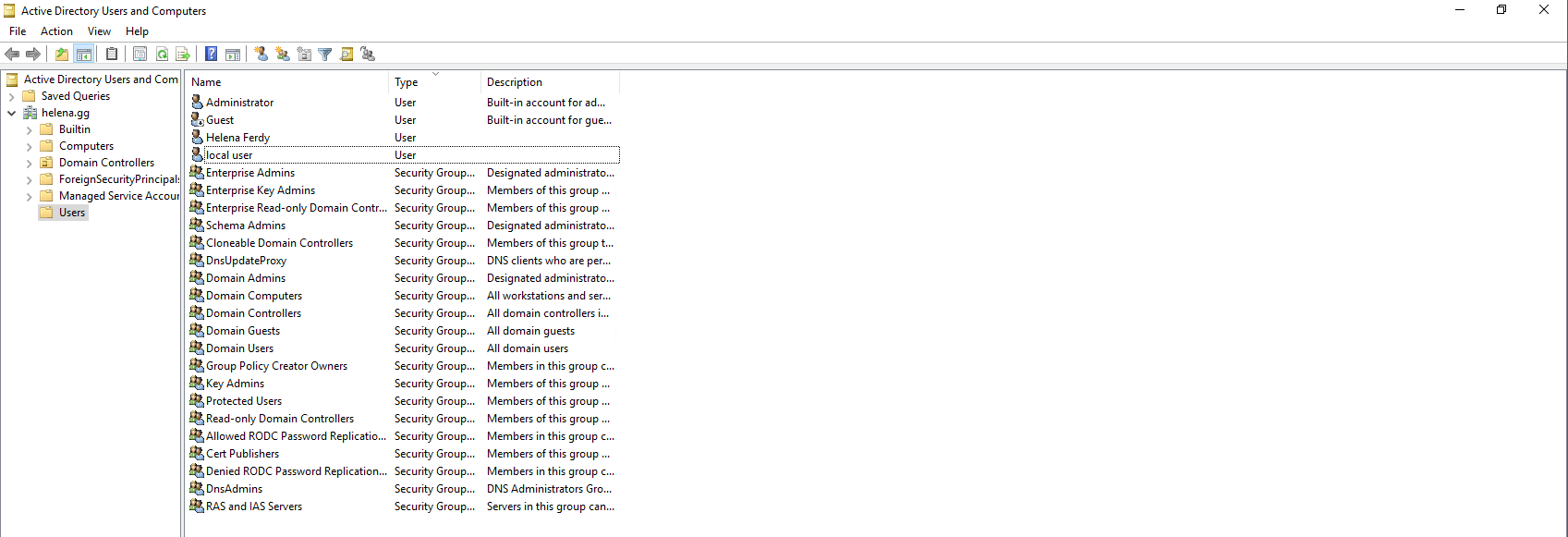
To to that we will use Entra Connect (Connect Sync). Download the installer
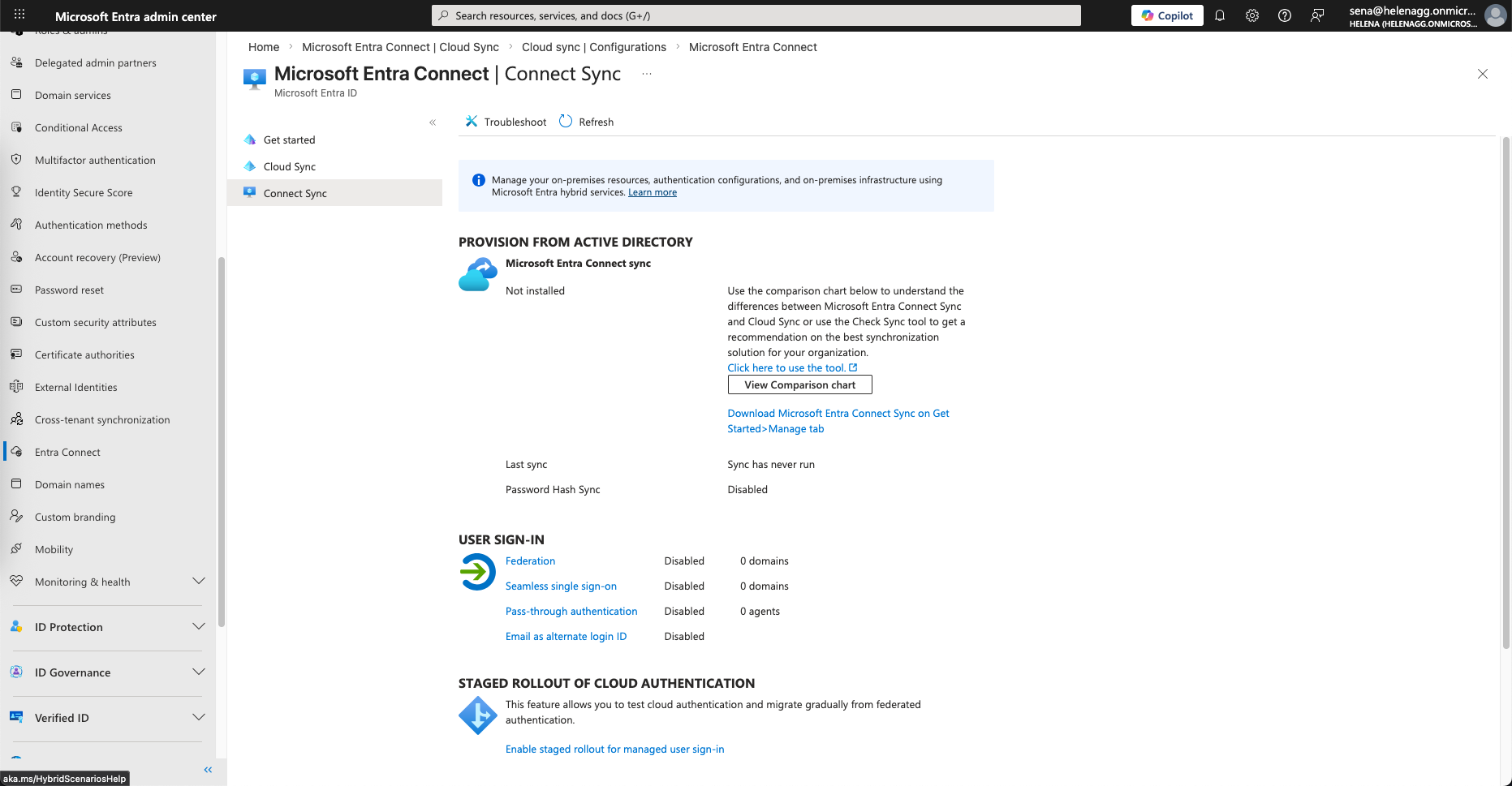
And install it on a Windows Server that joins the Domain
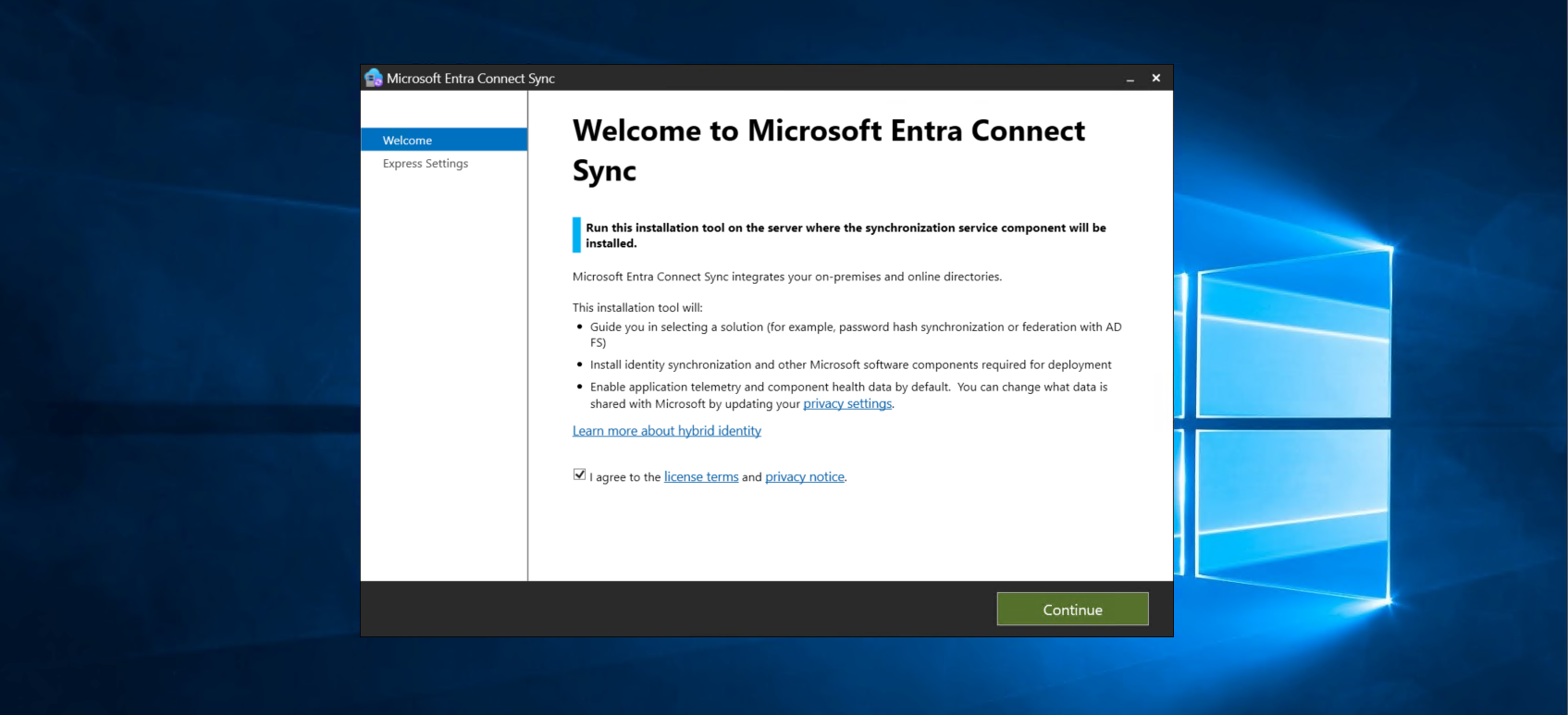
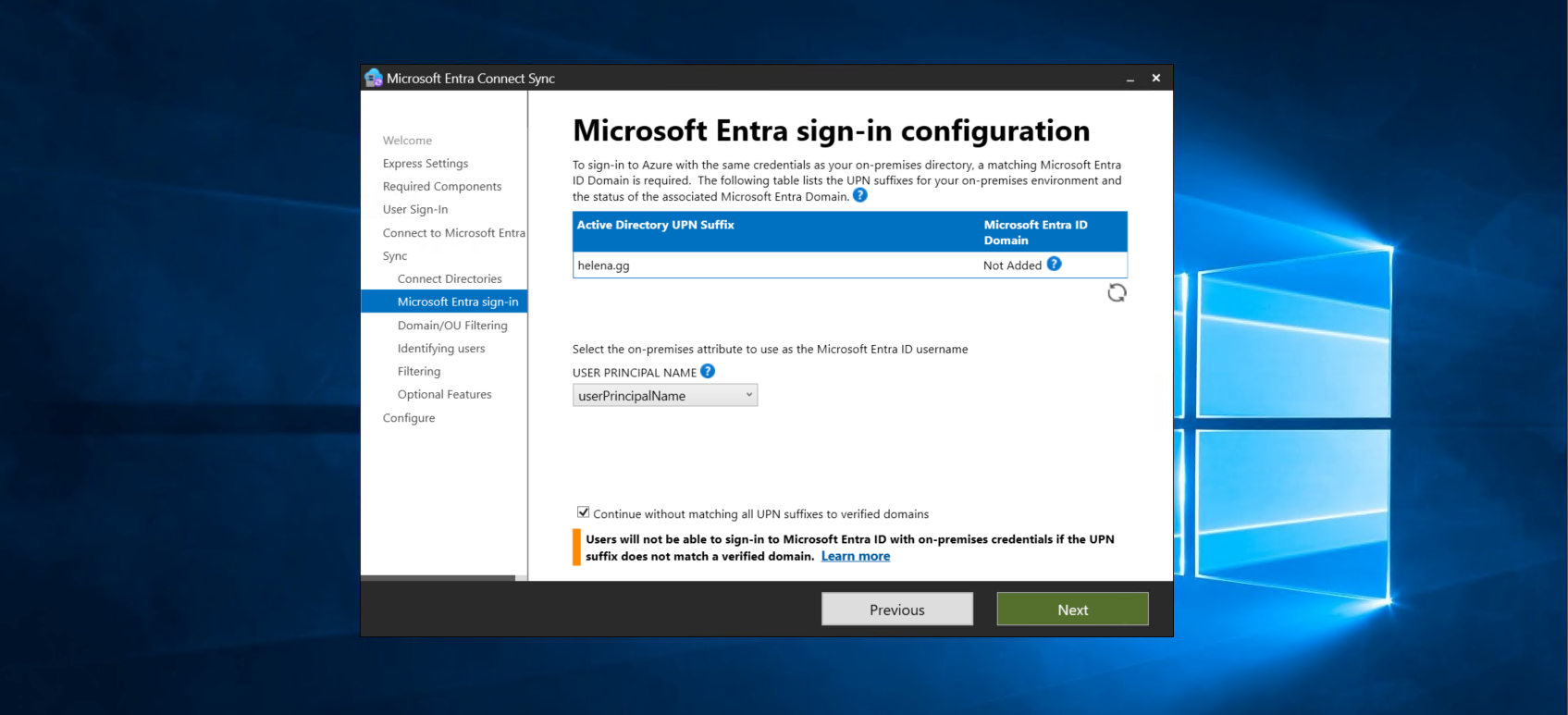
Here we have to use Customized Settings so we can enable an option to bypass domain verification, this is required because our lab domain (helena.gg) is different from the Entra domain (helenagg.onmicrosoft.com)
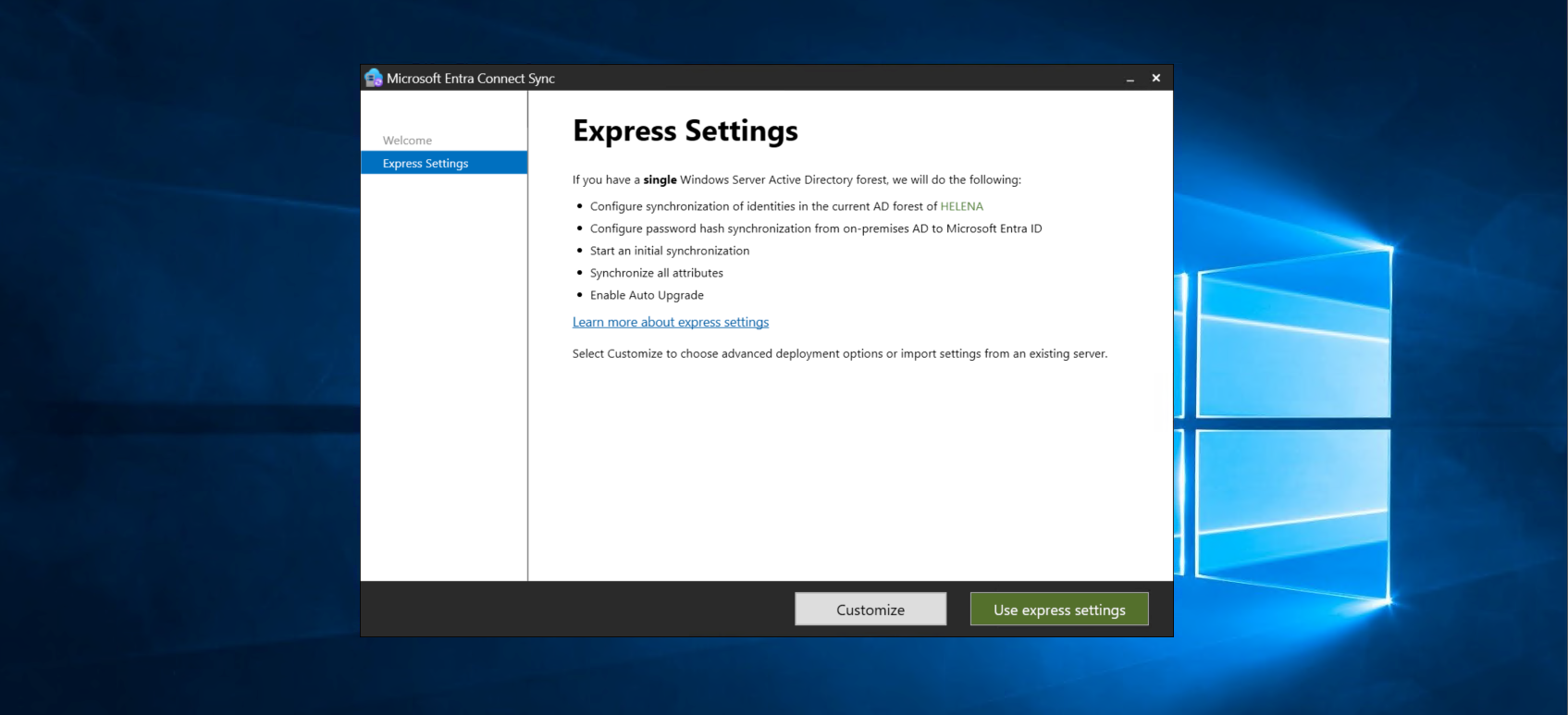
On required components leave all on defaults
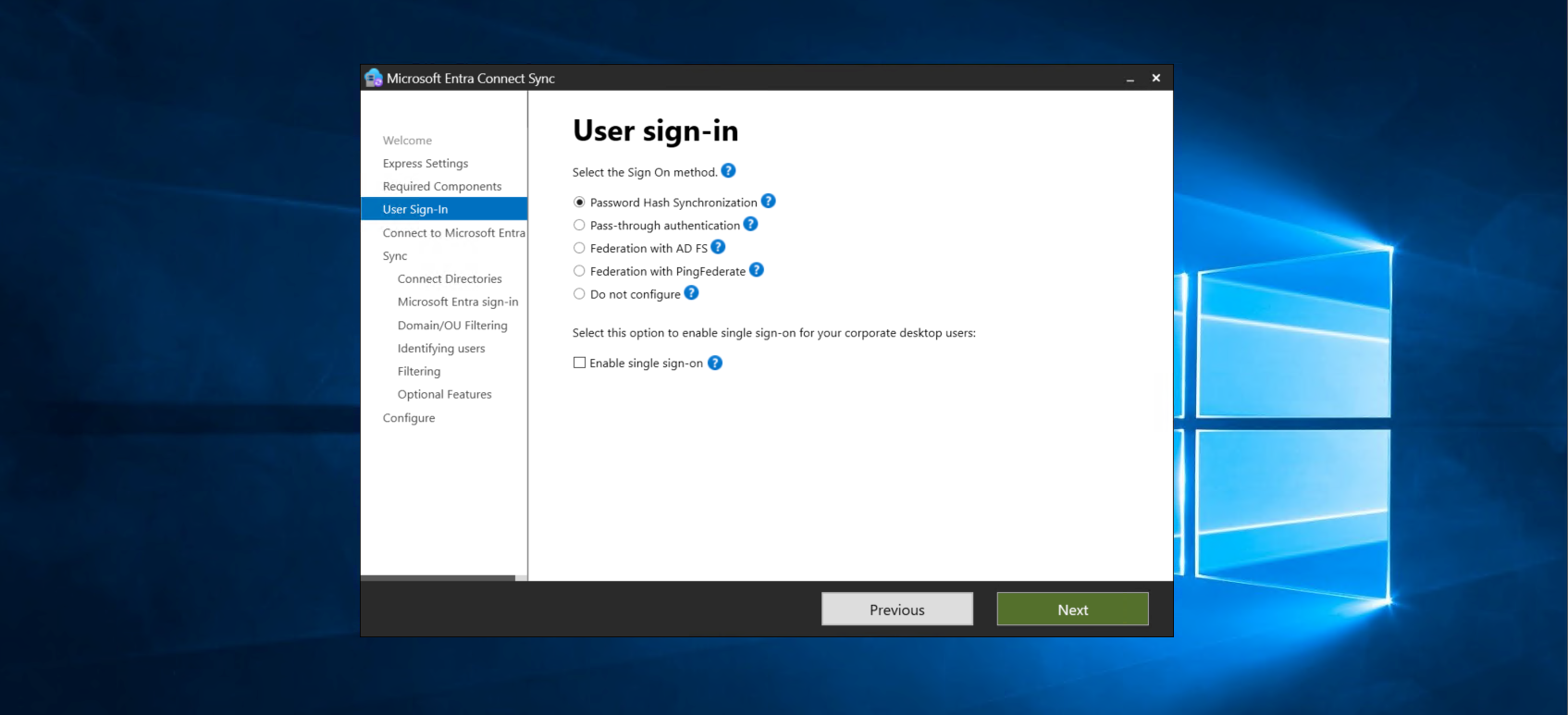
For user sign in, select Password Hash Synchronization. This is what allows our users to use their local AD password in the cloud.
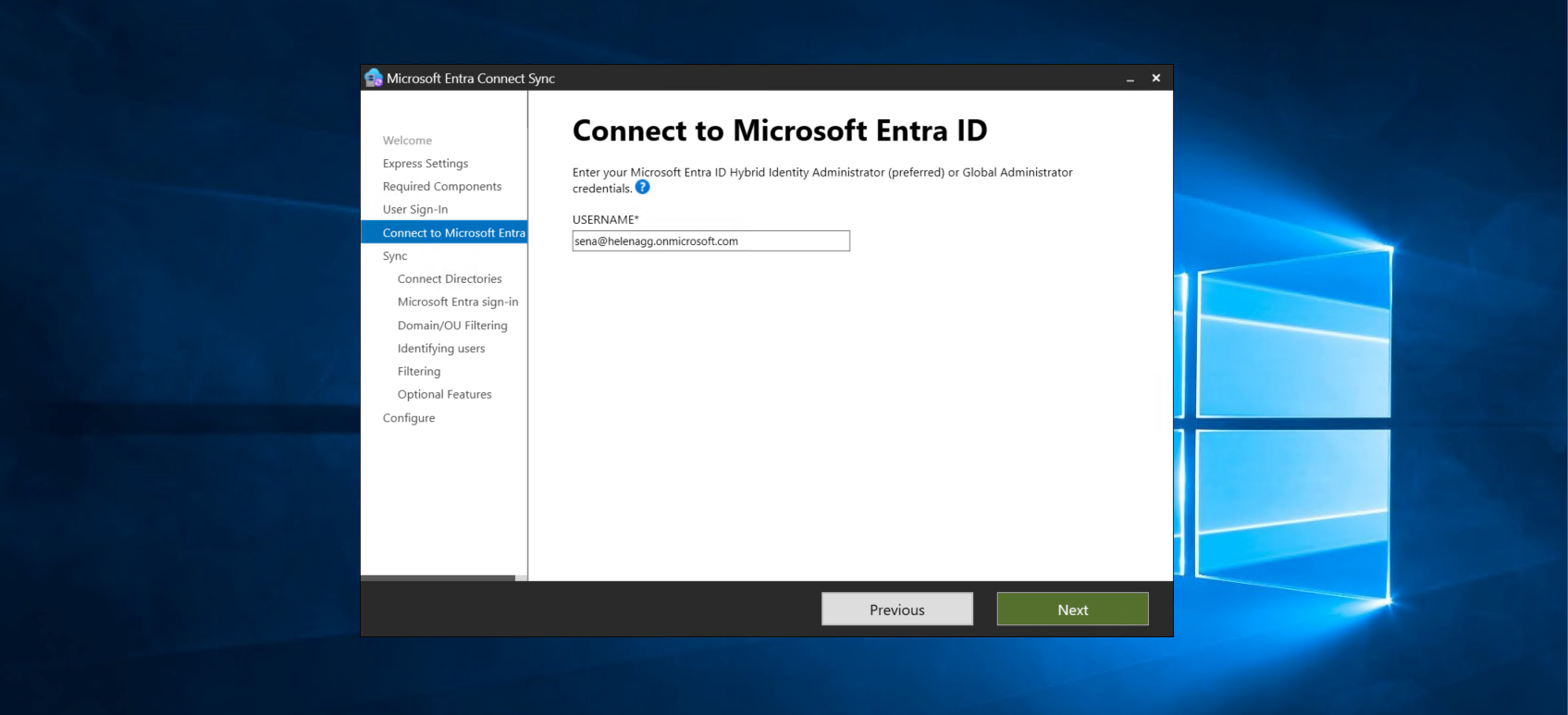
Then enter the admin user of our Entra ID
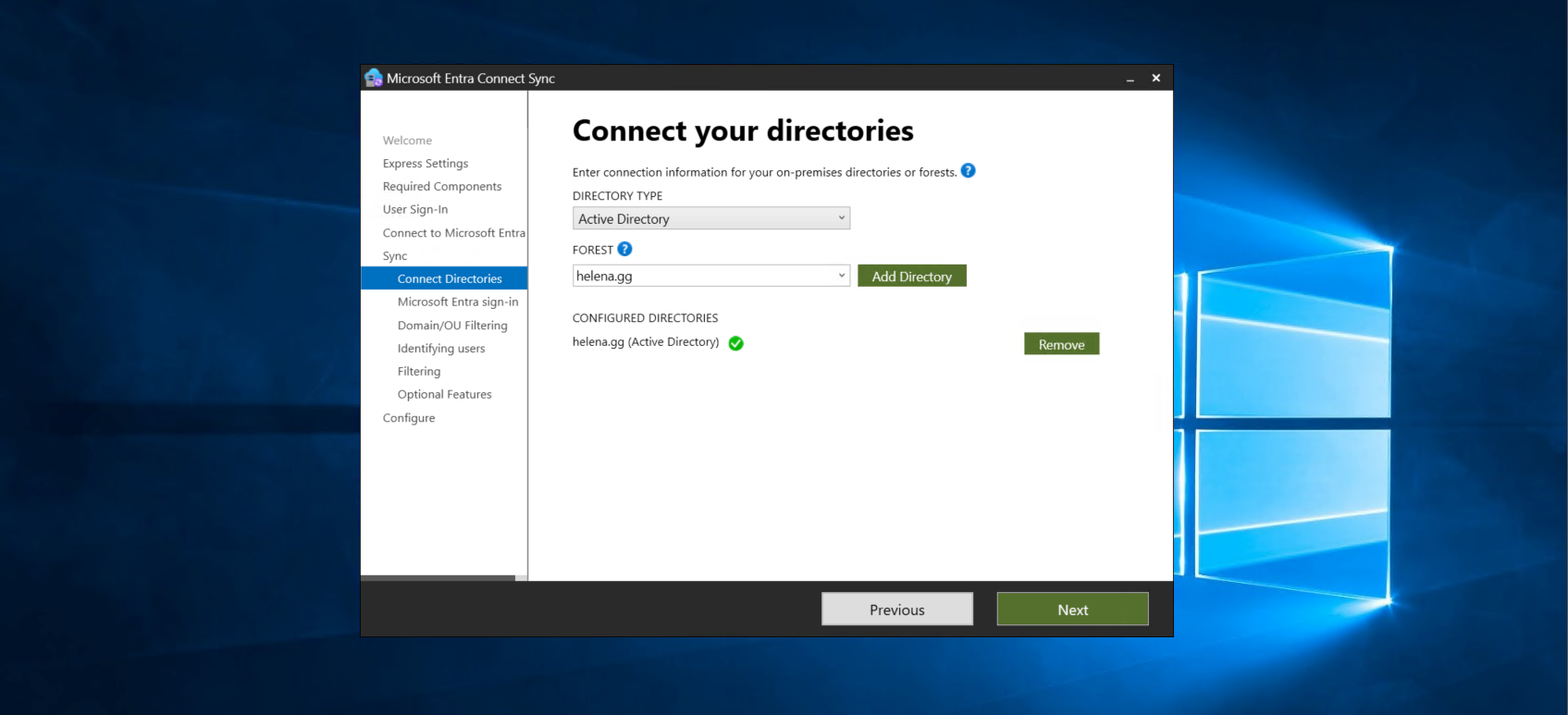
After that we select our on-prem domain that will be synced to the cloud
So this is the important step for our lab, select Continue without matching all UPN suffixes to verified domains to bypass the domain matching verification
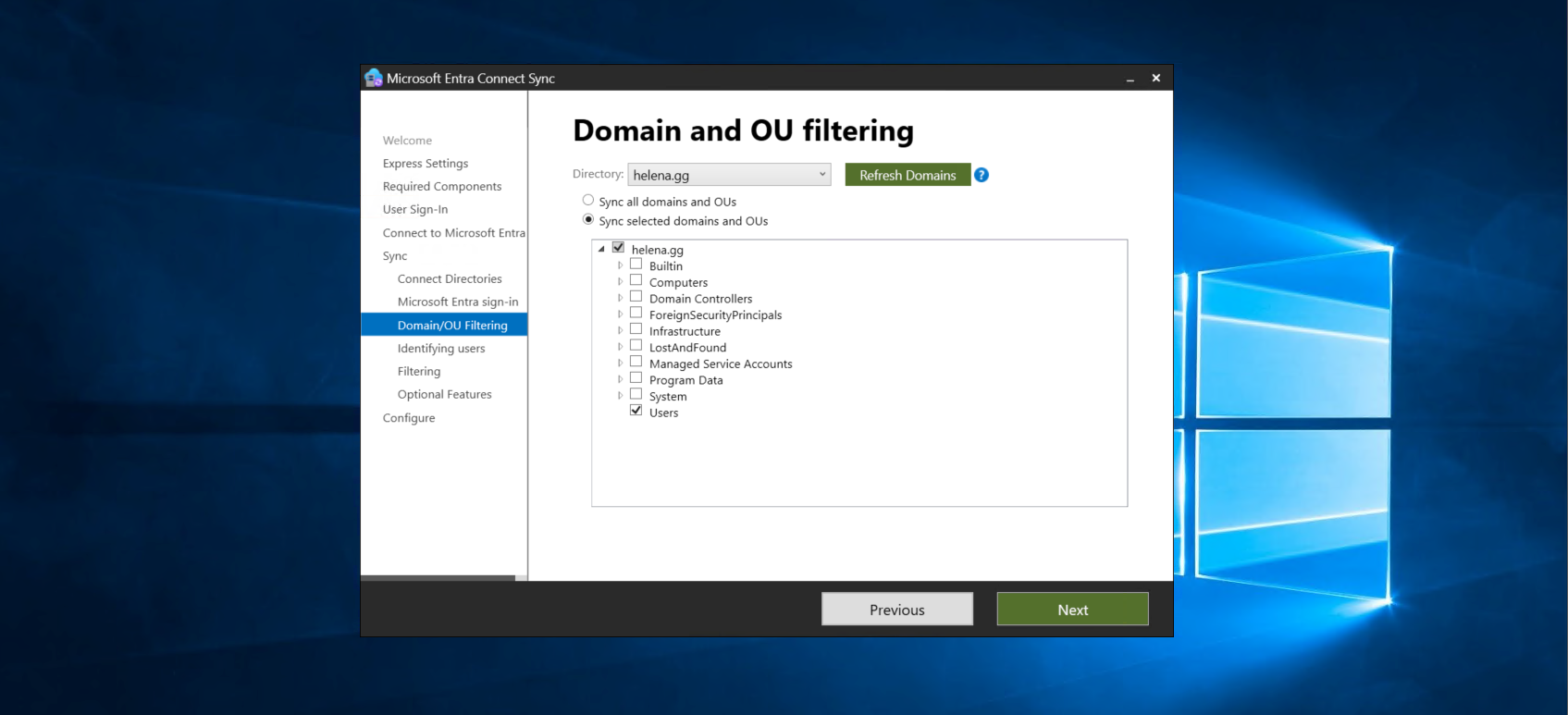
Then select the users to be synced
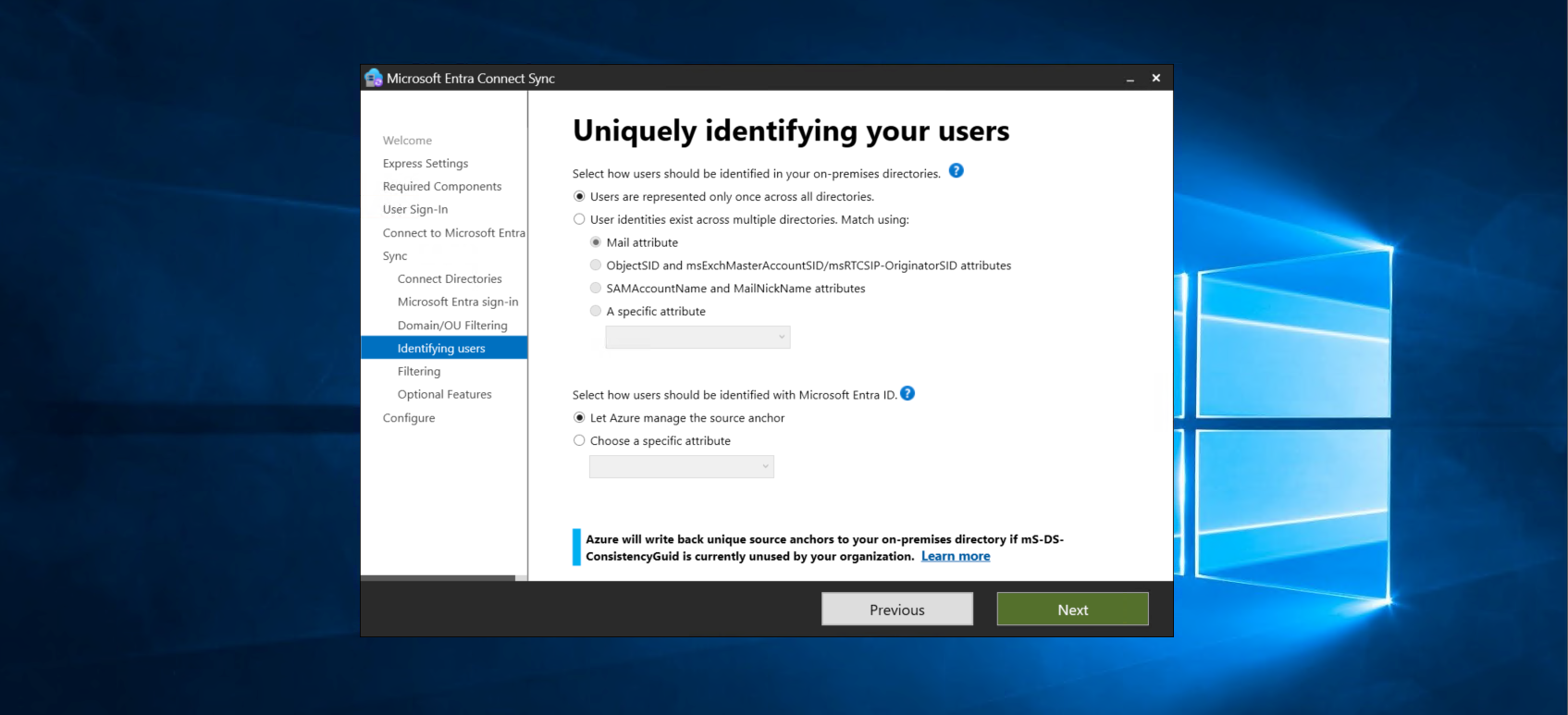
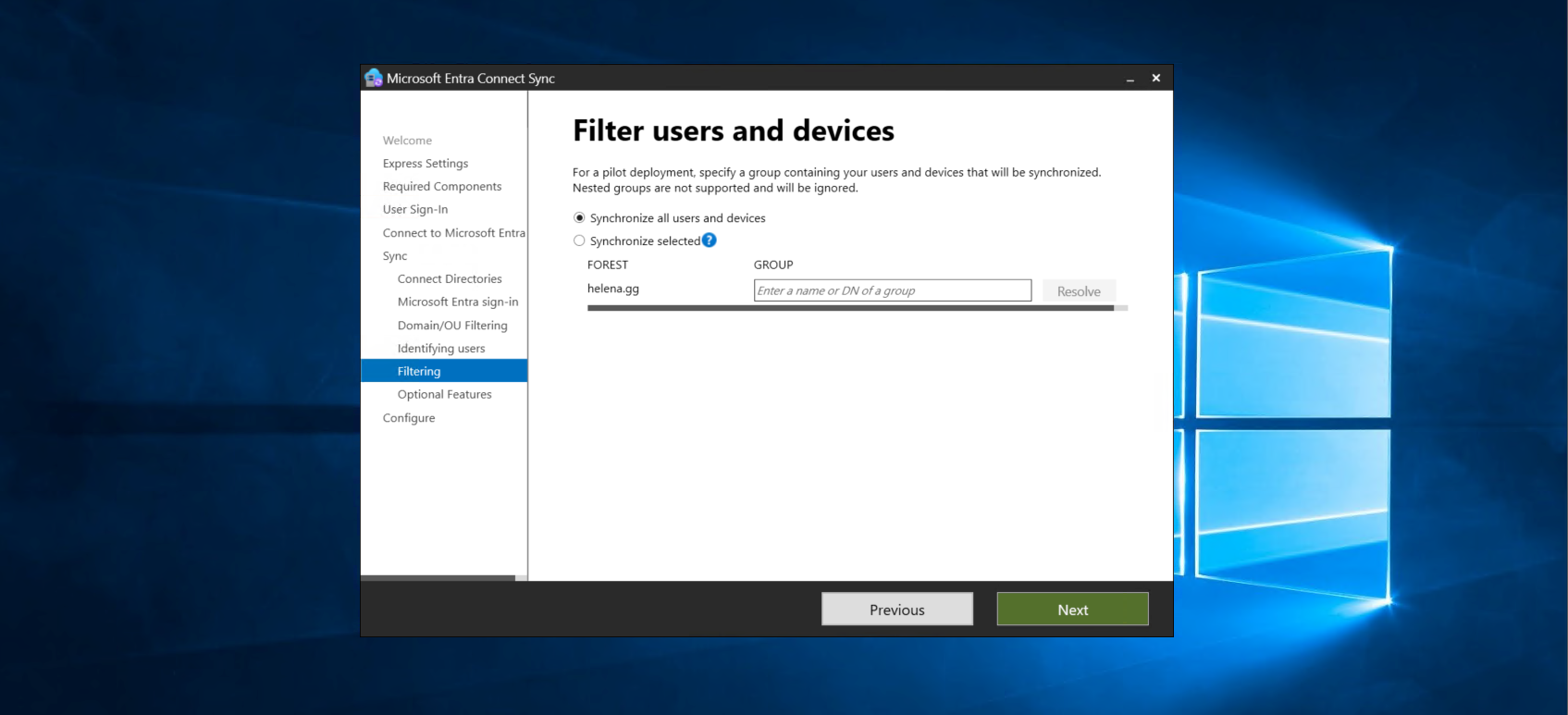
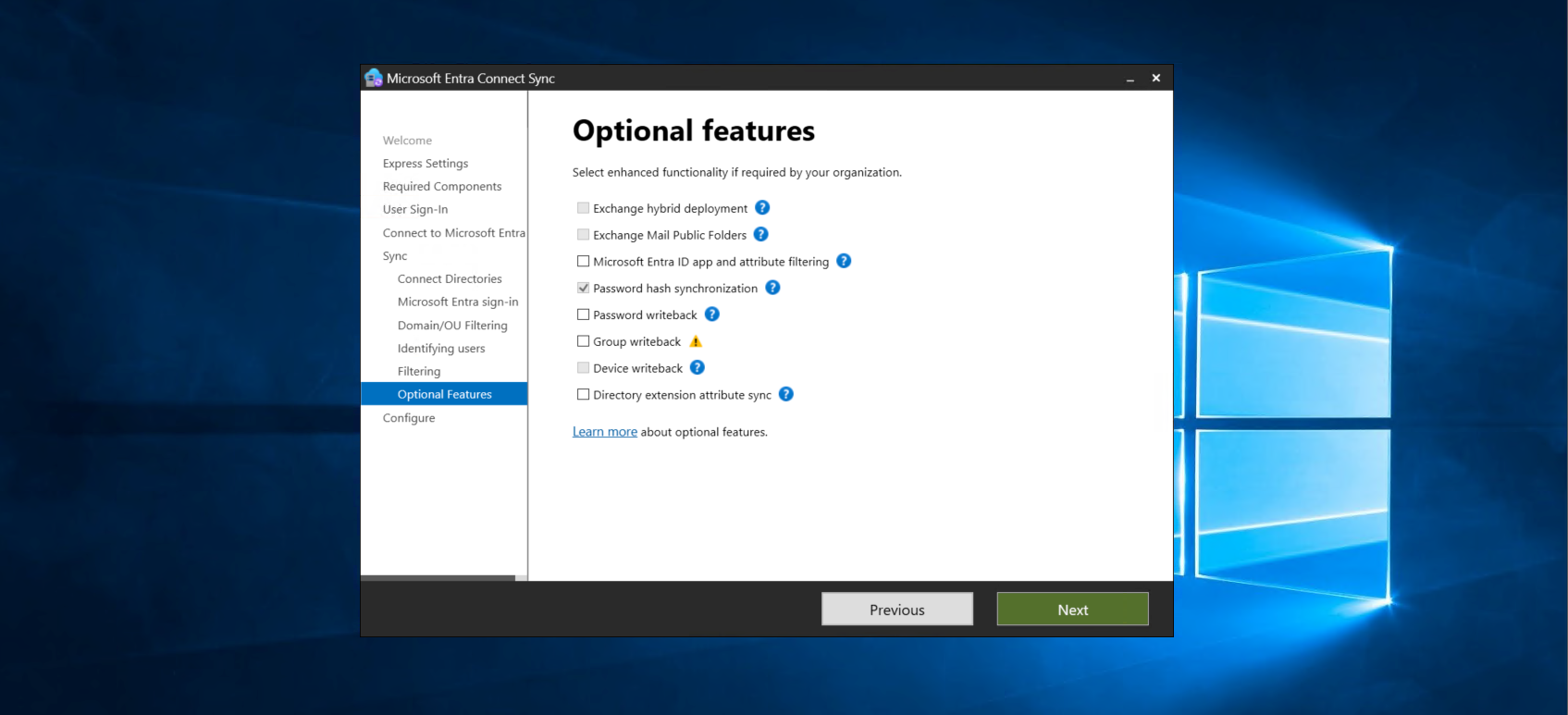
On optional features, make sure Password Hash Synchronization is enabled
Review the configuration and hit install
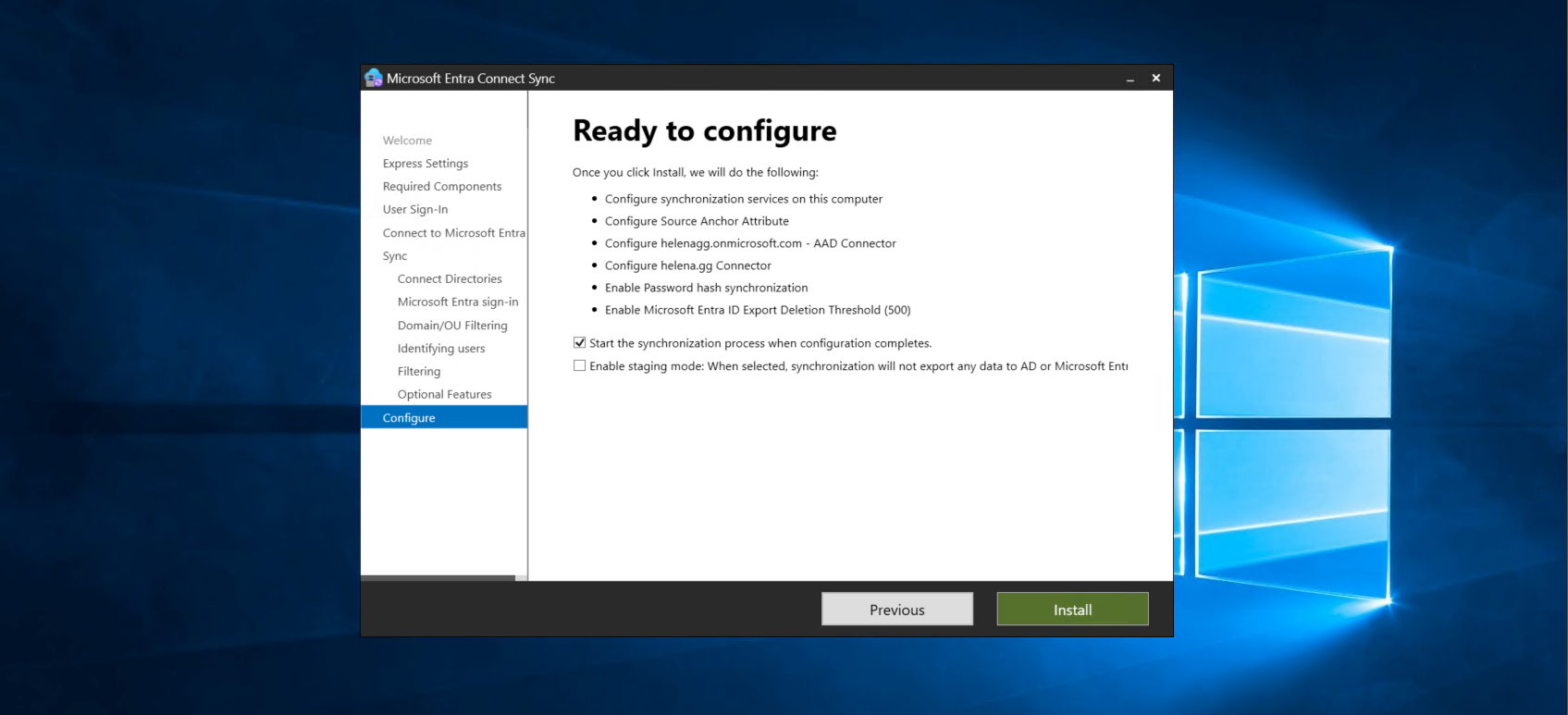
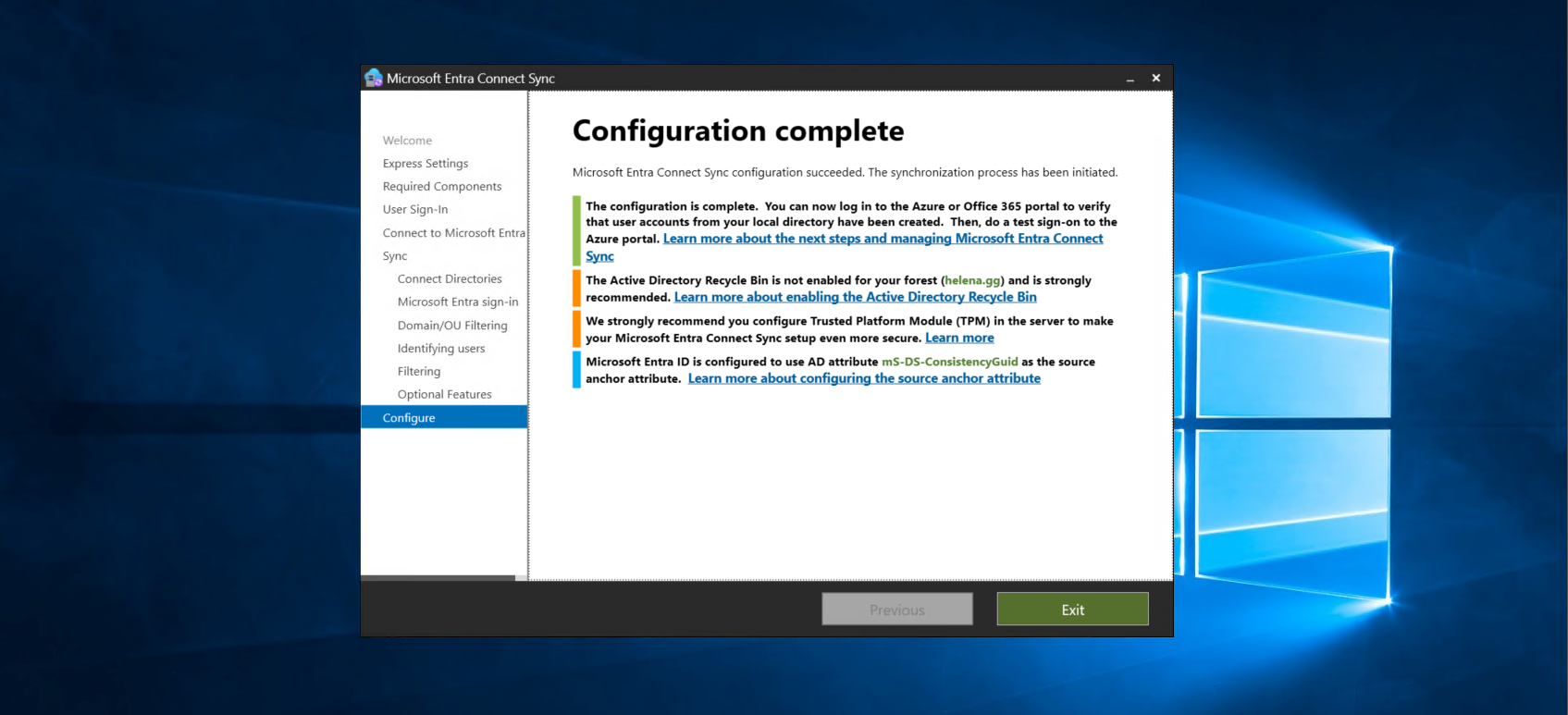
After a couple minutes, the configuration should succeed
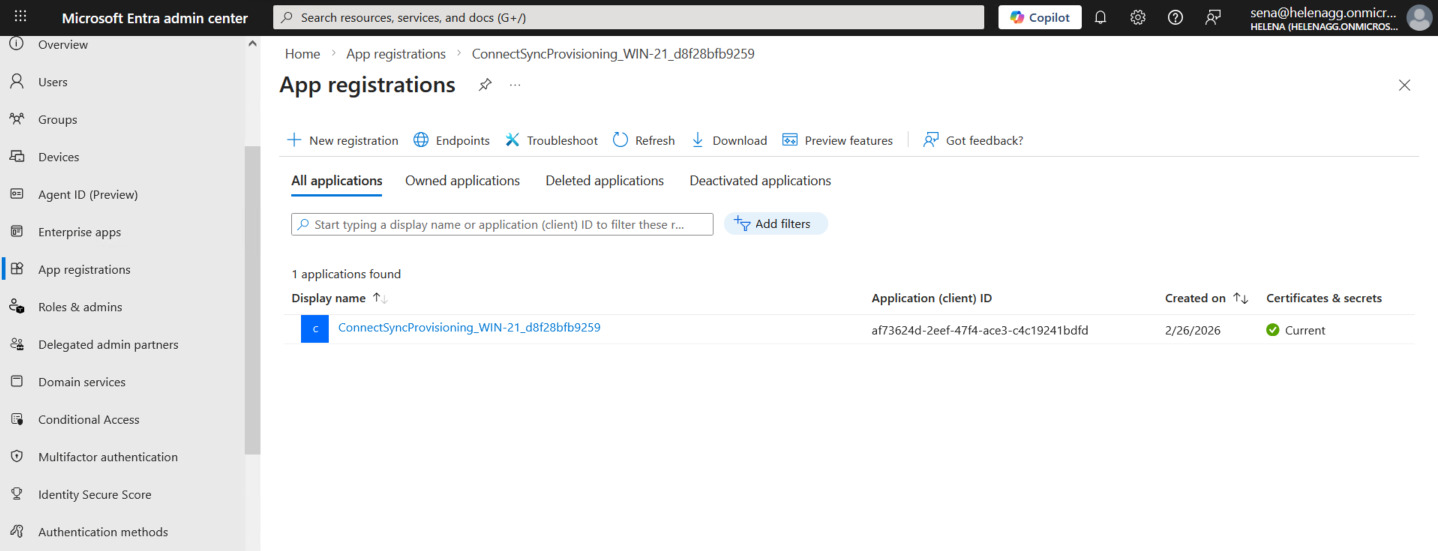
Back to our Entra Portal, we can see the Connect Sync Application is registered
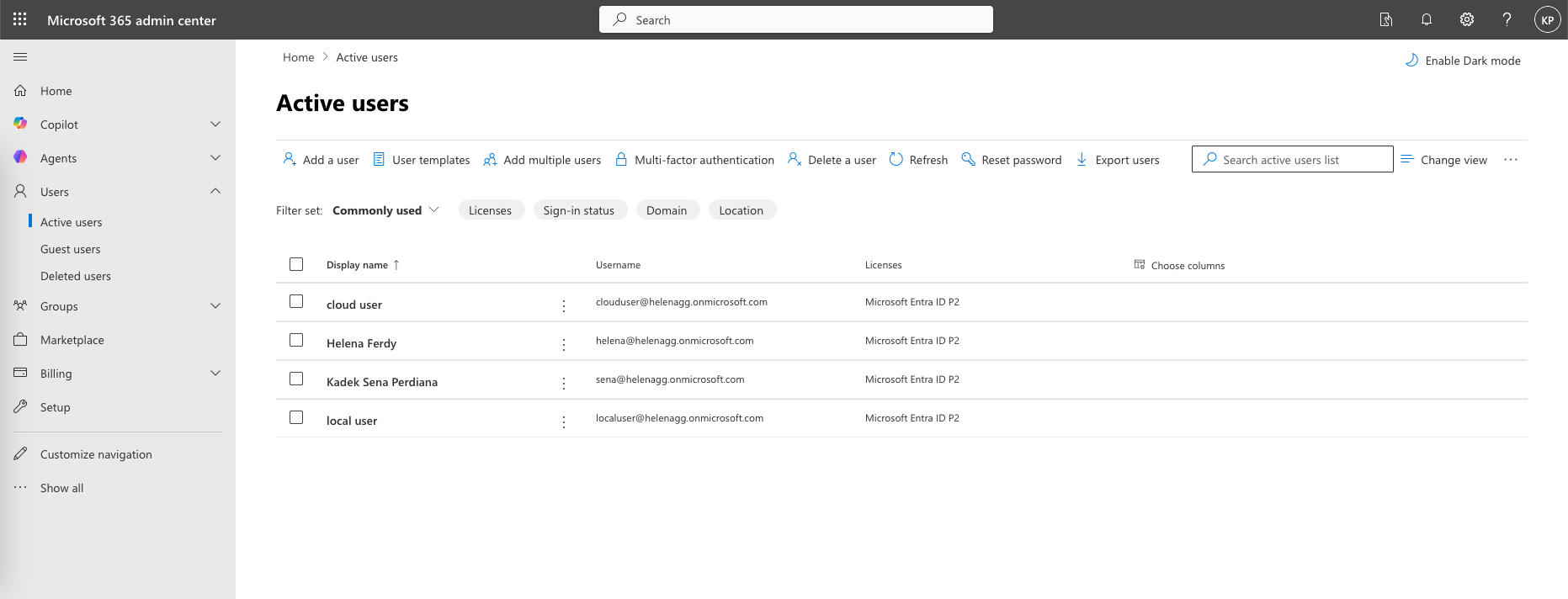
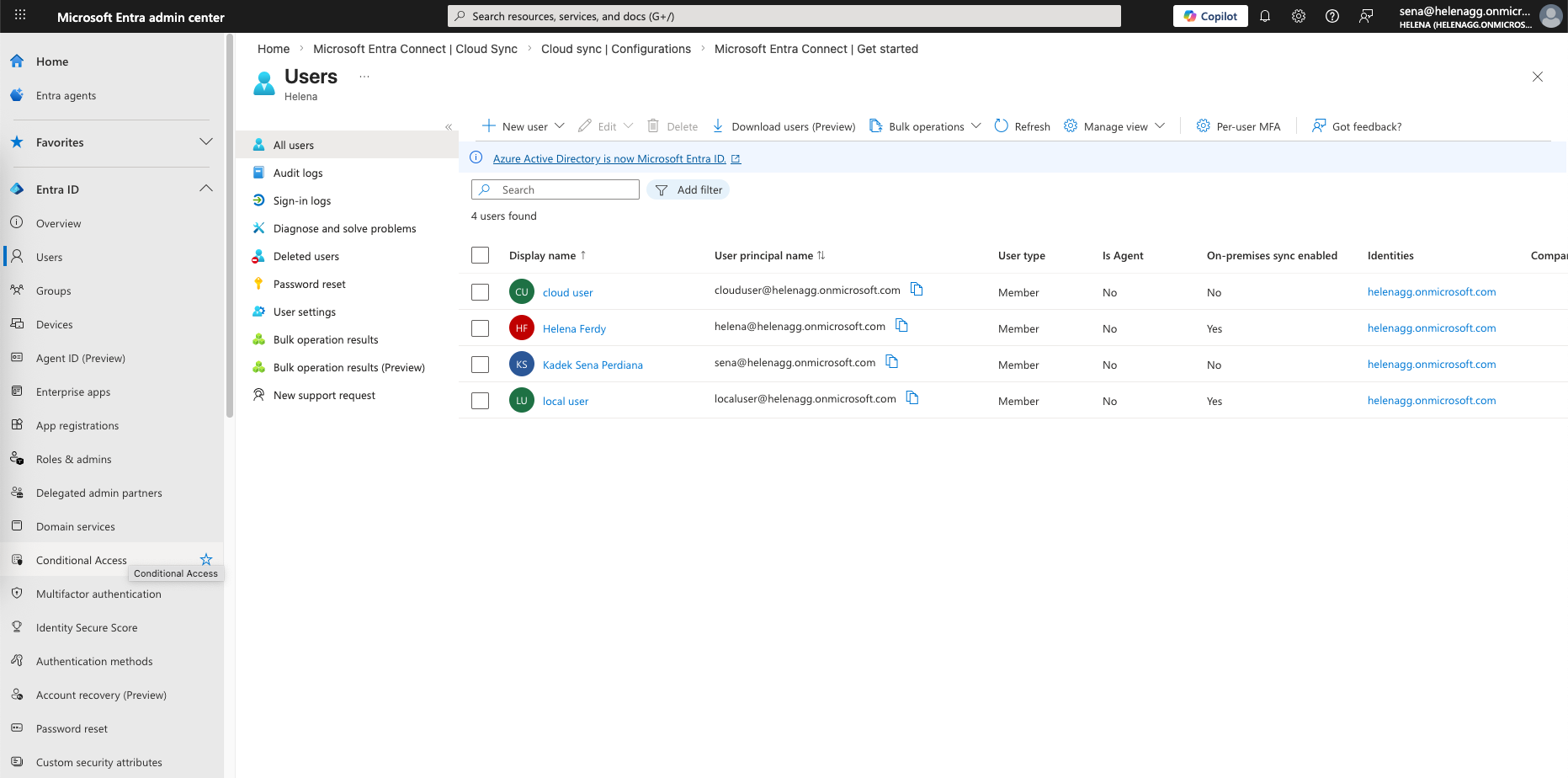
And now our ADDS users also show up here
Enabling MFA
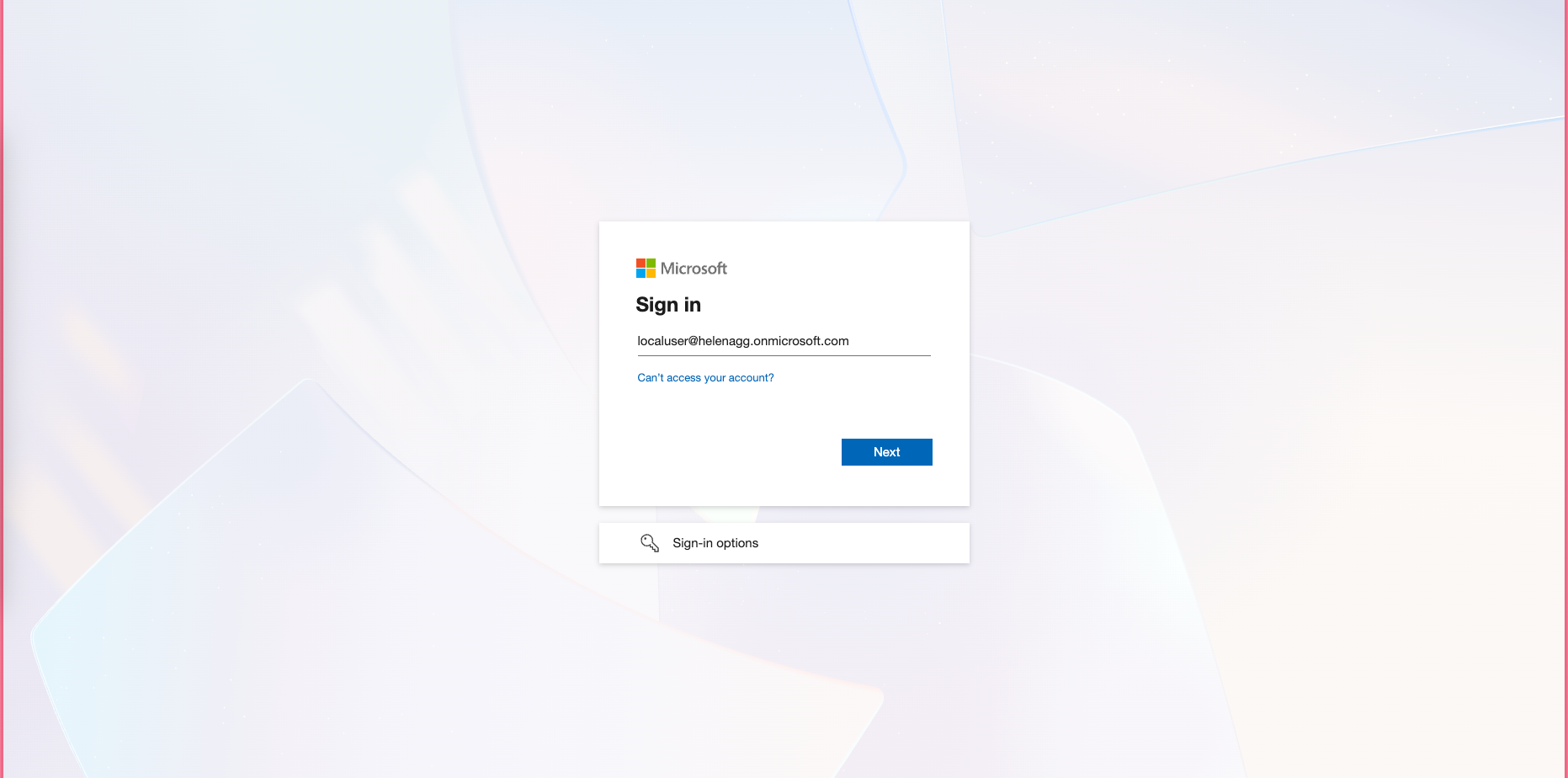
To enable MFA, we can login to Microsoft using our newly synced users
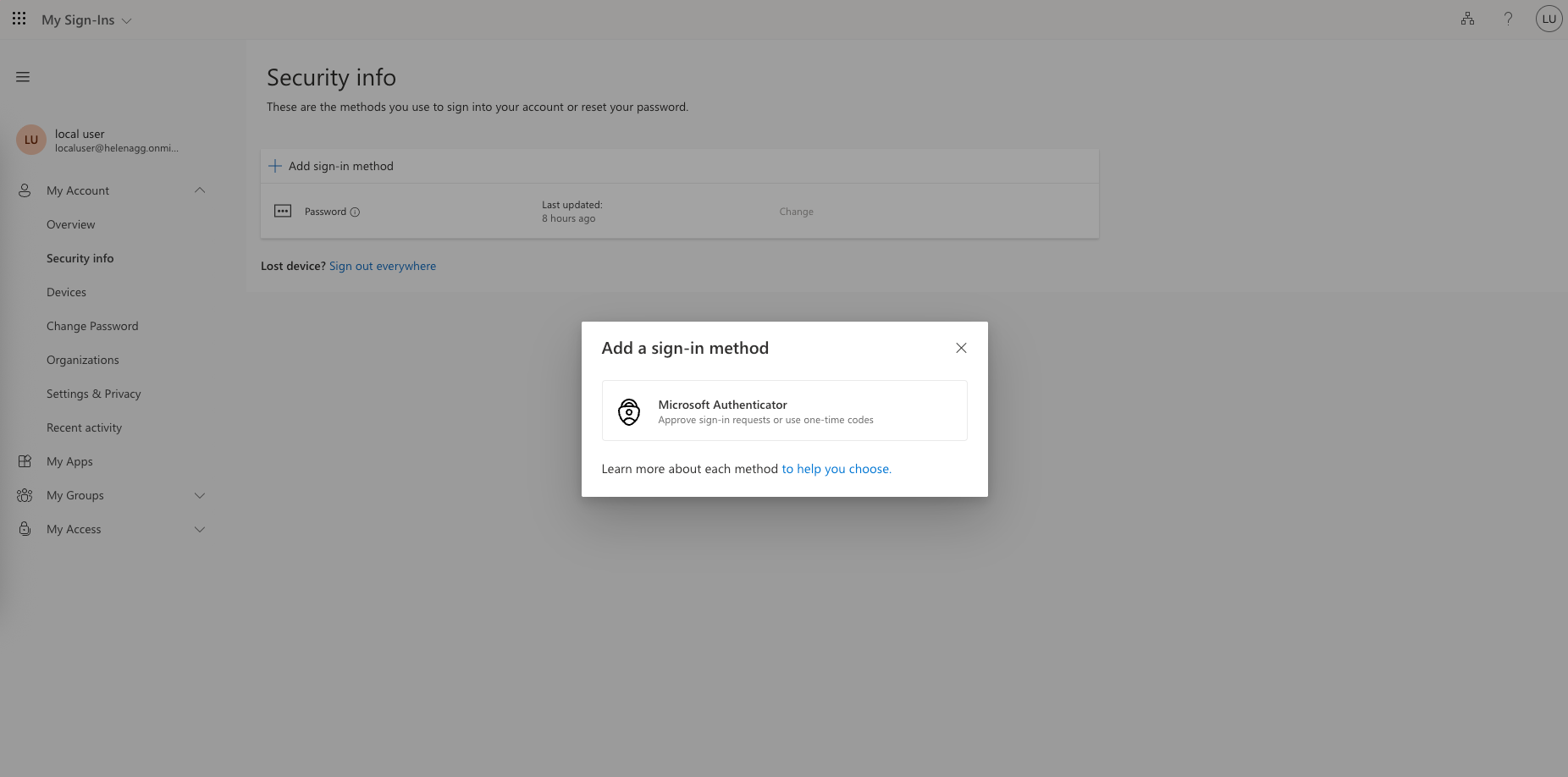
Inside it, we add the Microsoft Authenticator as the MFA sign-in method
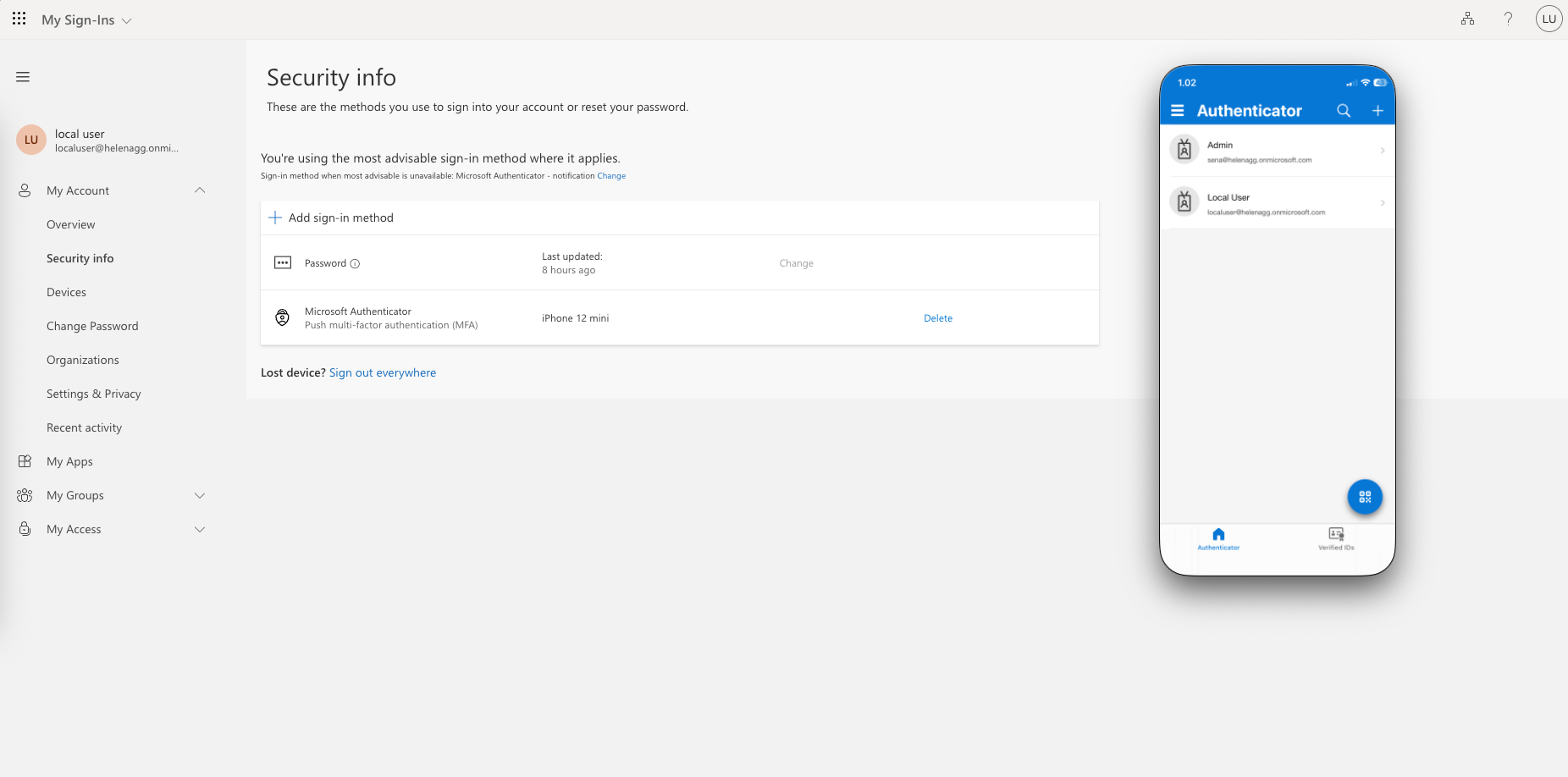
Now everytime we need to authenticate the localuser, we will get an MFA verification
NPS Configuration
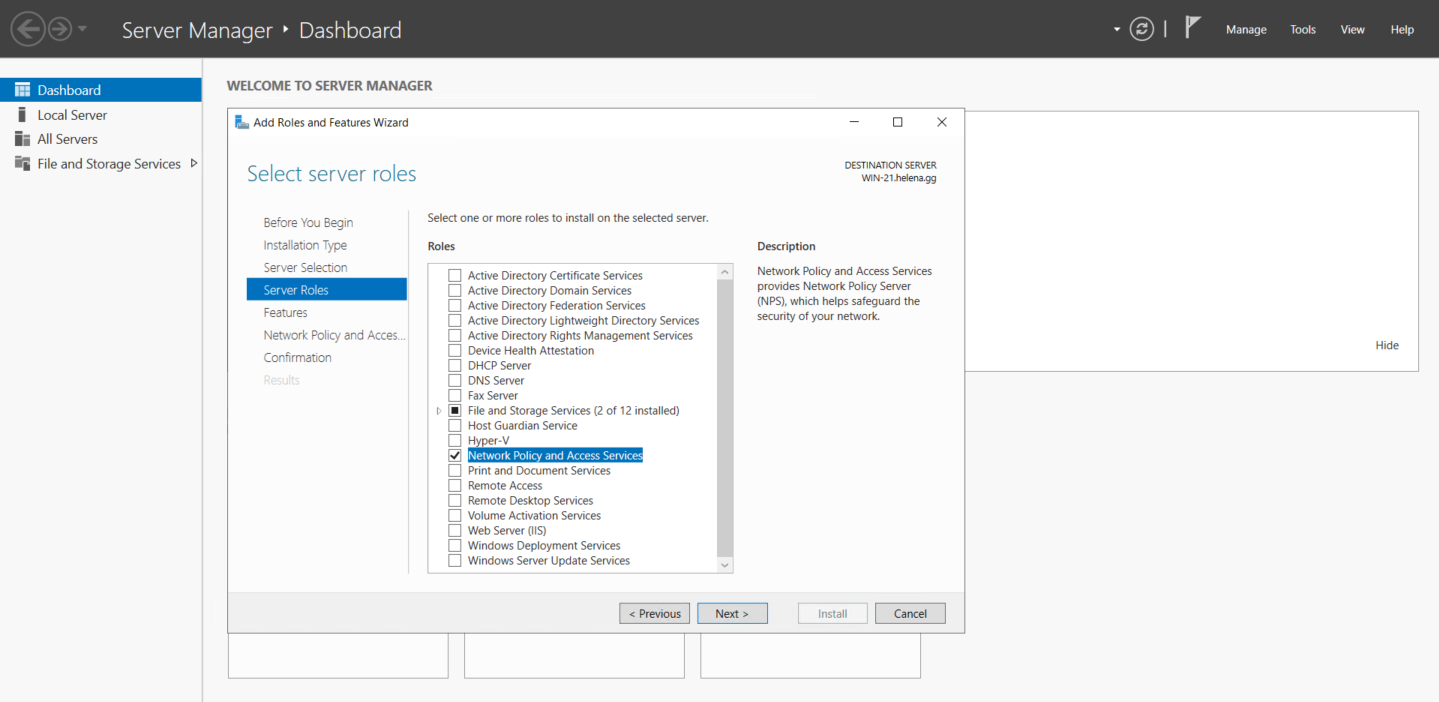
Now that we have our Entra users set up, lets proceed configuring NPS as our proxy server to receive Radius connection from the VPN gateway and bridge it to Entra ID. First we enable the Network Policy and Access Services on a Windows Server that joins the domain
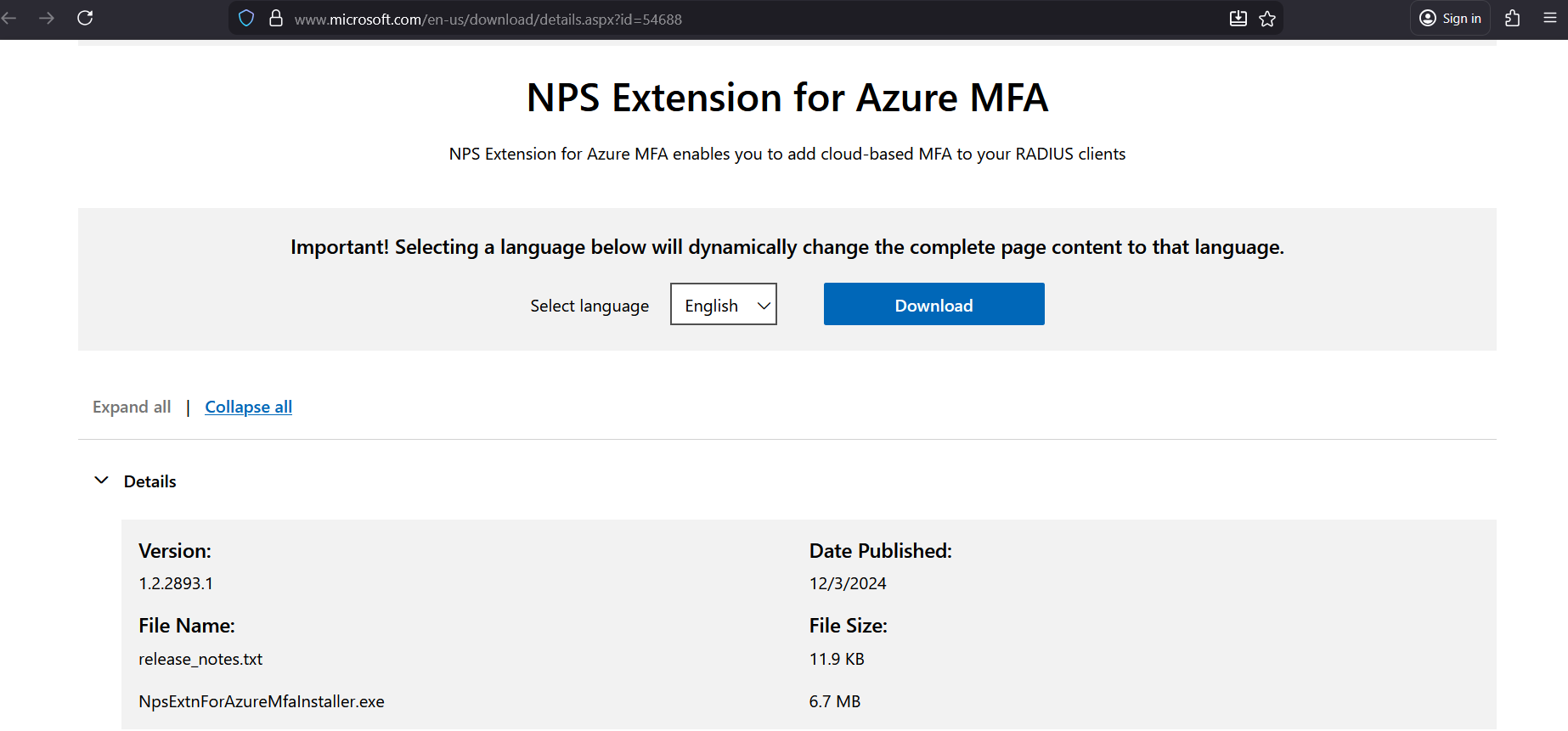
After that, download the NPS Installer and run it

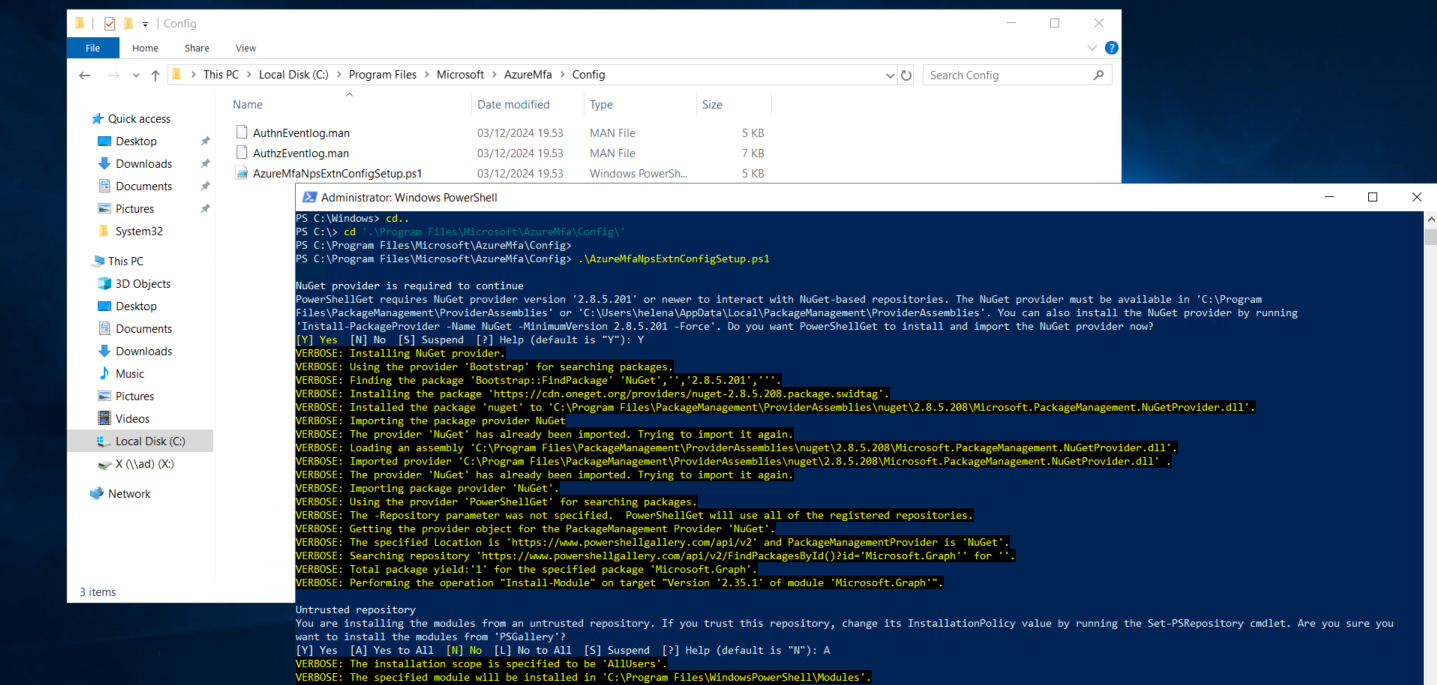
Next go to “C:\Program Files\Microsoft\AzureMfa\Config” and run the “AzureMfaNpsExtnConfigSetup.ps1” script
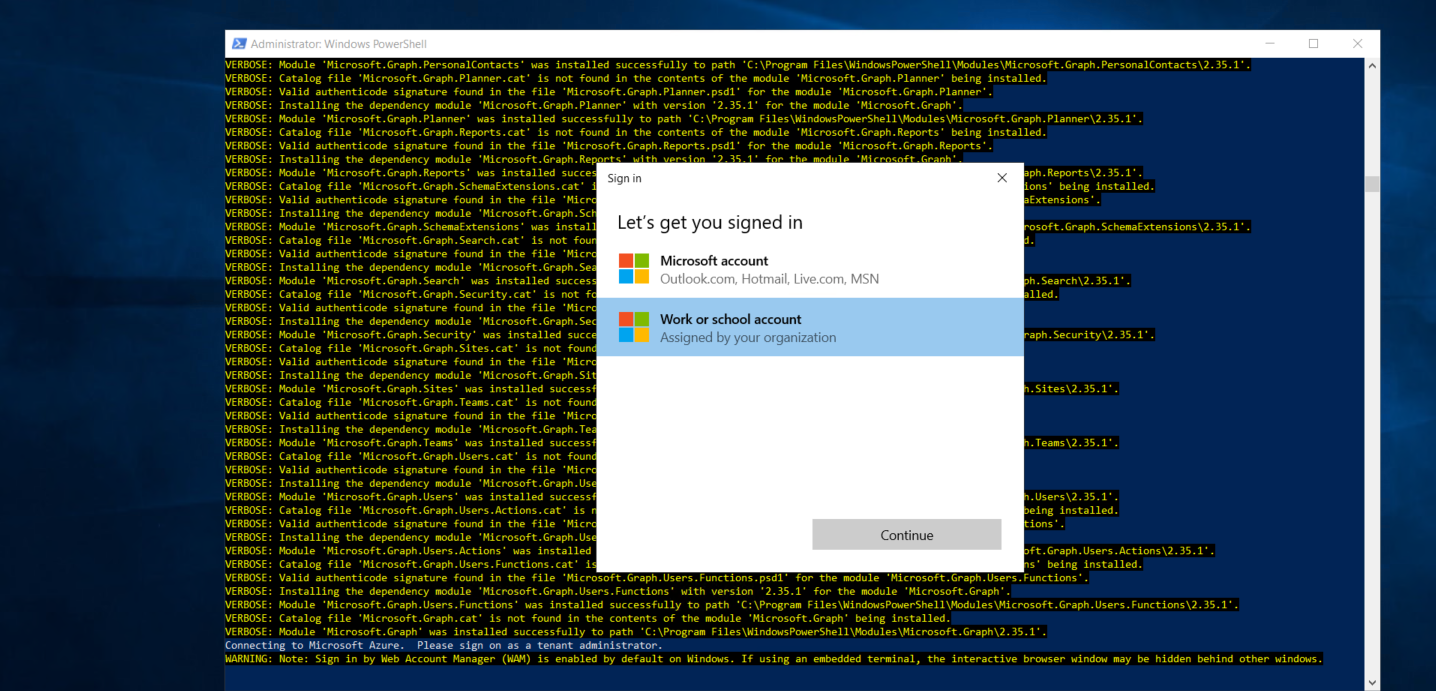
It will asks us to add our Tenant Admin User
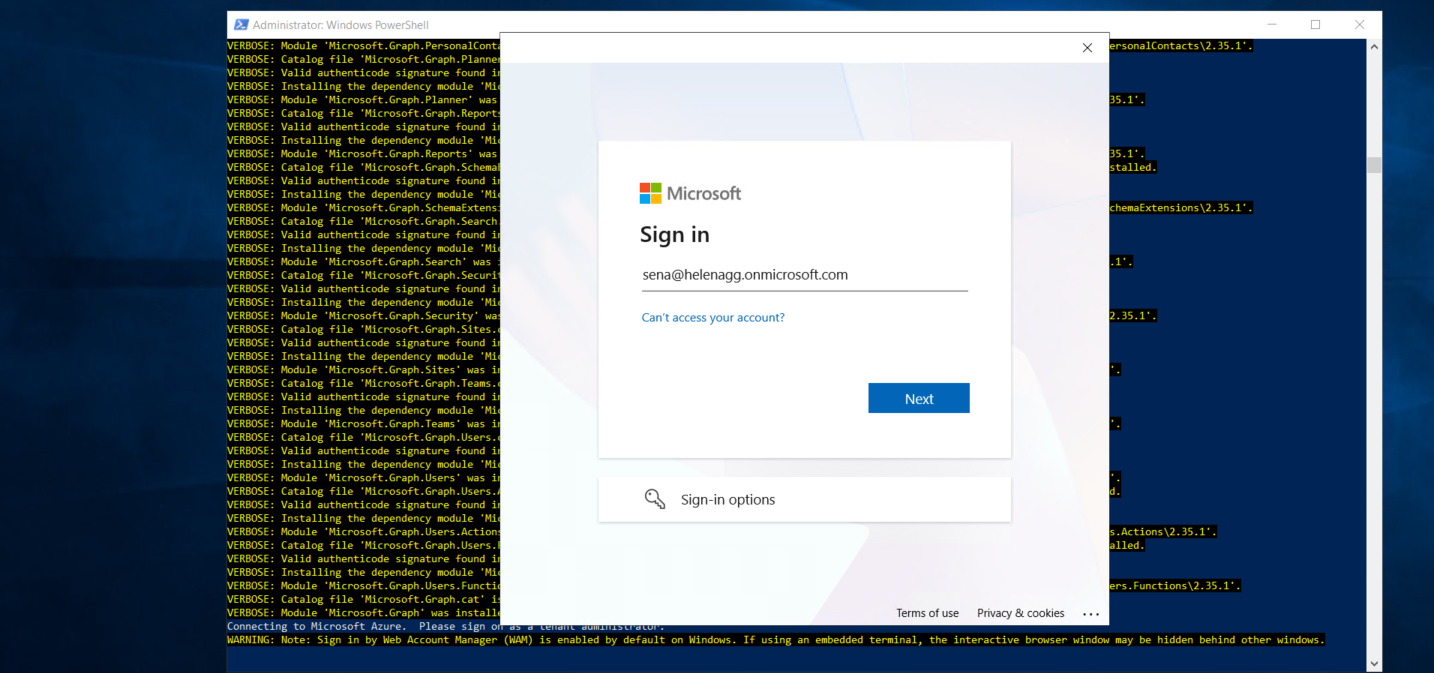
Run the command again until it asks for our Tenant ID
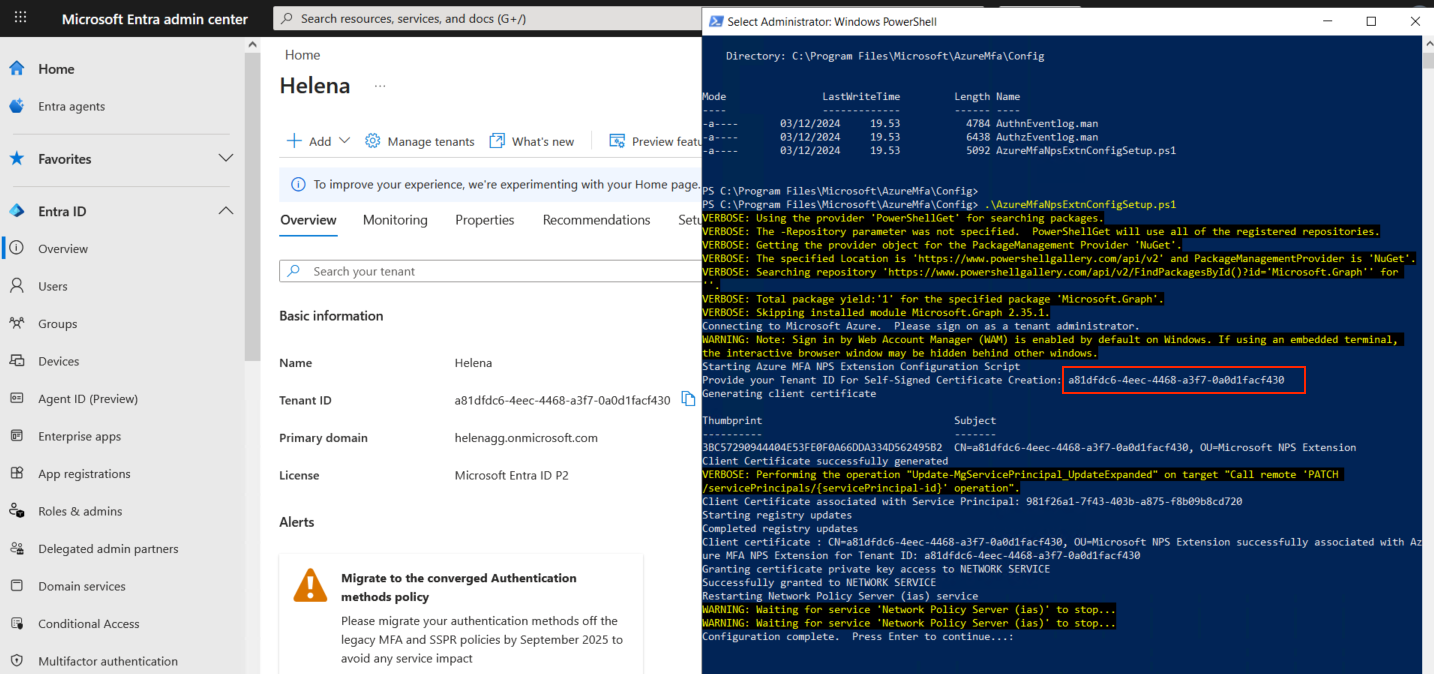
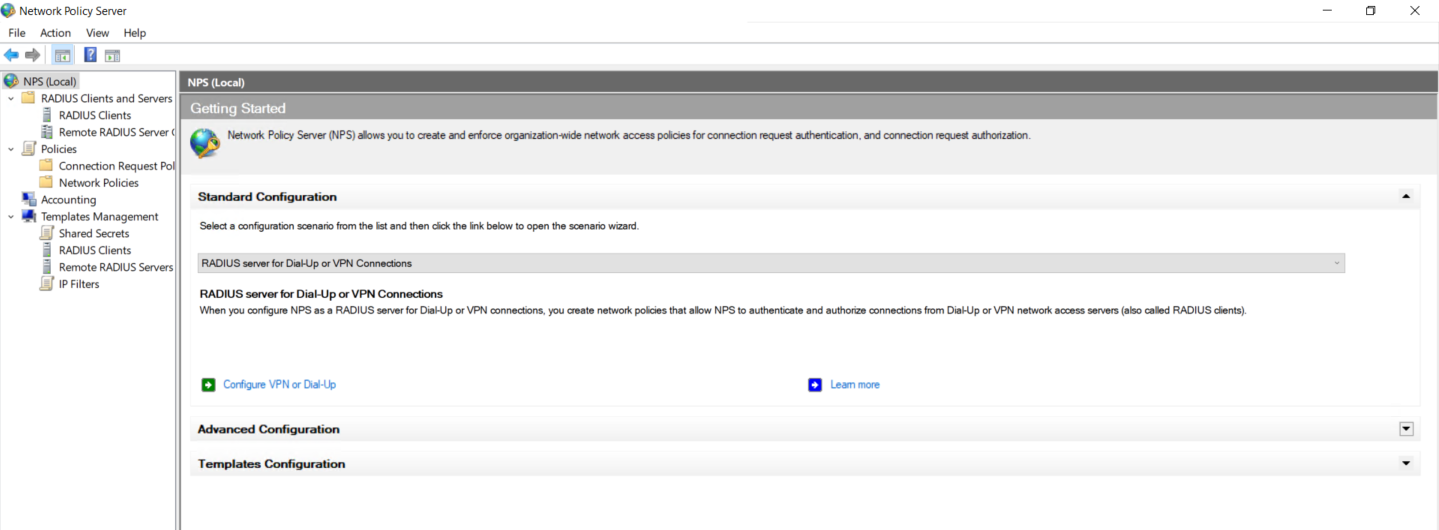
Next we can open the NPS Window inside the Server Manager
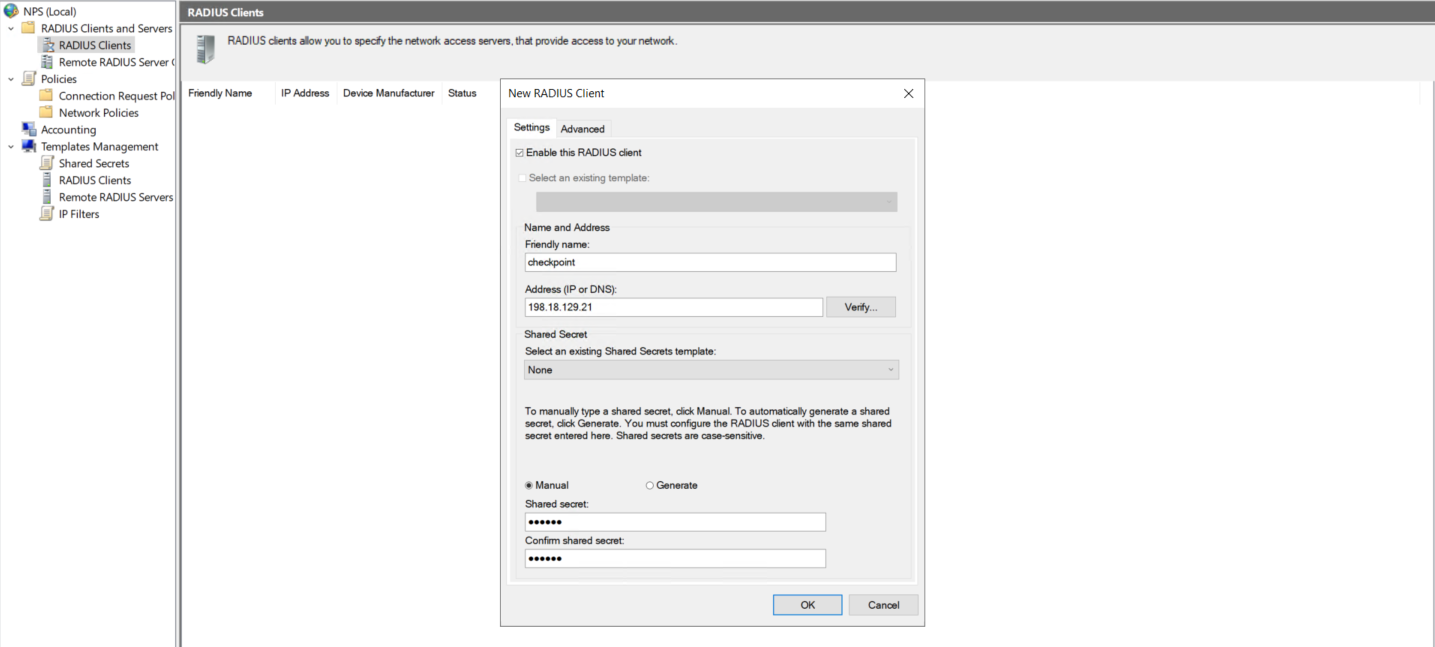
First we’ll add the Checkpoint as the Radius Client
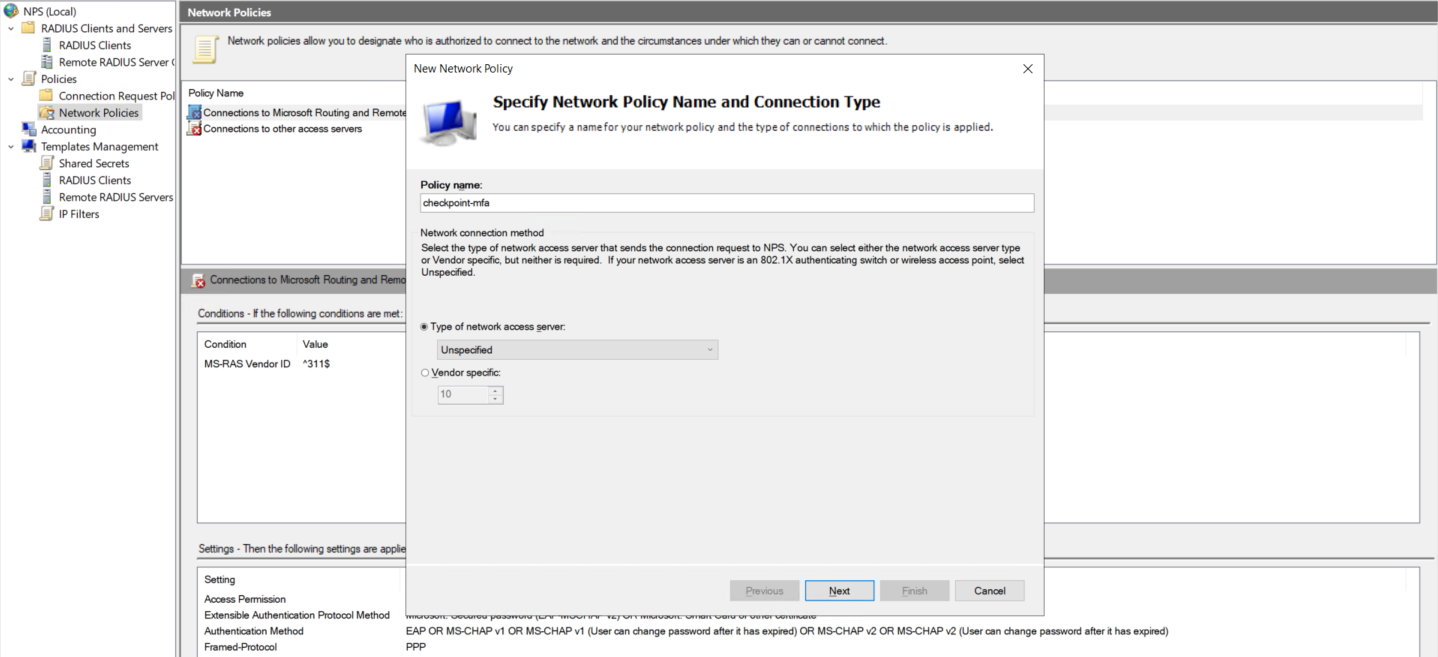
After that we create a Network Policy
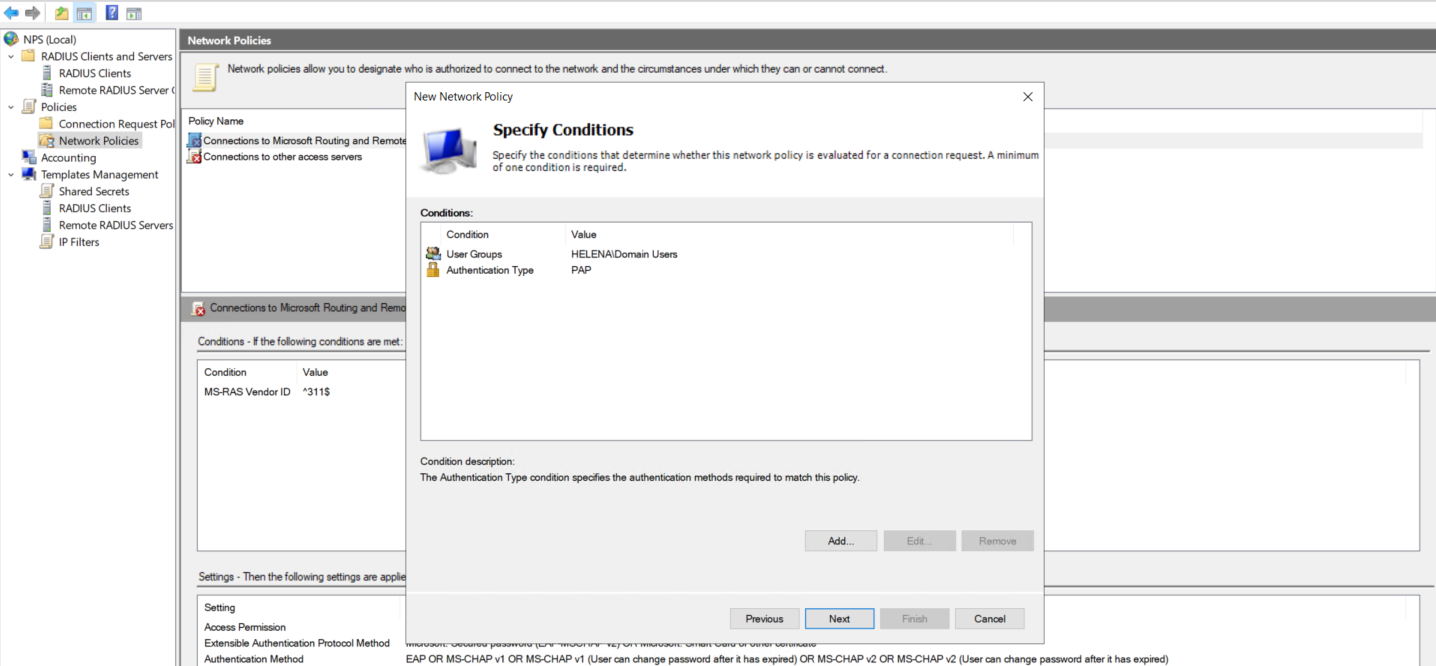
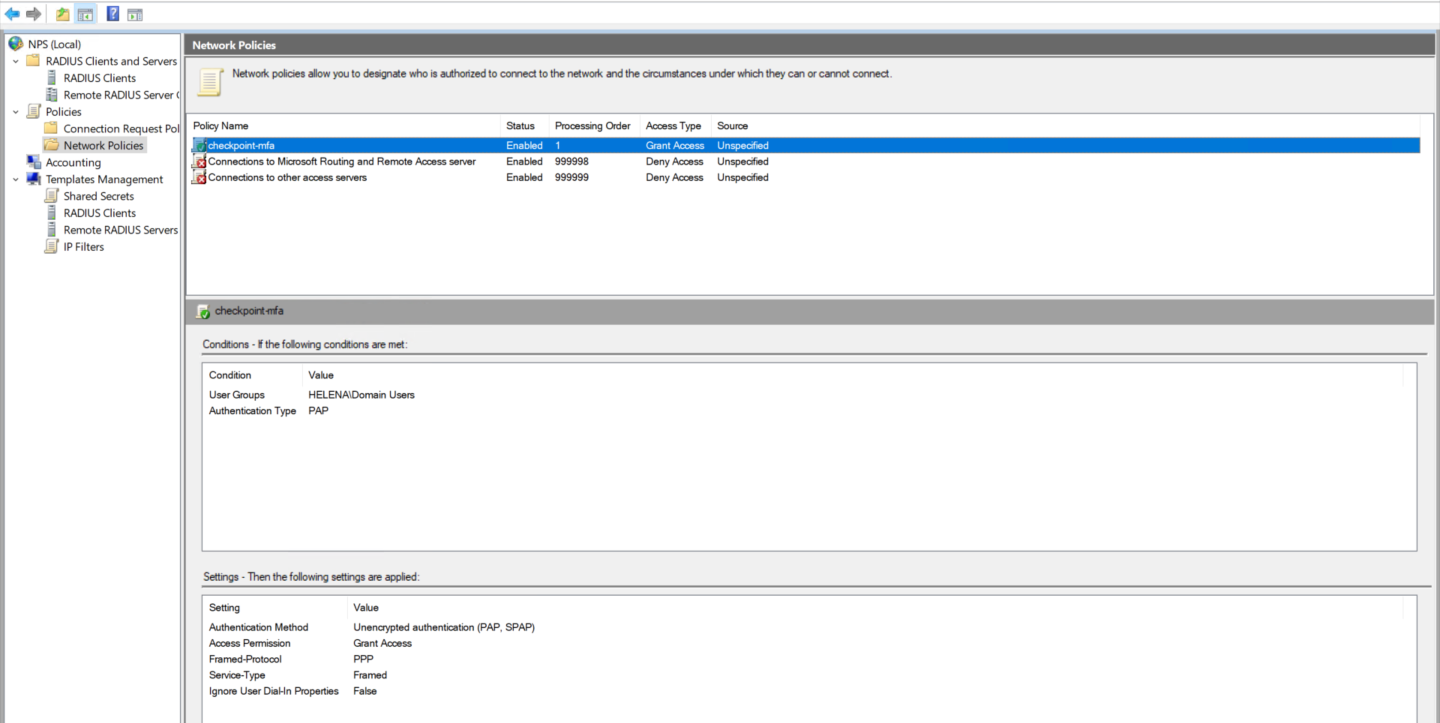
For the condition, we will configure simple condition that looks for Domain Users and PAP authentication method
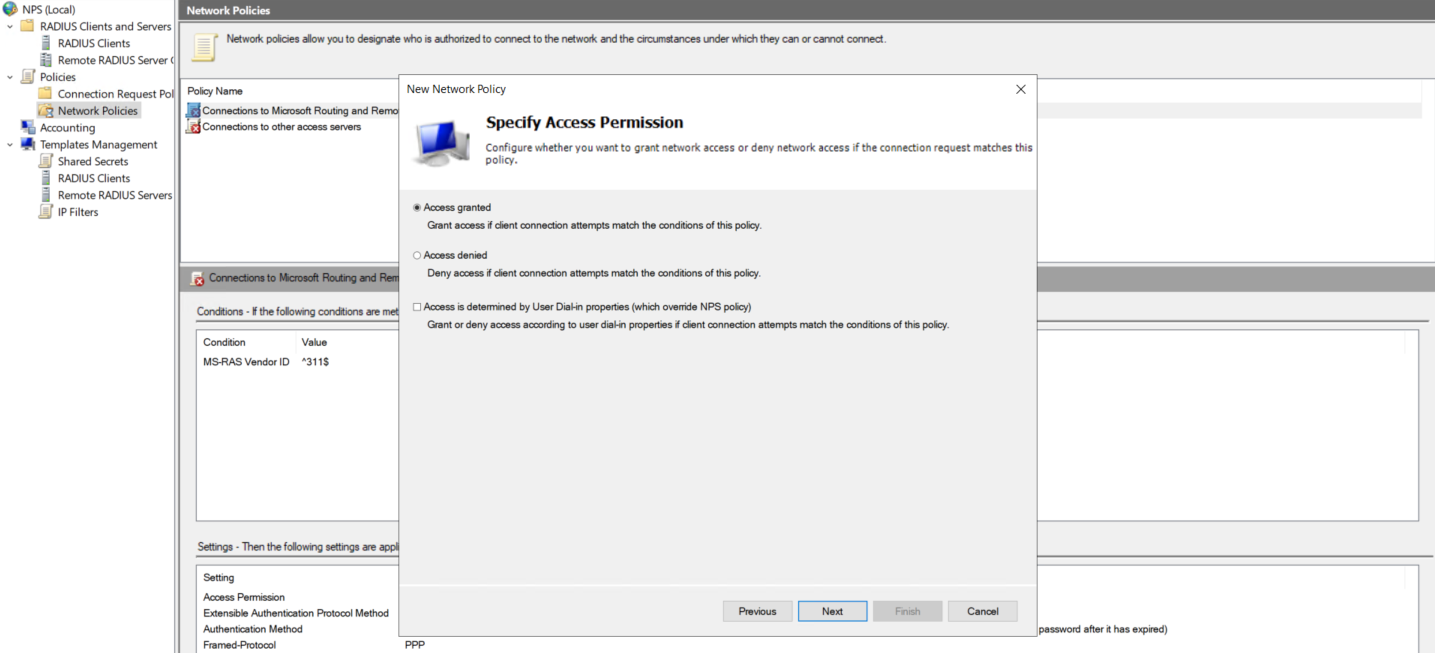
Then select Grant Access
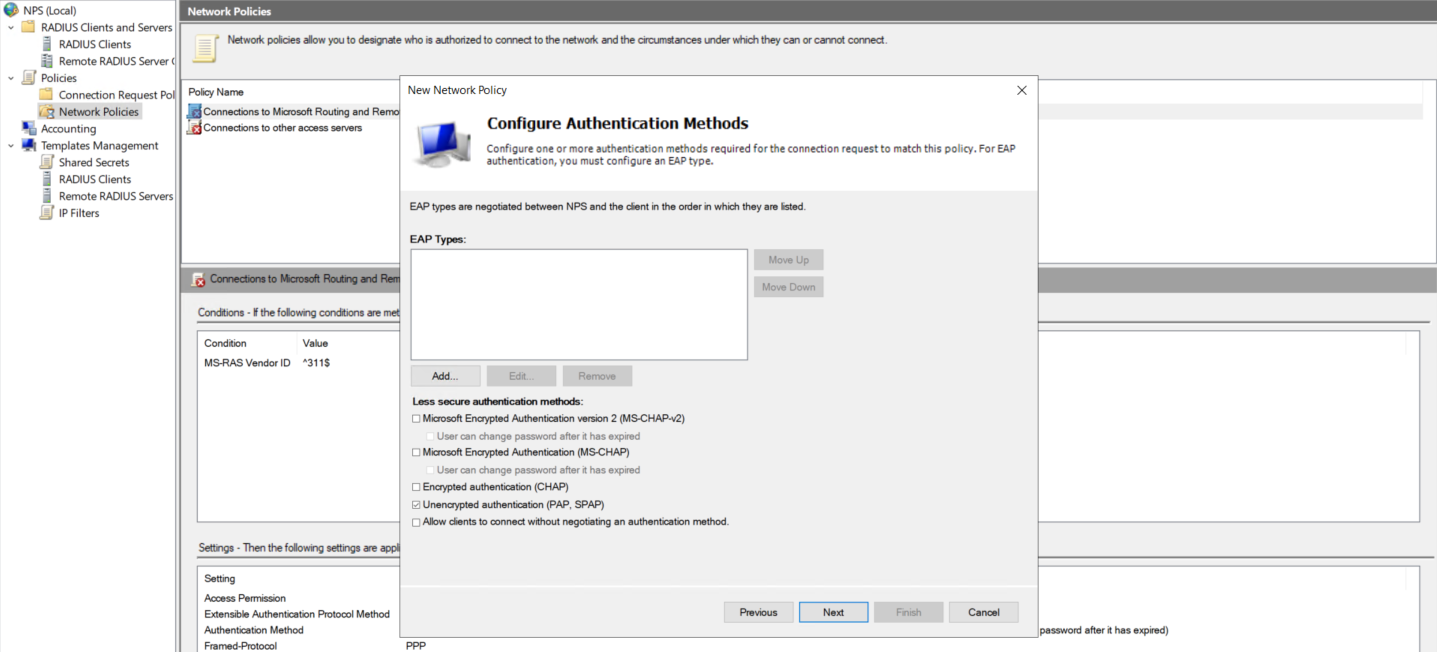
And enable Unencrypted Authentication (PAP, SPAP)
That should conclude our NPS configuration
Check Point Configuration
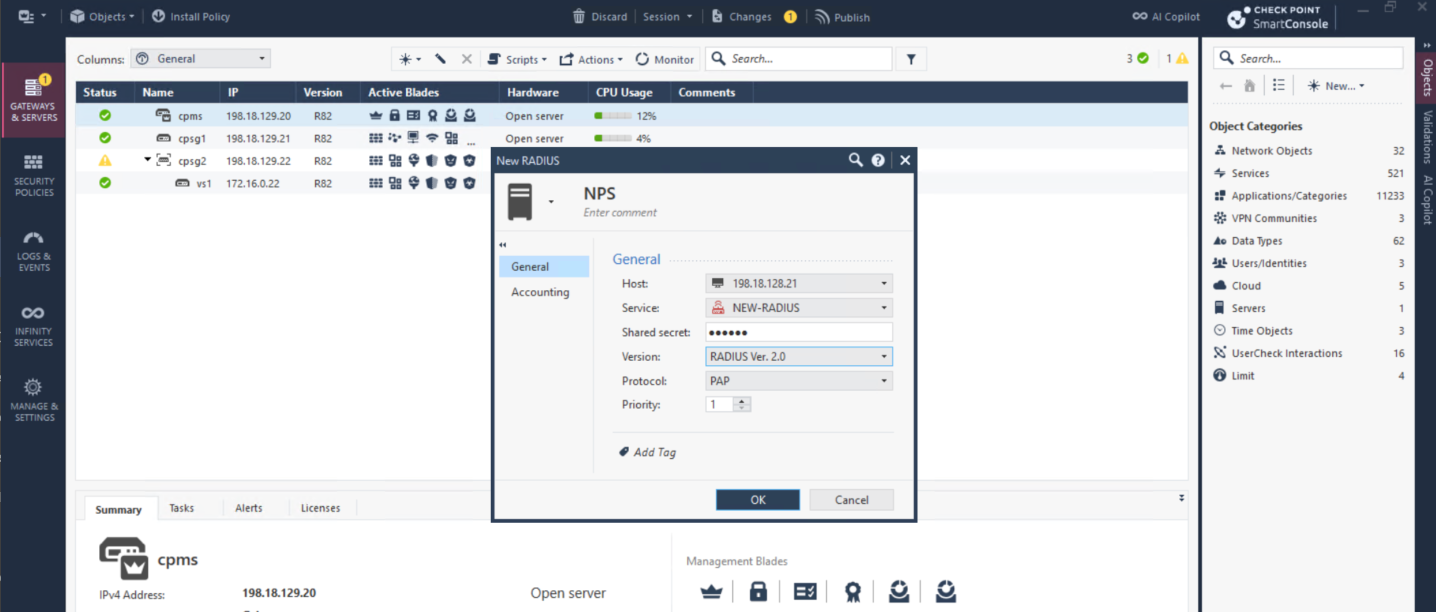
Now we move on to Check Point side, we’ll simply modify the existing working SSL VPN configuration to now use our NPS Server as Radius Auth Server. First we add the NPS as Radius Server
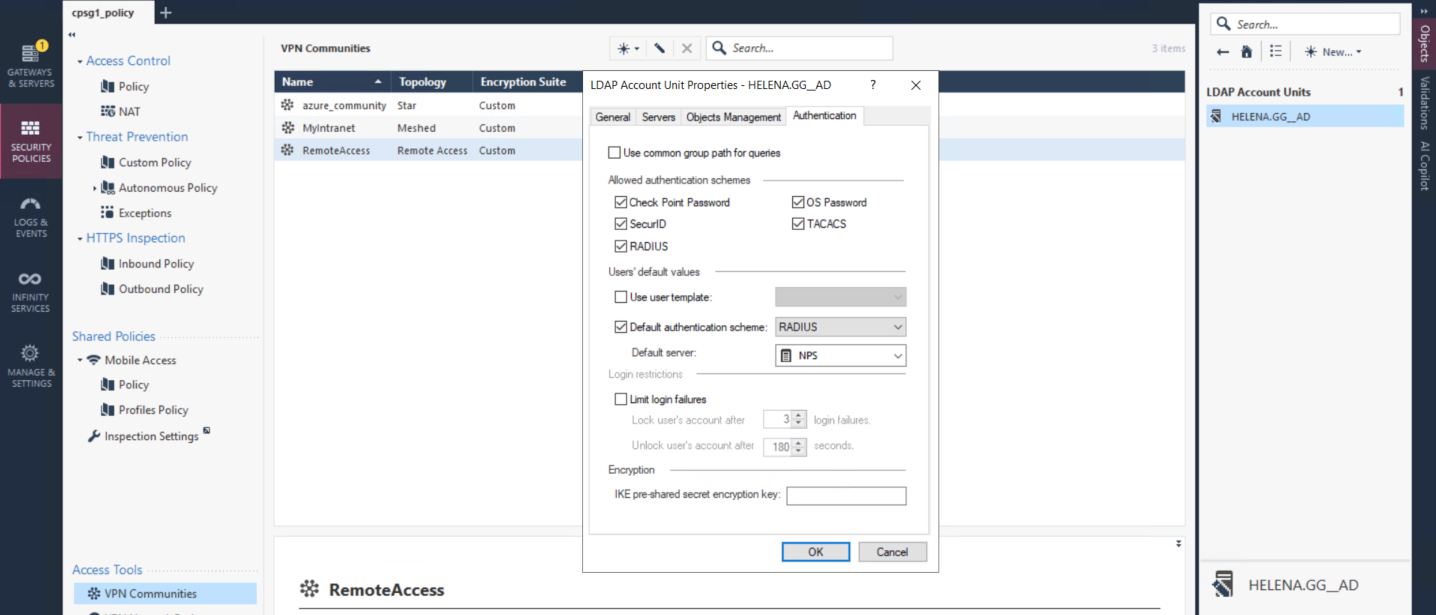
Then we select our existing LDAP Account Unit and point the authentication to our NPS Server
Domain Mismatch
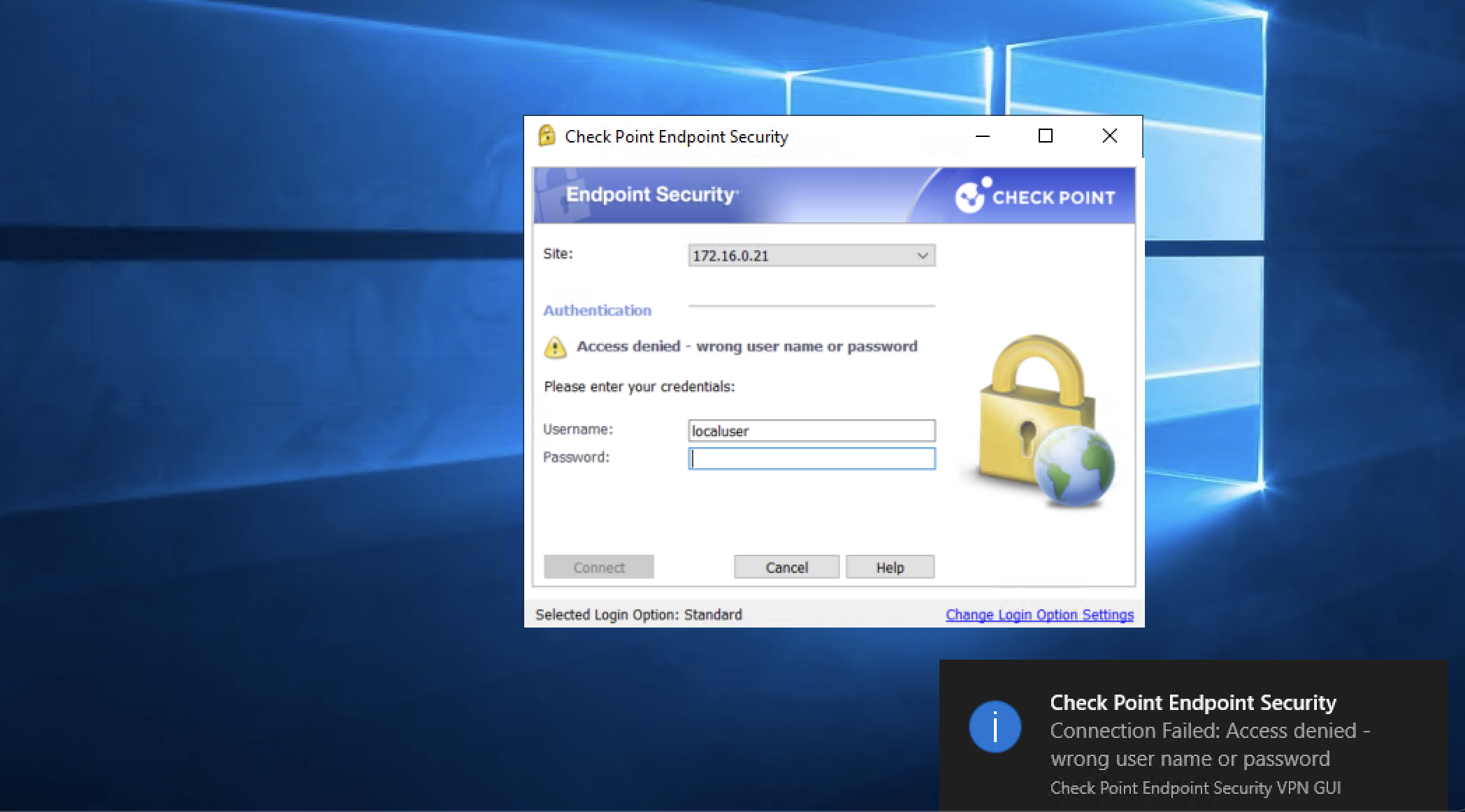
At this point if we try to connect to VPN, we’ll get denied with invalid credentials error
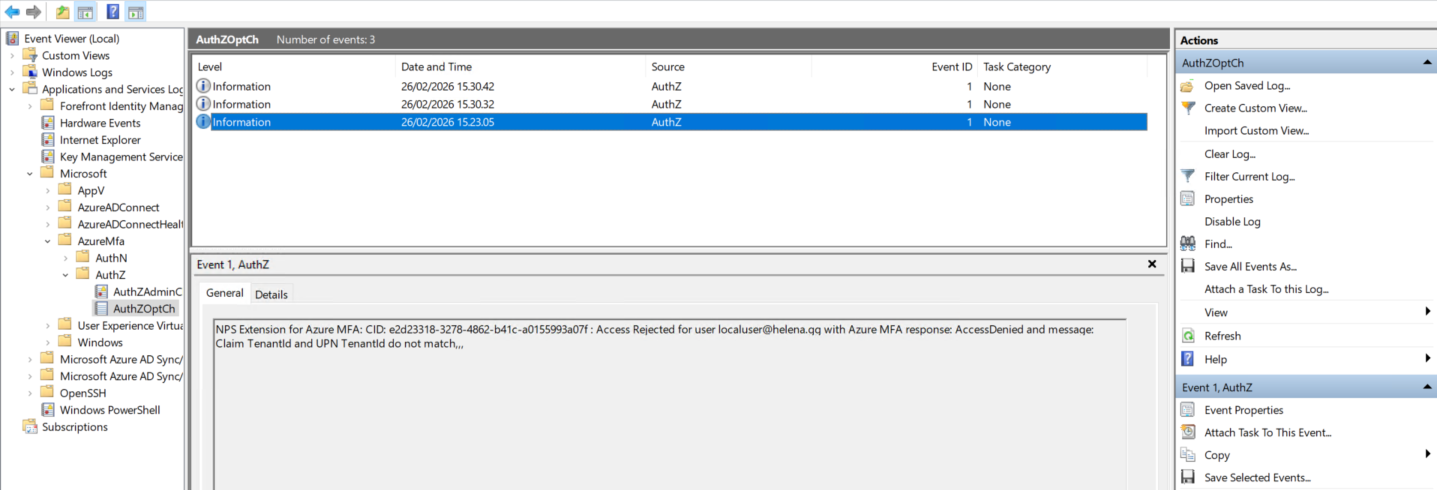
Looking at Event Viewer logs, we see that we have Tenant and UPN mismatch. This happens because we try to use helena.gg users to authenticate to Entra domain of helenagg.onmicrosoft.com
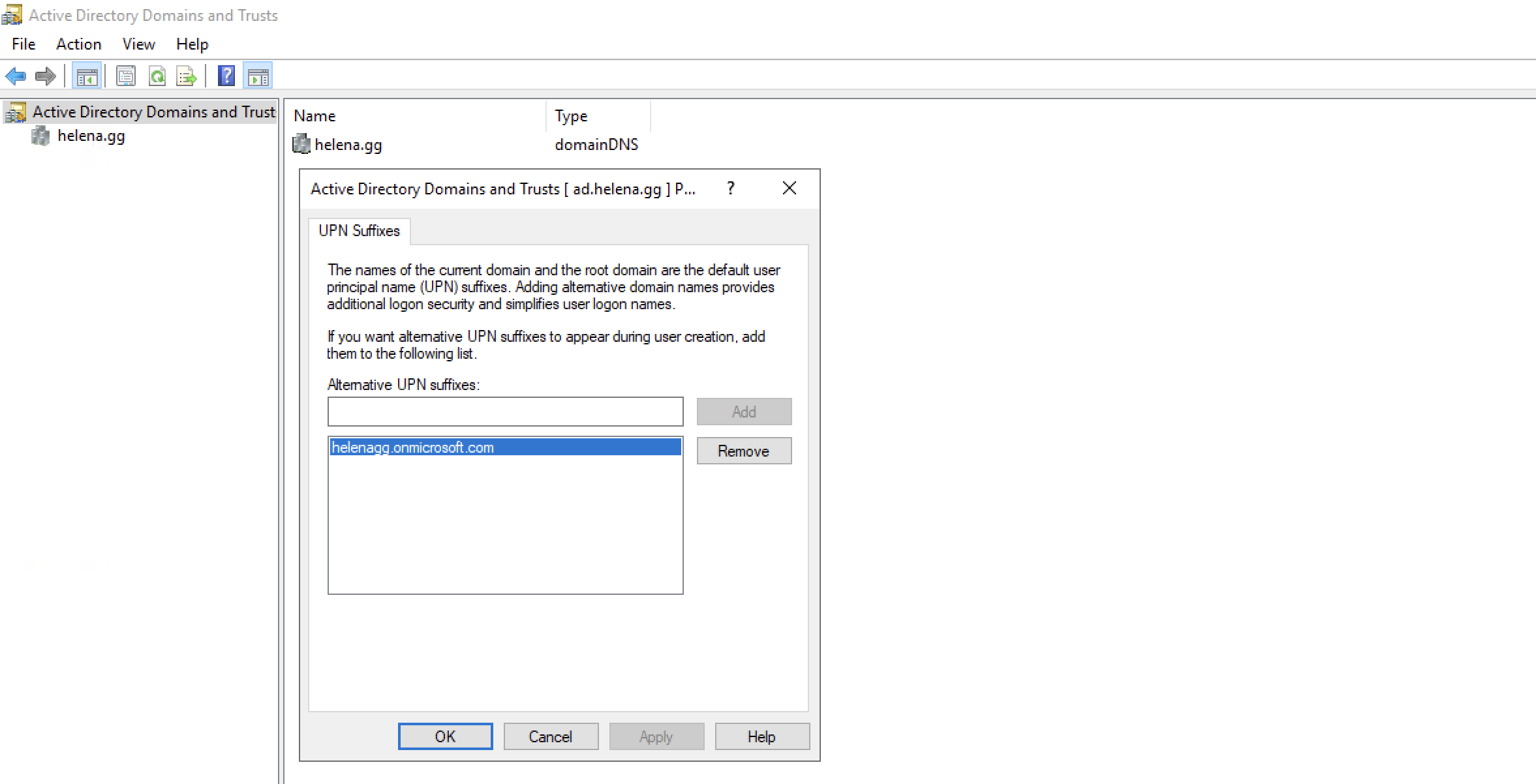
To overcome this, we’ll apply a workaround. First we add an alternate domain of “helenagg.onmicrosoft.com” into our AD Domain & Trusts. This allows us to give alternate domain to our users
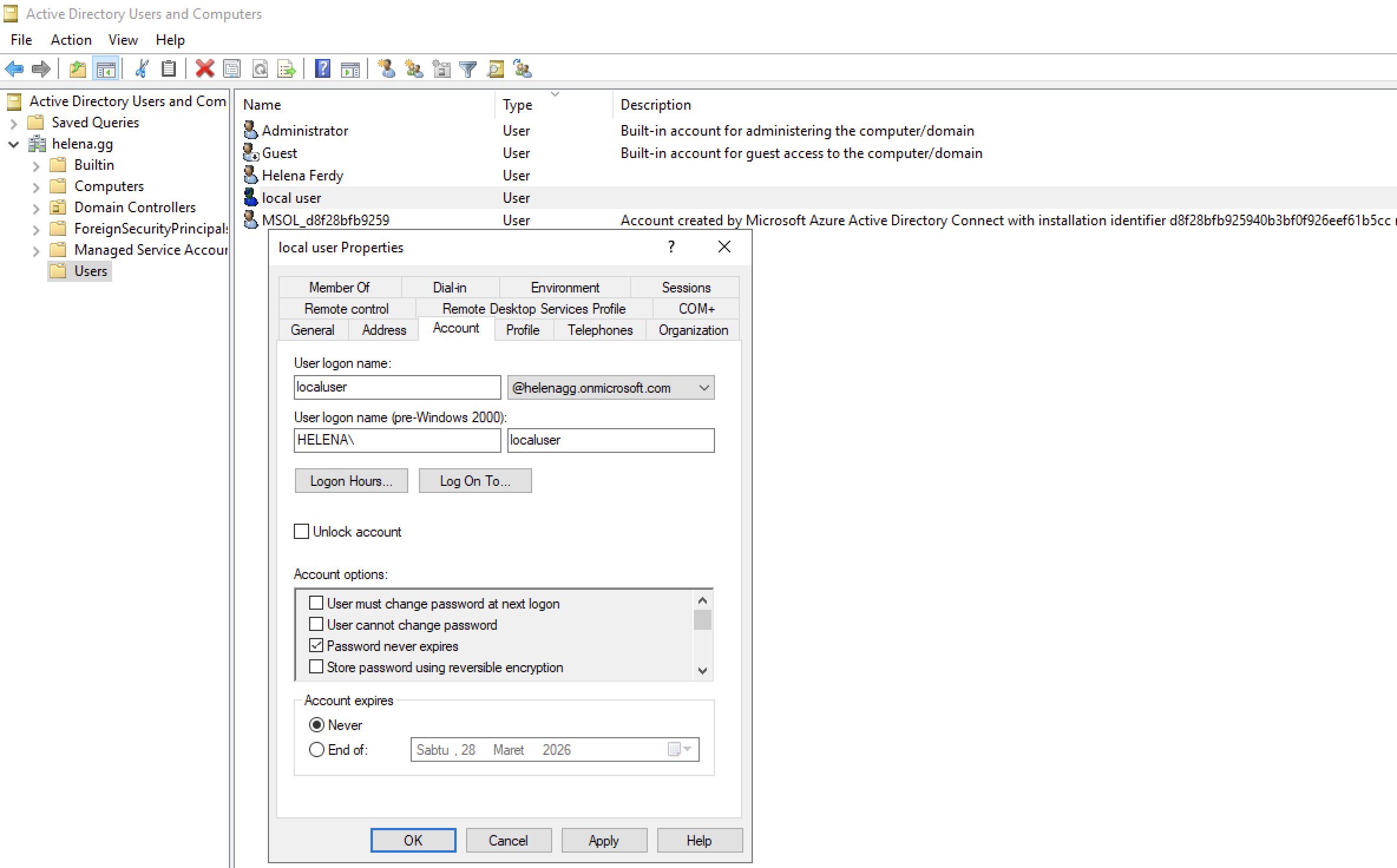
Now we change the domain of localuser from helena.gg to helenagg.onmicrosoft.com
We need to resync the users on our Entra Connect by running command “Start-ADSyncSyncCycle -PolicyType Delta”

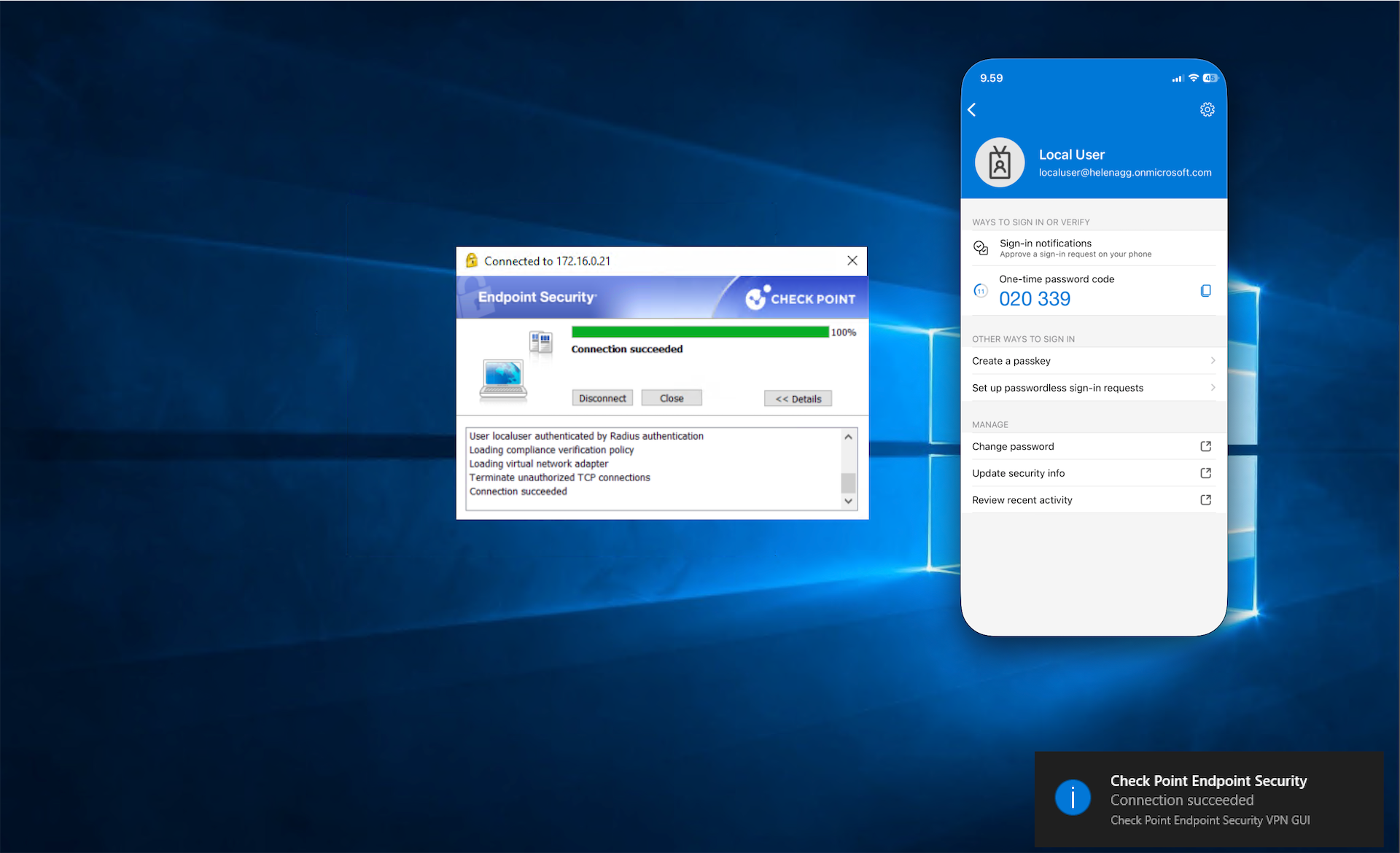
Now when we try to connect the vpn with localuser, we’ll get presented with MFA verification
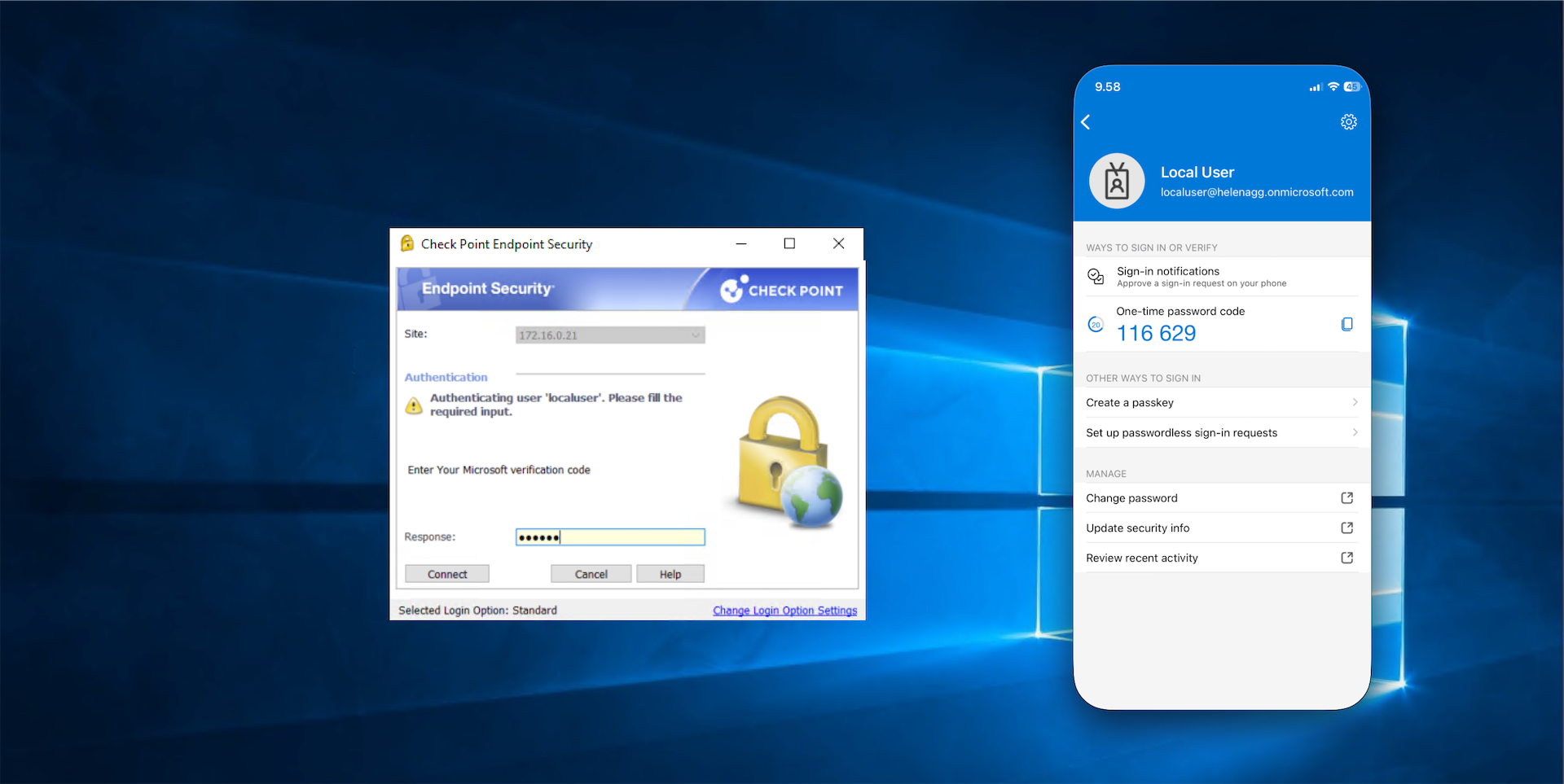
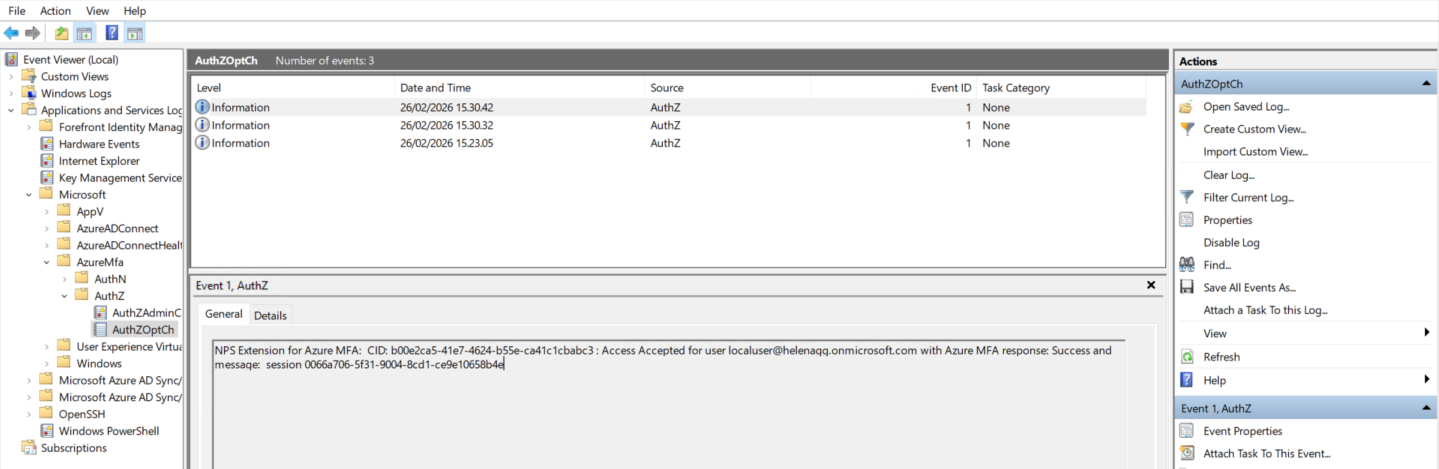
Event Viewer logs also shows that the Azure MFA extension has successfully proxied the user to be authenticated on Entra ID
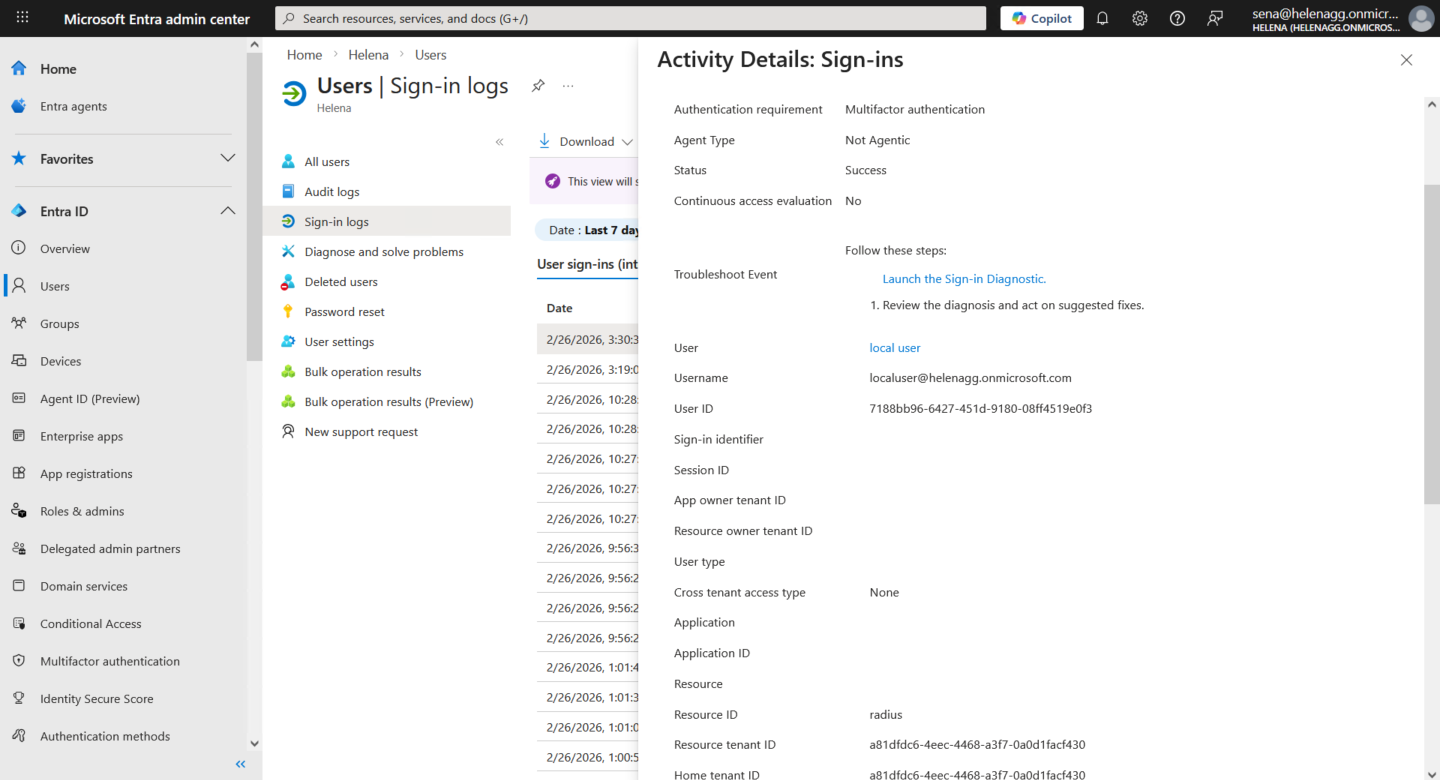
On Entra Portal, we can see the login logs of the users, verifying that MFA login was successfully triggered by a radius client