
FortiClient Endpoint Management Server (EMS) is Fortinet’s centralized platform for managing FortiClient endpoints. It provides endpoint enrollment, device grouping, policy assignment, software deployment, and visibility into endpoint security posture from a single console.
In this lab, we deploy a FortiClient EMS trial, enroll endpoints using local and domain accounts, organize them with installer-based assignment rules, and validate endpoint protection policies from both the EMS and FortiClient sides.
Initial Configuration
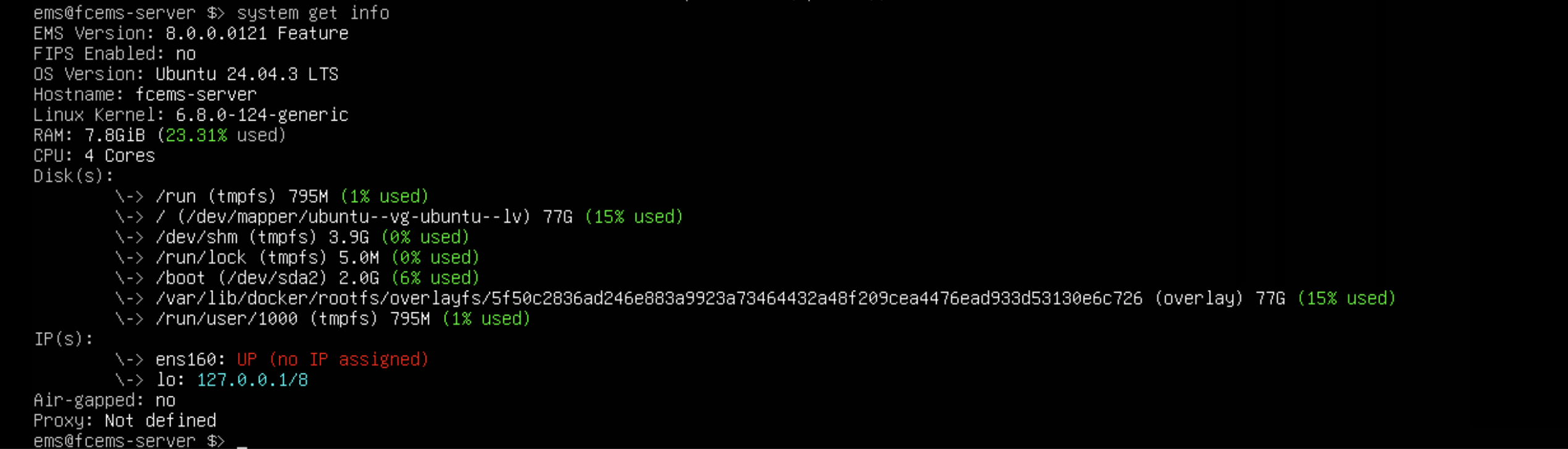
We begin by checking the EMS appliance with system get info. The ens160 interface is up but has no address yet, so the appliance is not ready for endpoint enrollment.
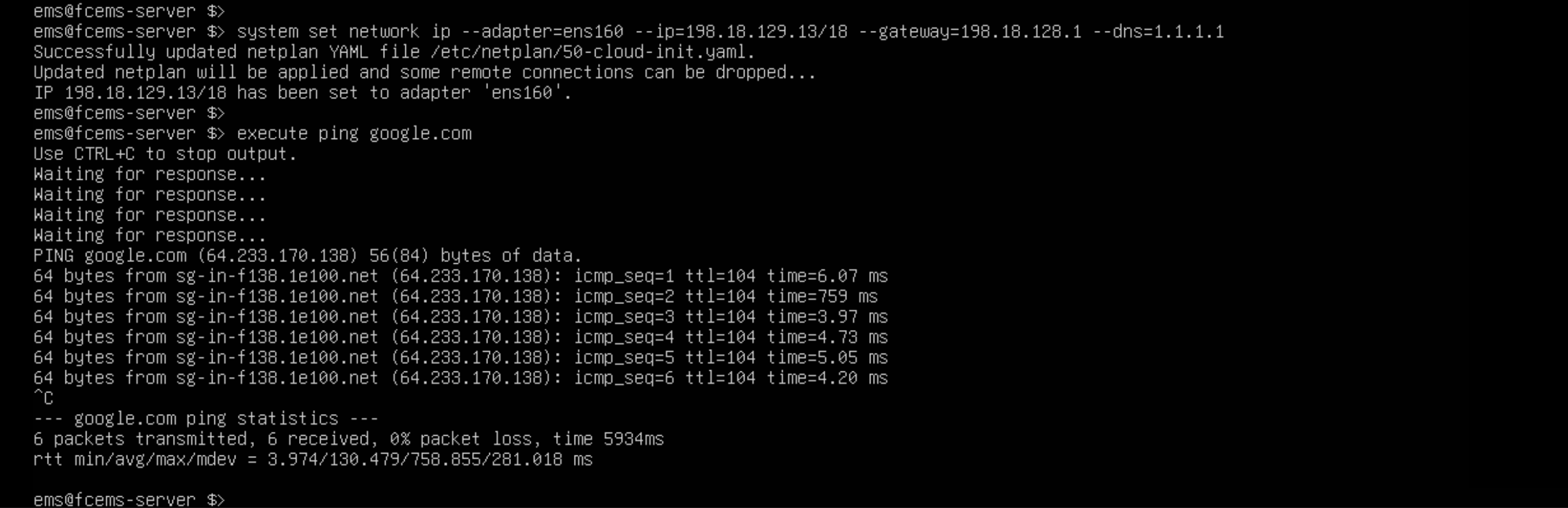
We assign 198.18.129.13/18 to ens160, set the gateway to 198.18.128.1, and use 1.1.1.1 for DNS. A successful ping to google.com confirms that the EMS server has outbound connectivity and working name resolution.
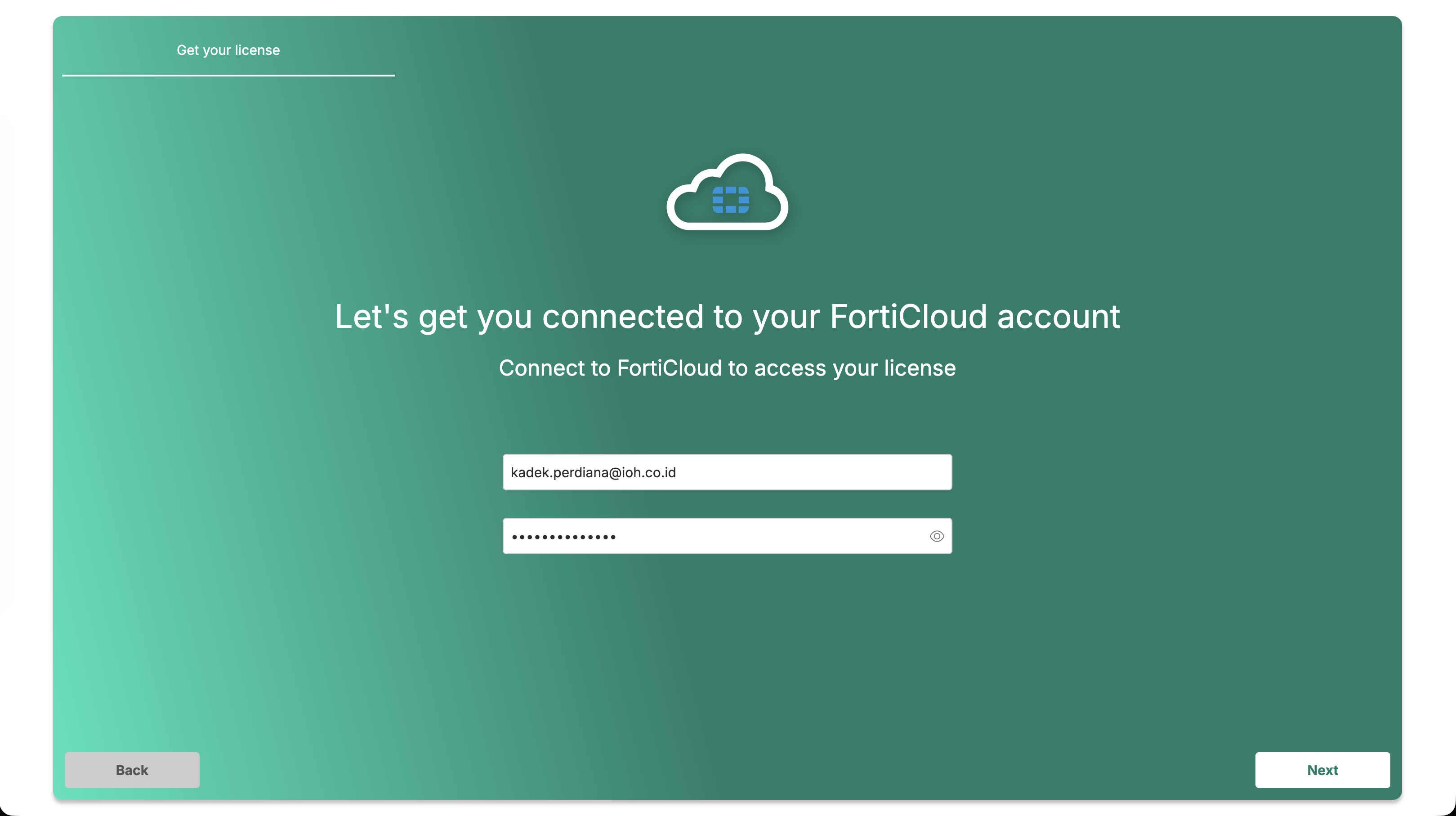
We open the Fortinet trial workflow and connect the EMS instance to a FortiCloud account. FortiCloud supplies the license used by the EMS tenant.
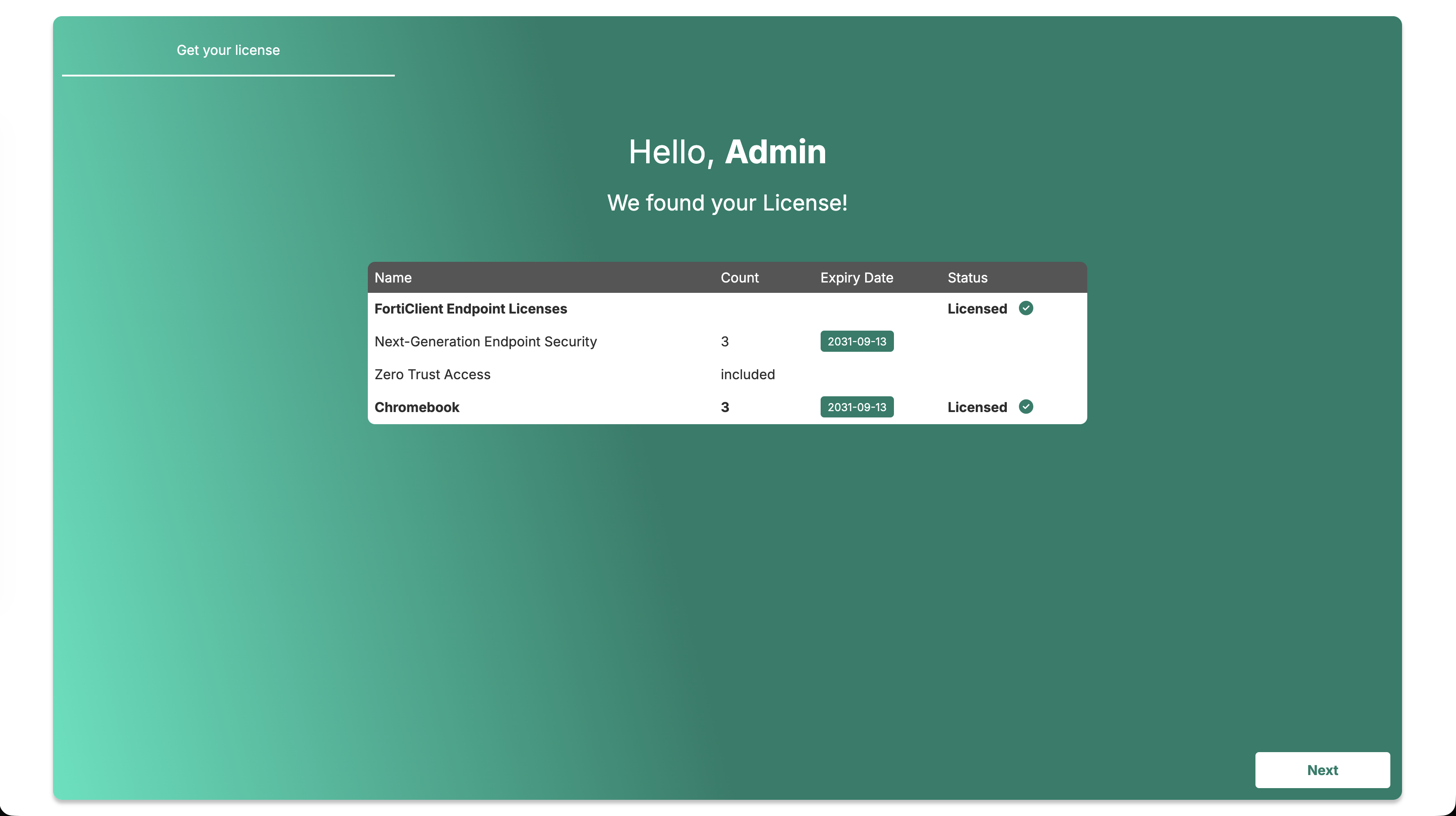
After authentication, FortiCloud finds the trial license with three Next-Generation Endpoint Security seats and included Zero Trust Access.
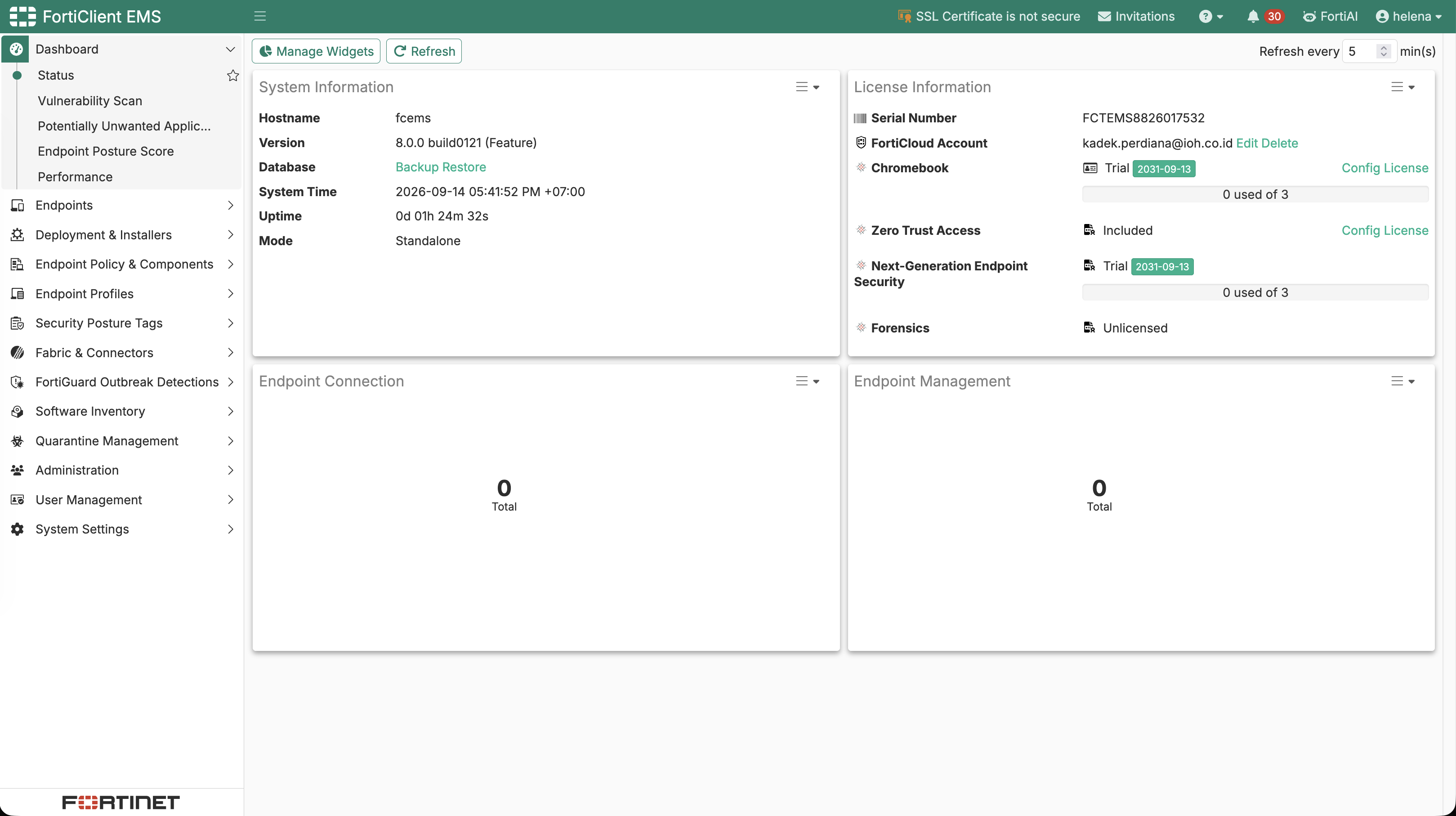
The EMS dashboard confirms the trial is active and currently has no enrolled endpoints. The instance is running as a standalone EMS server named fcems.
Verifying the EMS Listening Address
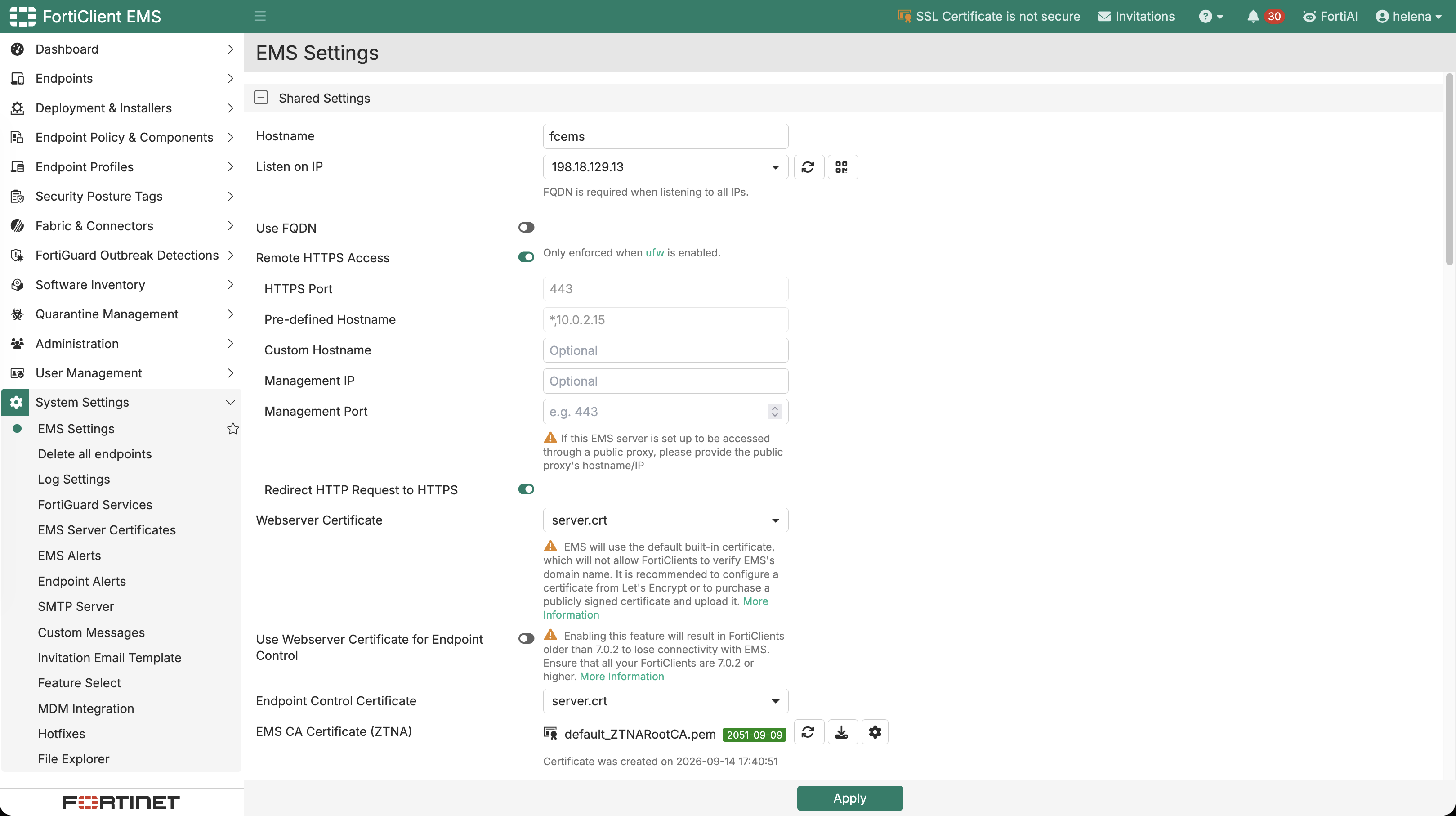
Before enrolling any endpoint, we verify the address EMS advertises to FortiClient. EMS listens on 198.18.129.13 with HTTPS enabled and redirects HTTP requests to HTTPS; the browser warning shows that the default certificate is still being used.
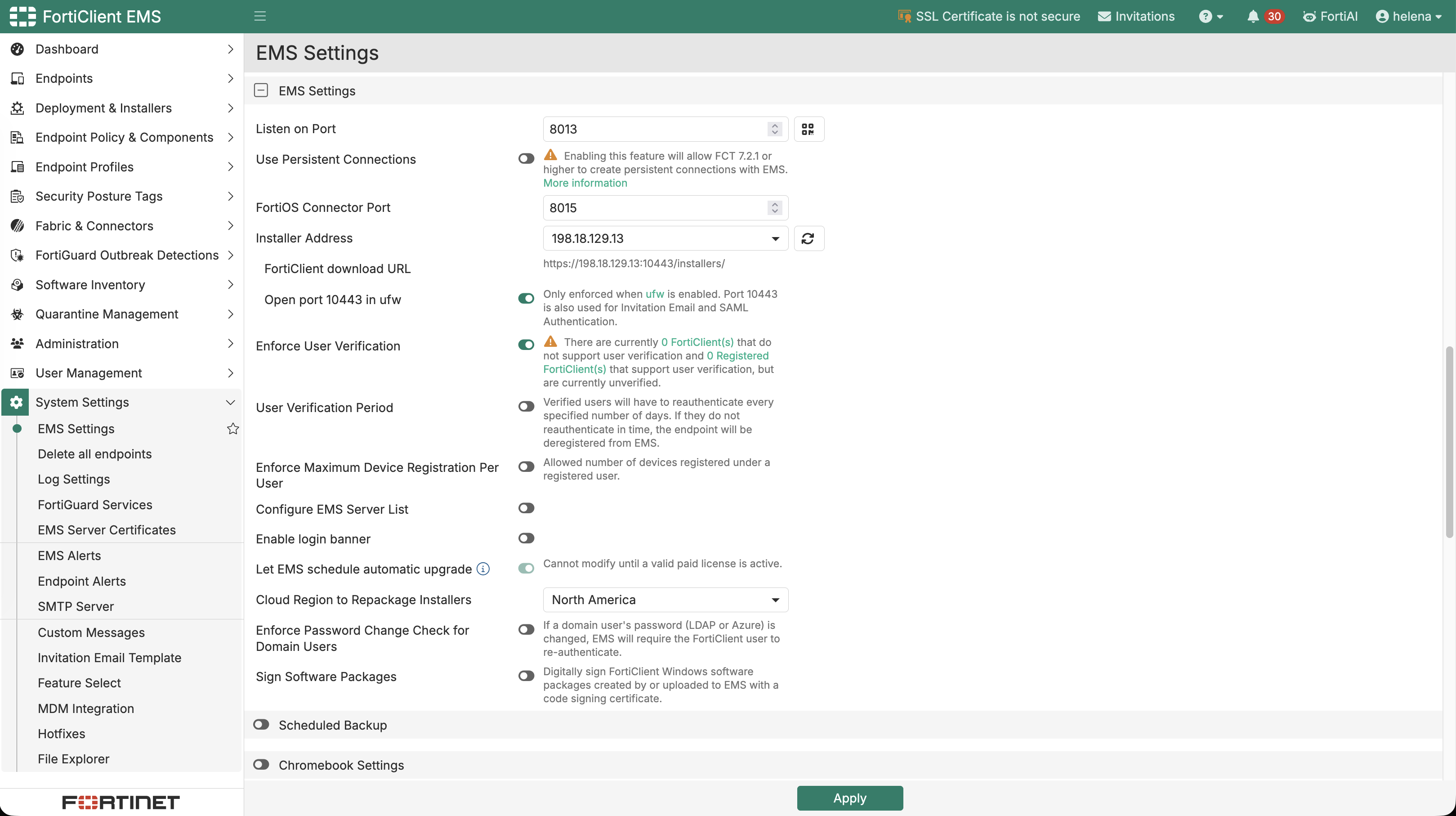
The EMS listener uses port 8013, while the installer address remains 198.18.129.13. These values must be reachable from the endpoints and must match the address embedded in the installer.
Creating Local Users and Invitations
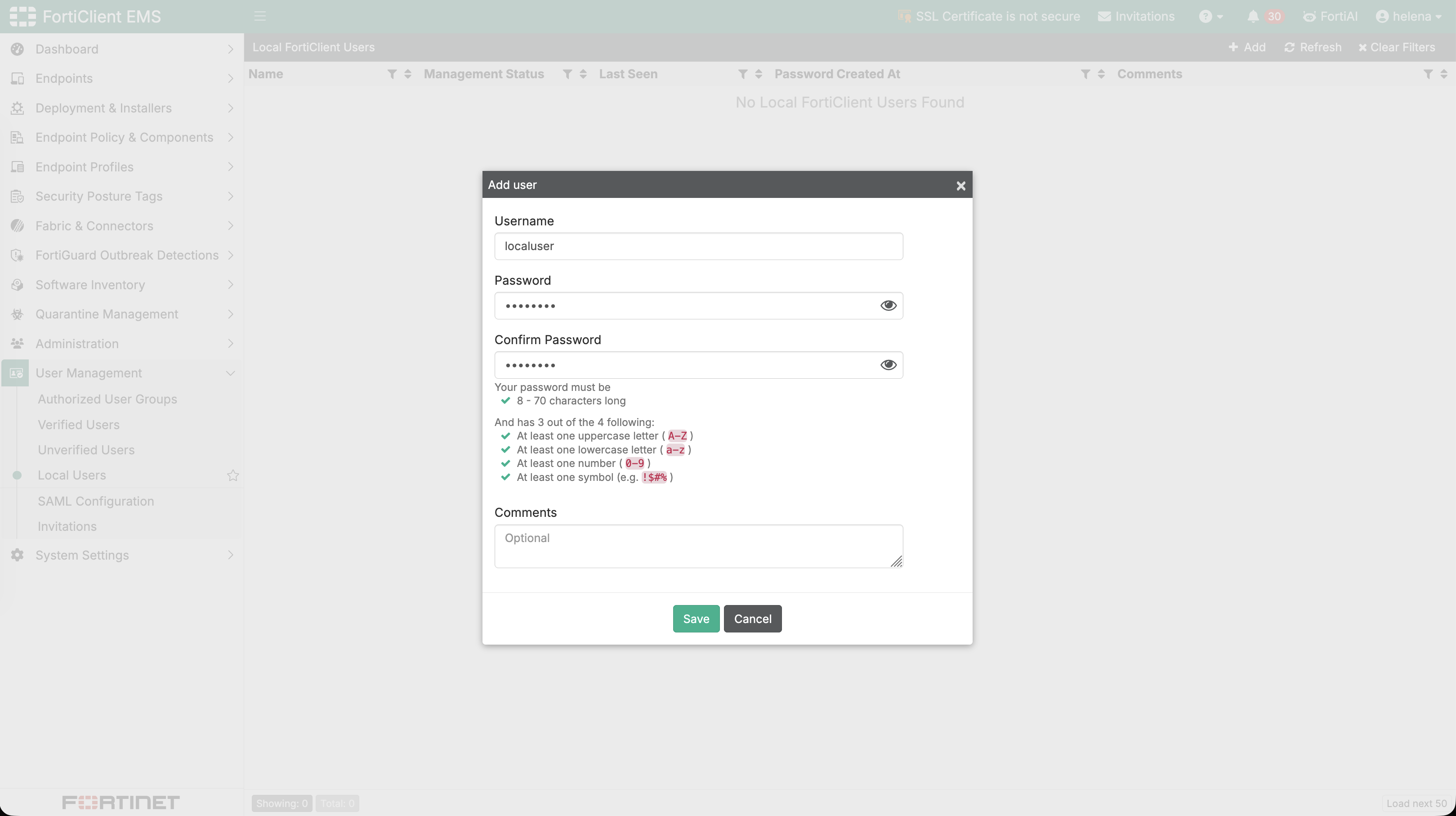
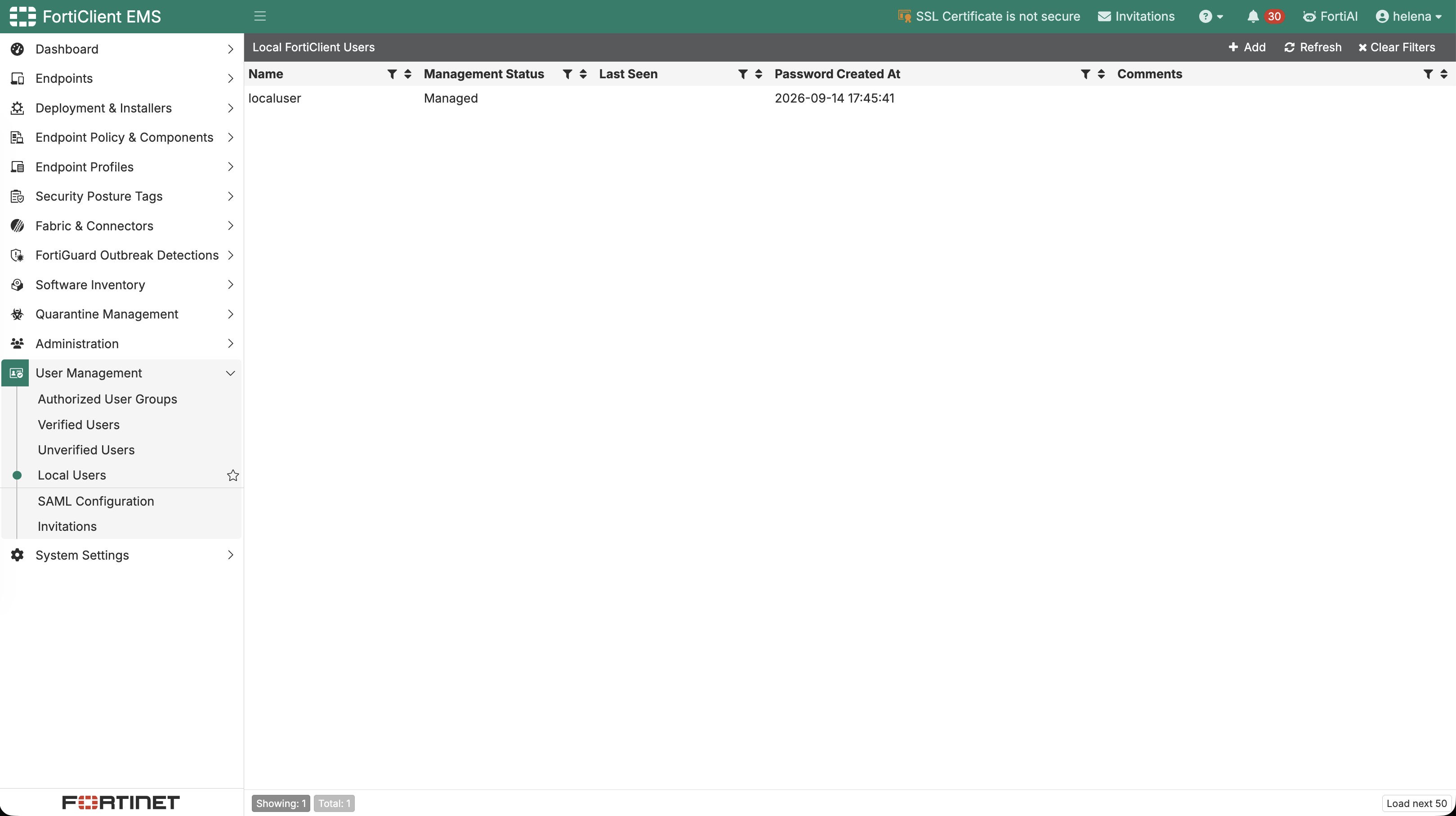
We create a local FortiClient user named localuser for endpoint enrollment. This provides a bootstrap identity for machines that are not using Active Directory.
The new account appears as Managed in EMS and is ready to be used by the first endpoint.
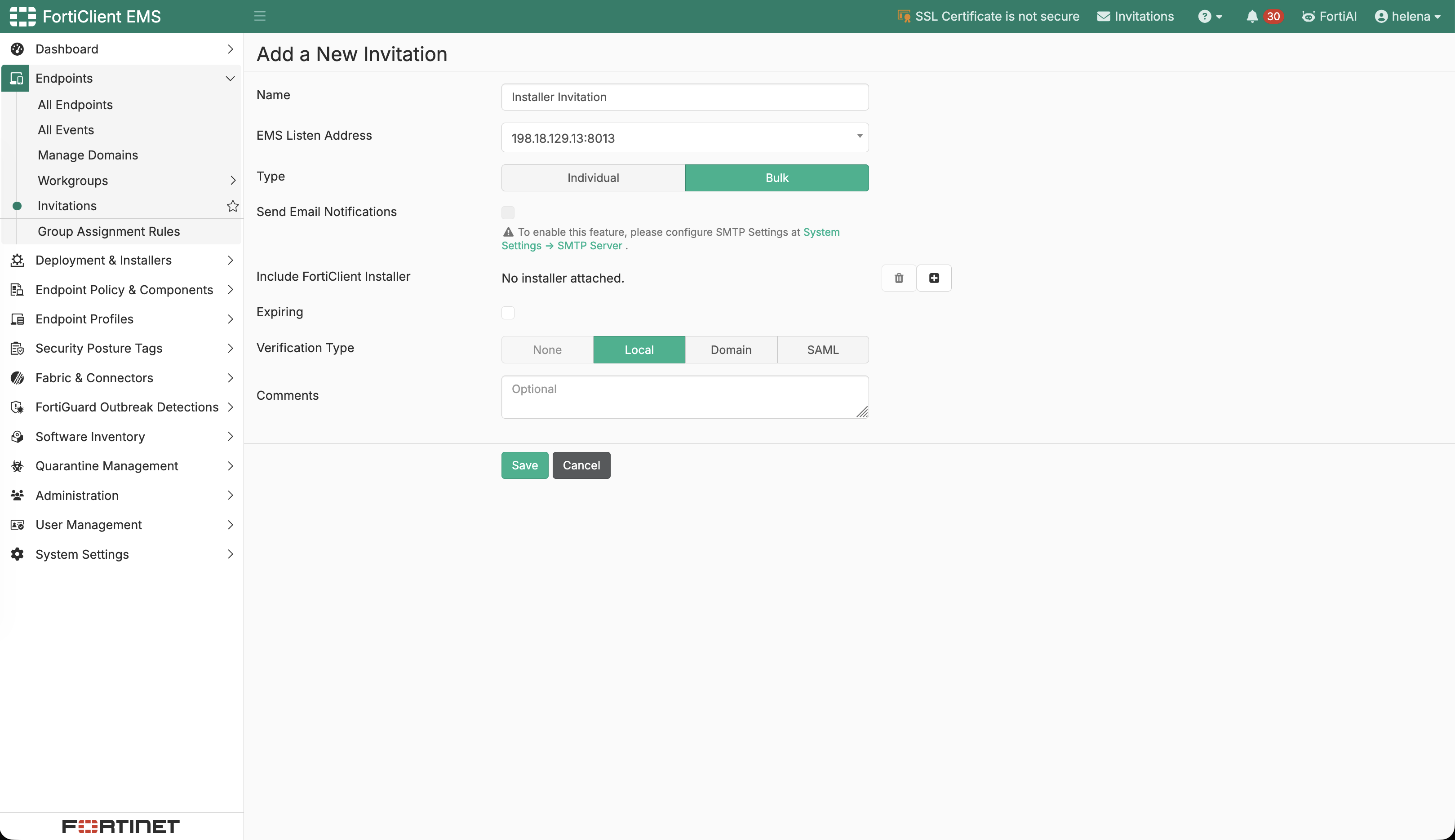
We create a bulk invitation named Installer Invitation, pointing to 198.18.129.13:8013 and selecting Local verification. This invitation can be reused for multiple standalone endpoints.
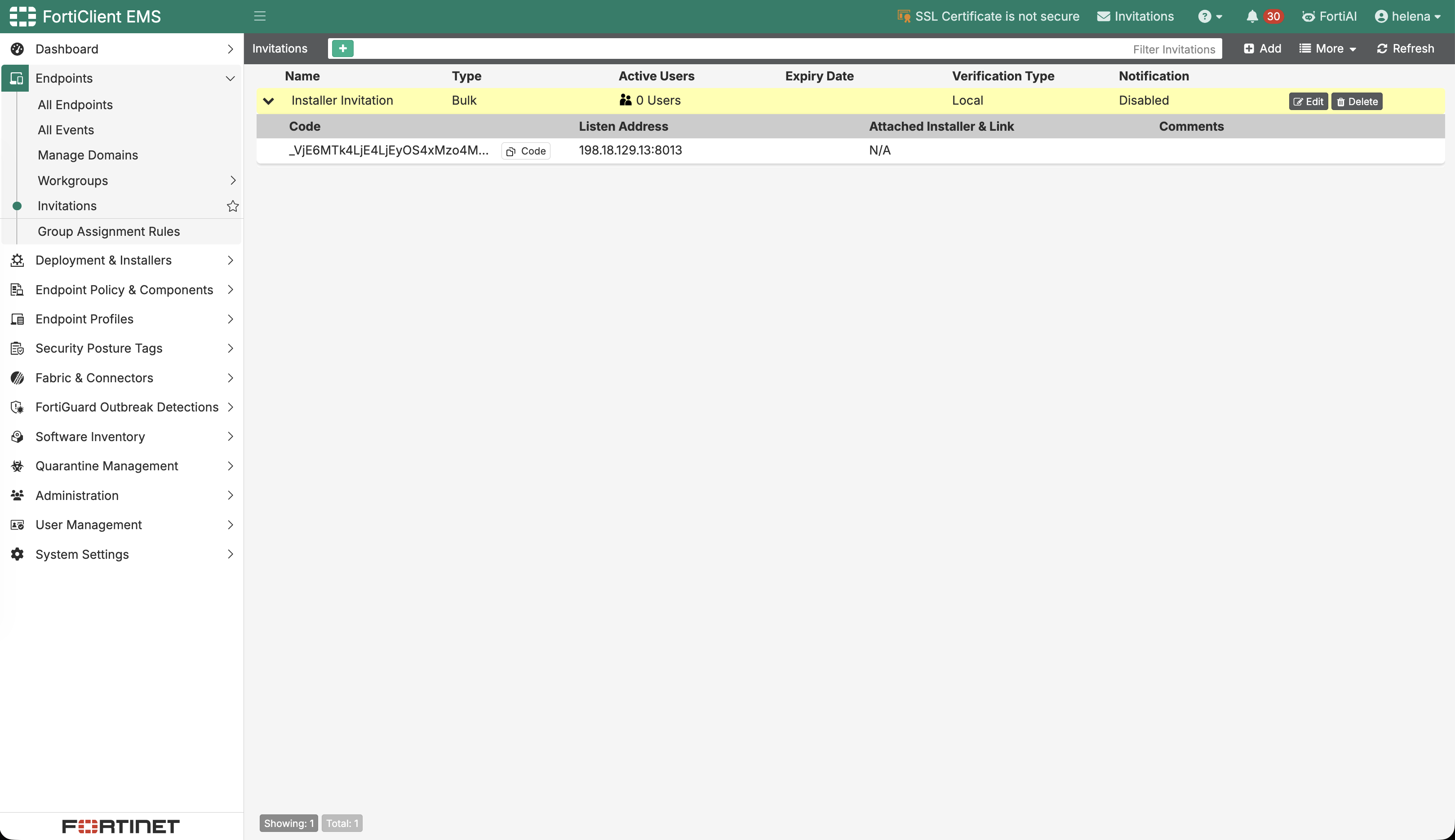
The invitation is active with no enrolled users or attached installer yet. EMS exposes its code, which will be embedded in the custom package.
Group Assignment Rules
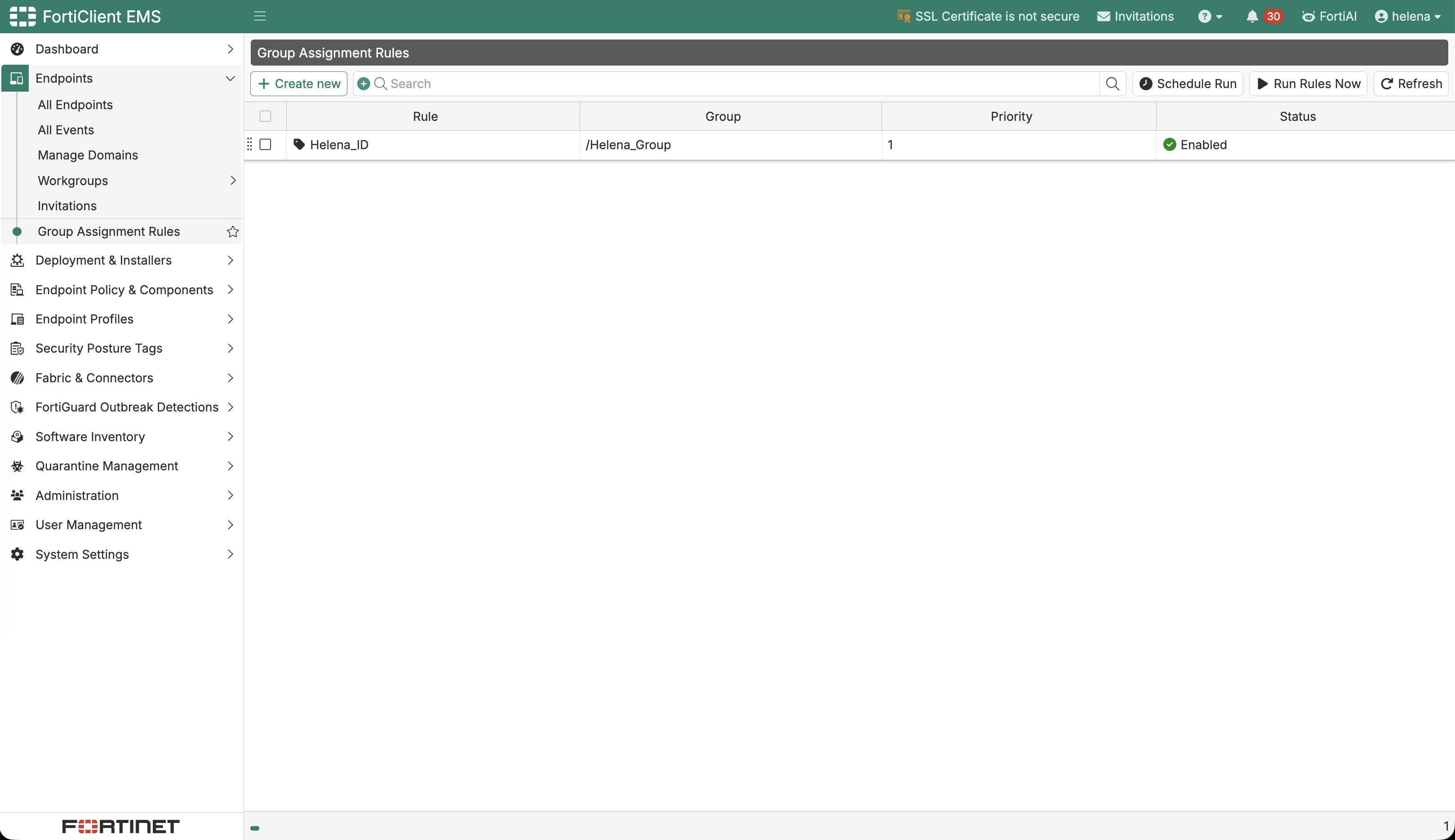
We create an assignment rule of type Installer ID using Helena_ID. This lets the installer determine the endpoint’s initial group during enrollment.
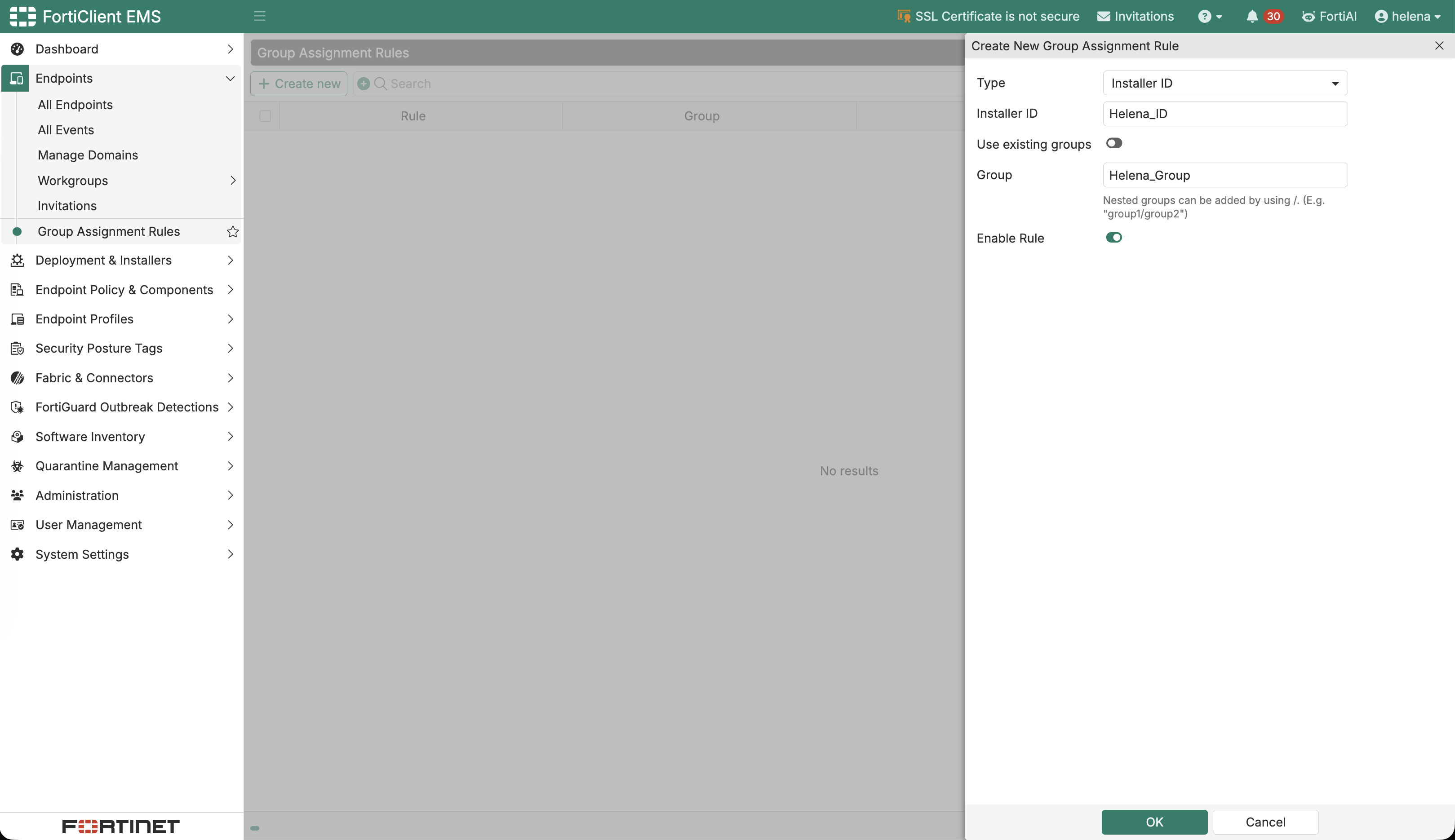
The enabled rule maps Helena_ID to /Helena_Group with priority 1. Endpoints using this installer will therefore receive the intended group assignment automatically.
Creating a Custom Manual Installer
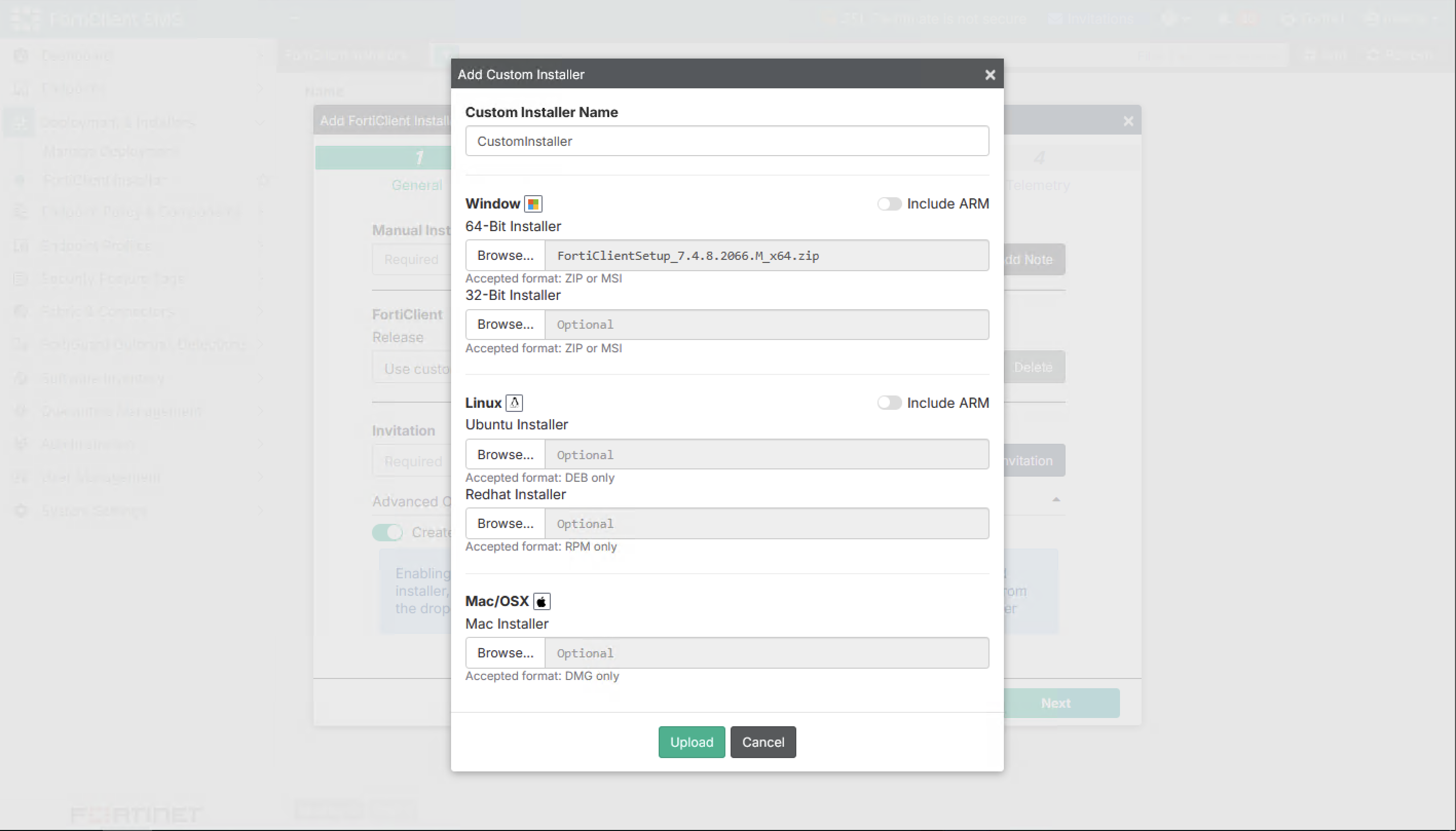
We upload the Windows 64-bit FortiClient package FortiClientSetup_7.4.8.2066.M_x64.zip as a custom installer.
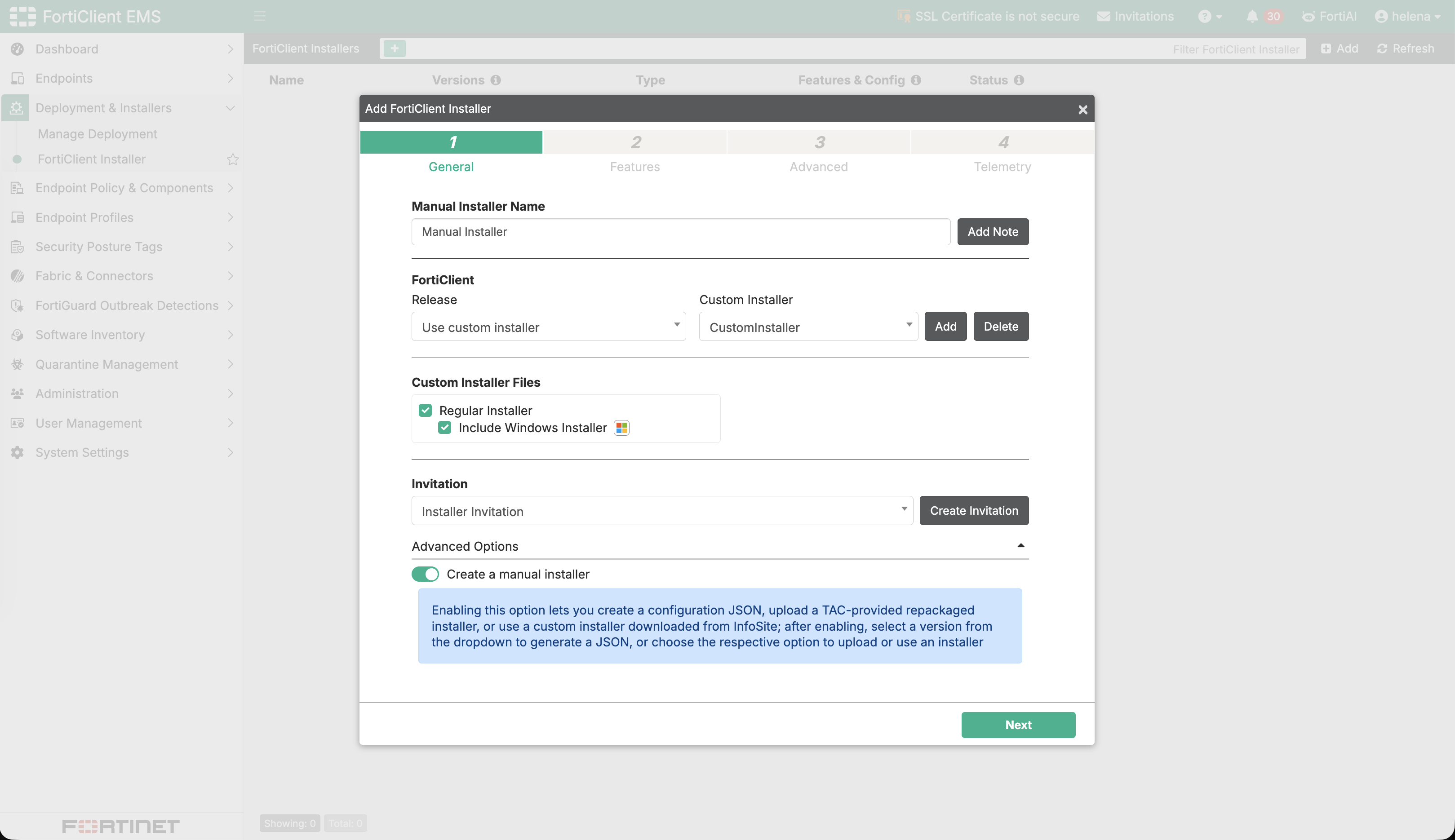
We create the manual installer from the uploaded package and select the local Installer Invitation. The package includes the regular Windows installer and is generated as an EMS-managed manual installer.
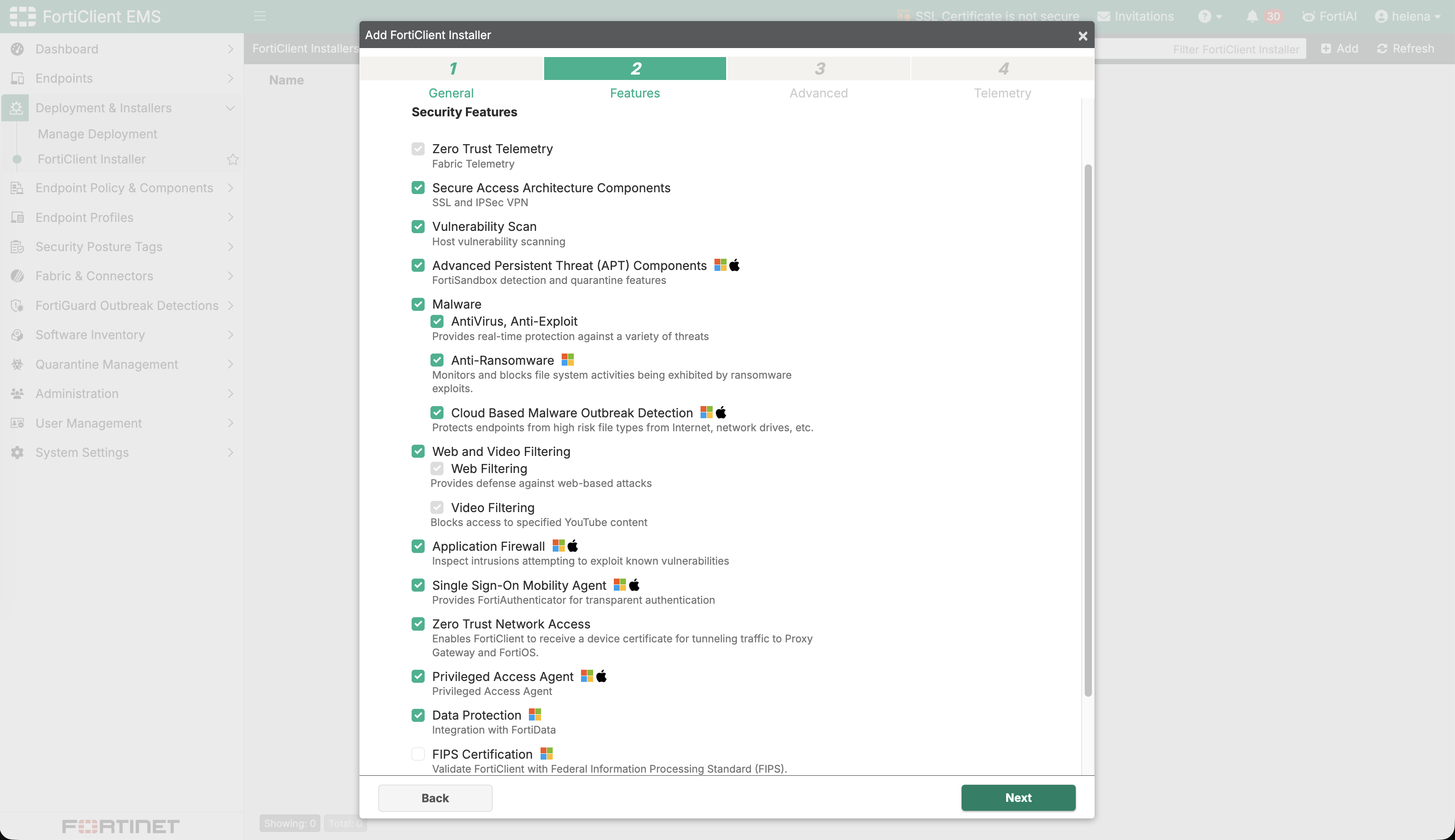
We select the FortiClient security features needed for the lab, including vulnerability scanning, malware protection, web filtering, application firewall, and ZTNA components.
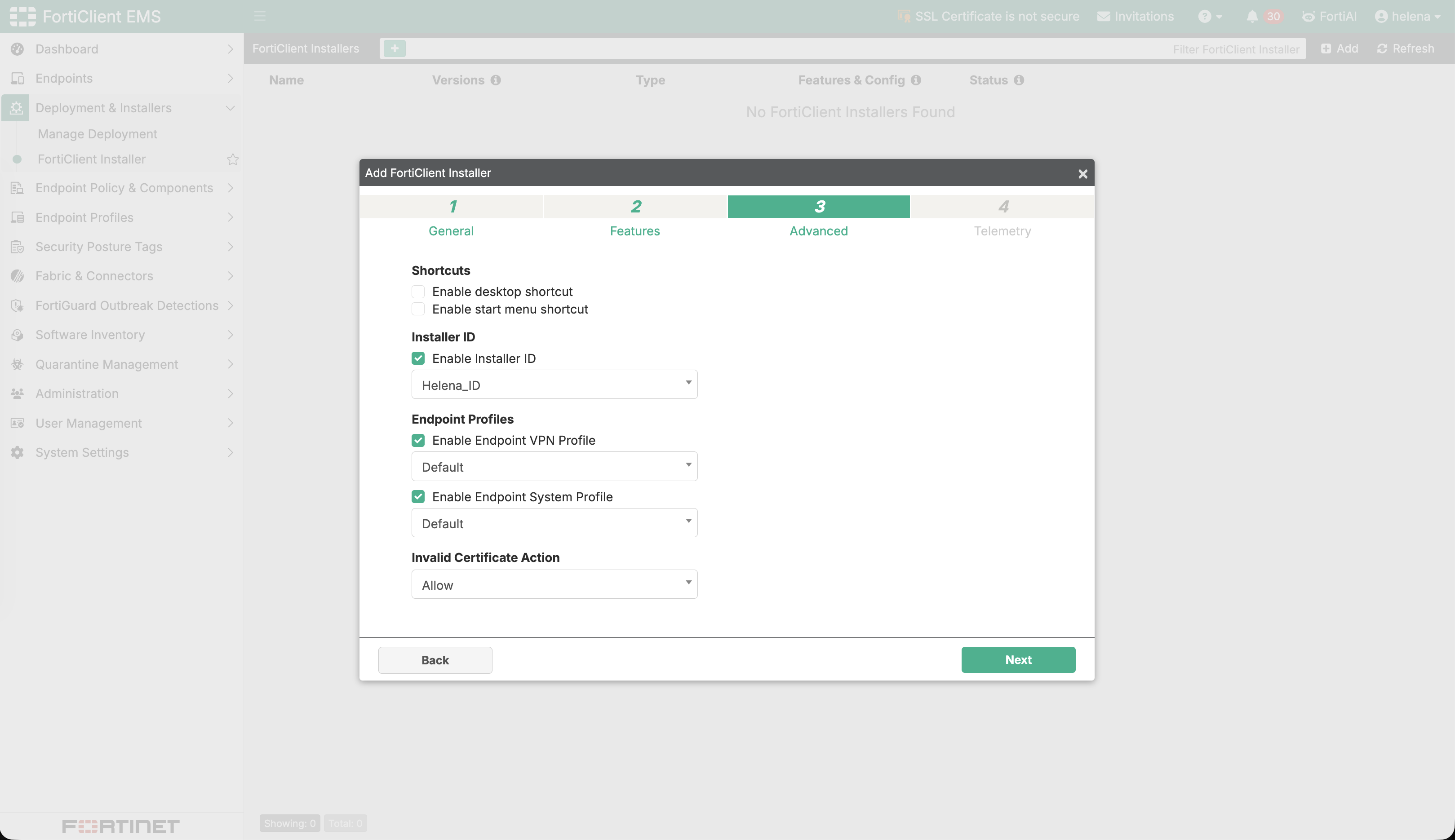
In Advanced options, we enable the installer ID and select Helena_ID, connecting this package to the /Helena_Group assignment rule. The default VPN and system profiles are also selected.
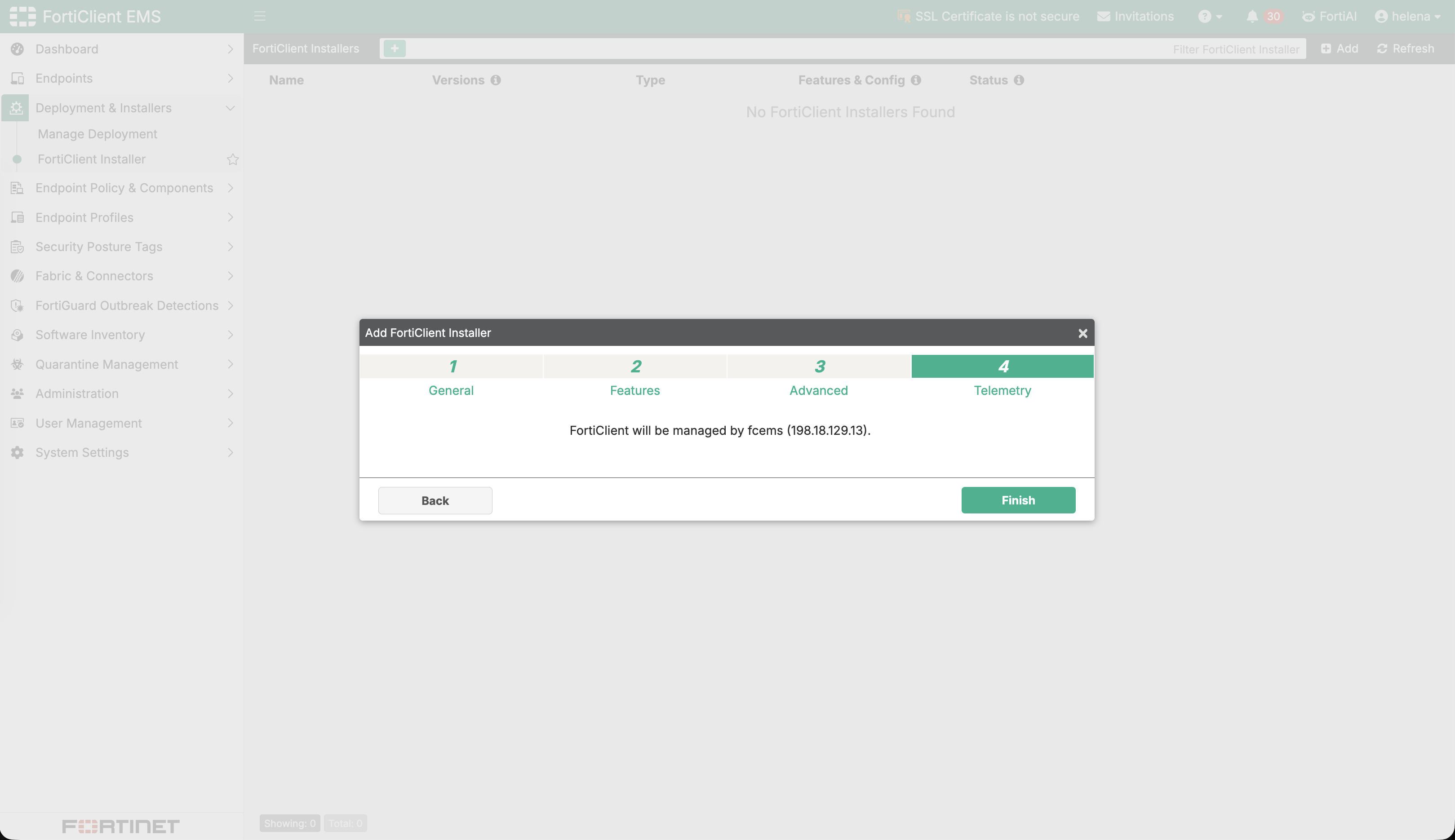
The final Telemetry step confirms that FortiClient will be managed by fcems (198.18.129.13). This verifies that the package is tied to the intended EMS instance.
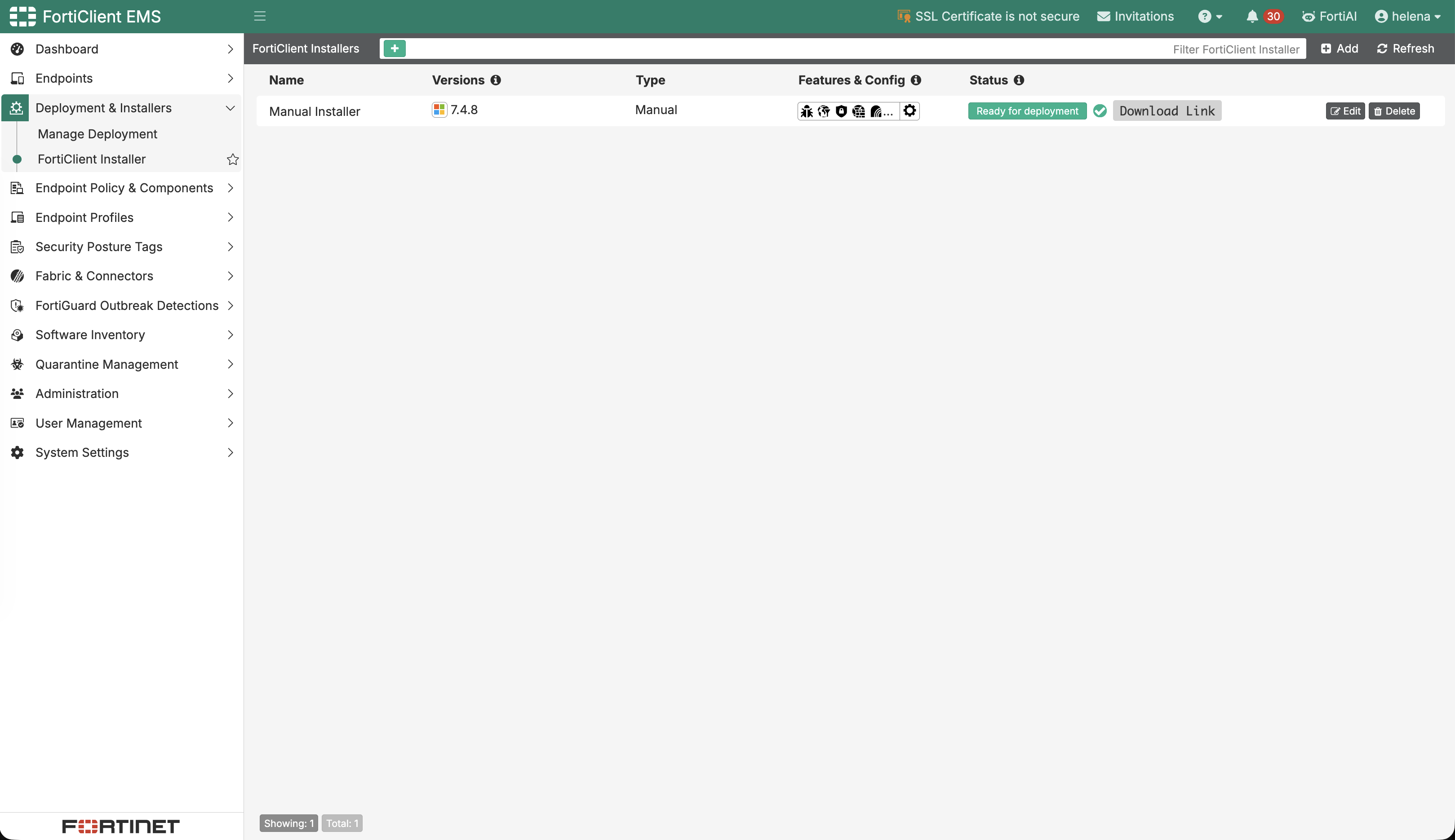
The installer inventory lists Manual Installer, version 7.4.8, as Ready for deployment.
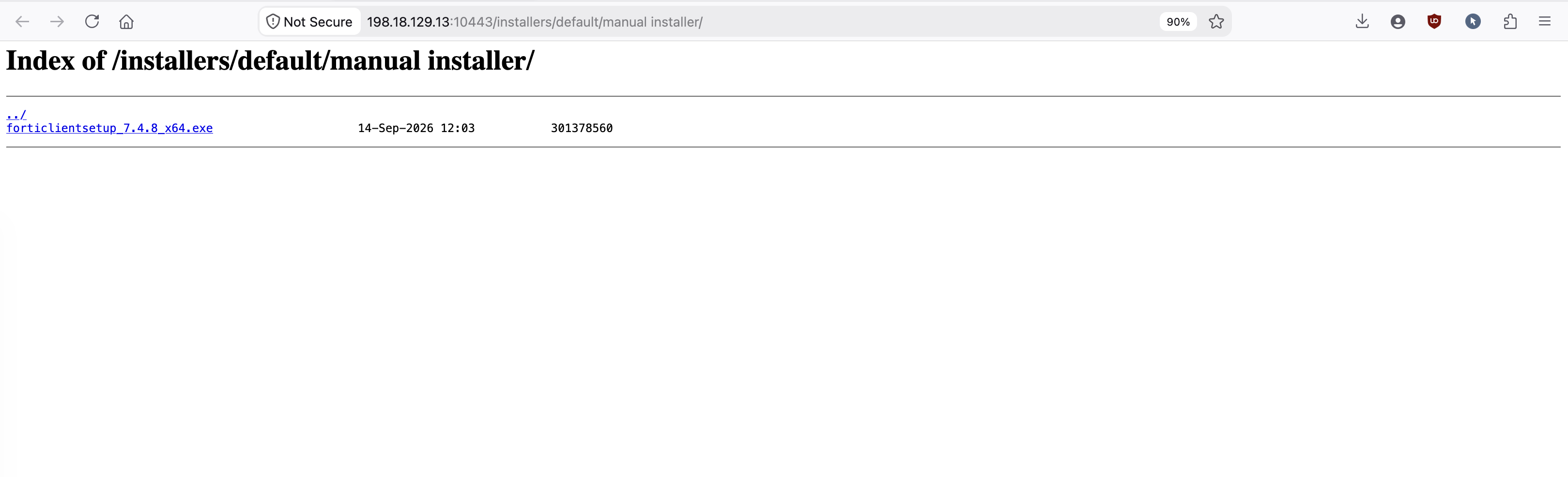
The generated forticlientsetup_7.4.8_x64.exe is now available for download. This is still a manual deployment artifact; automatic rollout is configured separately later.
Installing FortiClient with a Local User
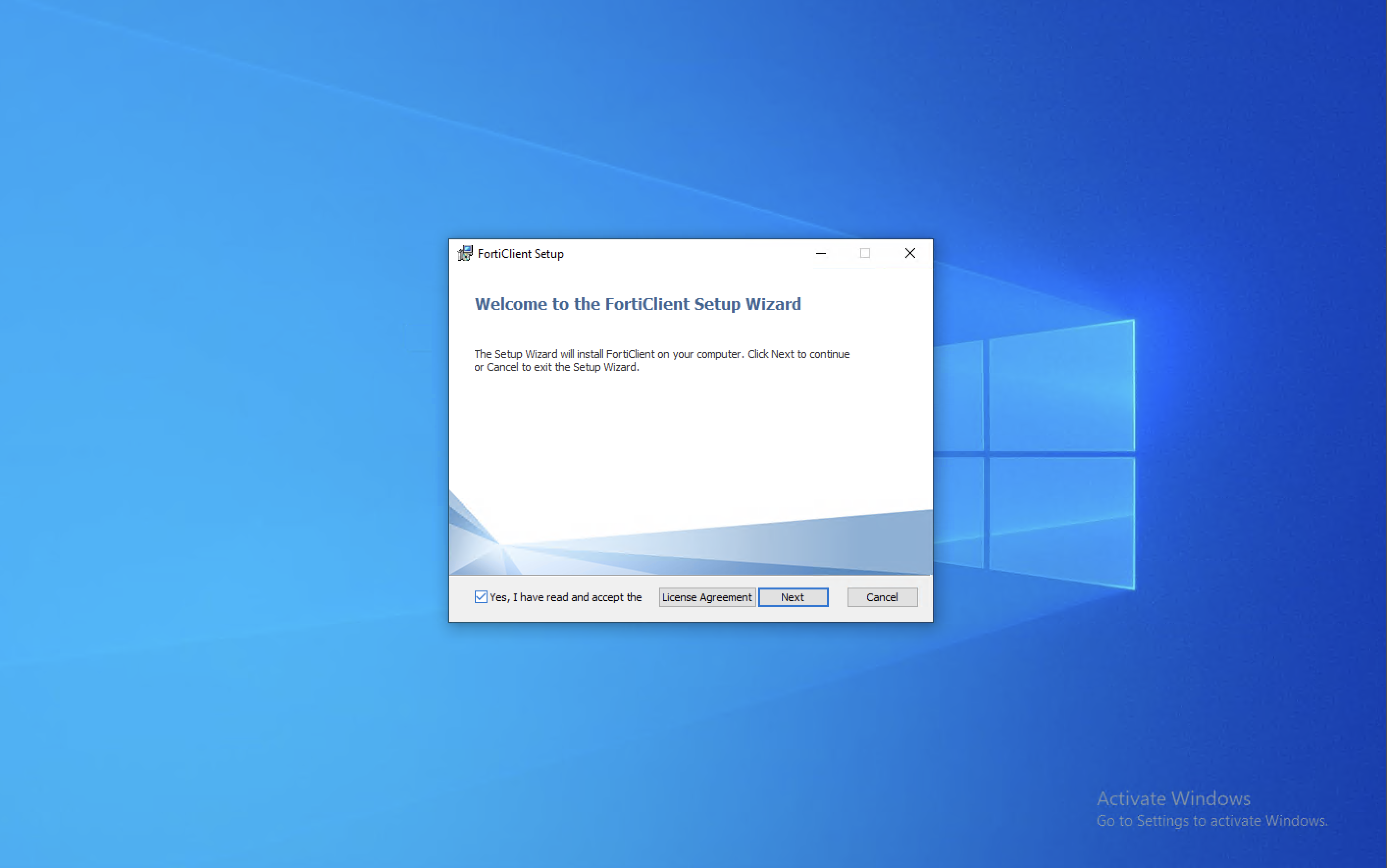
We run the generated executable on the first Windows endpoint and begin the FortiClient installation.
After installation, FortiClient opens as a Disconnected Zero Trust Fabric Agent and offers Register with Zero Trust Fabric. The endpoint is not managed until the invitation credentials are supplied.
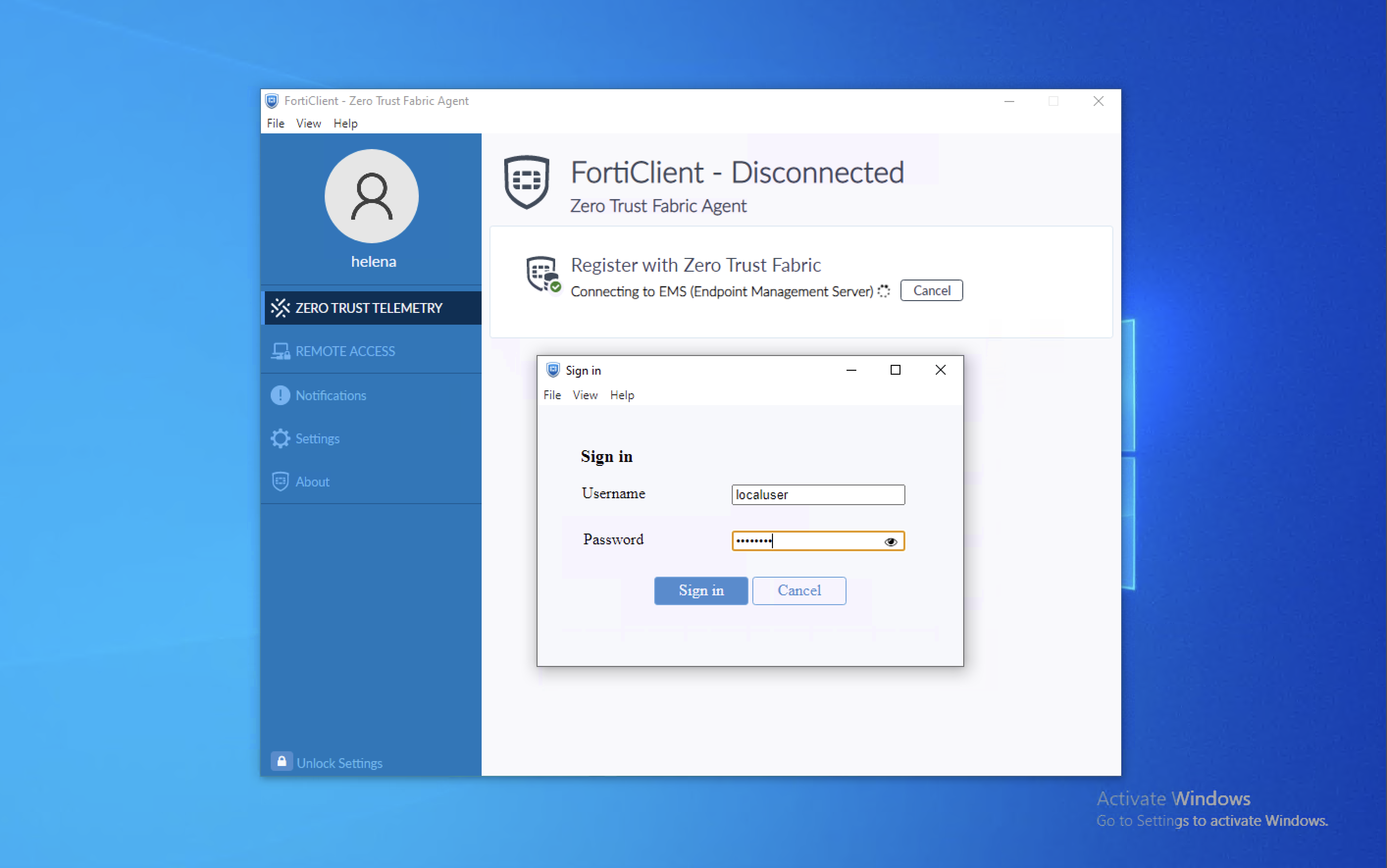
We sign in with the local account localuser. This validates the invitation and allows EMS to apply the installer ID assignment.
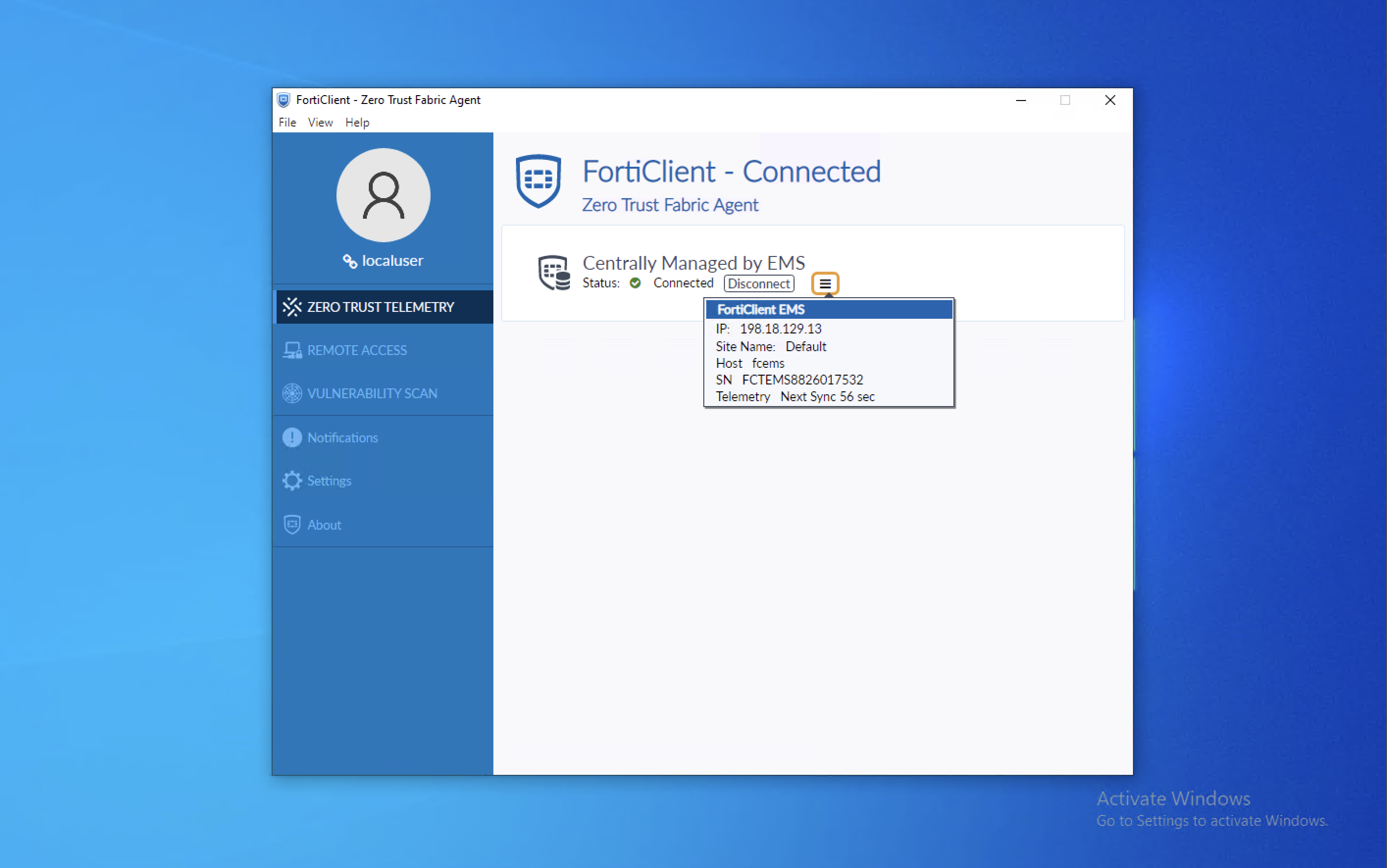
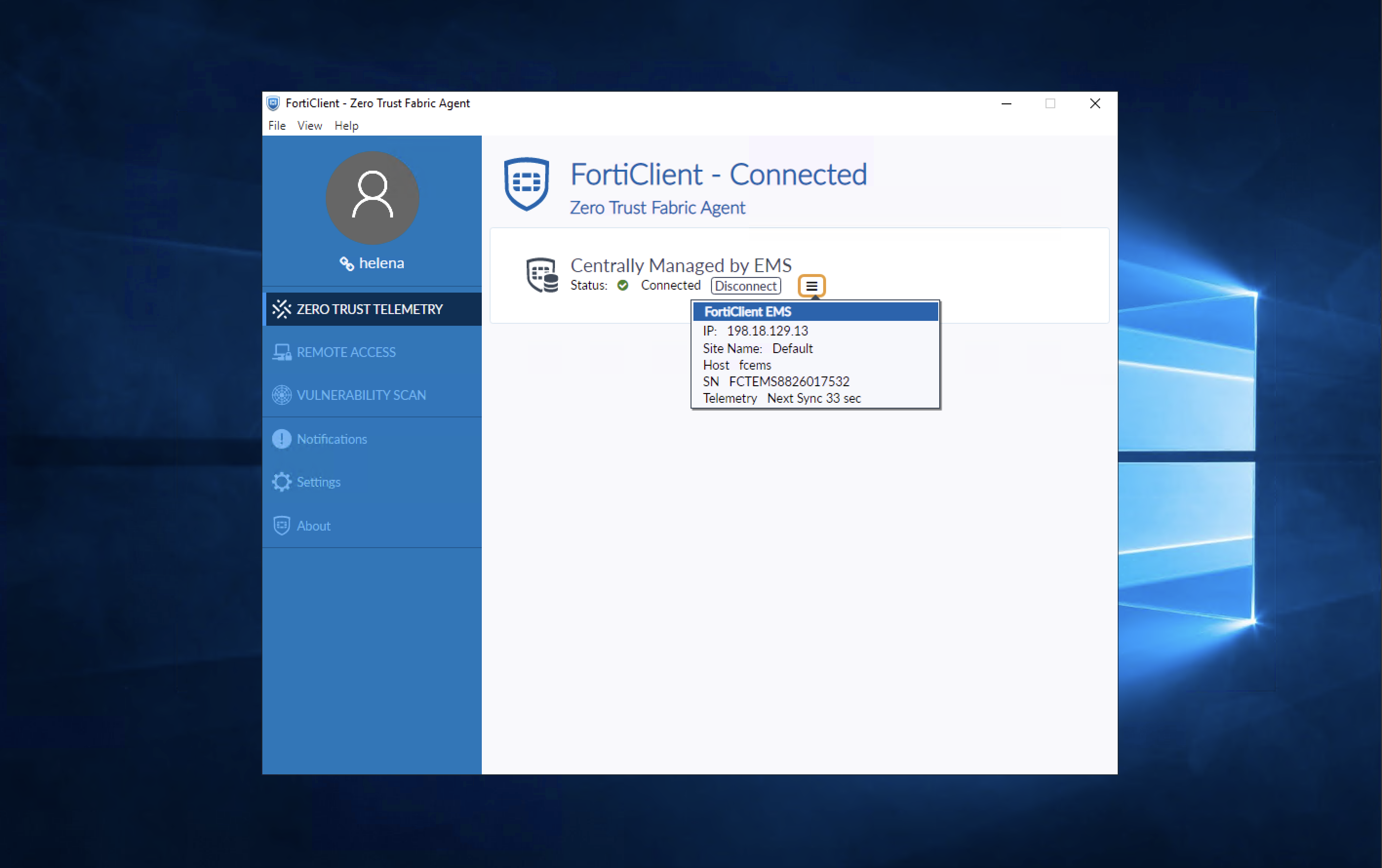
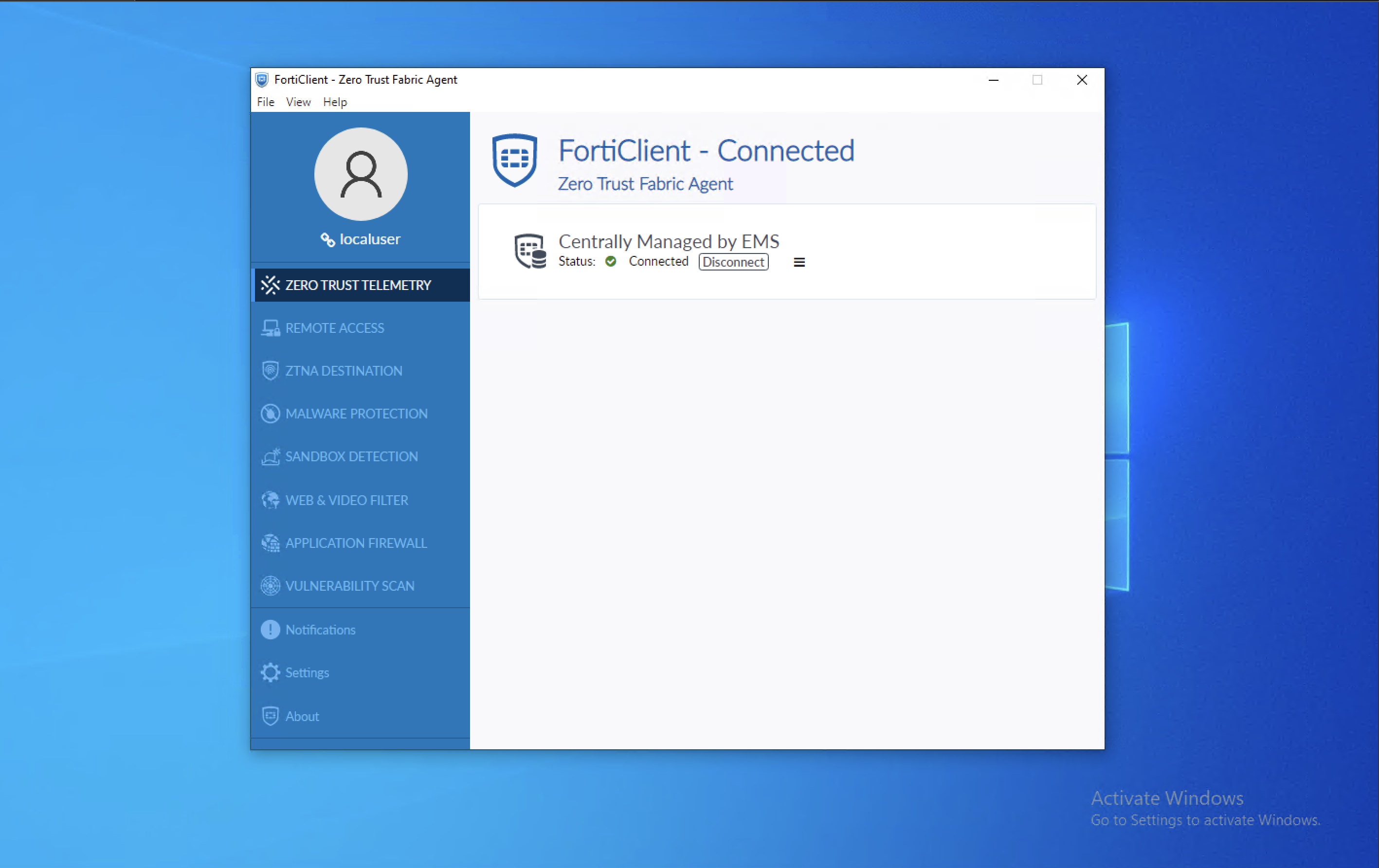
FortiClient becomes Connected and reports Centrally Managed by EMS. The client identifies EMS at 198.18.129.13, confirming connectivity and enrollment.
Integrating the Domain
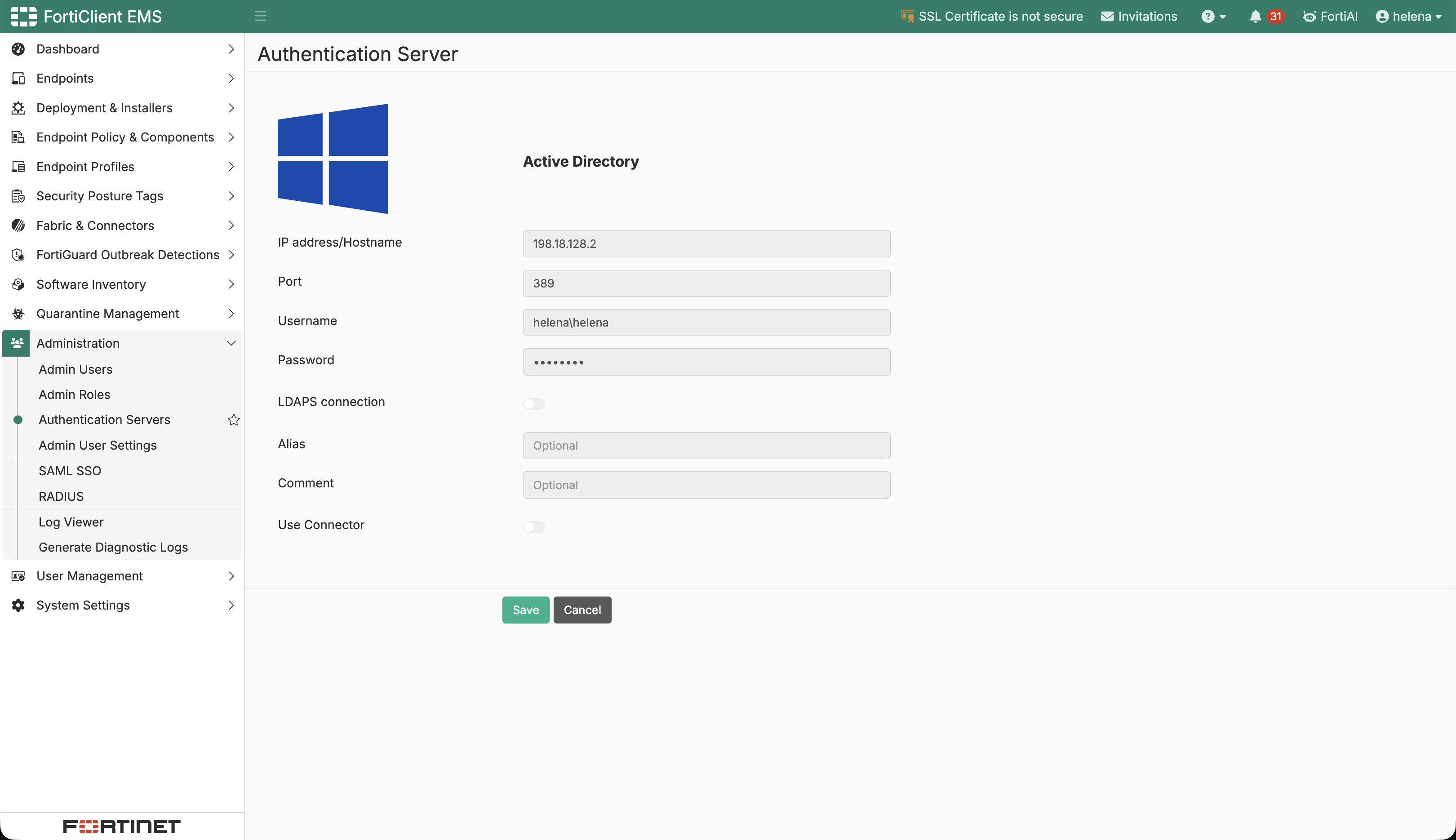
We configure an Active Directory authentication server at 198.18.128.2 on LDAP port 389, using the helena\\helena bind account.
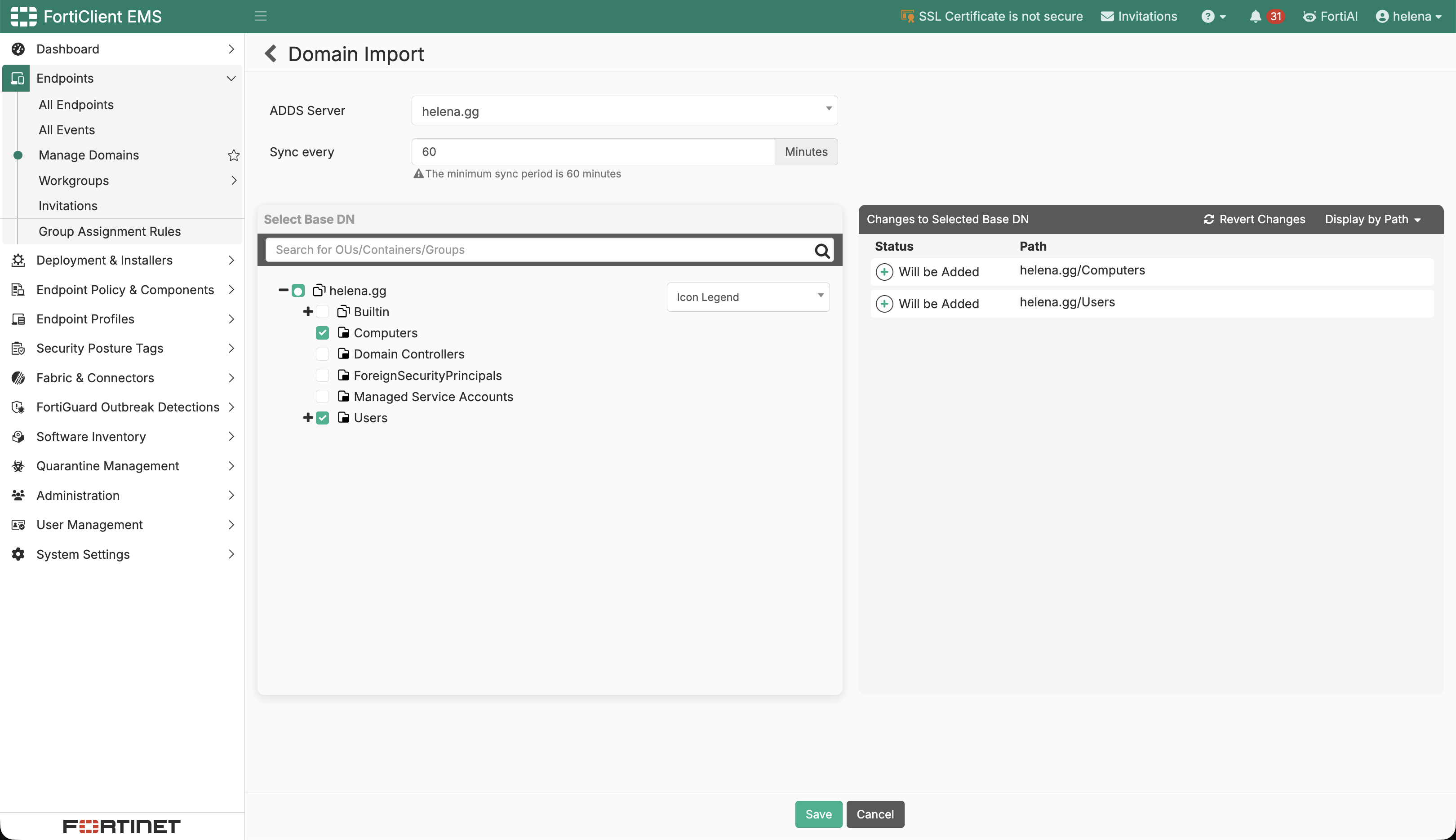
In the domain import view, we select the helena.gg ADDS server and import both Computers and Users. EMS synchronizes the selected directory paths every 60 minutes.
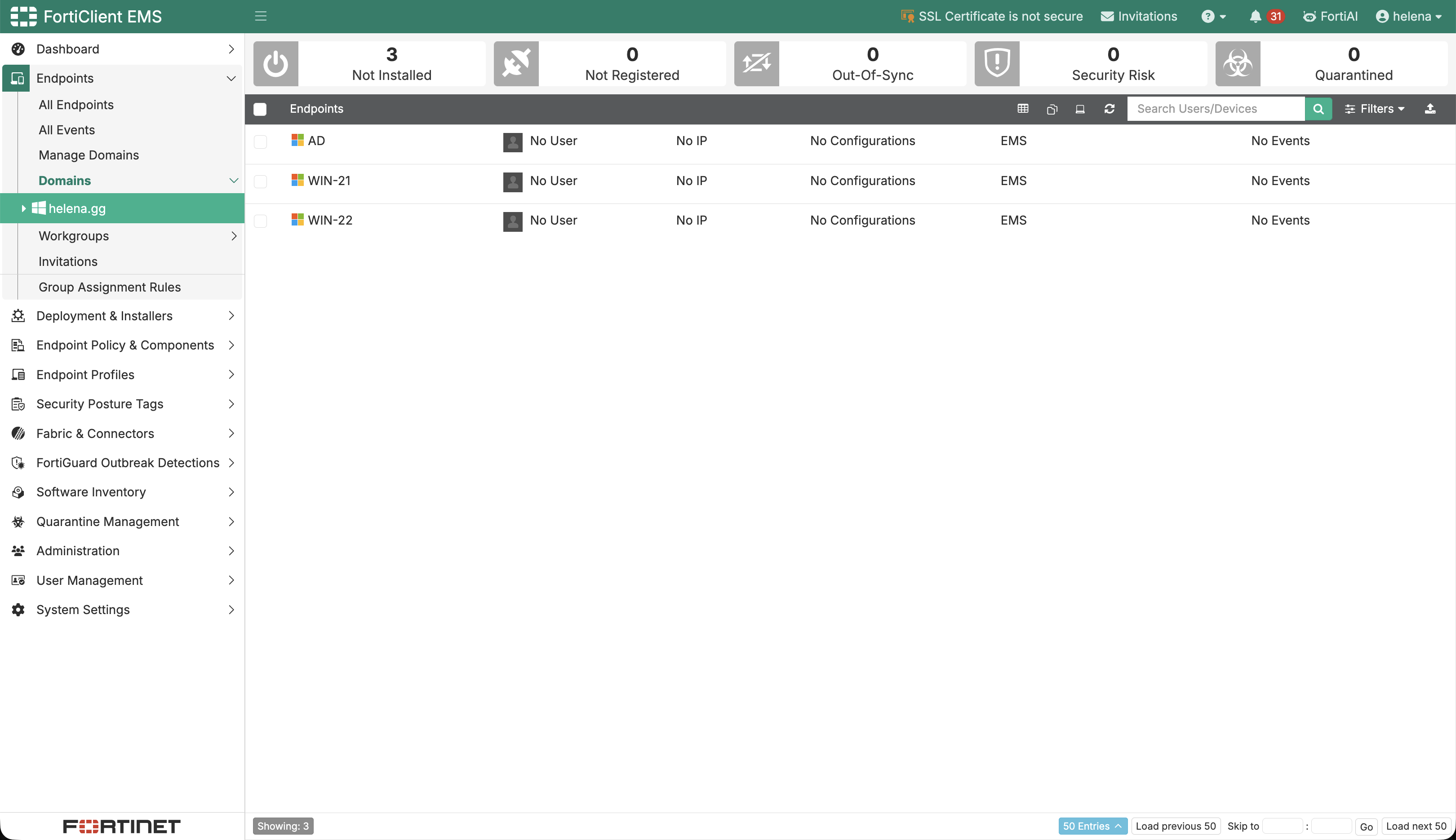
The imported domain contains AD, WIN-21, and WIN-22. They initially show No User, No IP, and No Configurations, because importing directory objects does not enroll the machines.
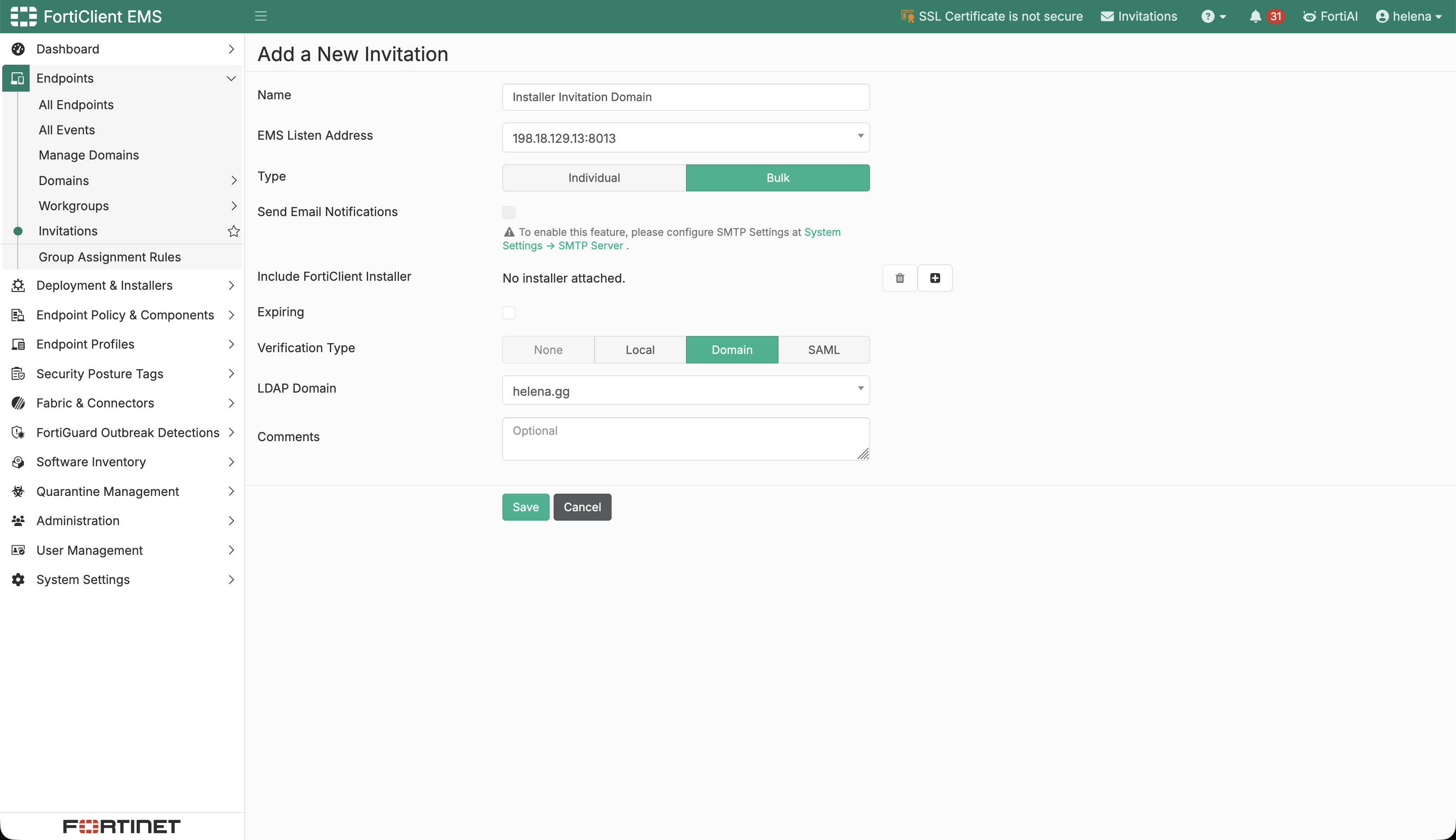
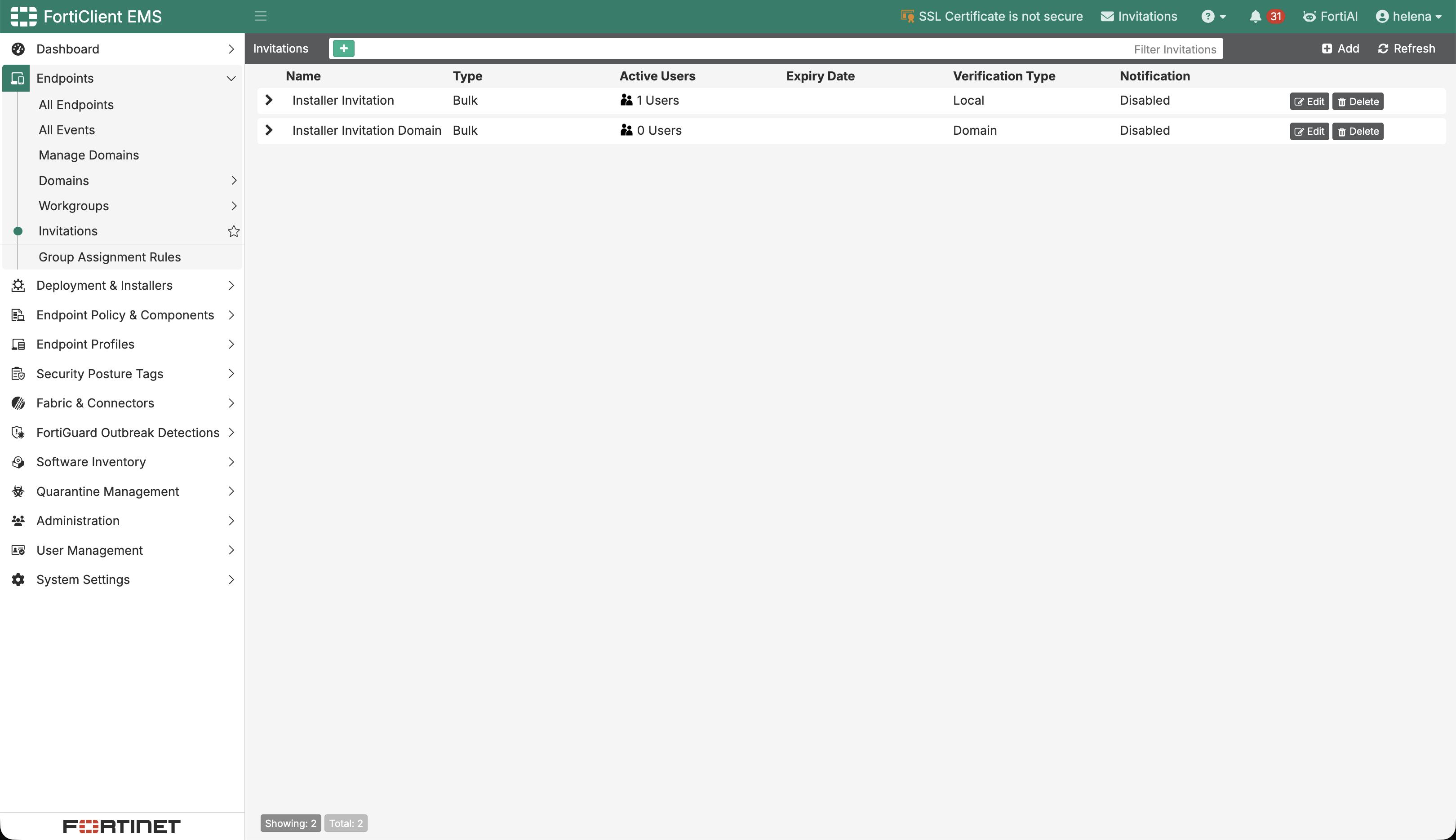
We create Installer Invitation Domain, point it to 198.18.129.13:8013, and select Domain verification with the LDAP domain helena.gg. Enrollment authentication will now be handled by Active Directory.
The invitation list now contains separate local and domain enrollment paths, both using the same EMS listener.
Installing FortiClient with Domain Users
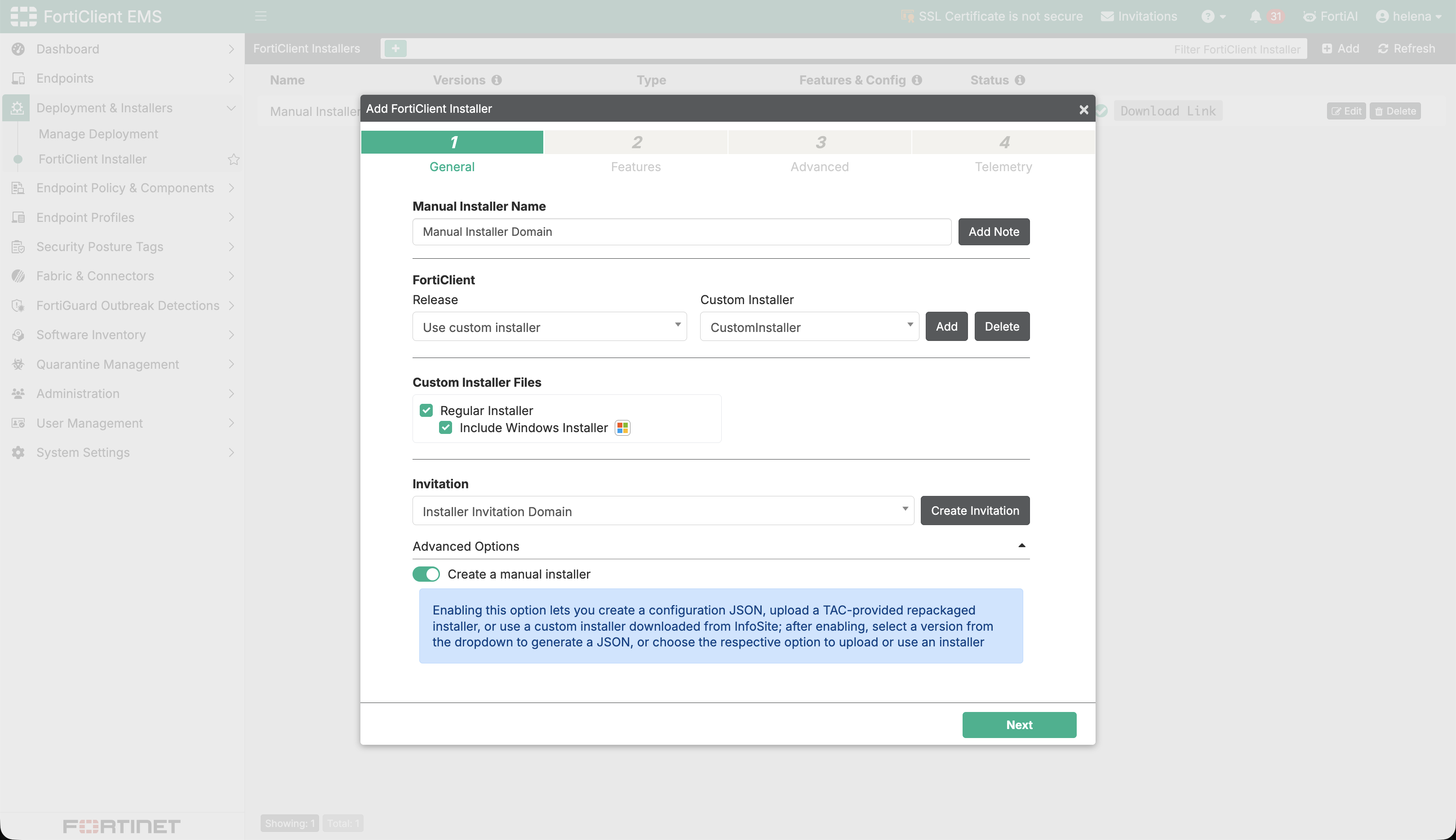
We create Manual Installer Domain from the same Windows FortiClient package and select Installer Invitation Domain. Reusing the package workflow while changing the invitation shows how EMS supports different endpoint populations without changing the installation method.
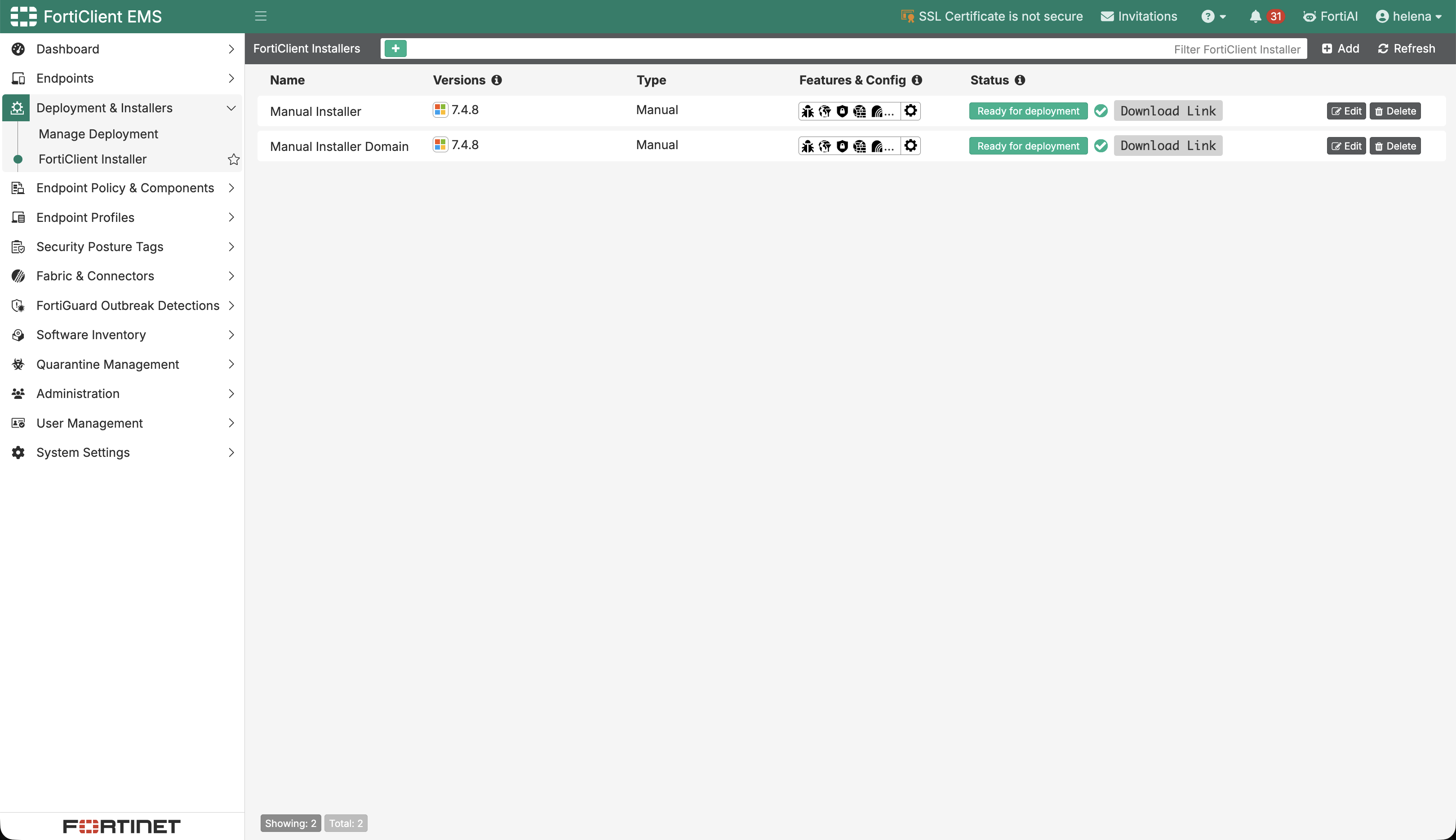
The installer inventory now contains both the local and domain packages, both running FortiClient 7.4.8 and marked Ready for deployment. The distinction is in the enrollment invitation, not in the basic Windows package, which keeps version management simpler.
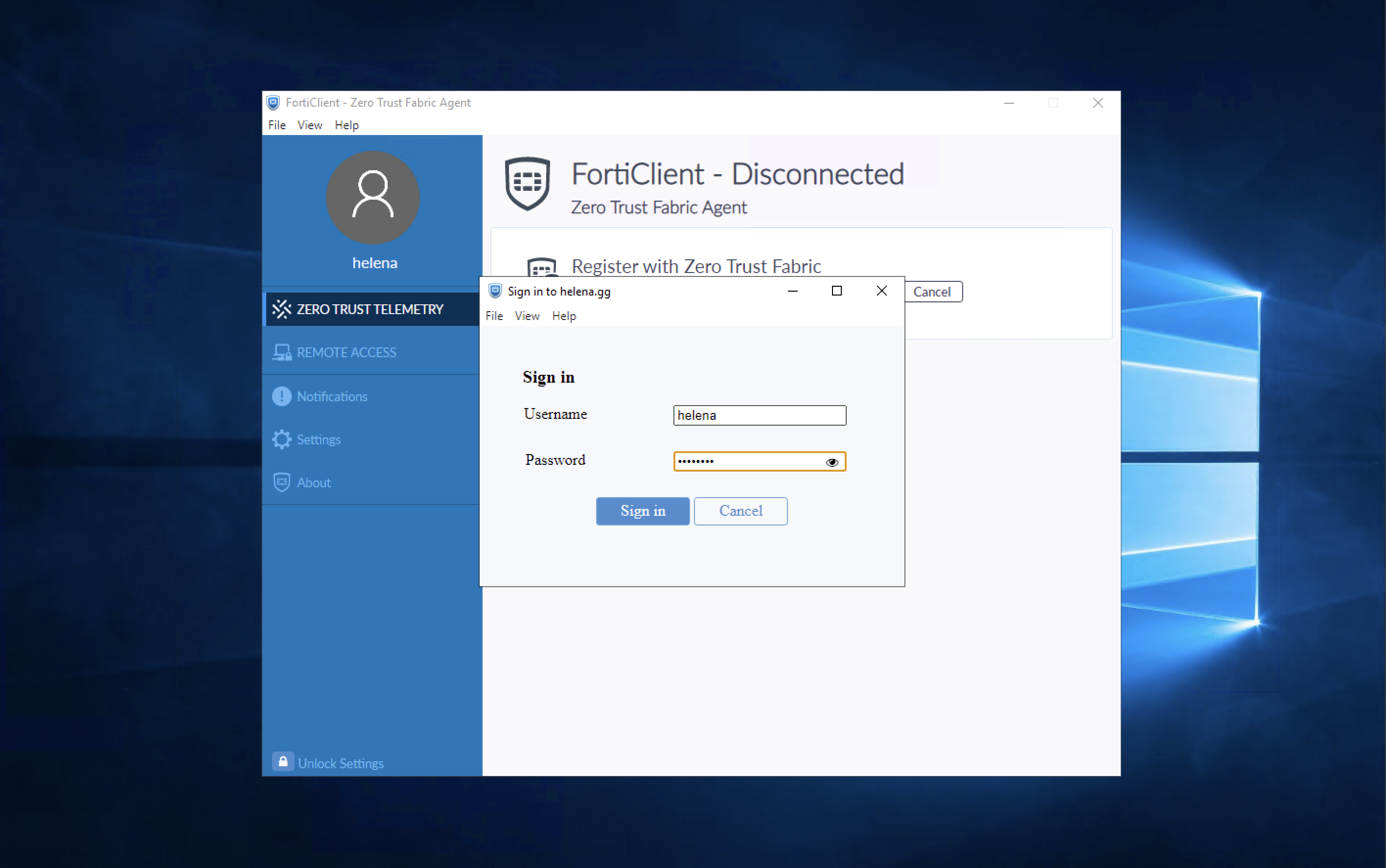
On the domain computer, FortiClient opens the Sign in to helena.gg prompt. The enrollment uses the domain identity helena instead of the local localuser account.
After the domain credentials are submitted, FortiClient connects to EMS and reports Centrally Managed by EMS. The EMS destination remains 198.18.129.13; only the enrollment identity changed.
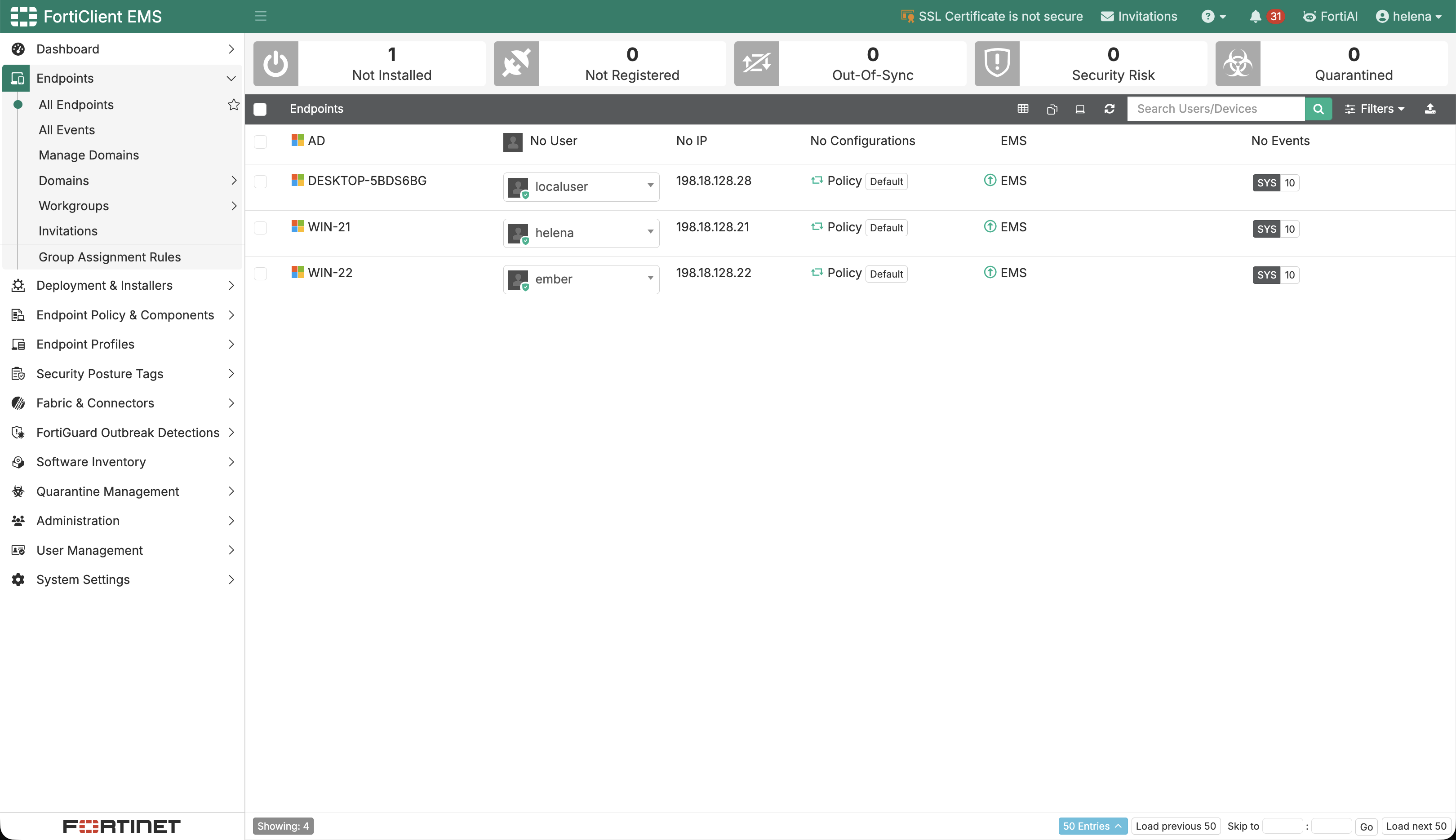
The endpoint list now shows the imported AD object plus enrolled systems DESKTOP-5BDS6BG, WIN-21, and WIN-22. The domain users helena and ember are associated with the Windows Server endpoints, confirming that the domain invitation produced user-linked enrollments.
Endpoint Policy Configuration
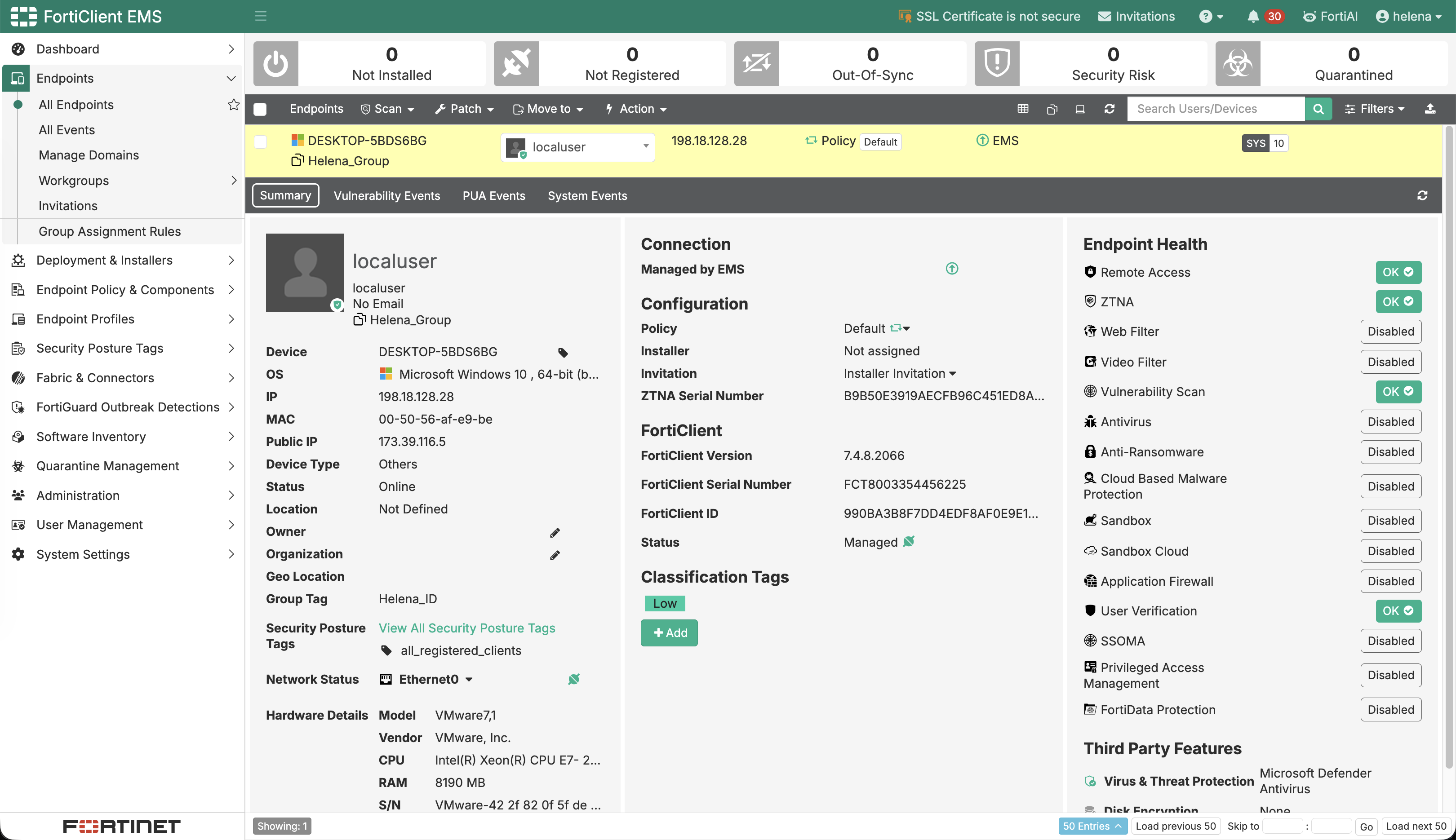
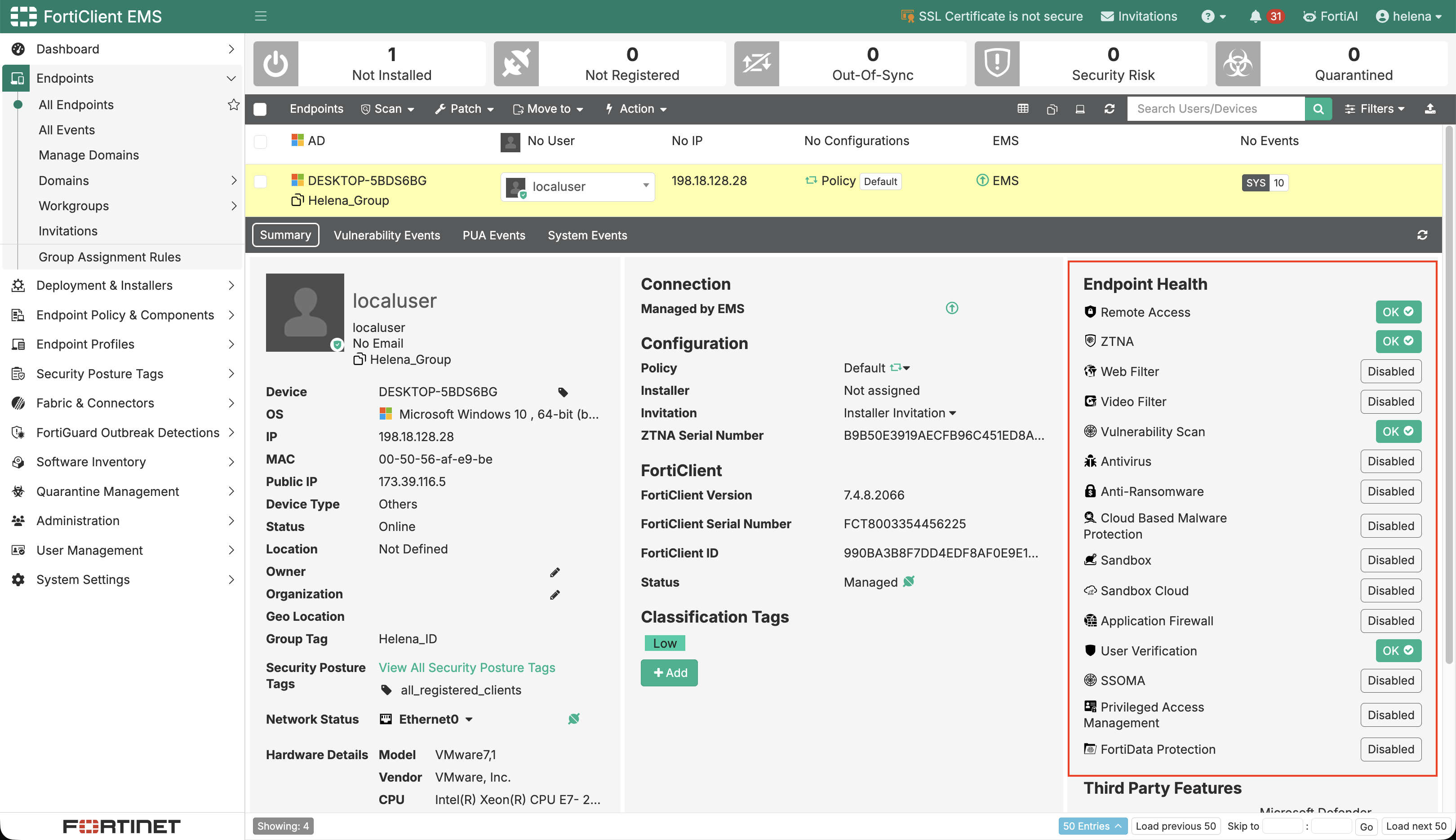
After enrollment, we open DESKTOP-5BDS6BG (198.18.128.28). It is online, managed by EMS, and assigned to Helena_Group, but most endpoint protection modules are still disabled.
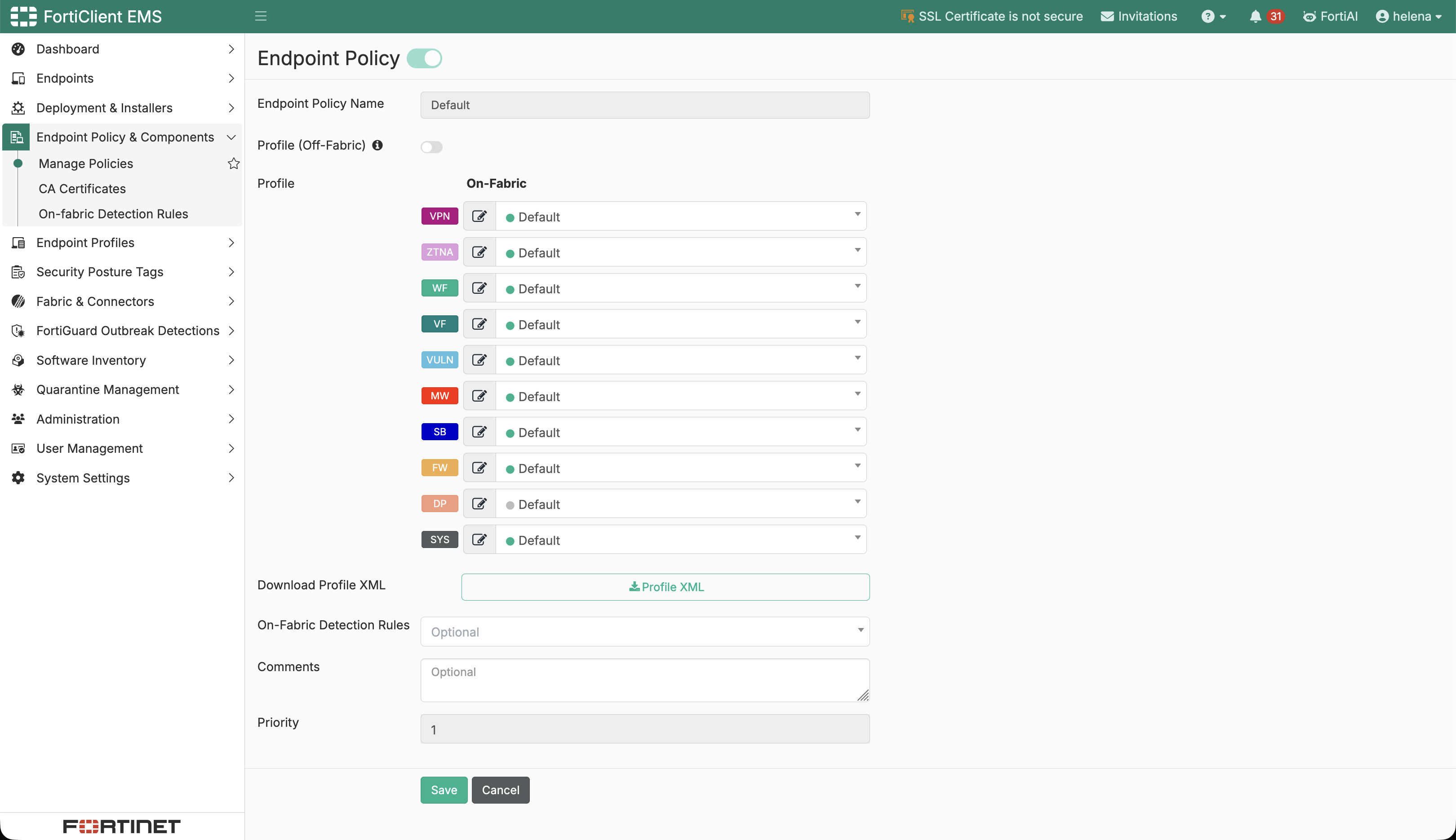
We edit the Default Endpoint Policy and enable the endpoint profiles needed for the lab. The policy is the central point where EMS maps profile settings to enrolled FortiClient agents.
On the local FortiClient agent, the client now shows all the activated policies.
Testing the Endpoint Policies
We now validate the individual endpoint controls from both sides: EMS shows the profile, while FortiClient shows the resulting endpoint behavior.
Vulnerability Scan
In EMS, the Vulnerability Scan Profile enables OS vulnerability scanning and displays popups for Critical Only findings. A weekly scan is scheduled for Sunday at 00:00.
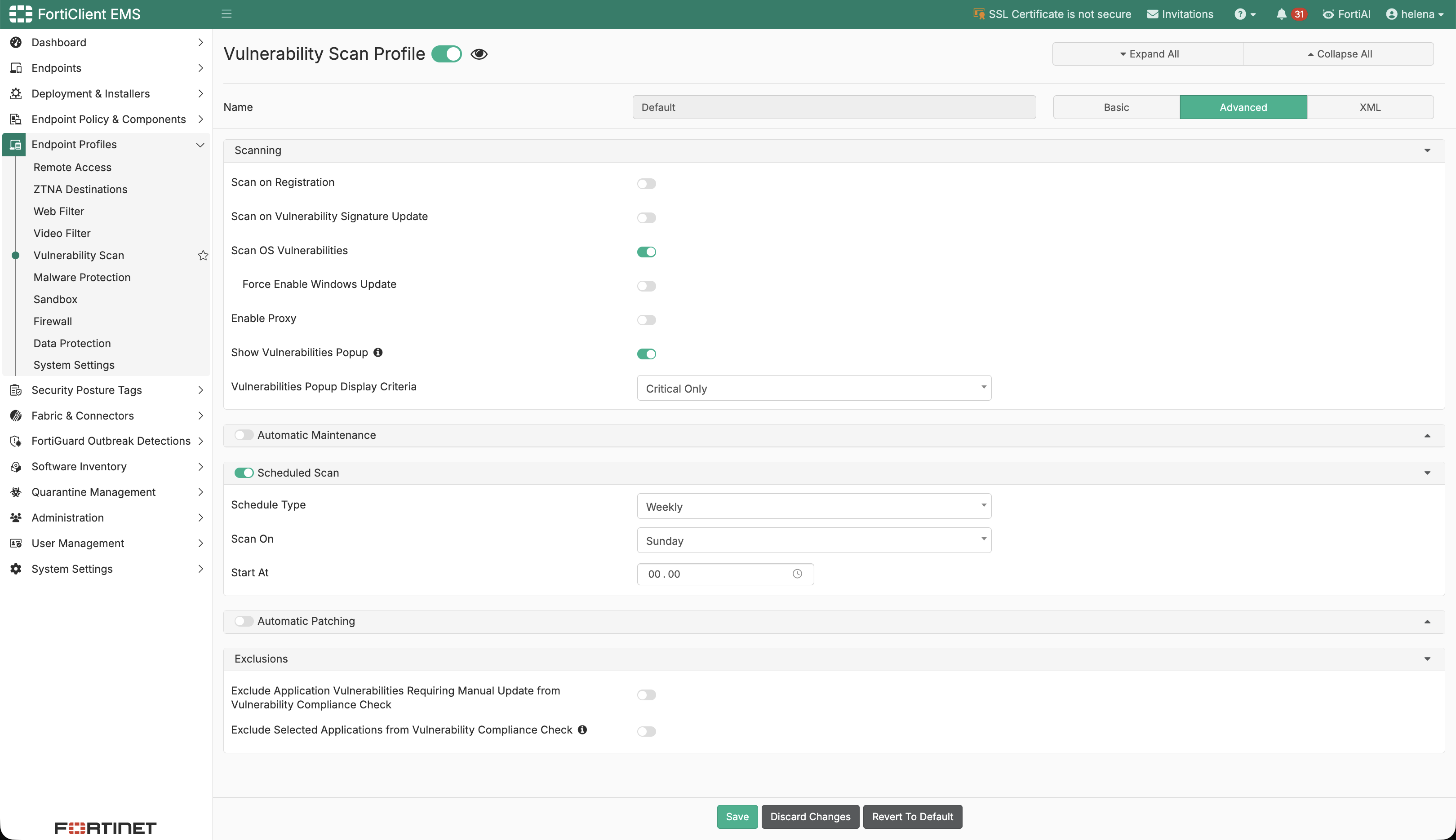
The Vulnerability Scan when run can help find vulnerabilties on the client PC.
Firewall and Application Firewall
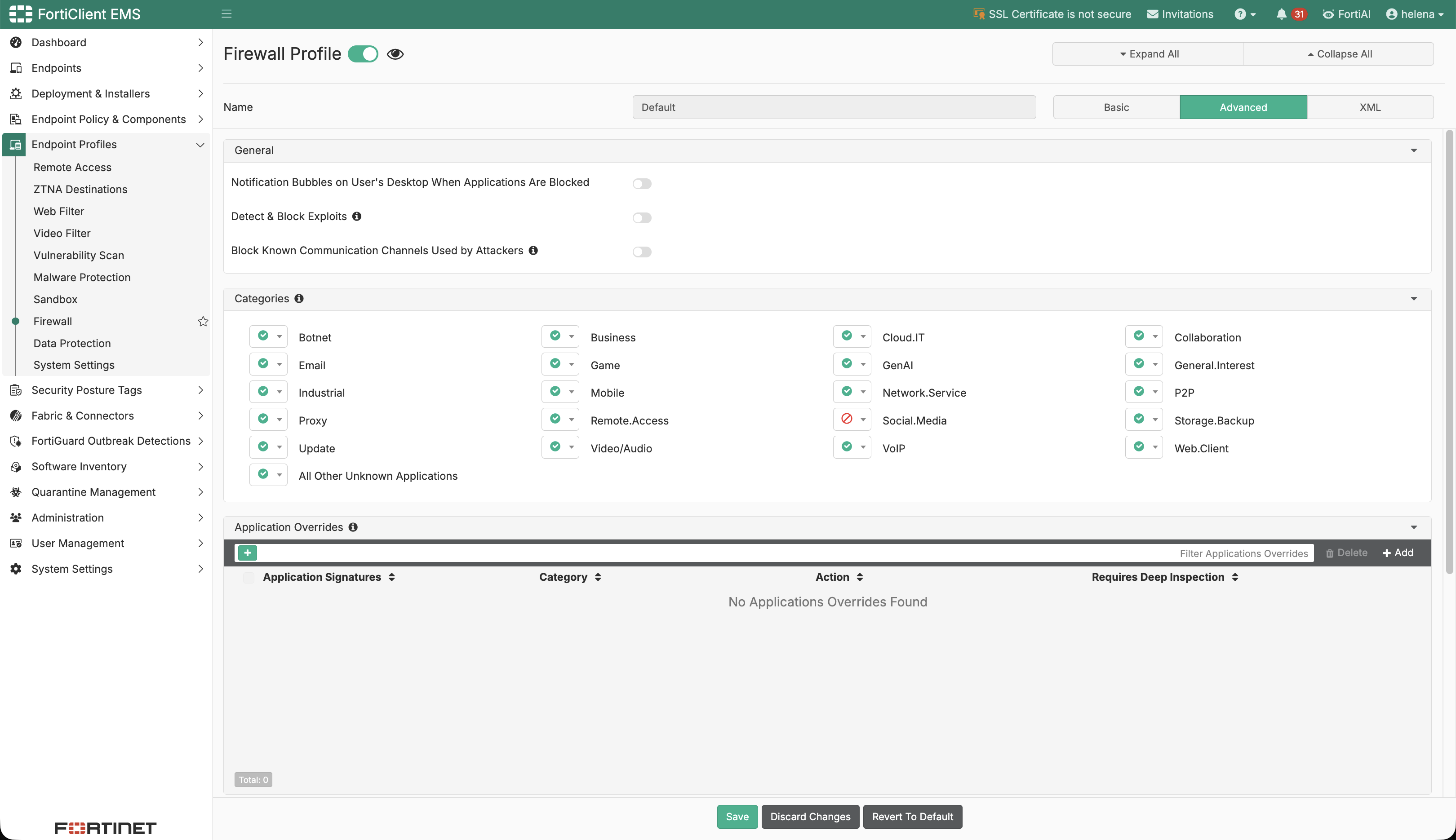
The EMS Firewall Profile blocks the Social.Media application category while leaving other displayed categories and unknown applications allowed. The profile is therefore using a targeted category rule rather than default-deny enforcement.
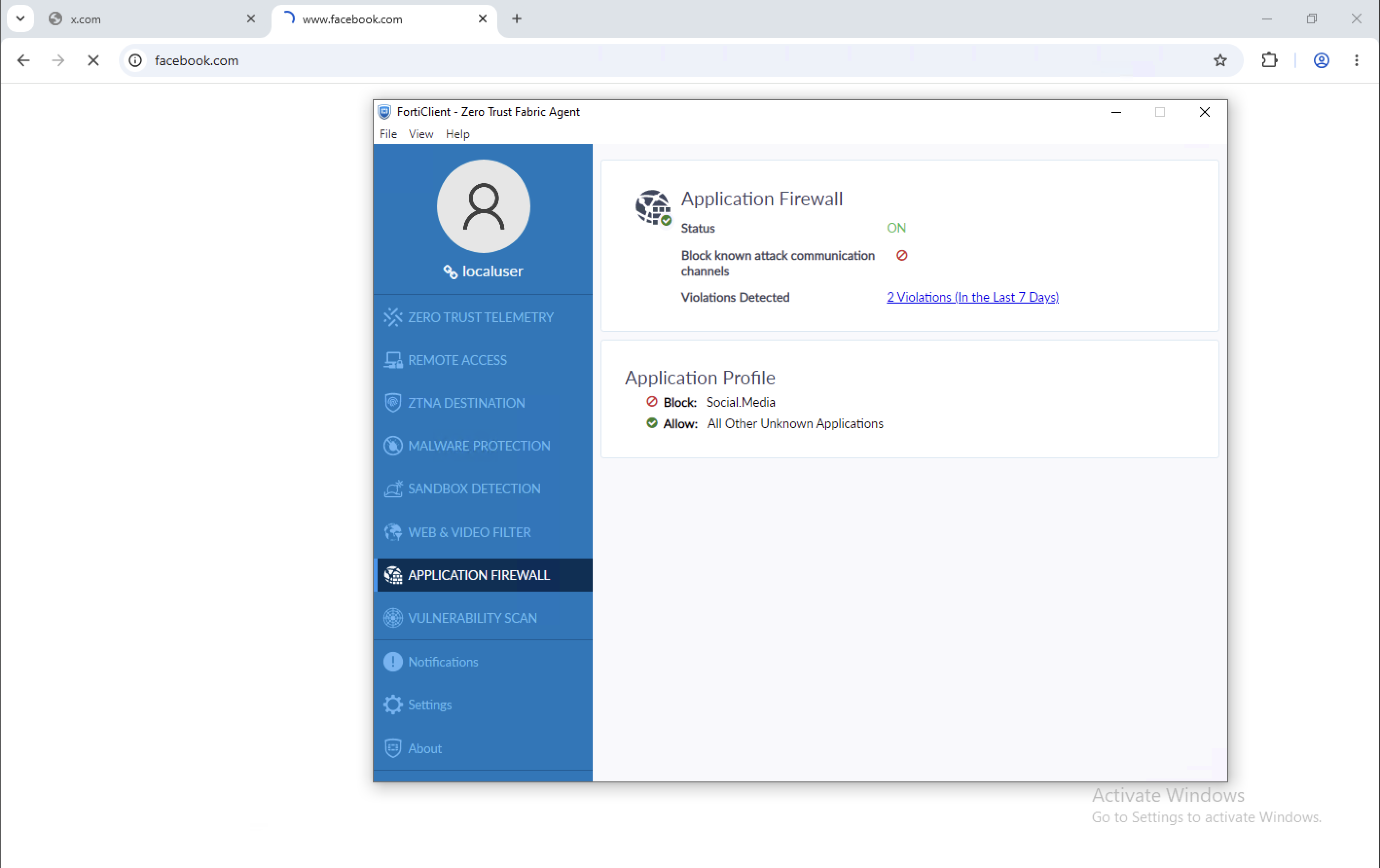
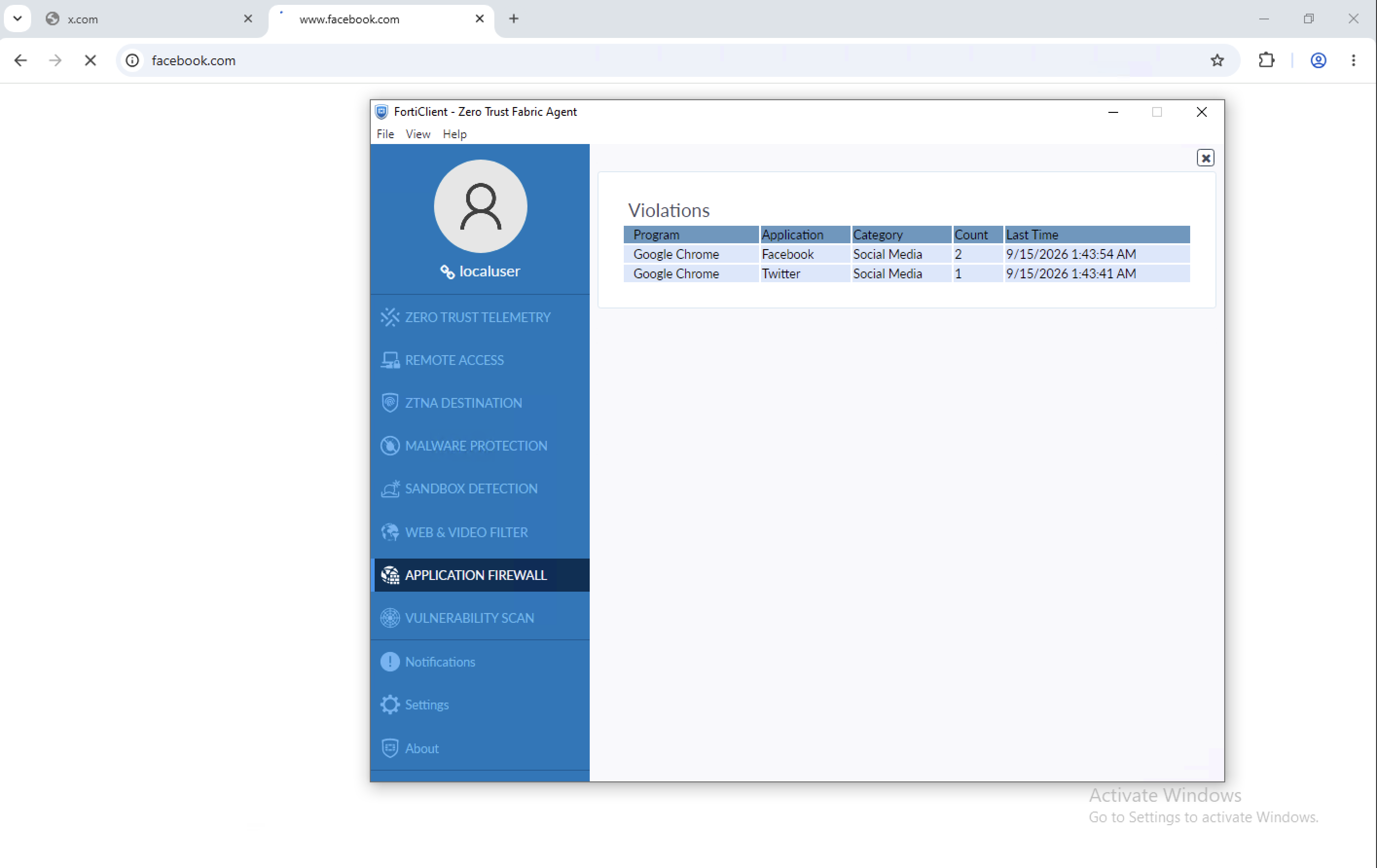
On the endpoint, the Application Firewall is ON and reports two violations, listing records Google Chrome accessing Facebook twice and Twitter once.
Web Filter
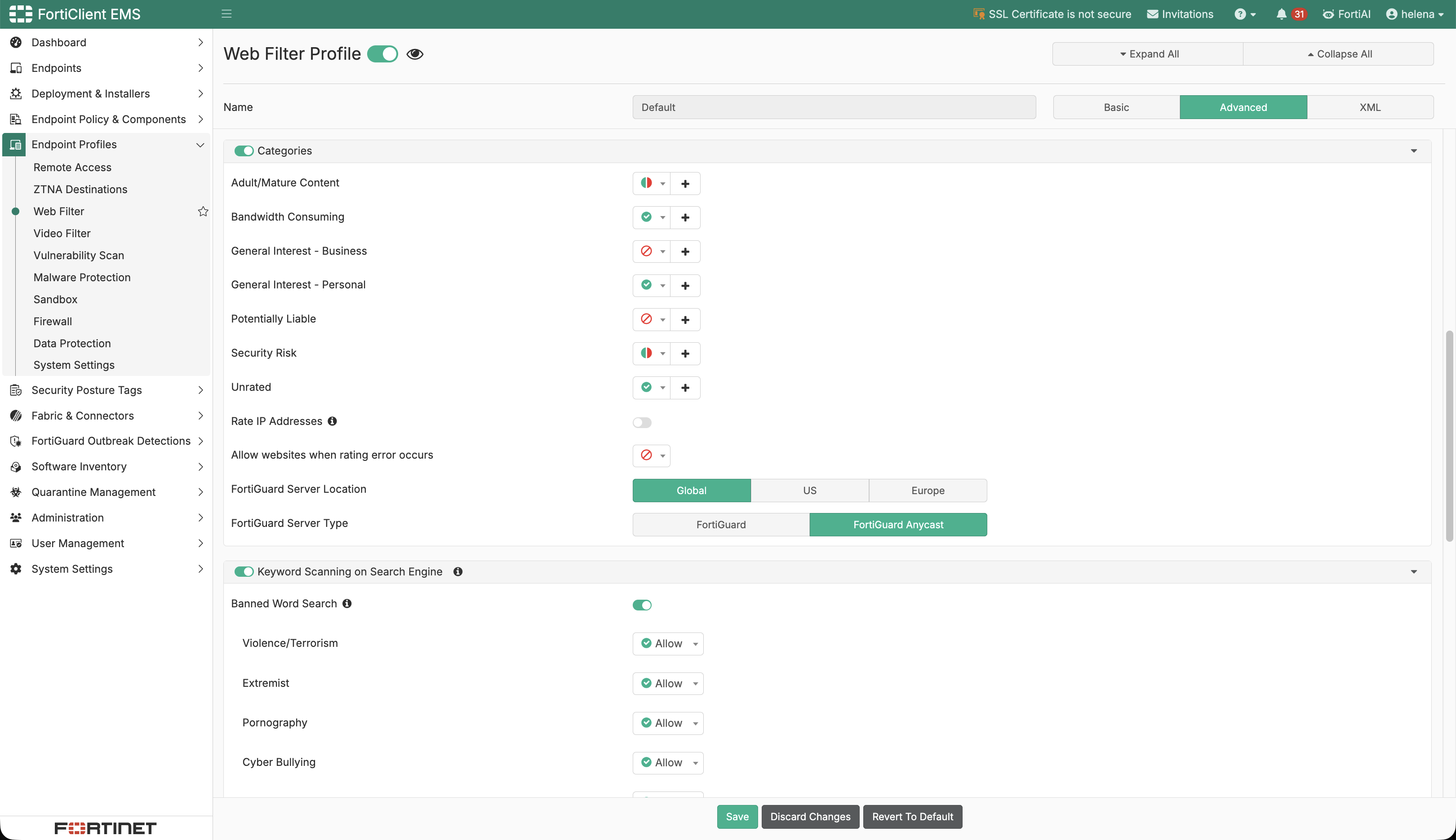
The EMS Web Filter Profile blocks General Interest - Business and Potentially Liable categories. It uses FortiGuard Anycast and blocks access when a rating error occurs, avoiding an automatic allow when a URL cannot be classified.
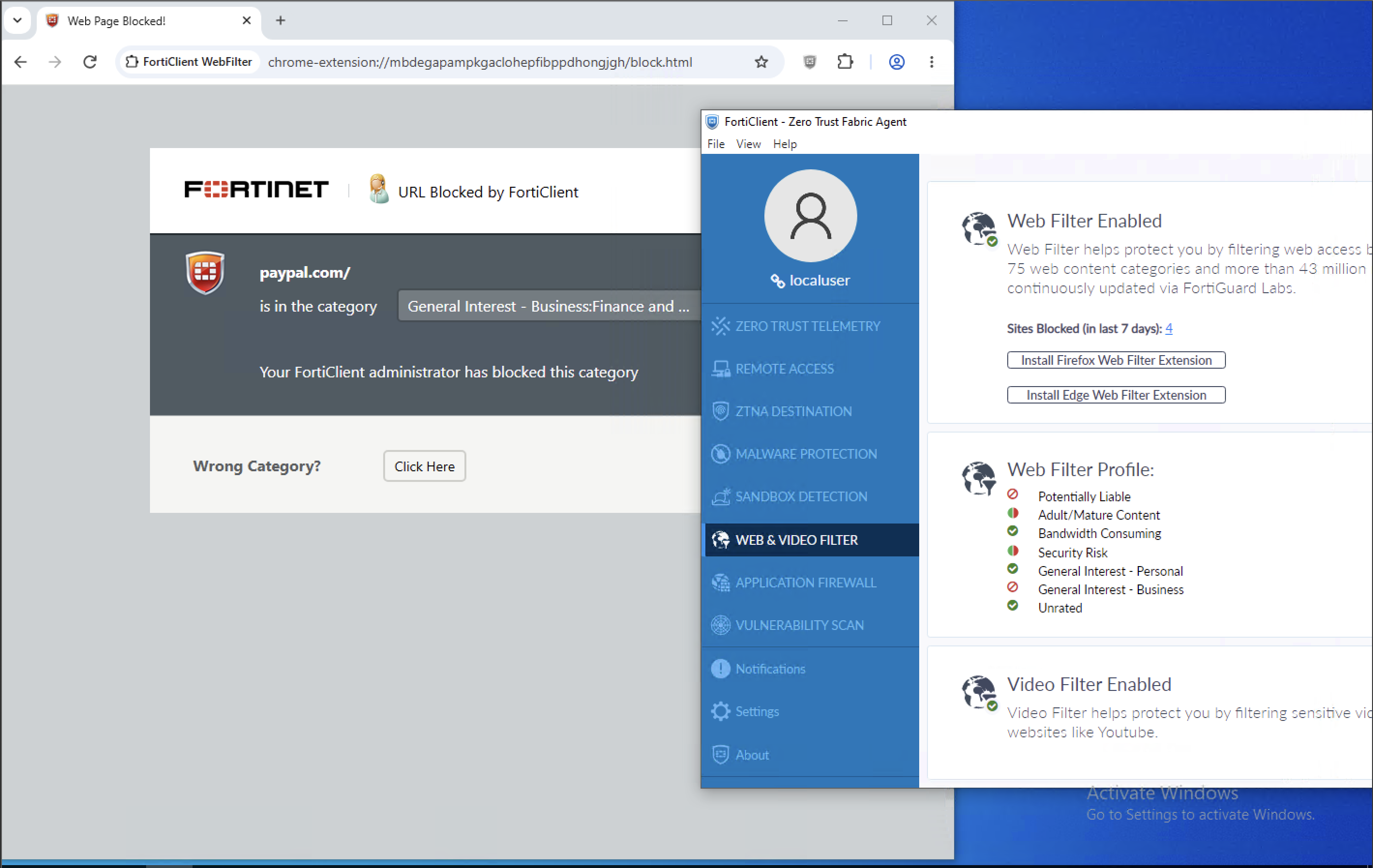
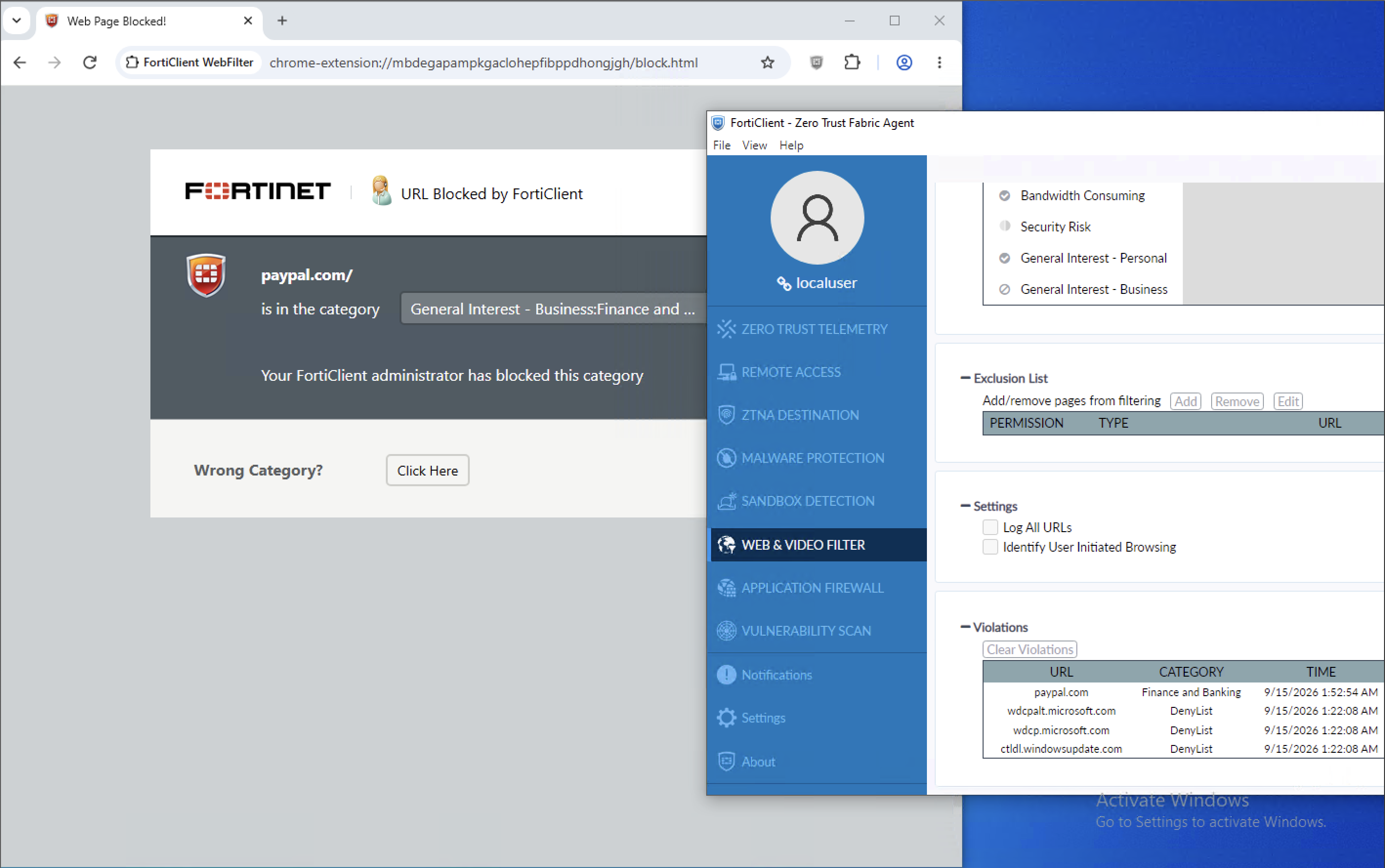
FortiClient blocks paypal.com, classifying it as General Interest - Business: Finance and Banking. The local agent reports four blocked sites in the last seven days, confirming endpoint enforcement.
Malware Protection
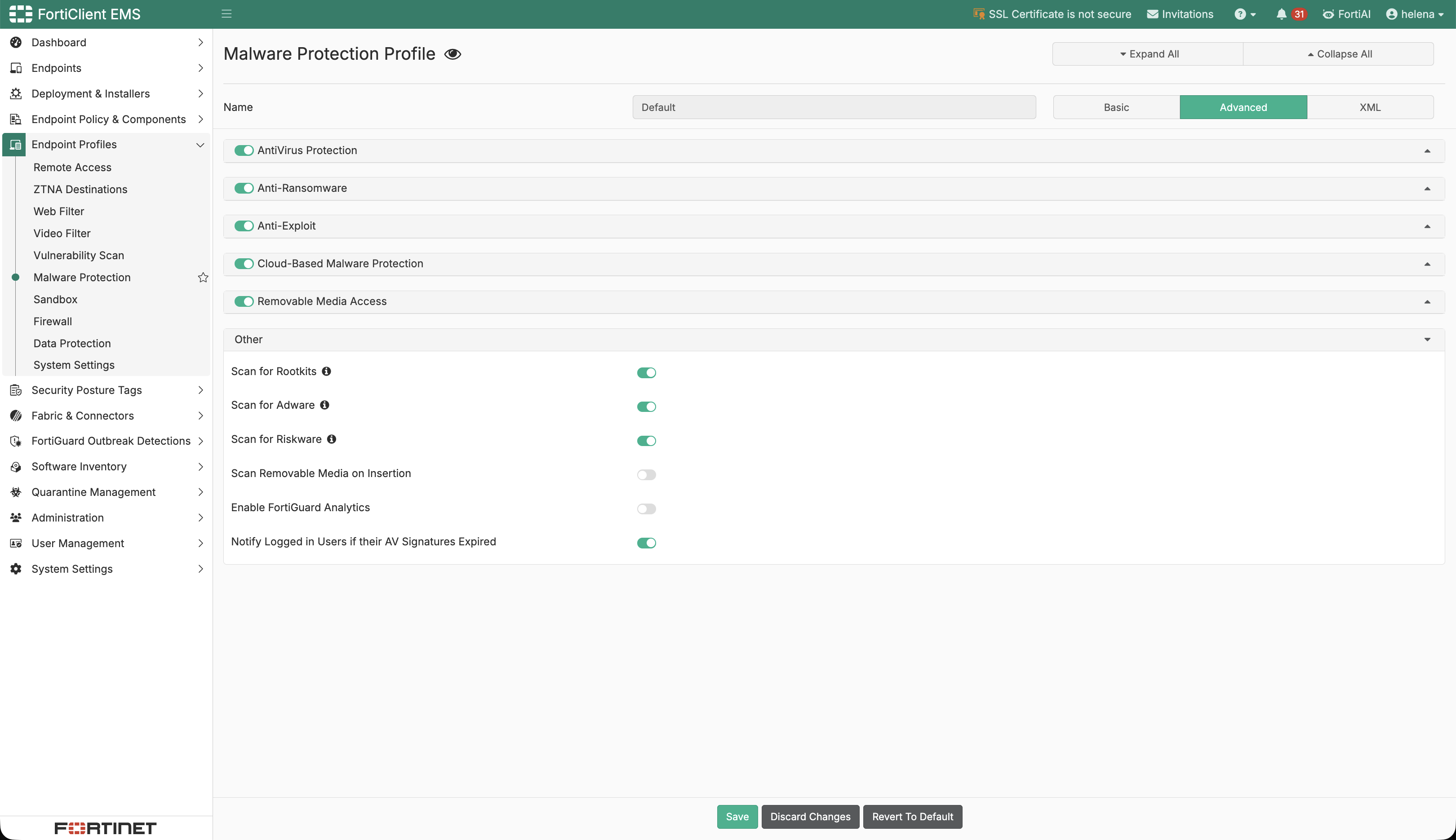
The EMS Malware Protection Profile enables AntiVirus, Anti-Ransomware, Anti-Exploit, Cloud-Based Malware Protection, and Removable Media Access. Rootkit, adware, and riskware scanning are also enabled.
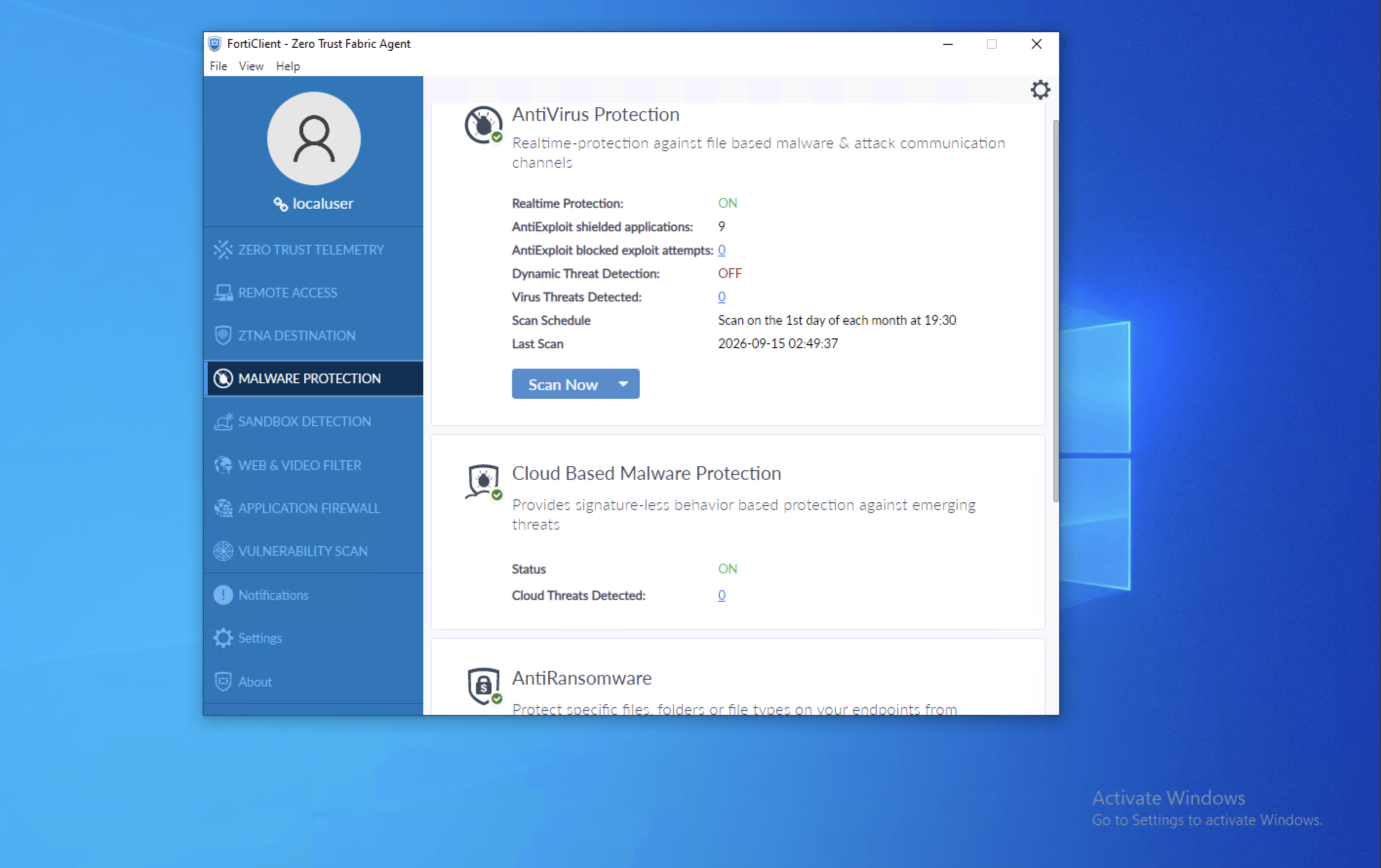
The FortiClient agent reports AntiVirus Protection and Cloud Based Malware Protection as ON, with zero threats detected at capture time. It also shows nine AntiExploit-shielded applications and zero blocked exploit attempts, confirming that the malware profile reached the endpoint.
FortiClient 8 Installer and Automatic Deployment
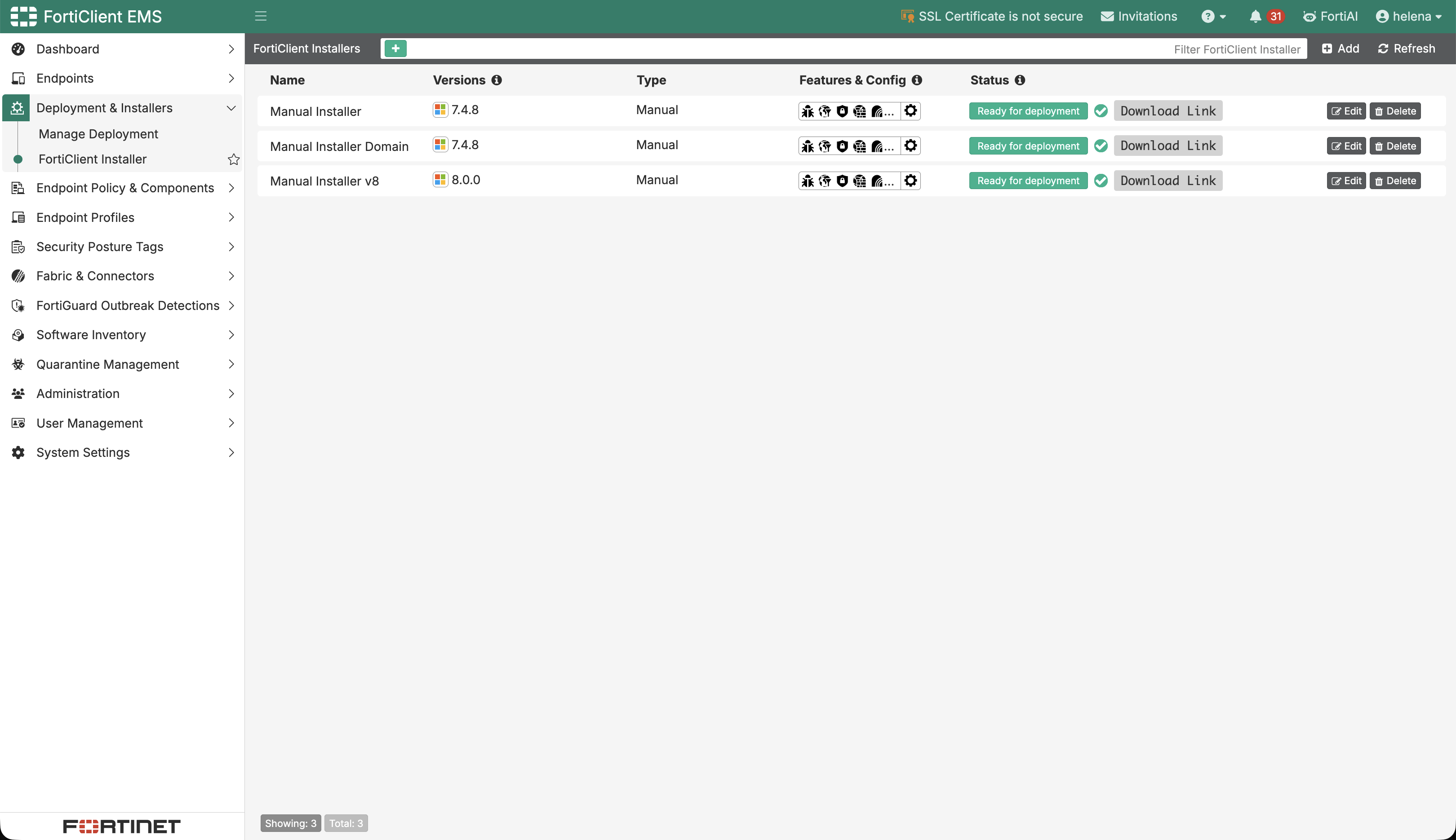
We create a third package named Manual Installer v8. The installer inventory now shows the earlier 7.4.8 local and domain packages alongside FortiClient 8.0.0, all marked Ready for deployment. Maintaining distinct packages lets us introduce the newer client without losing the earlier deployment paths.
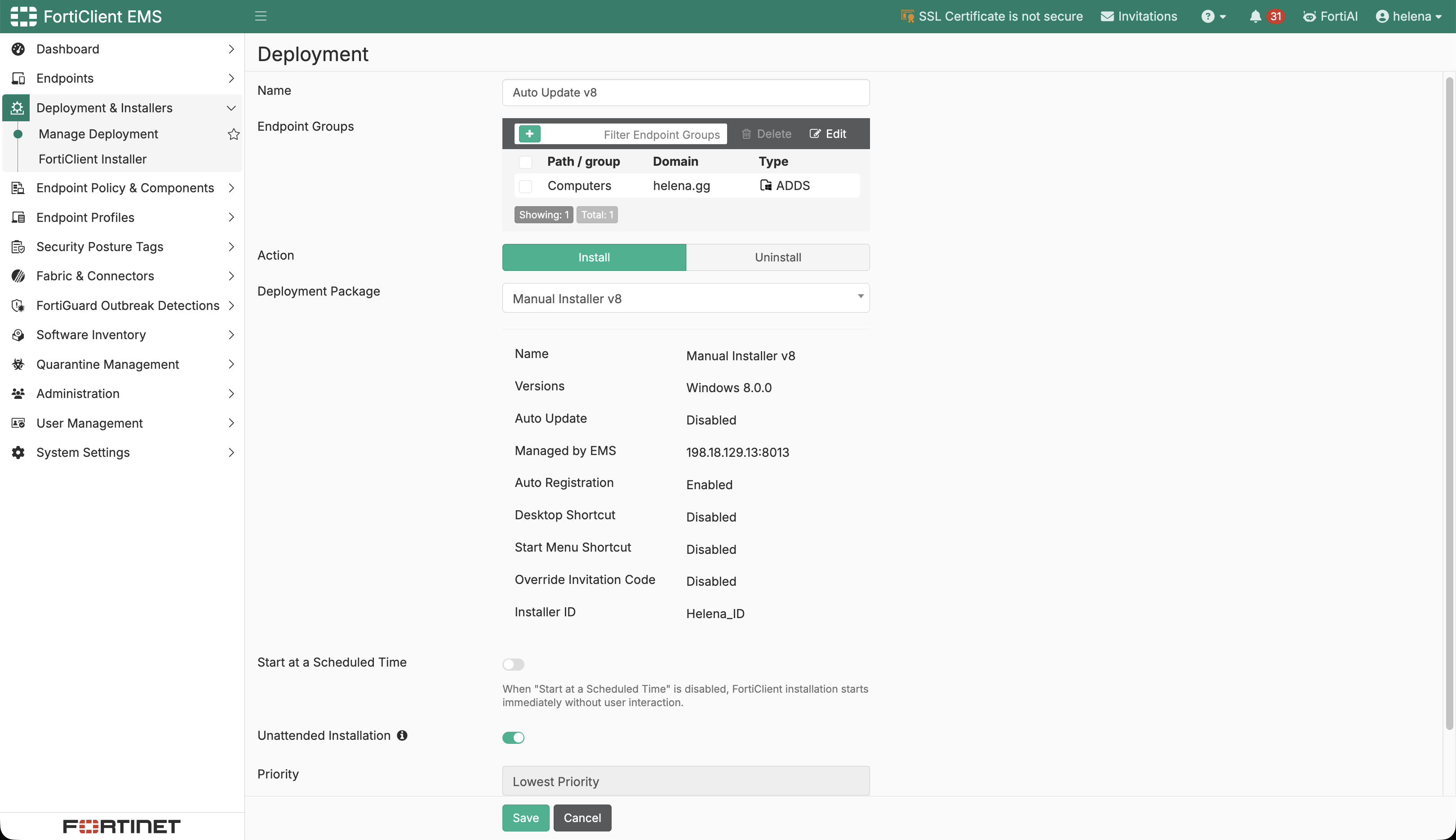
We create a deployment named Auto Update v8 targeting the Computers group in the helena.gg ADDS domain. The action is Install, the package is Manual Installer v8, auto-registration is enabled, and the installer ID remains Helena_ID; this preserves the same group-assignment logic used by the manual installer. The deployment is configured for unattended installation with no scheduled start time, so FortiClient installation begins immediately after the endpoint is notified.
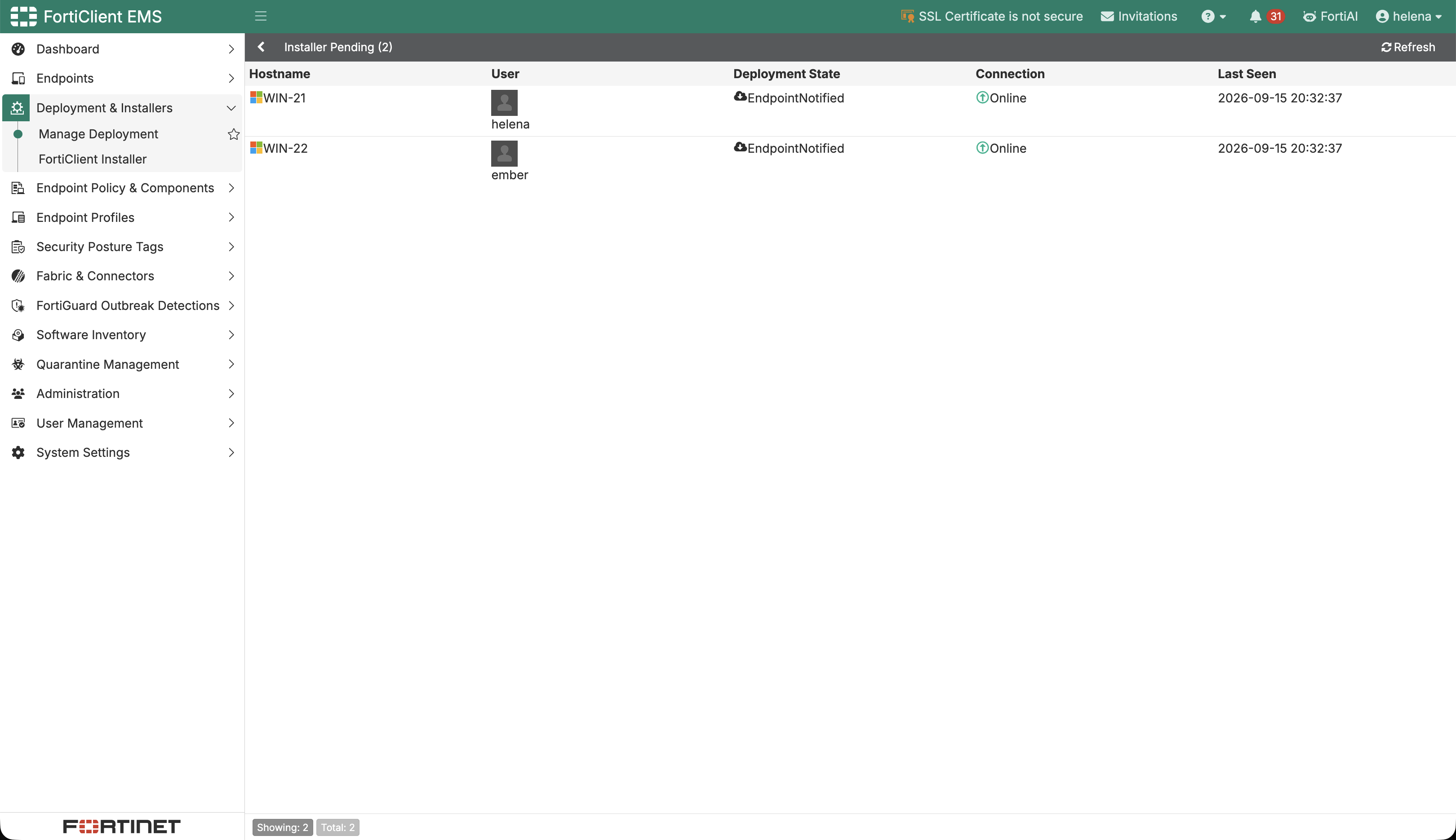
The deployment status shows two pending endpoints, WIN-21 and WIN-22, both online and marked EndpointNotified. The associated domain users are helena and ember, so EMS has successfully resolved the AD group into concrete endpoint targets even though the installation has not completed yet.
FortiClient EMS completes the auto deployment, confirming now that WIN-21 is using v8.0.0 forticlient package. 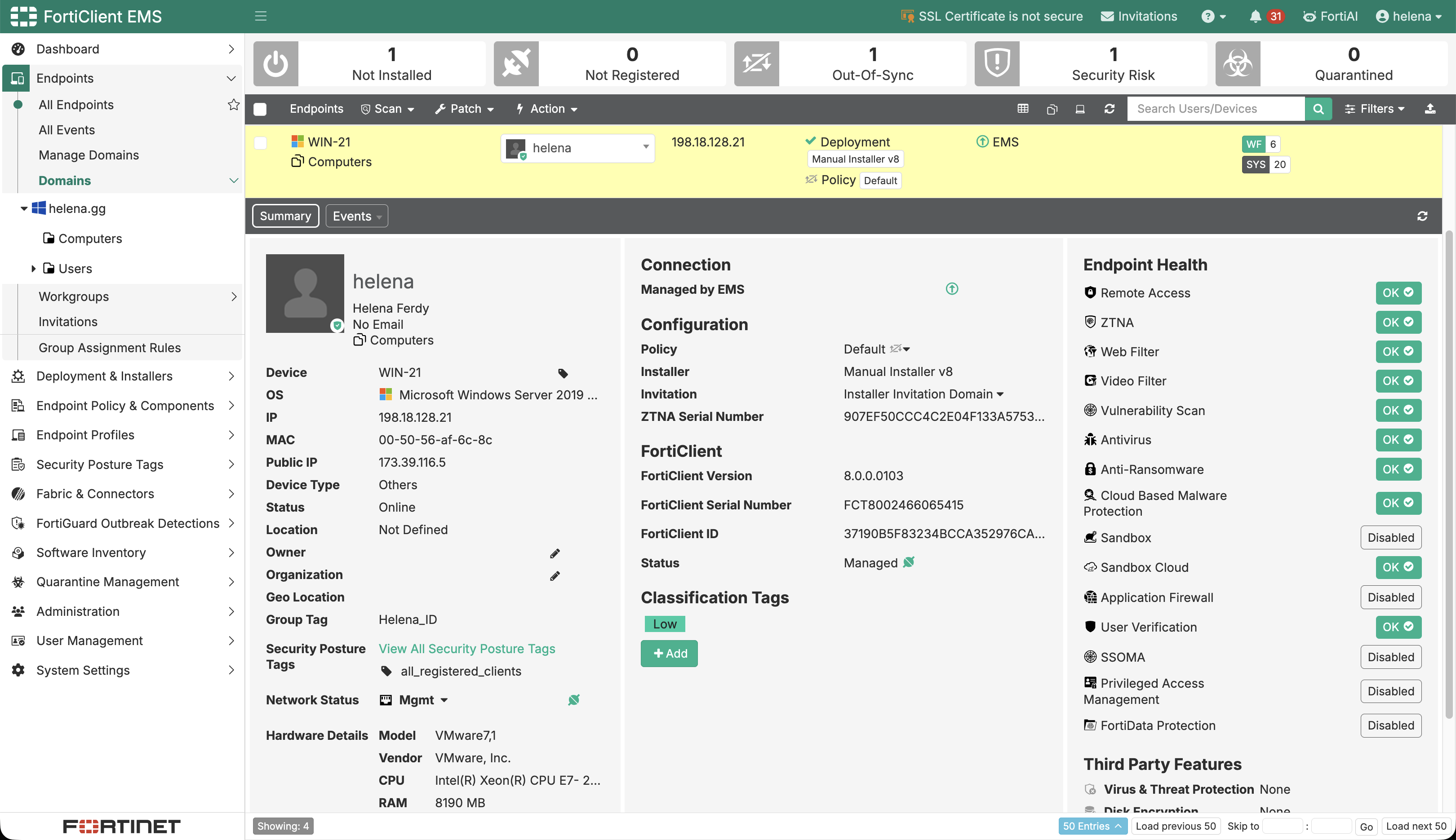
Security Posture Tags
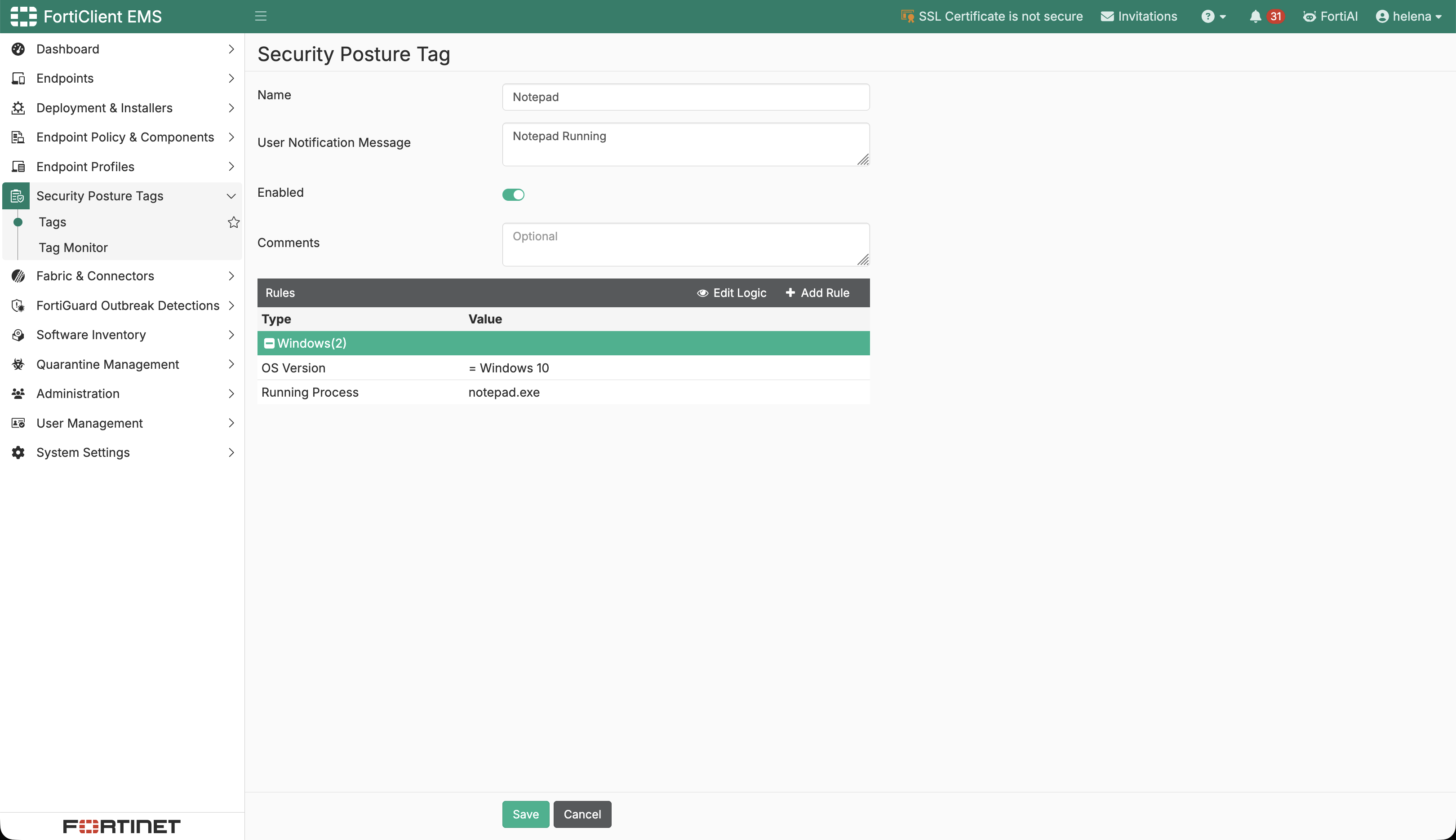
We create an enabled Security Posture Tag named Notepad with the user notification message Notepad Running. The tag matches endpoints running Windows 10 with notepad.exe, allowing EMS to classify an endpoint based on its current state.
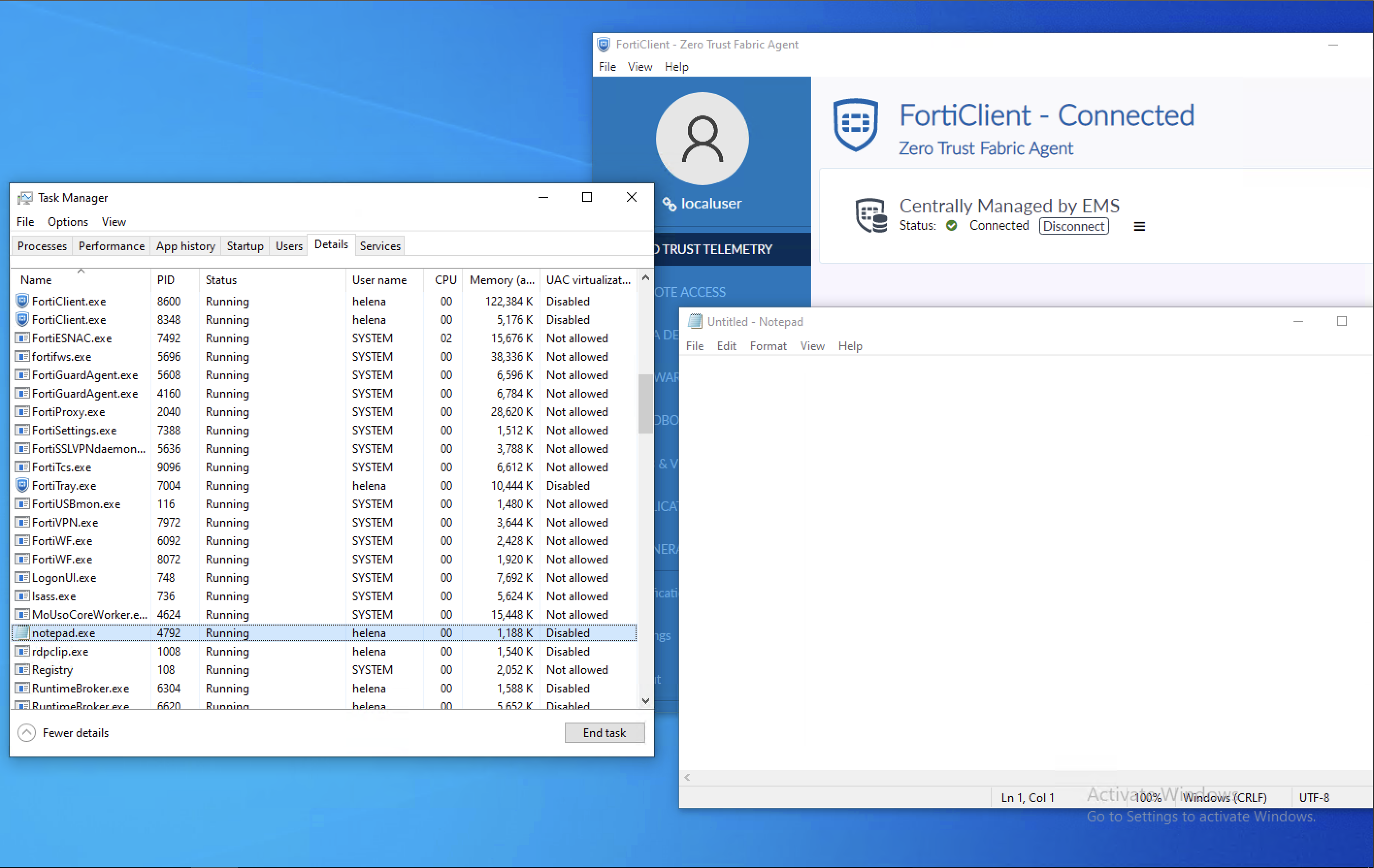
On the endpoint, FortiClient remains connected and Centrally Managed by EMS while Task Manager shows notepad.exe running under the helena Windows user. This is the endpoint state that satisfies the tag’s running-process condition.
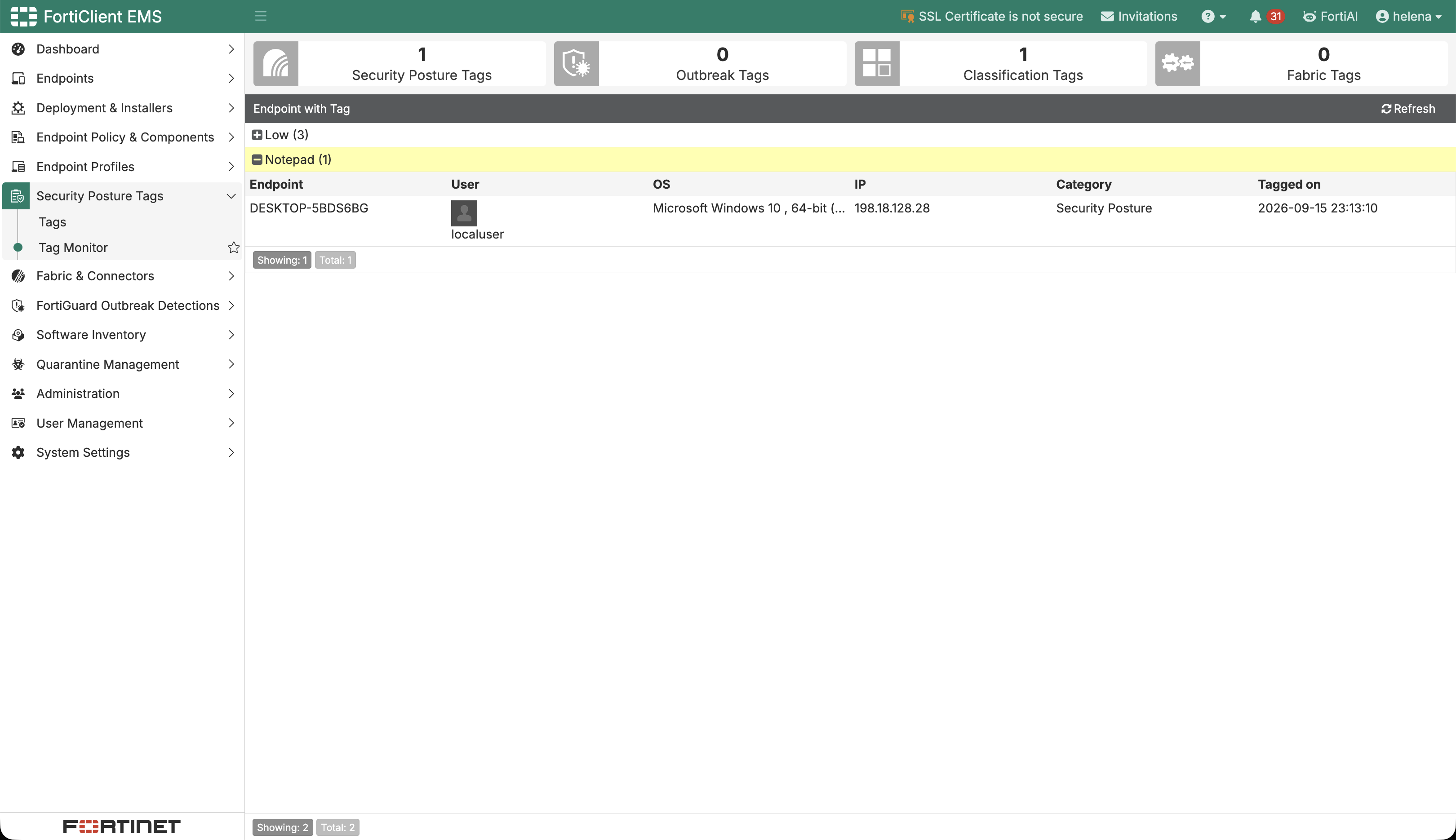
The Tag Monitor shows one endpoint with the Notepad tag: DESKTOP-5BDS6BG, logged in as localuser at 198.18.128.28. EMS records it under the Security Posture category, confirming that the endpoint currently satisfies the tagging rule.
Trivia: FortiGate Integration
Security Posture Tags can also be consumed by FortiGate through an EMS connector. A tag such as Notepad can become part of a dynamic address group and be referenced by firewall or ZTNA policies, allowing access decisions to follow endpoint posture or activity. This integration is not configured in this lab; the tag is only created and verified inside EMS.